
G01 Reset & Teardown (FCC ID 2AKIT-HM1S-G01)
Factory reset and internal photos for Aqara (Lumi United) G01. Aqara Zigbee smart plug.
January 16, 2026
•
9 read
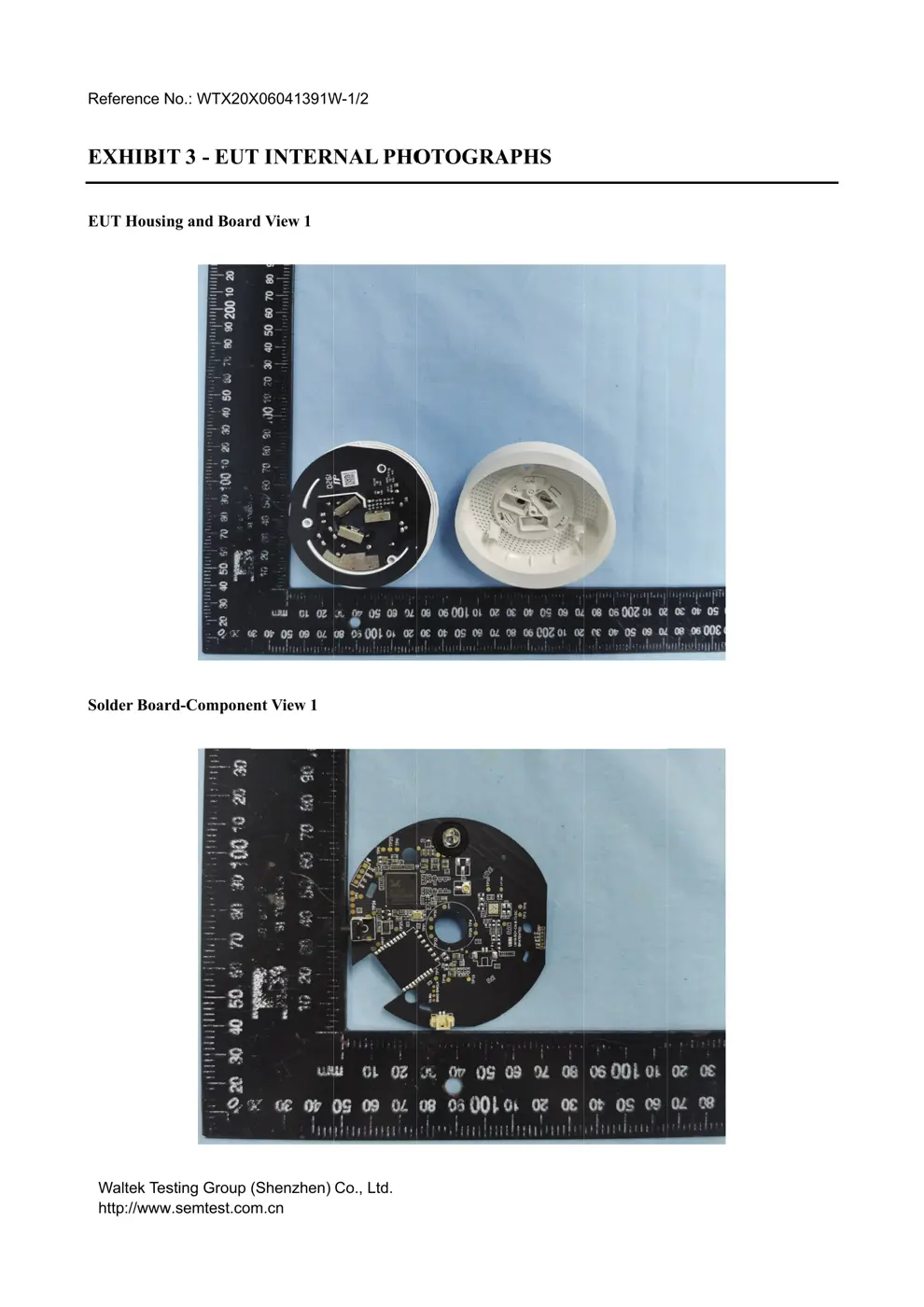
Before you buy the Aqara (Lumi United) G01, check what's inside.
The Aqara Hub M1S is a Zigbee-to-Wi-Fi bridge that acts as a central control for Aqara's ecosystem of smart home devices. It supports integration with Aqara Home, Mi Home, and Apple HomeKit, enabling automation and remote control.
⚠️ NOTE: Ensure the device is plugged into a stable power source and avoid exposing it to moisture.
Quick Specs
- Manufacturer: Aqara (Lumi United)
- Model: G01
- Protocol: Zigbee
- Chipset: Zigbee SoC
- Ecosystem: Aqara Zigbee
- App: Aqara Home
🔧 Geek Corner (Flashing Info)
- Chipset: Unknown
- Flashable: ❌ No
- Info: This device is a proprietary hub and is not designed to be flashed with custom firmware like Tasmota or ESPHome. It relies on Aqara's ecosystem and cloud services.
User Manual
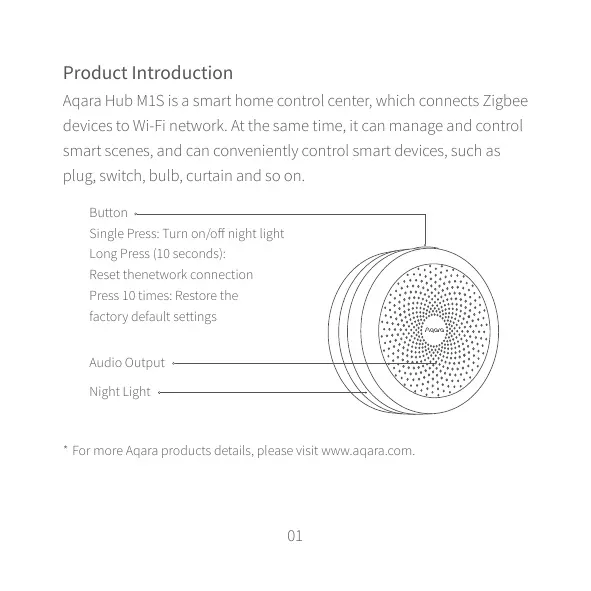
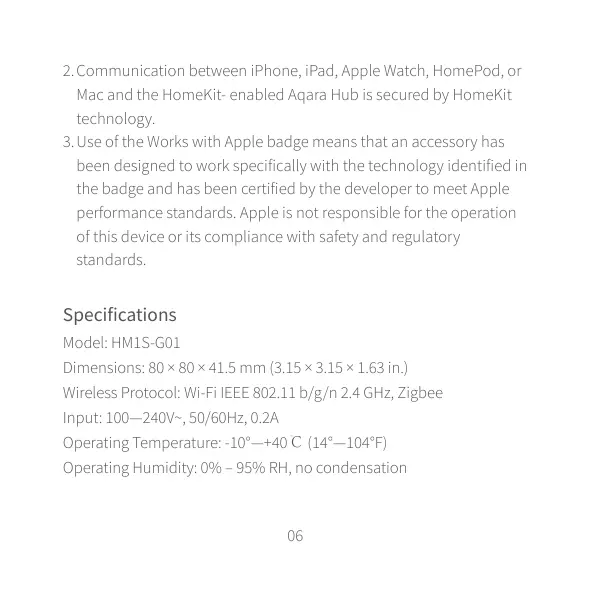
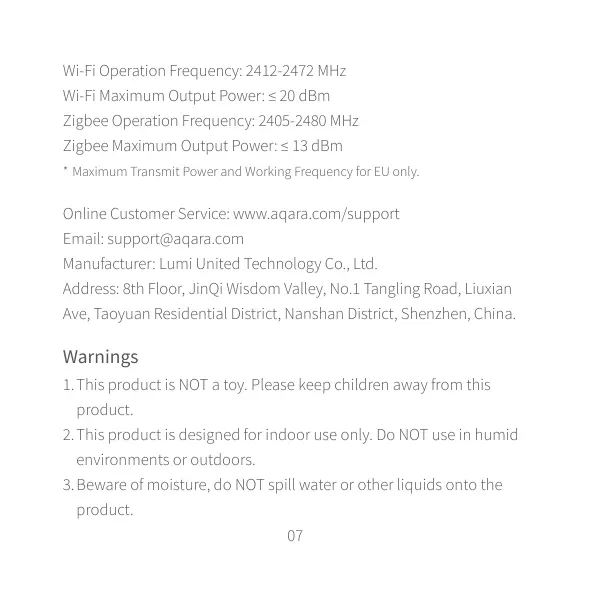
Scanned pages from the official user manual:

External Photos
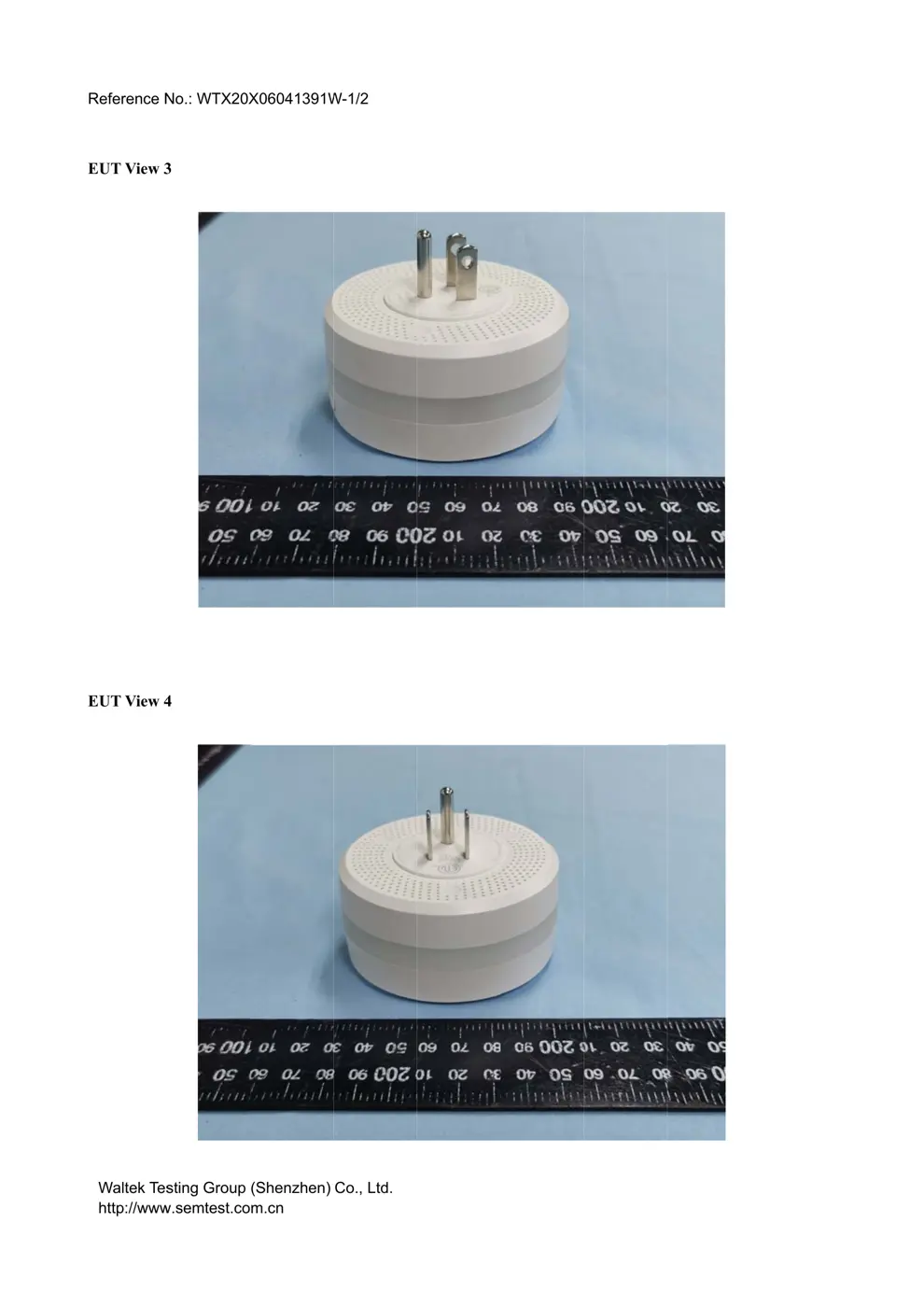
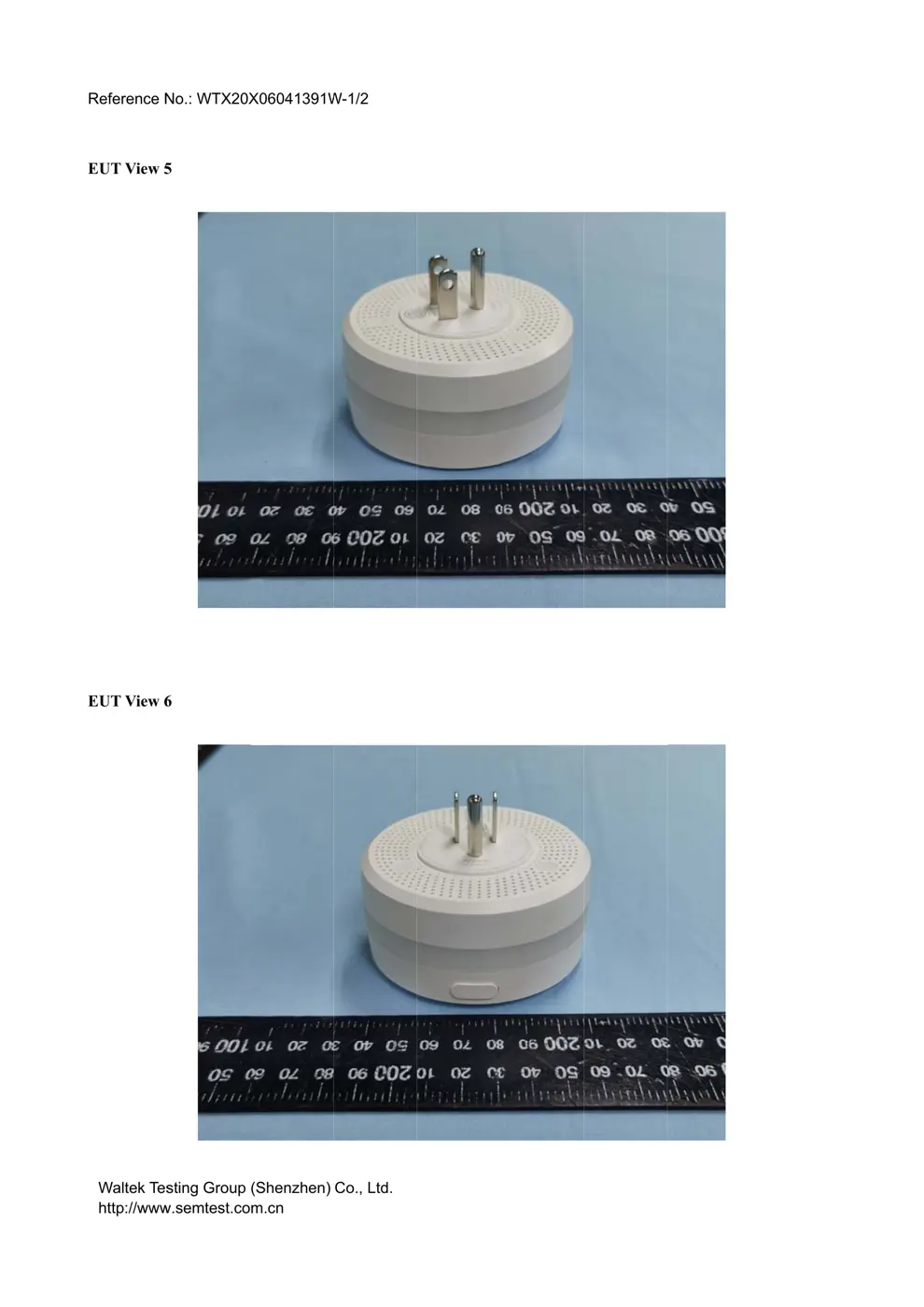
Photos of the device exterior:

Internal Photos
Teardown photos showing the PCB and components:
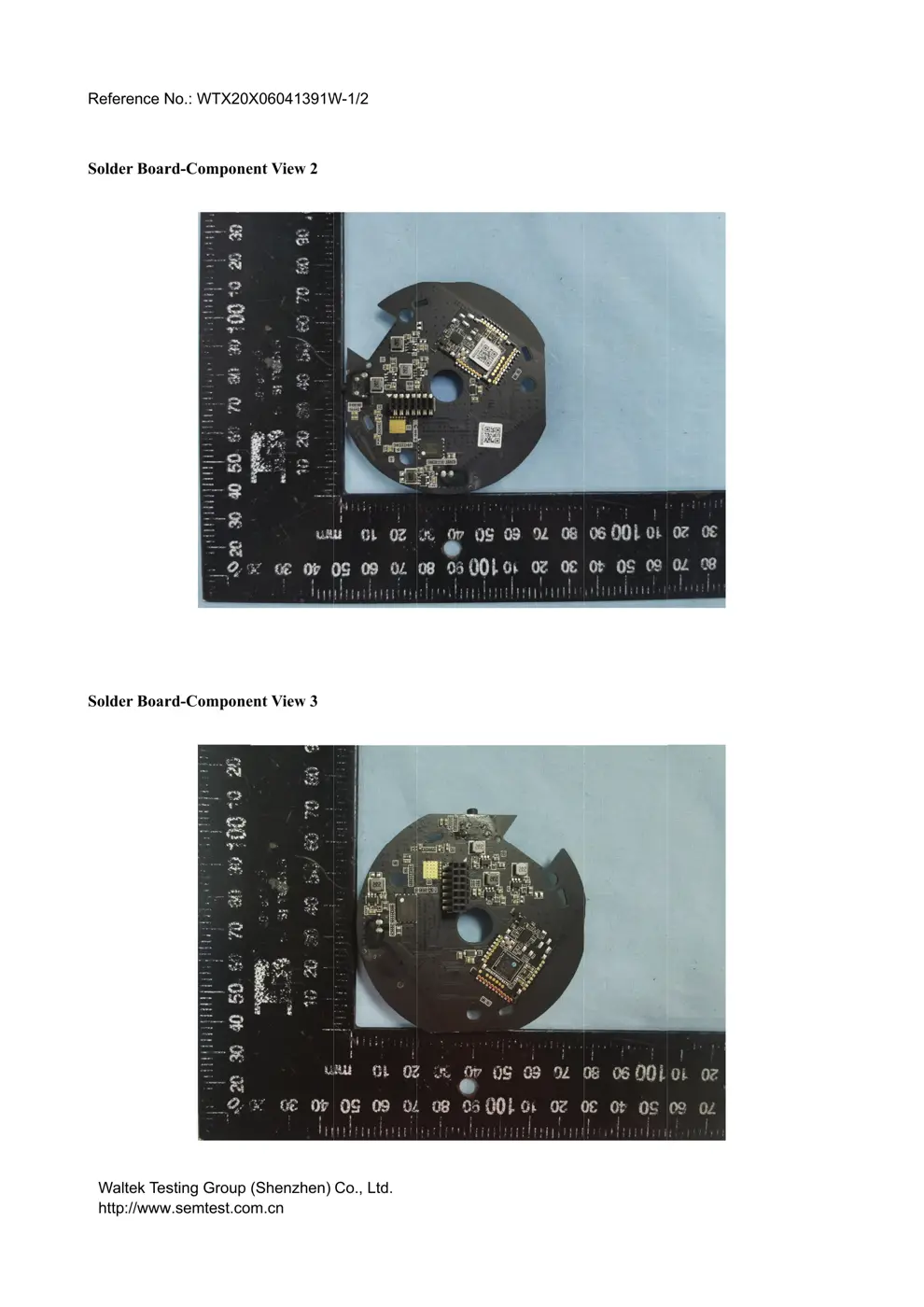
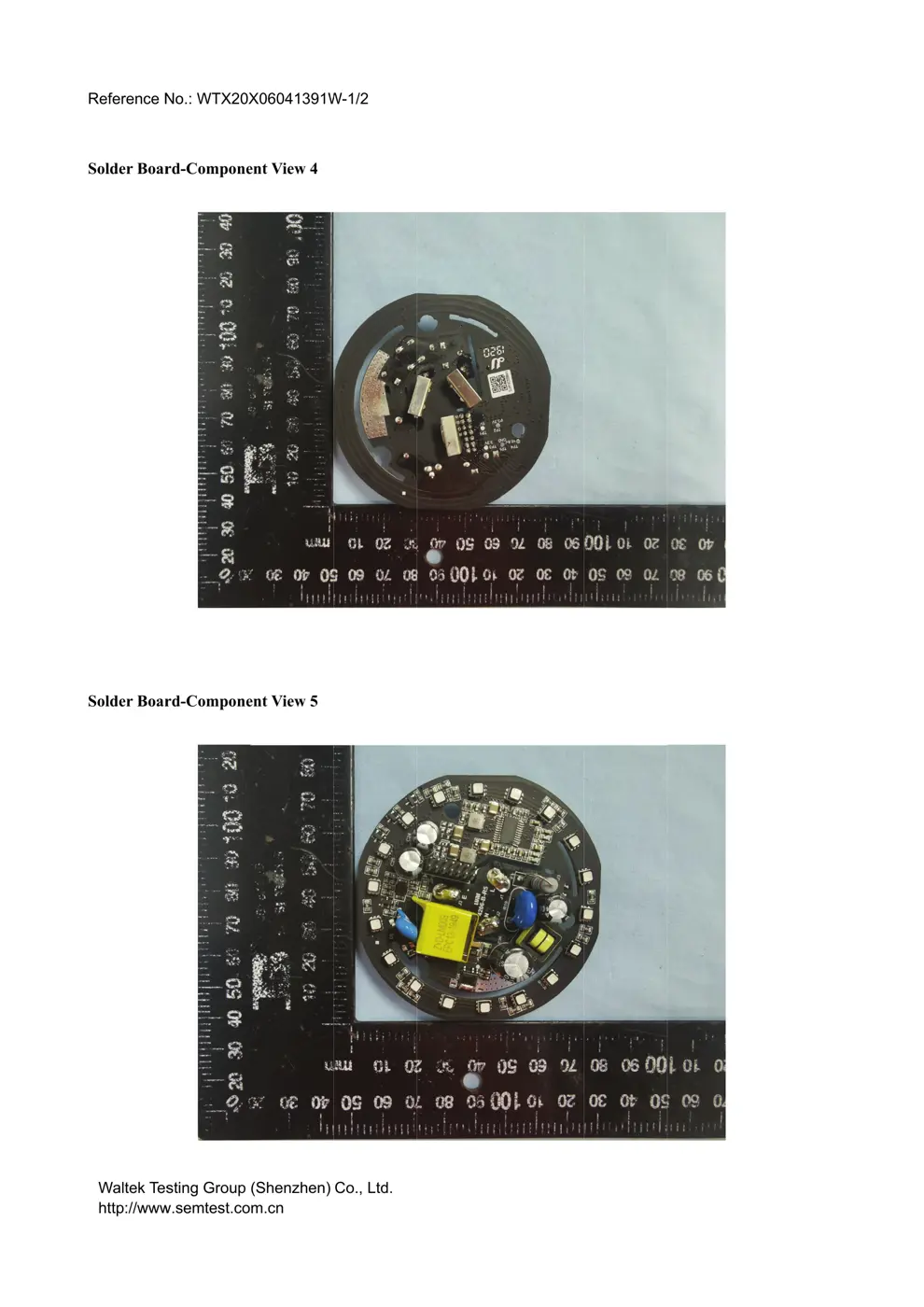
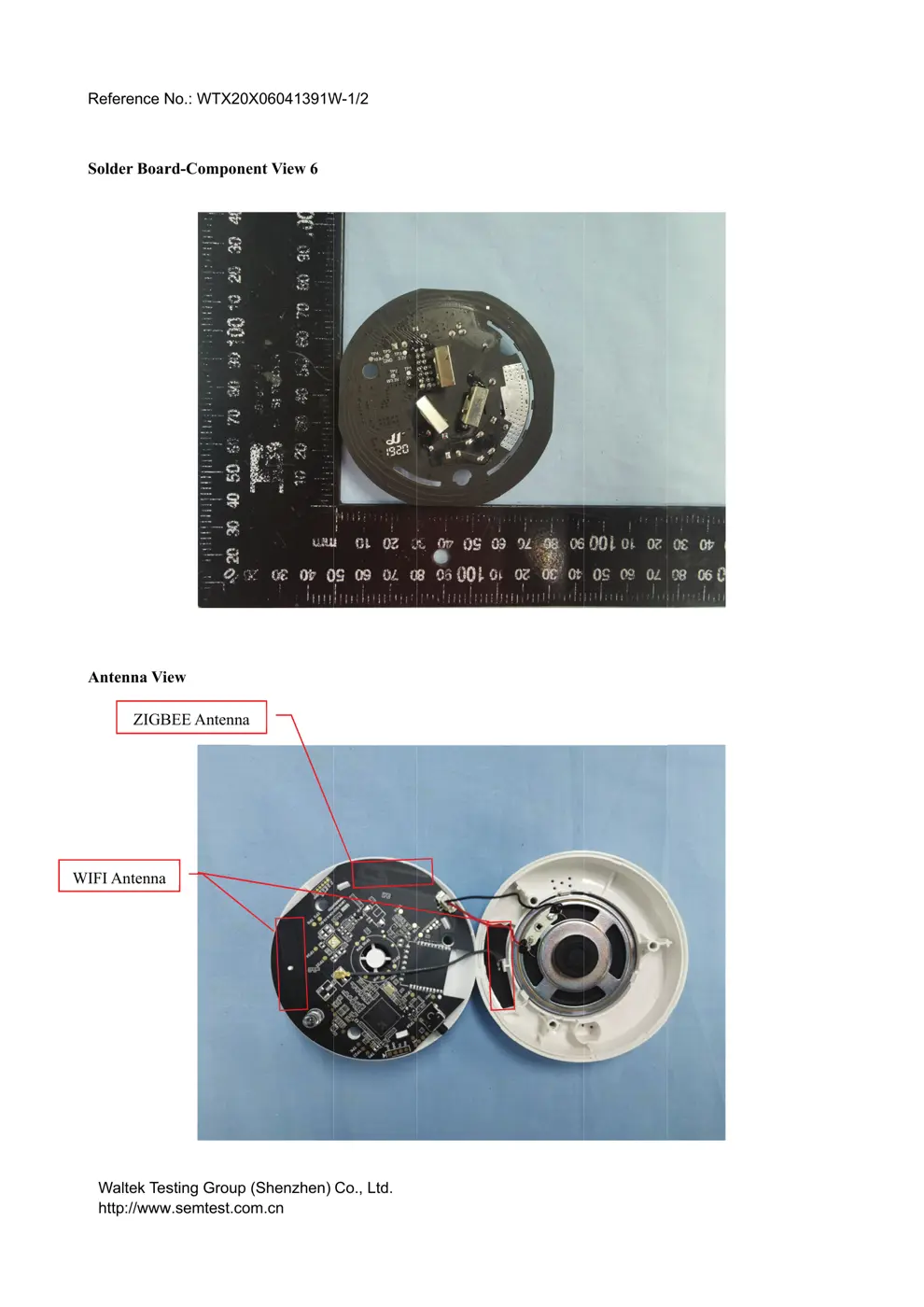
Verdict
The G01 is a Zigbee device from the Aqara Zigbee ecosystem.
📄 Click to view full text manual (SEO)
Aqara Hub M1S Schnellstartanleitung ··················
Guide de démarrage rapide du Hub Aqara M1S ········
01
14
21
30
39
48
45
66
01
* For more Aqara products details, please visit www.aqara.com.
Product Introduction
Aqara Hub M1S is a smart home control center, which connects Zigbee
devices to Wi-Fi network. At the same time, it can manage and control
smart scenes, and can conveniently control smart devices, such as
plug, switch, bulb, curtain and so on.
Button
$)"' - ..ѐ0-)*)Ѷ*Ȃ)$"#/'$"#/
Long Press (10 seconds):
Reset thenetwork connection
Press 10 times: Restore the
factory default settings
Audio Output
Night Light
02
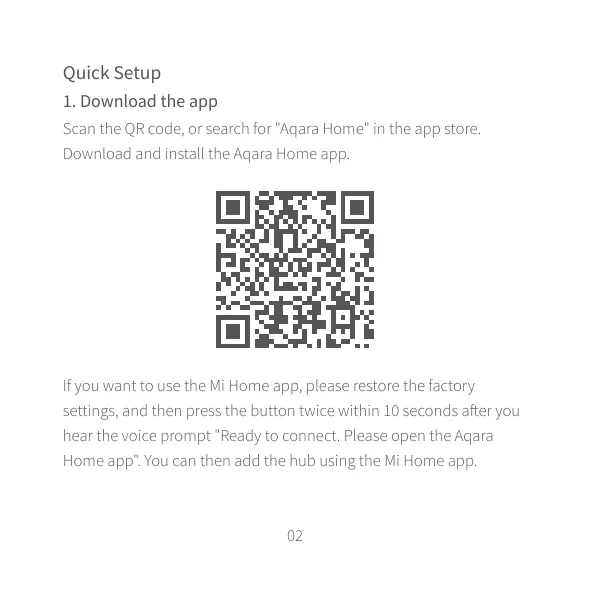
Quick Setup
Scan the QR code, or search for "Aqara Home" in the app store.
Download and install the Aqara Home app.
If you want to use the Mi Home app, please restore the factory
. //$)".я)/# )+- ../# 0//*)/2$ 2$/#$)УТ. *).ȅ -4*0
hear the voice prompt "Ready to connect. Please open the Aqara
Home app" . You can then add the hub using the Mi Home app.
1. Download the app
03
2
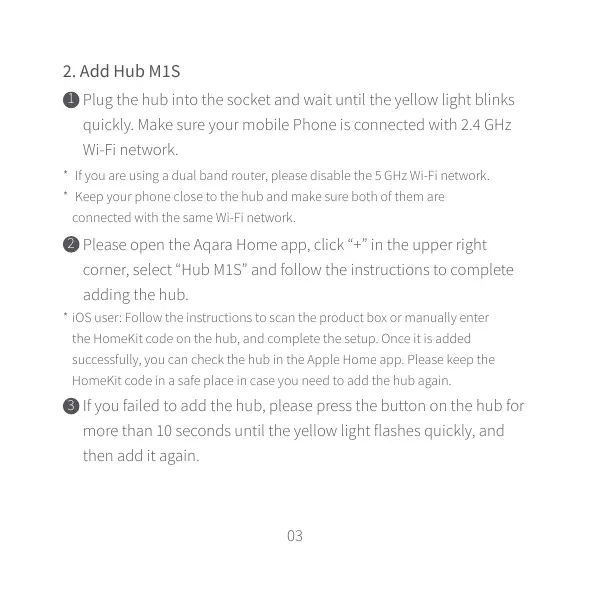
2. Add Hub M1S
Plug the hub into the socket and wait until the yellow light blinks
quickly. Make sure your mobile Phone is connected with 2.4 GHz
Wi-Fi network.
Please open the Aqara Home app, click “+” in the upper right
corner, select “Hub M1S” and follow the instructions to complete
adding the hub.
If you failed to add the hub, please press the button on the hub for
more than 10 seconds until the yellow light flashes quickly, and
then add it again.
*
*
 If you are using a dual band router, please disable the 5 GHz Wi-Fi network.
 Keep your phone close to the hub and make sure both of them are
connected with the same Wi-Fi network.
* iOS user: Follow the instructions to scan the product box or manually enter
the HomeKit code on the hub, and complete the setup. Once it is added
successfully, you can check the hub in the Apple Home app. Please keep the
HomeKit code in a safe place in case you need to add the hub again.
1
3
04
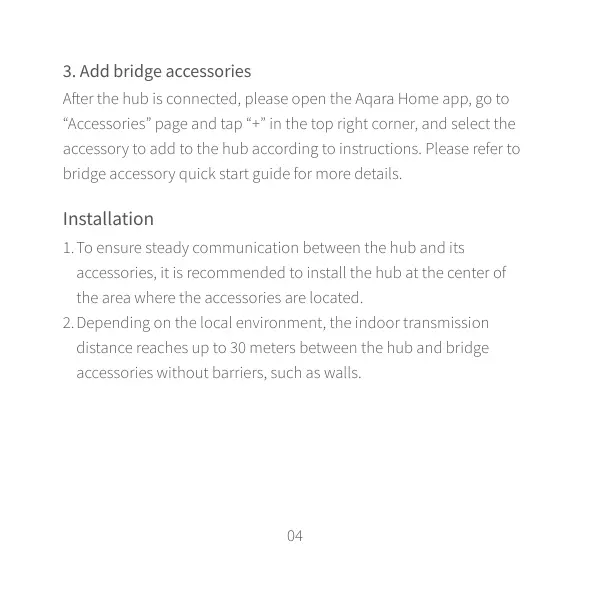
ȅ -/# #0$.*)) / я+' . *+ )/# ,- *( ++я"*/*
“Accessories” page and tap “+” in the top right corner, and select the
accessory to add to the hub according to instructions. Please refer to
bridge accessory quick start guide for more details.
3. Add bridge accessories
Installation
1.
2.
To ensure steady communication between the hub and its
accessories, it is recommended to install the hub at the center of
the area where the accessories are located.
Depending on the local environment, the indoor transmission
distance reaches up to 30 meters between the hub and bridge
accessories without barriers, such as walls.
05
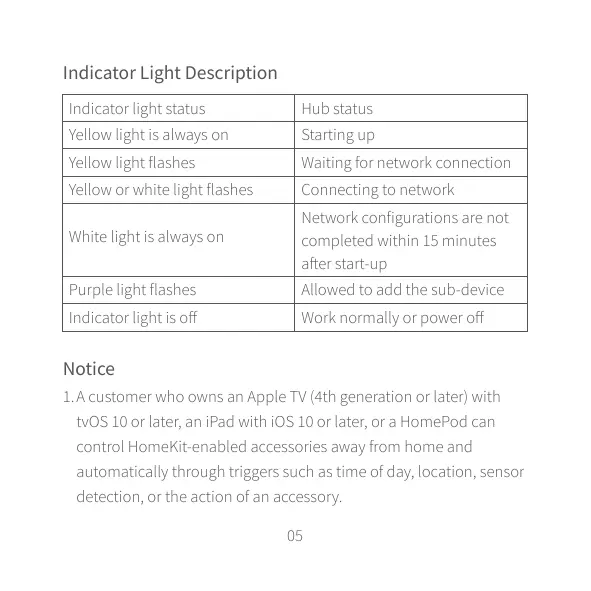
Indicator Light Description
1. A customer who owns an Apple TV (4th generation or later) with
tvOS 10 or later, an iPad with iOS 10 or later, or a HomePod can
control HomeKit-enabled accessories away from home and
automatically through triggers such as time of day, location, sensor
detection, or the action of an accessory.
Indicator light status Hub status
Yellow light is always on Starting ...