
LBL03E Reset & Teardown (FCC ID 2AKIT-LBL03E)
Factory reset and internal photos for Aqara (Lumi United) LBL03E. Aqara Zigbee smart plug.
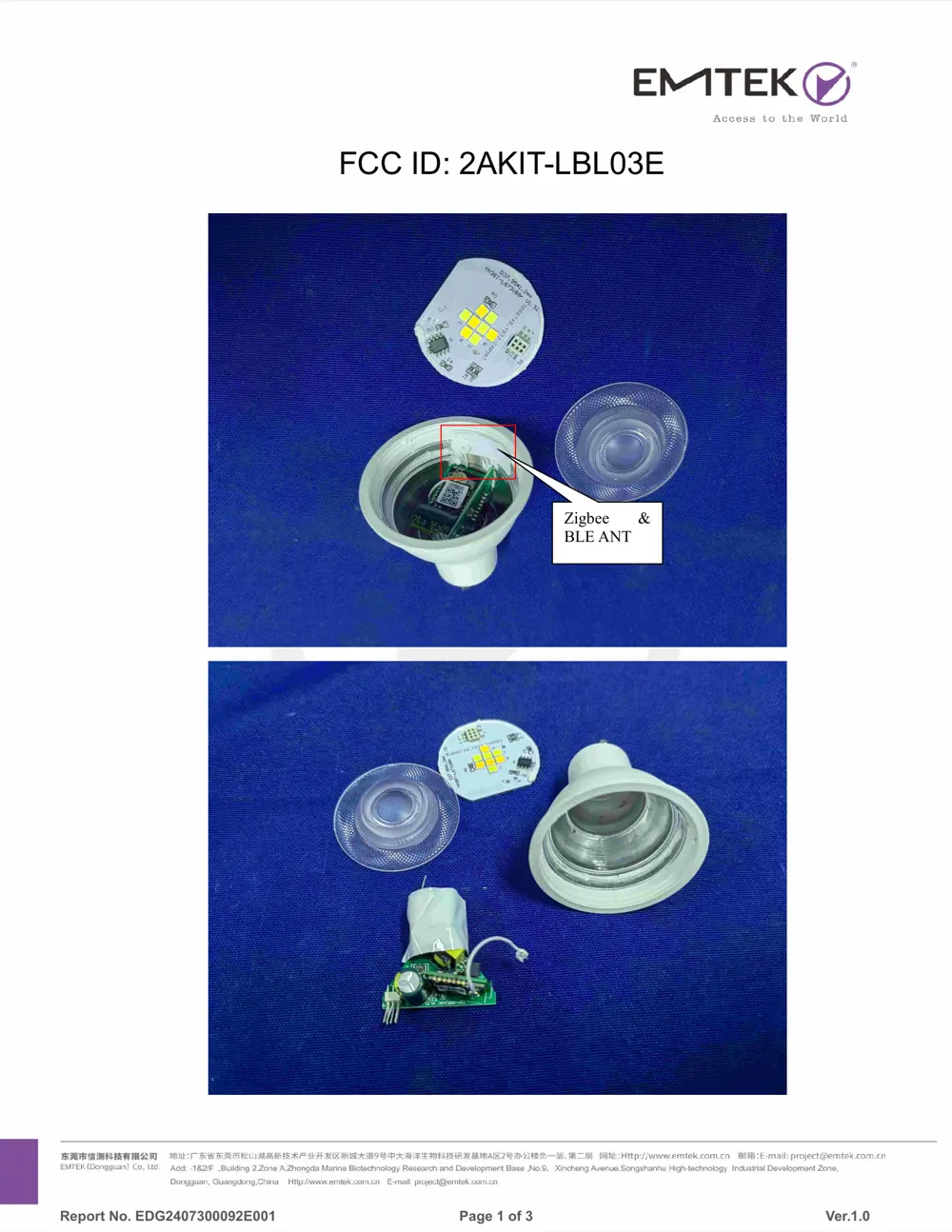
Before you buy the Aqara (Lumi United) LBL03E, check what's inside.
The Aqara LED Bulb T2 is a versatile smart bulb supporting both Zigbee and Thread protocols, allowing for broad compatibility with various smart home ecosystems. It is designed to be screwed into standard light sockets and powered directly from mains electricity.
⚠️ NOTE: Disconnect Mains power before installation or removal.
Quick Specs
- Manufacturer: Aqara (Lumi United)
- Model: LBL03E
- Protocol: Zigbee
- Chipset: Zigbee SoC
- Ecosystem: Aqara Zigbee
- App: Aqara Home
🔧 Geek Corner (Flashing Info)
- Chipset: Unknown Zigbee SoC
- Flashable: ❌ No
- Info: Proprietary Zigbee/Thread SoC, not designed for flashing custom firmware like Tasmota or ESPHome.
Reset Guide
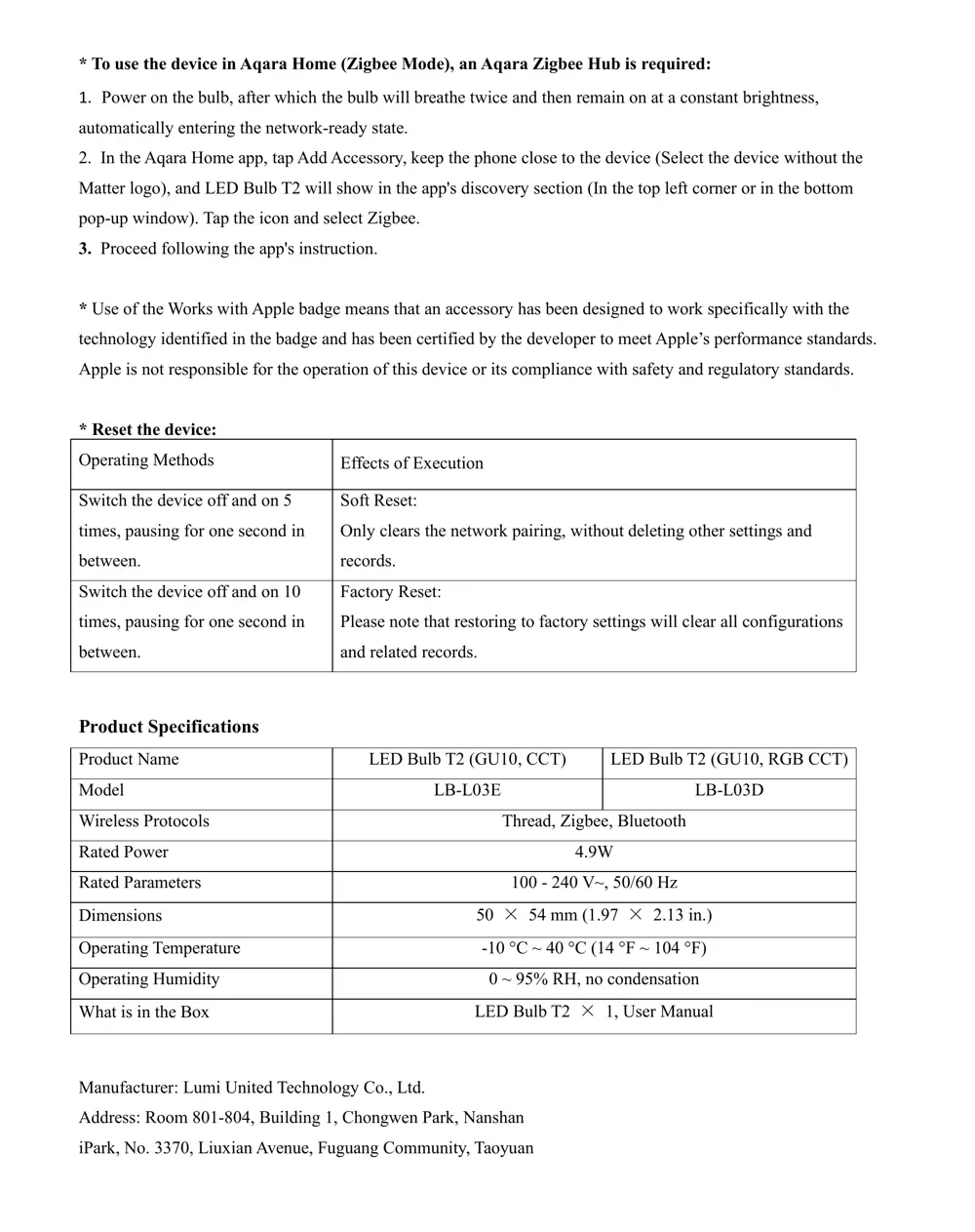
Factory reset: please note that restoring to factory settings will clear all configurations and related records.
User Manual
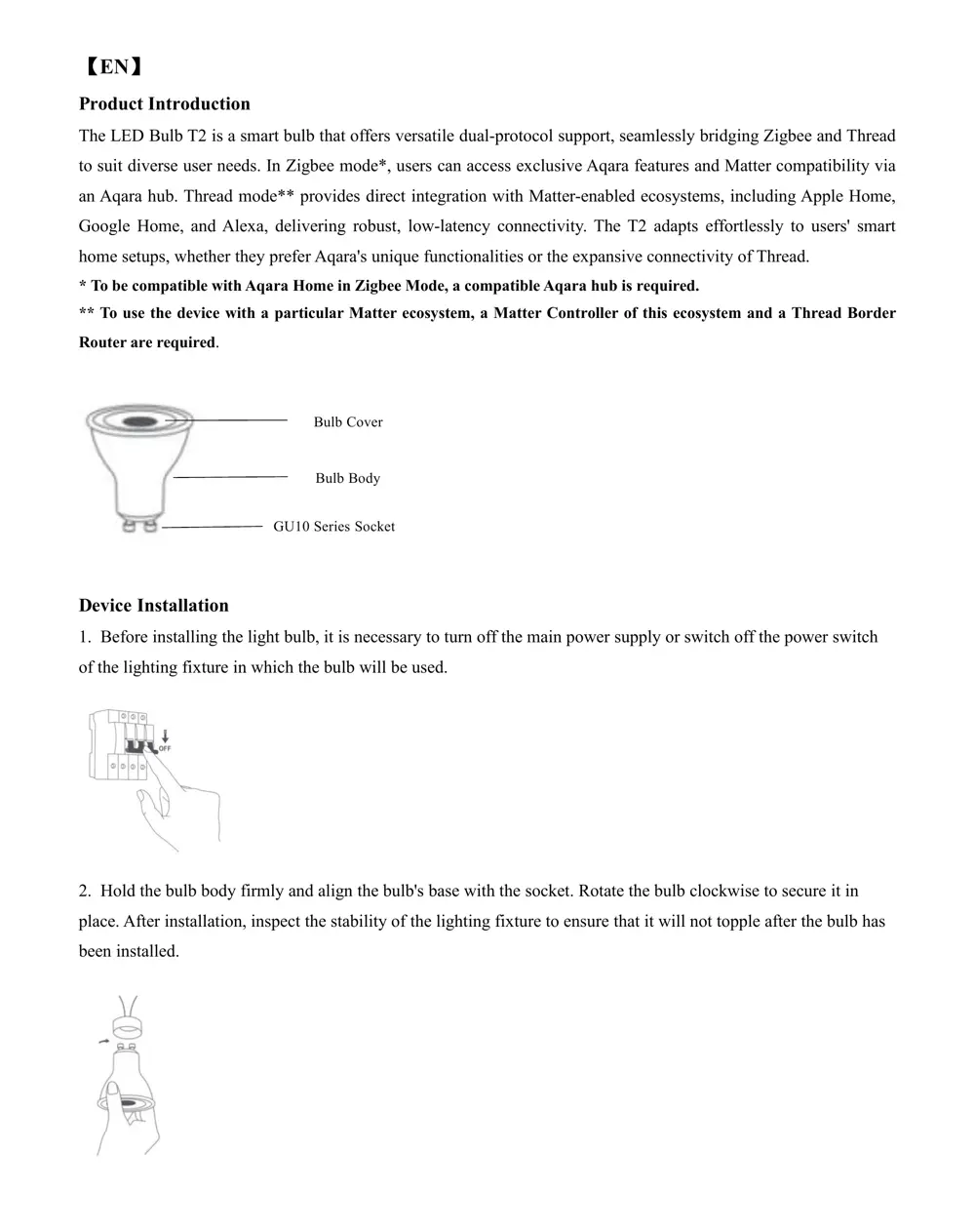
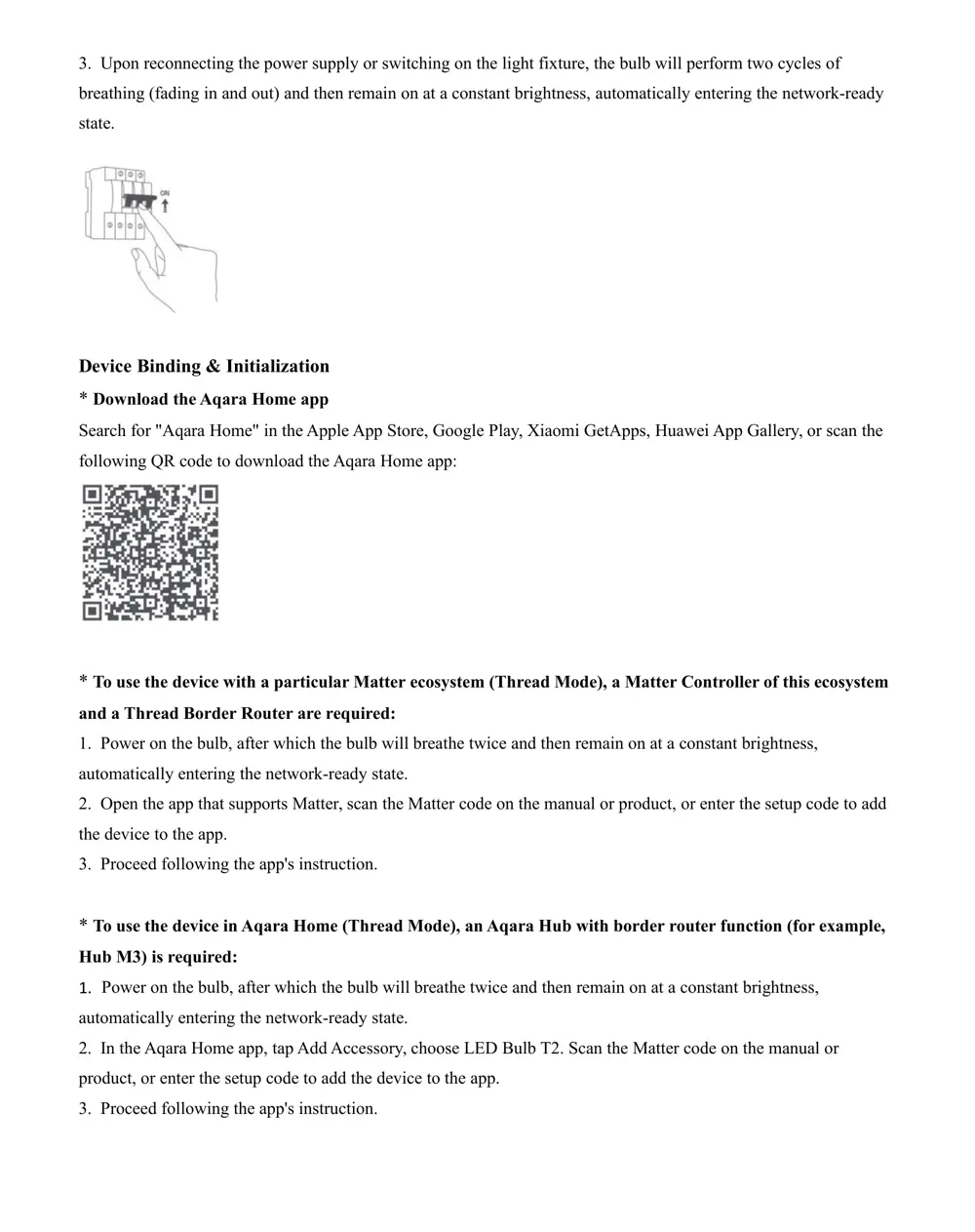
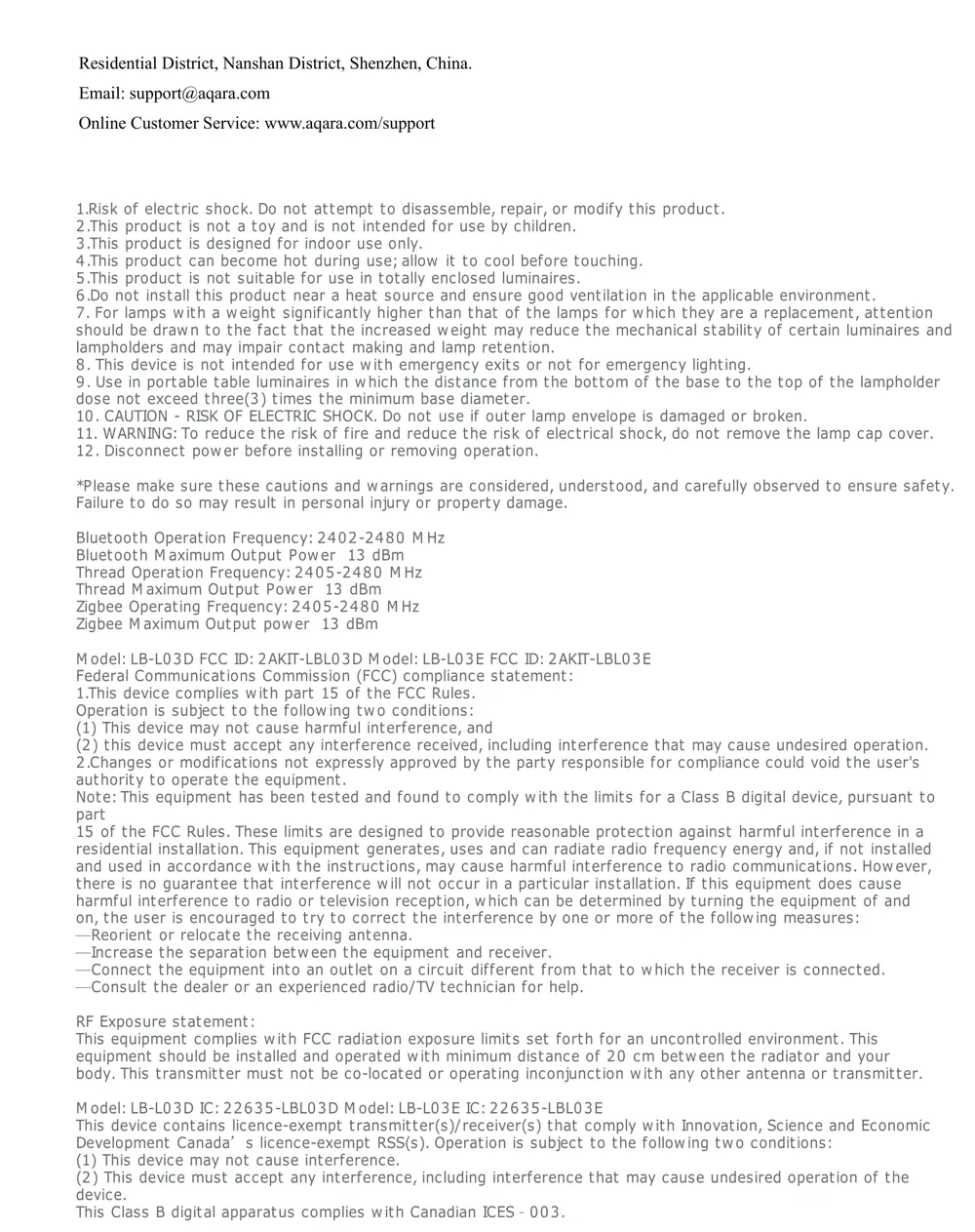
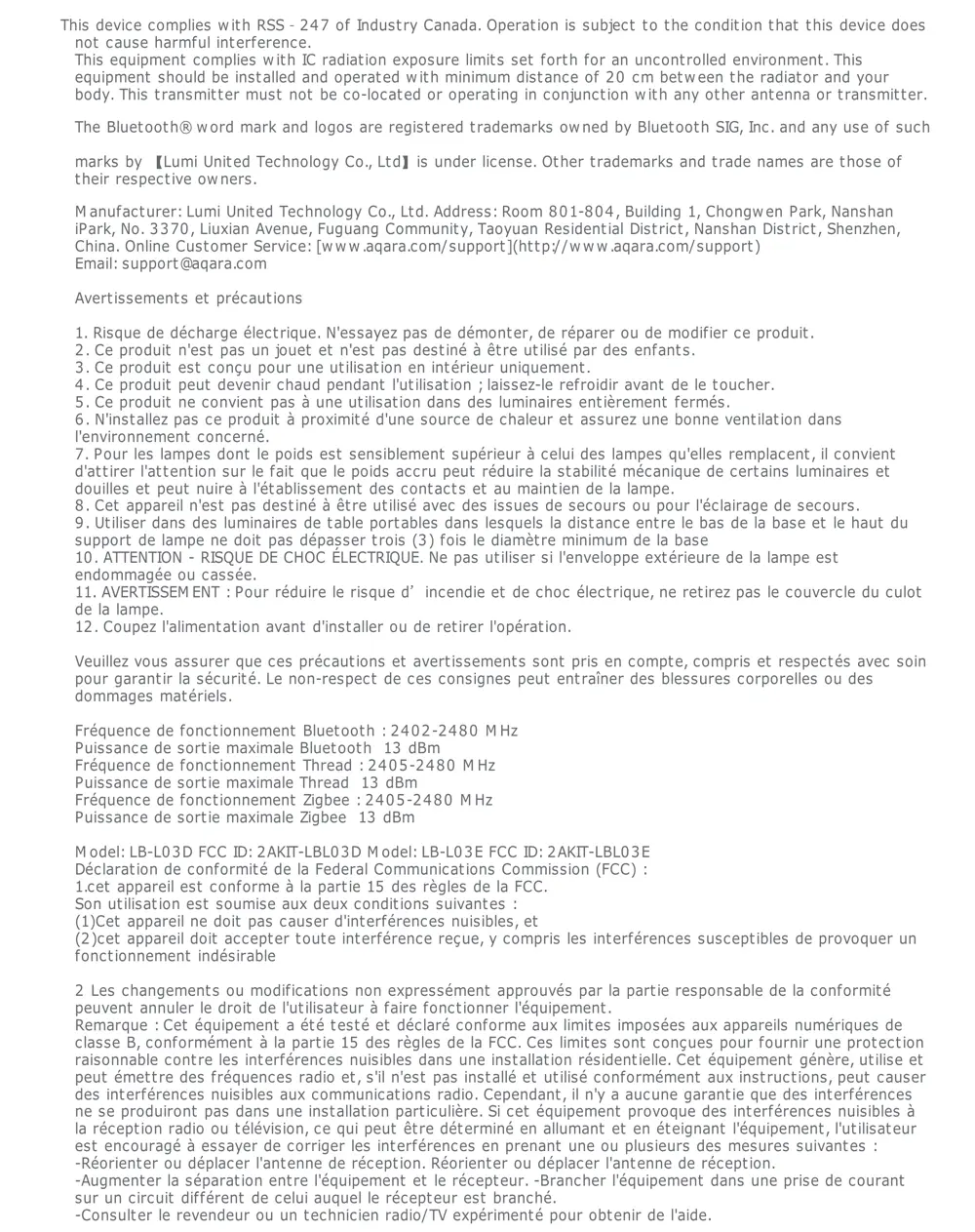
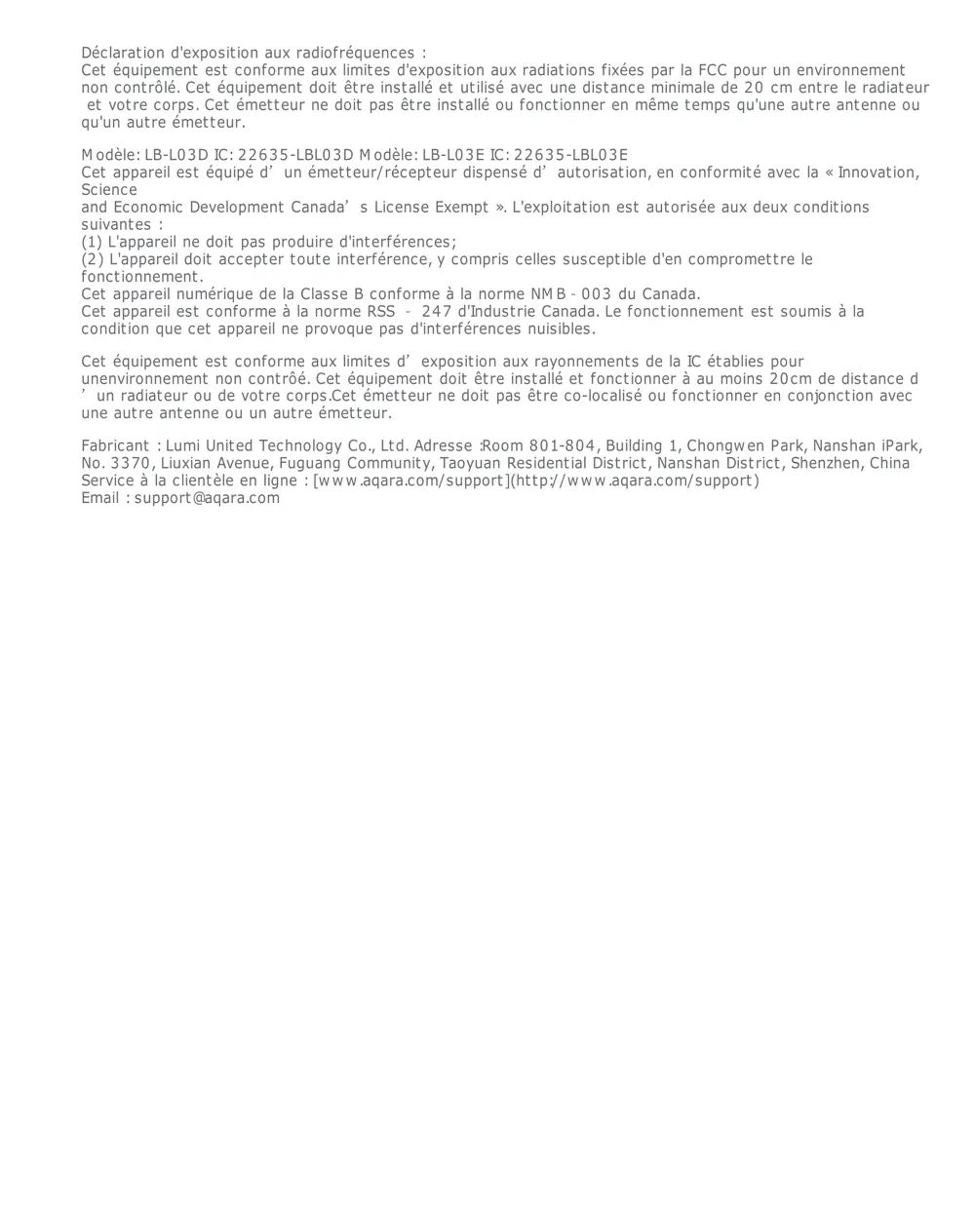
Scanned pages from the official user manual:
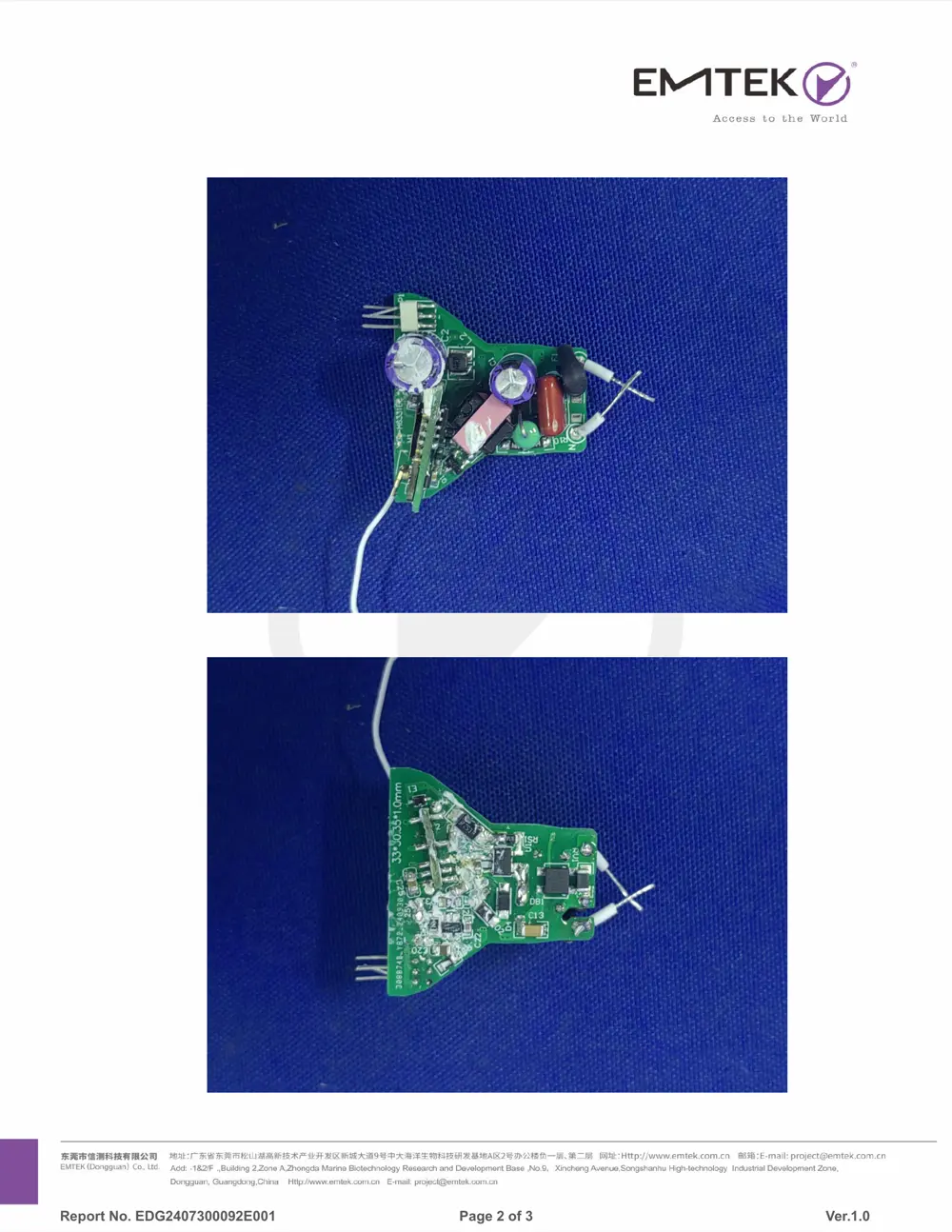
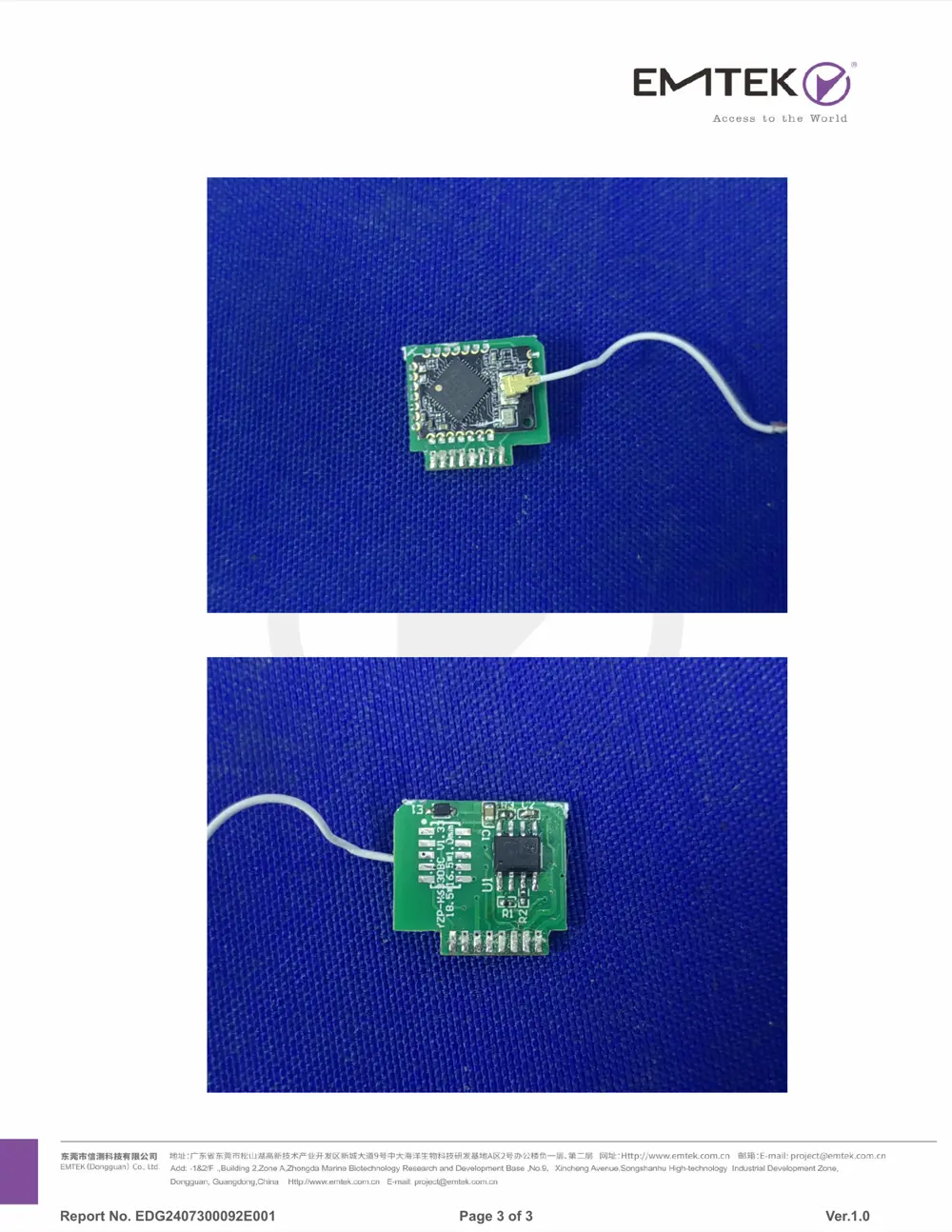
Internal Photos
Teardown photos showing the PCB and components:
Verdict
The LBL03E is a Zigbee device from the Aqara Zigbee ecosystem.
📄 Click to view full text manual (SEO)
LED Bulb T2 User Manual
Product Introduction
The LED Bulb T2 is a smart bulb that offers versatile dual-protocol support, seamlessly bridging Zigbee and Thread
to suit diverse user needs. In Zigbee mode*, users can access exclusive Aqara features and Matter compatibility via
an Aqara hub. Thread mode** provides direct integration with Matter-enabled ecosystems, including Apple Home,
Google Home, and Alexa, delivering robust, low-latency connectivity. The T2 adapts effortlessly to users' smart
home setups, whether they prefer Aqara's unique functionalities or the expansive connectivity of Thread.
* To be compatible with Aqara Home in Zigbee Mode, a compatible Aqara hub is required.
** To use the device with a particular Matter ecosystem, a Matter Controller of this ecosystem and a Thread Border
Router are required.
Device Installation
1. Before installing the light bulb, it is necessary to turn off the main power supply or switch off the power switch
of the lighting fixture in which the bulb will be used.
2. Hold the bulb body firmly and align the bulb's base with the socket. Rotate the bulb clockwise to secure it in
place. After installation, inspect the stability of the lighting fixture to ensure that it will not topple after the bulb has
been installed.
Bulb Cover
Bulb Body
GU10 Series Socket
3. Upon reconnecting the power supply or switching on the light fixture, the bulb will perform two cycles of
breathing (fading in and out) and then remain on at a constant brightness, automatically entering the network-ready
state.
Device Binding & Initialization
* Download the Aqara Home app
Search for "Aqara Home" in the Apple App Store, Google Play, Xiaomi GetApps, Huawei App Gallery, or scan the
following QR code to download the Aqara Home app:
* To use the device with a particular Matter ecosystem (Thread Mode), a Matter Controller of this ecosystem
and a Thread Border Router are required:
1. Power on the bulb, after which the bulb will breathe twice and then remain on at a constant brightness,
automatically entering the network-ready state.
2. Open the app that supports Matter, scan the Matter code on the manual or product, or enter the setup code to add
the device to the app.
3. Proceed following the app's instruction.
* To use the device in Aqara Home (Thread Mode), an Aqara Hub with border router function (for example,
Hub M3) is required:
1. Power on the bulb, after which the bulb will breathe twice and then remain on at a constant brightness,
automatically entering the network-ready state.
2. In the Aqara Home app, tap Add Accessory, choose LED Bulb T2. Scan the Matter code on the manual or
product, or enter the setup code to add the device to the app.
3. Proceed following the app's instruction.
* To use the device in Aqara Home (Zigbee Mode), an Aqara Zigbee Hub is required:
1. Power on the bulb, after which the bulb will breathe twice and then remain on at a constant brightness,
automatically entering the network-ready state.
2. In the Aqara H...