
S31 Reset & Teardown (FCC ID 2APN5S31)
Factory reset and internal photos for Sonoff (Itead) S31. Sonoff smart plug.
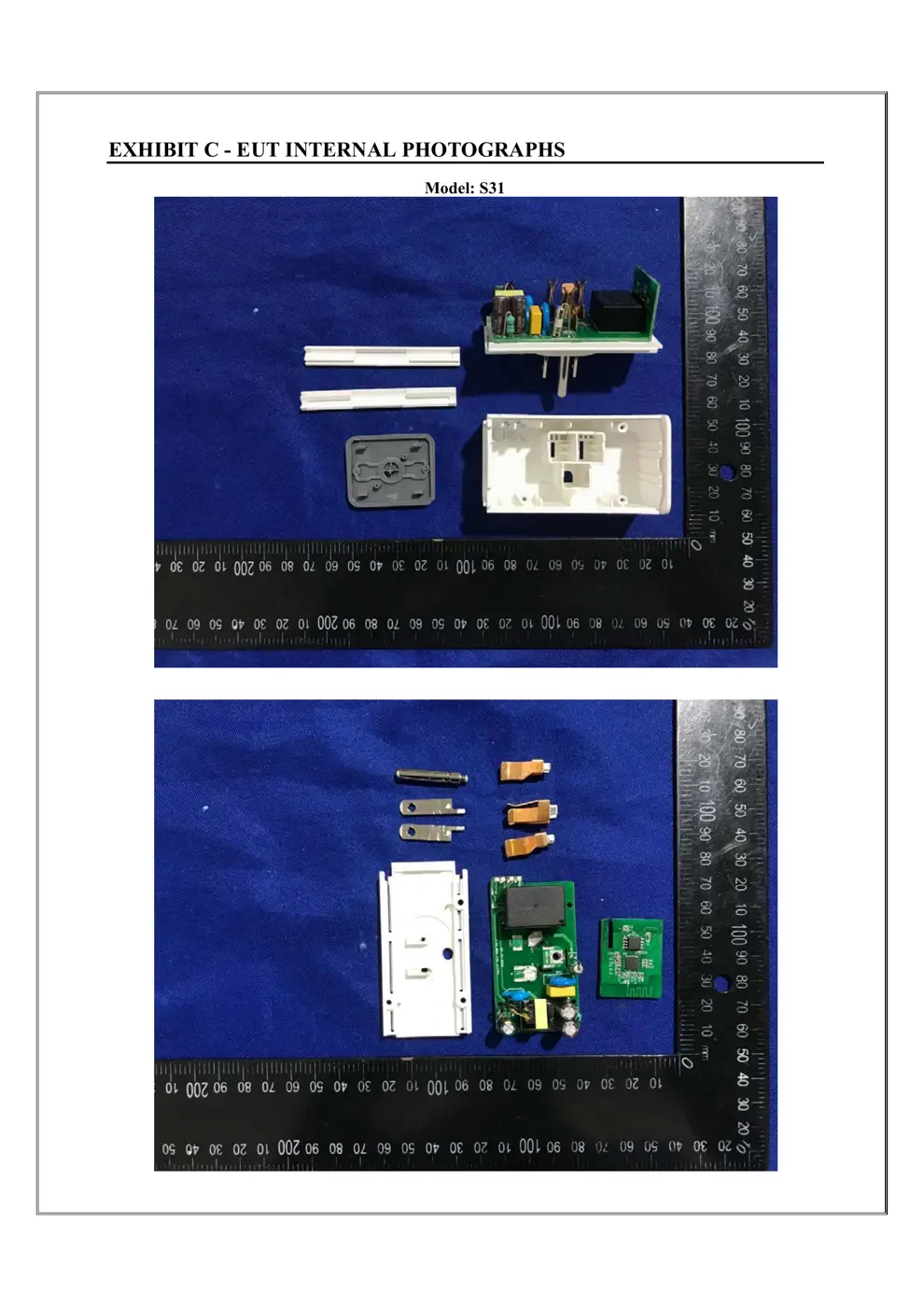
Before you buy the Sonoff (Itead) S31, check what's inside.
The Sonoff S31 is a Wi-Fi enabled smart plug that allows remote control and power monitoring of connected appliances. It supports the eWeLink app for scheduling, voice control, and smart scene integration, operating on the 2.4GHz WiFi band.
⚠️ NOTE: Ensure the device is plugged into a properly grounded outlet and do not exceed the 15A maximum load.
Quick Specs
- Manufacturer: Sonoff (Itead)
- Model: S31
- Protocol: WiFi
- Chipset: ESP/CK Chip
- Ecosystem: Sonoff
- App: eWeLink
🔧 Geek Corner (Flashing Info)
- Chipset: ESP8266
- Flashable: ✅ Yes
- Info: Sonoff S31 uses an ESP8266 chip which is known to be flashable with custom firmware like Tasmota or ESPHome.
Reset Guide
Factory reset please reset the switch to factory defaults if you want to use other wi-fi networks, then reconnect the network.
User Manual
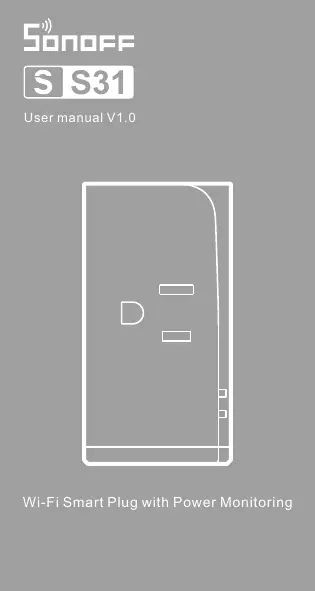
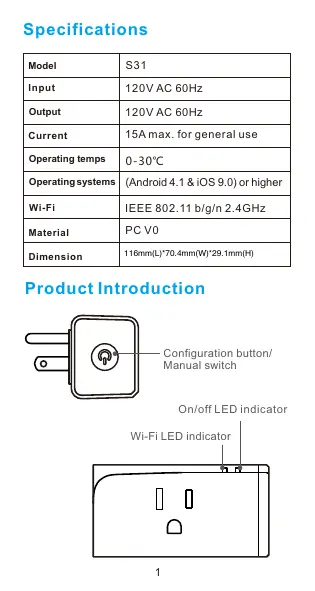
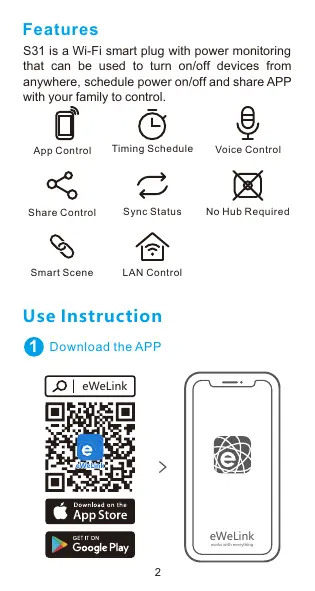
Scanned pages from the official user manual:
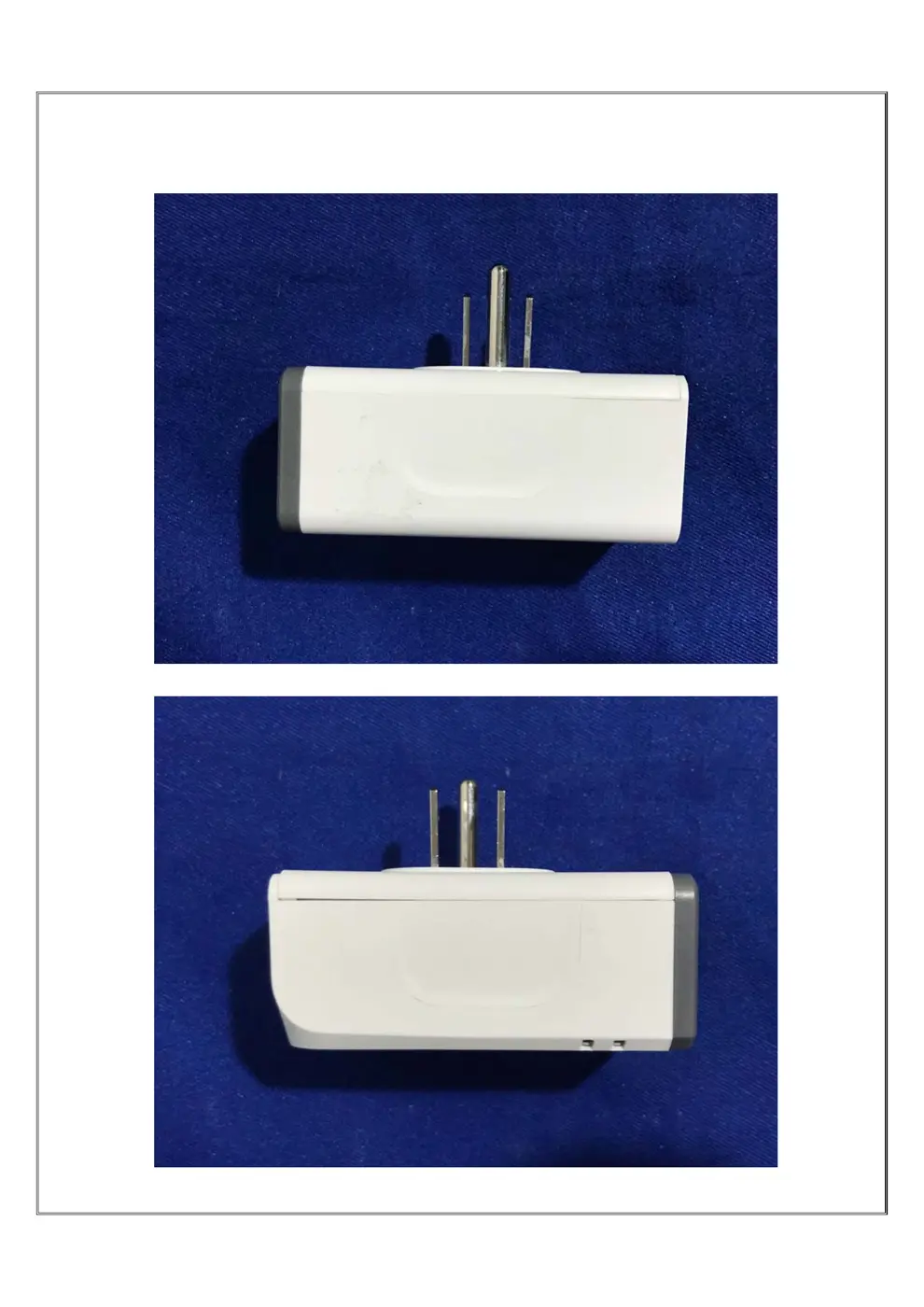
External Photos
Photos of the device exterior:
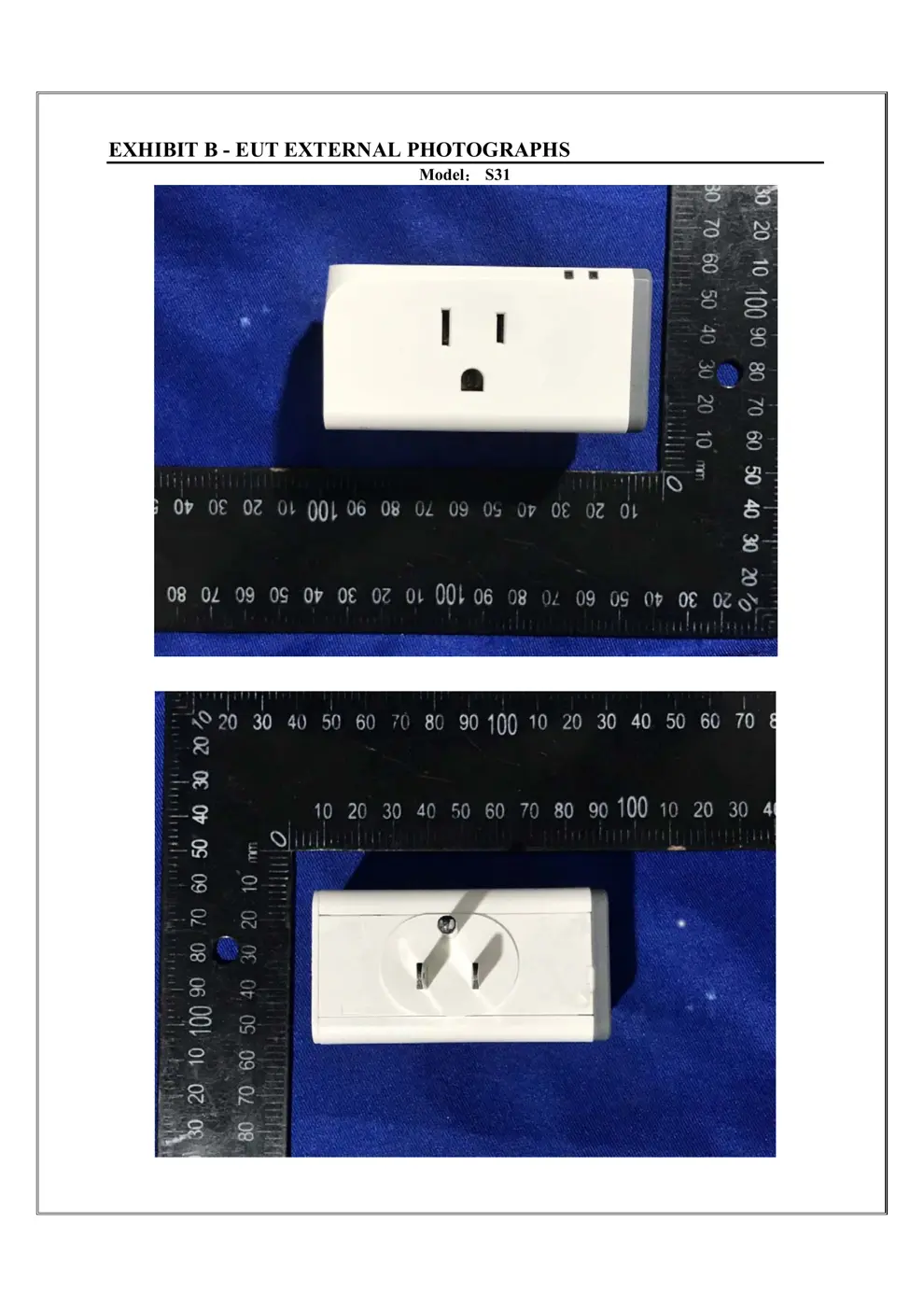
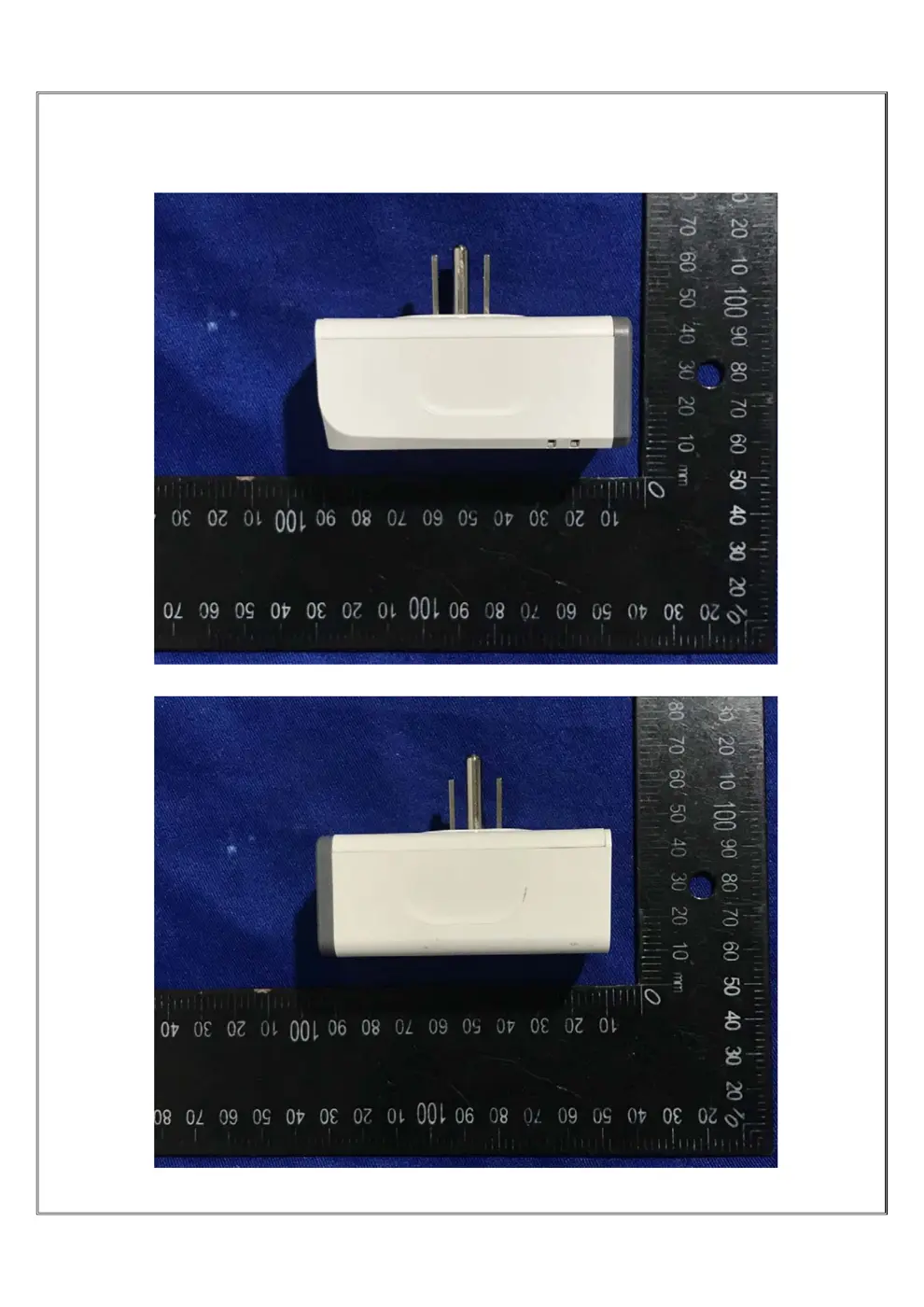
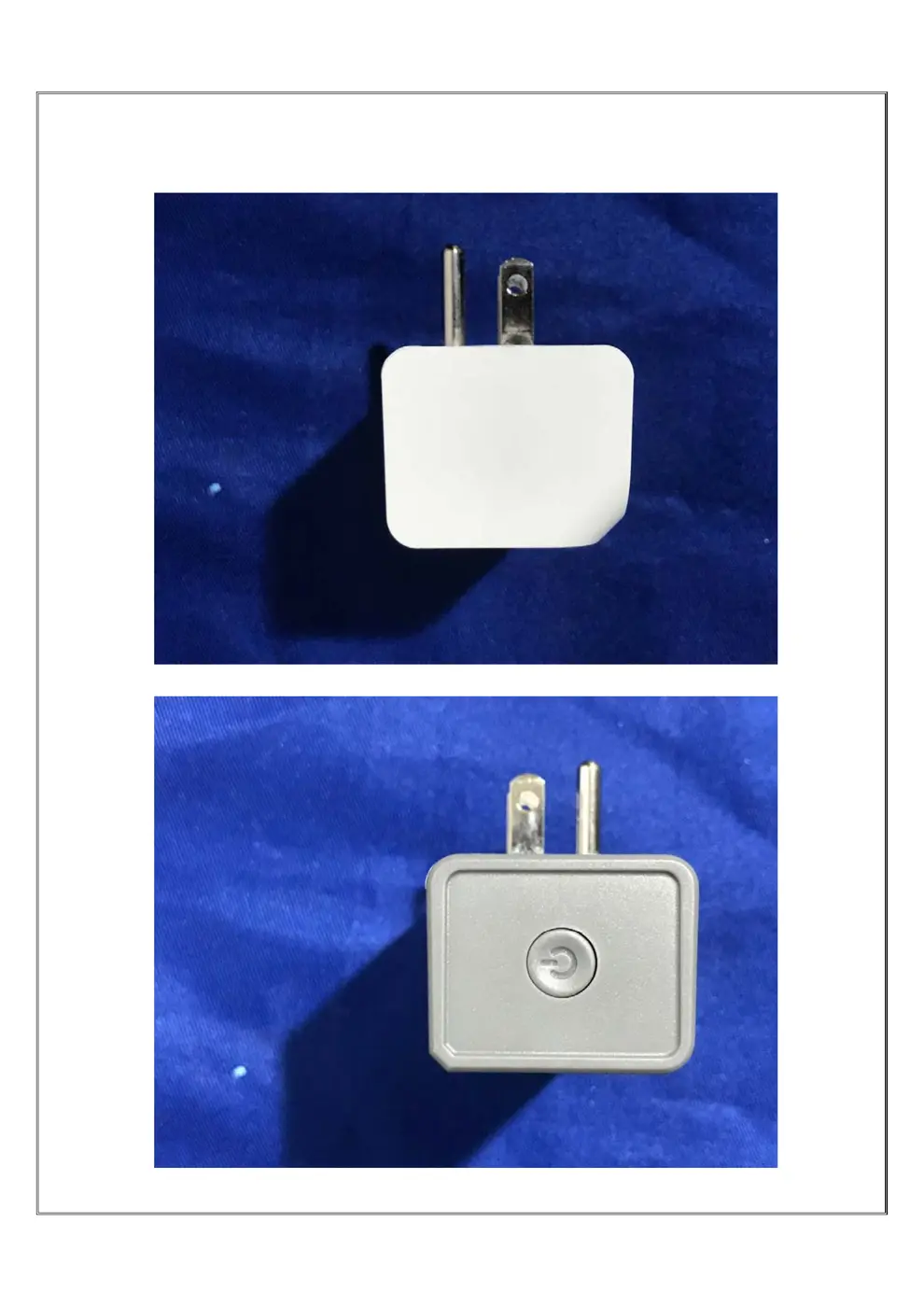
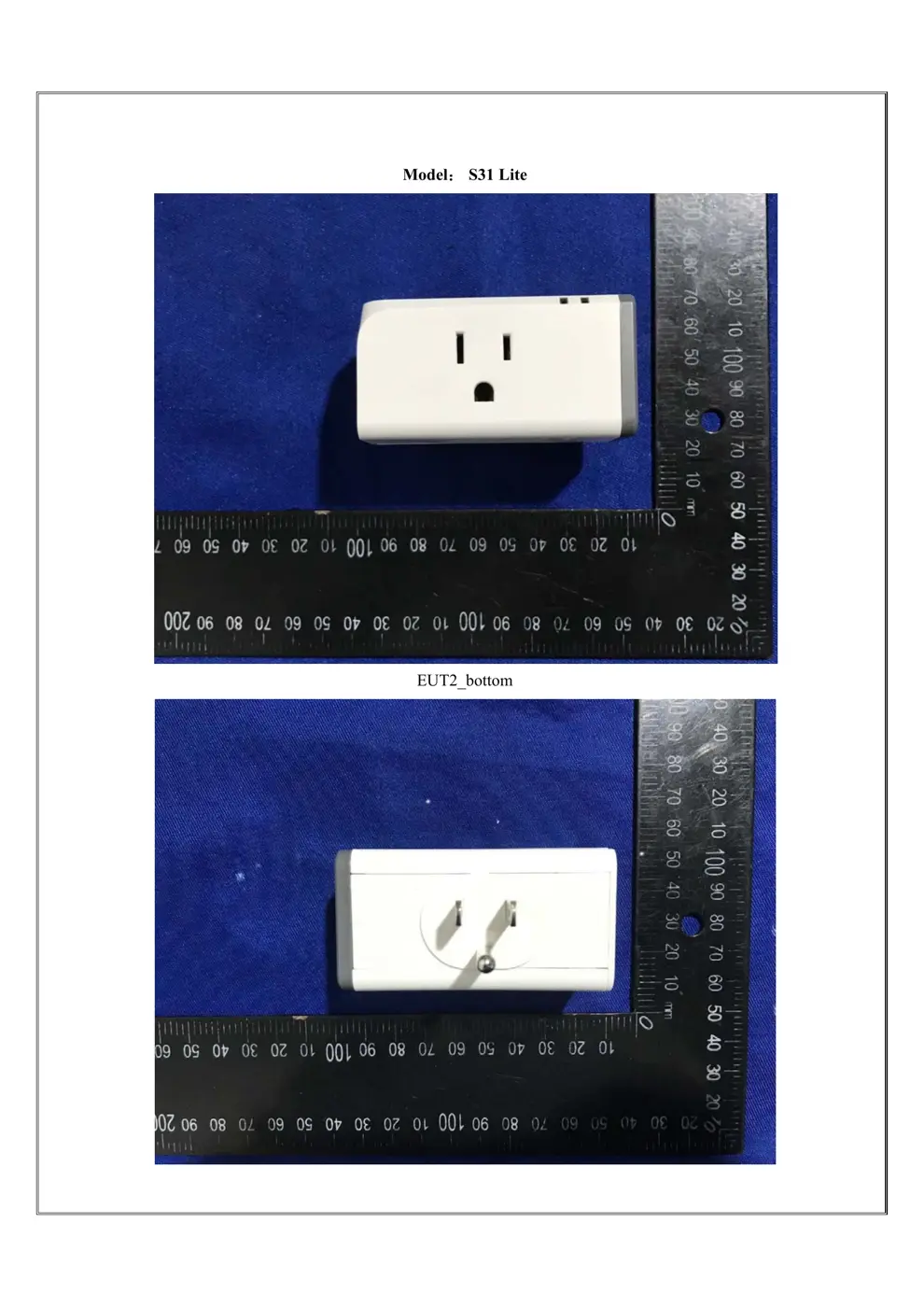
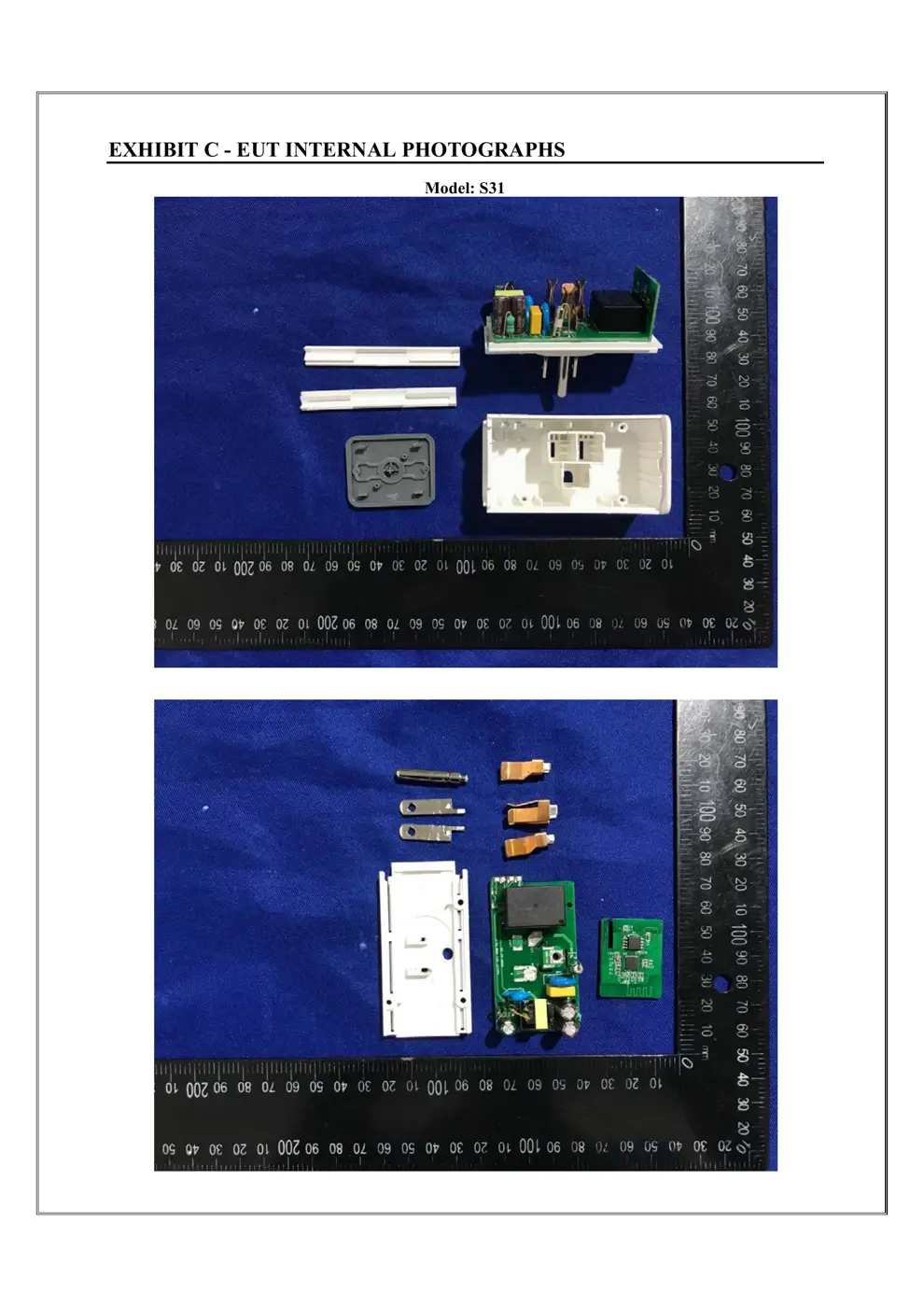
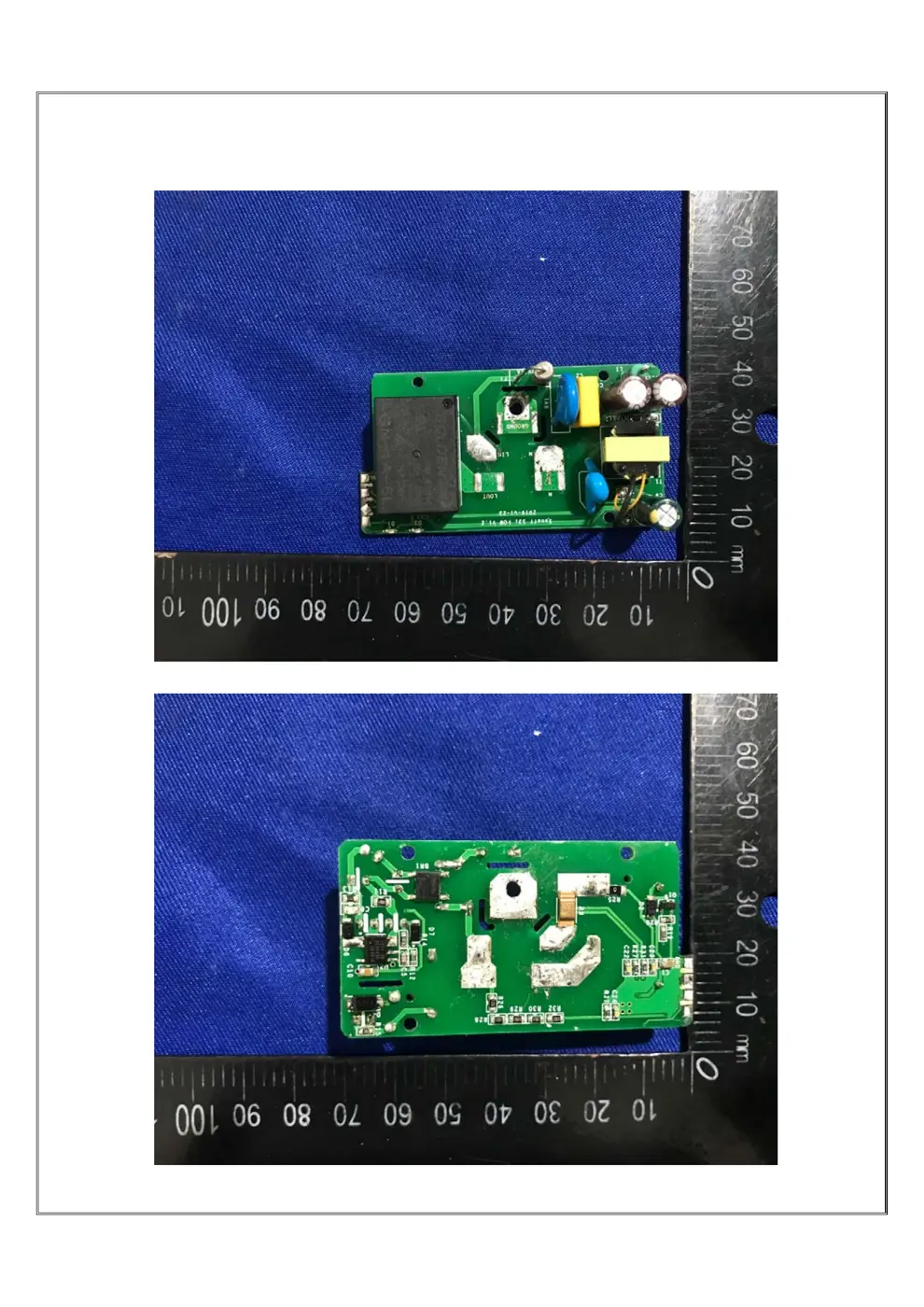
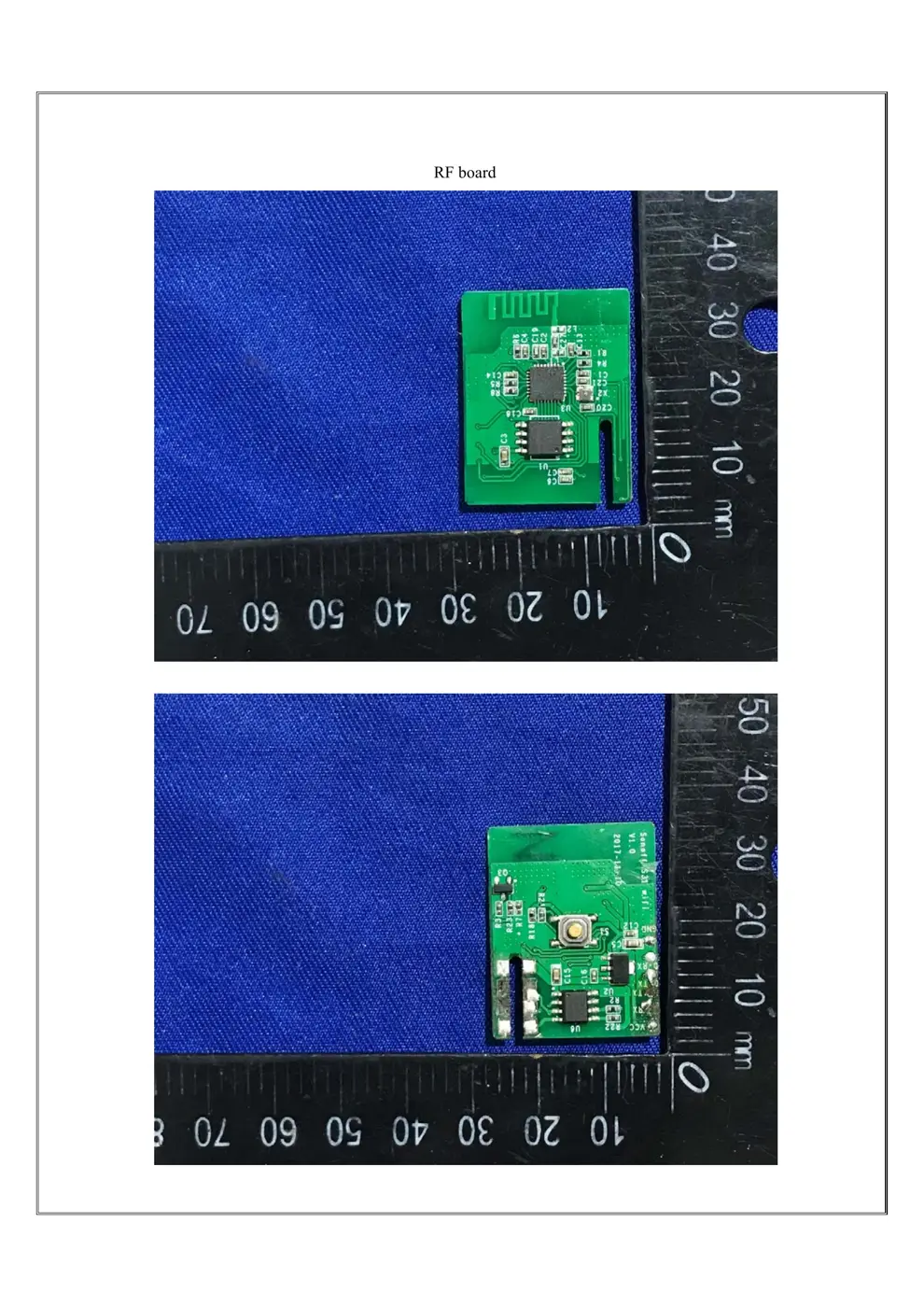
Internal Photos
Teardown photos showing the PCB and components:
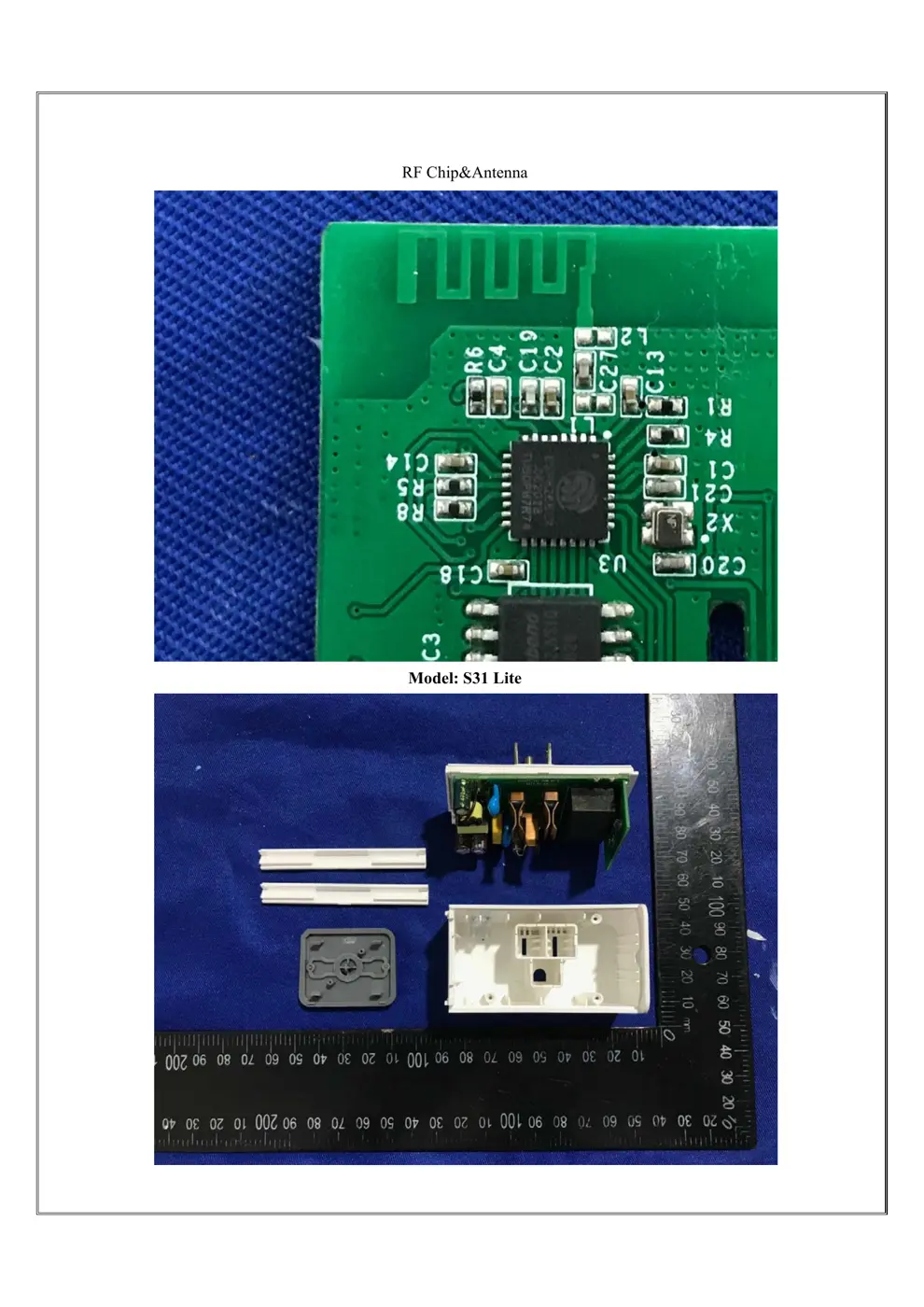
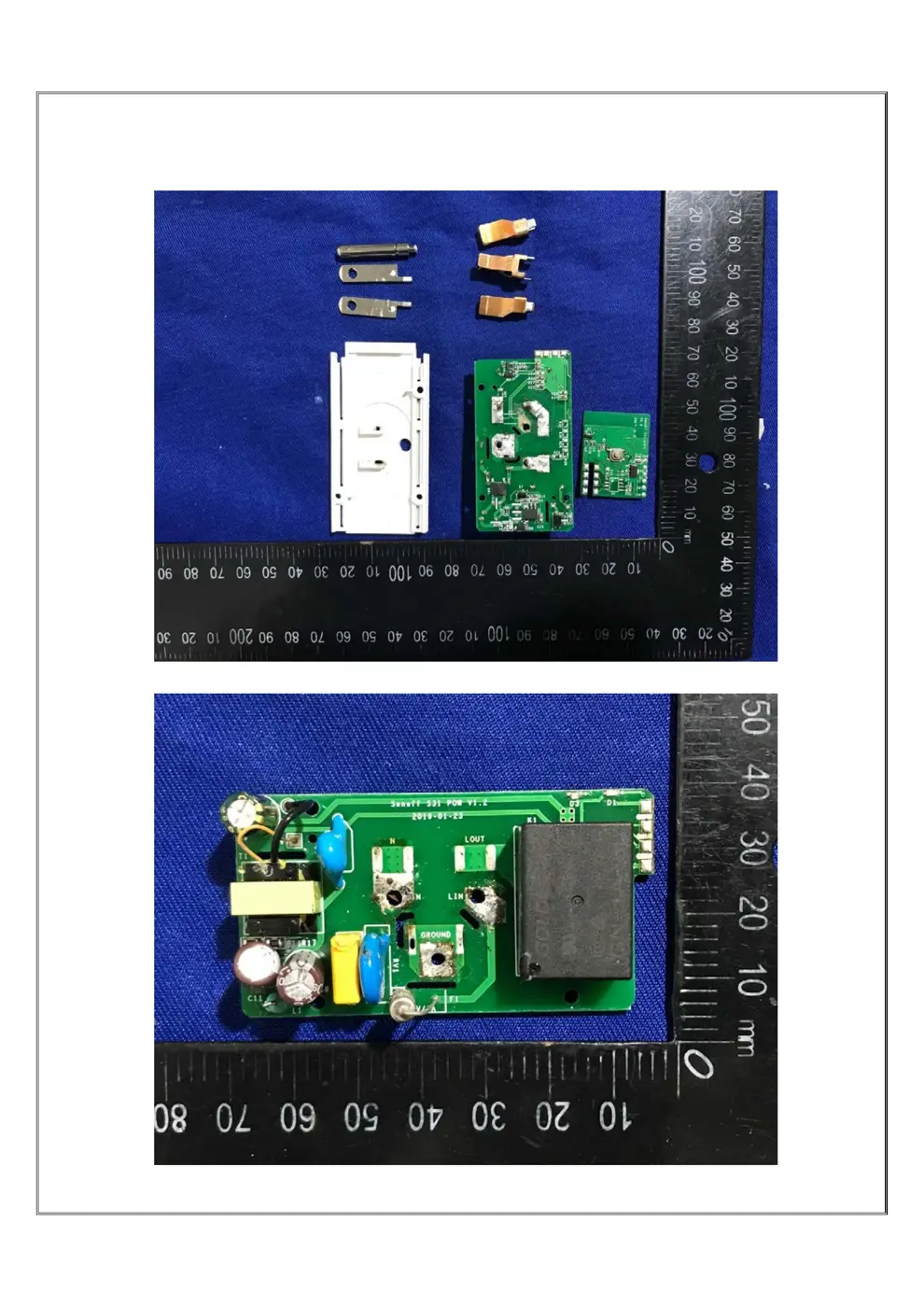
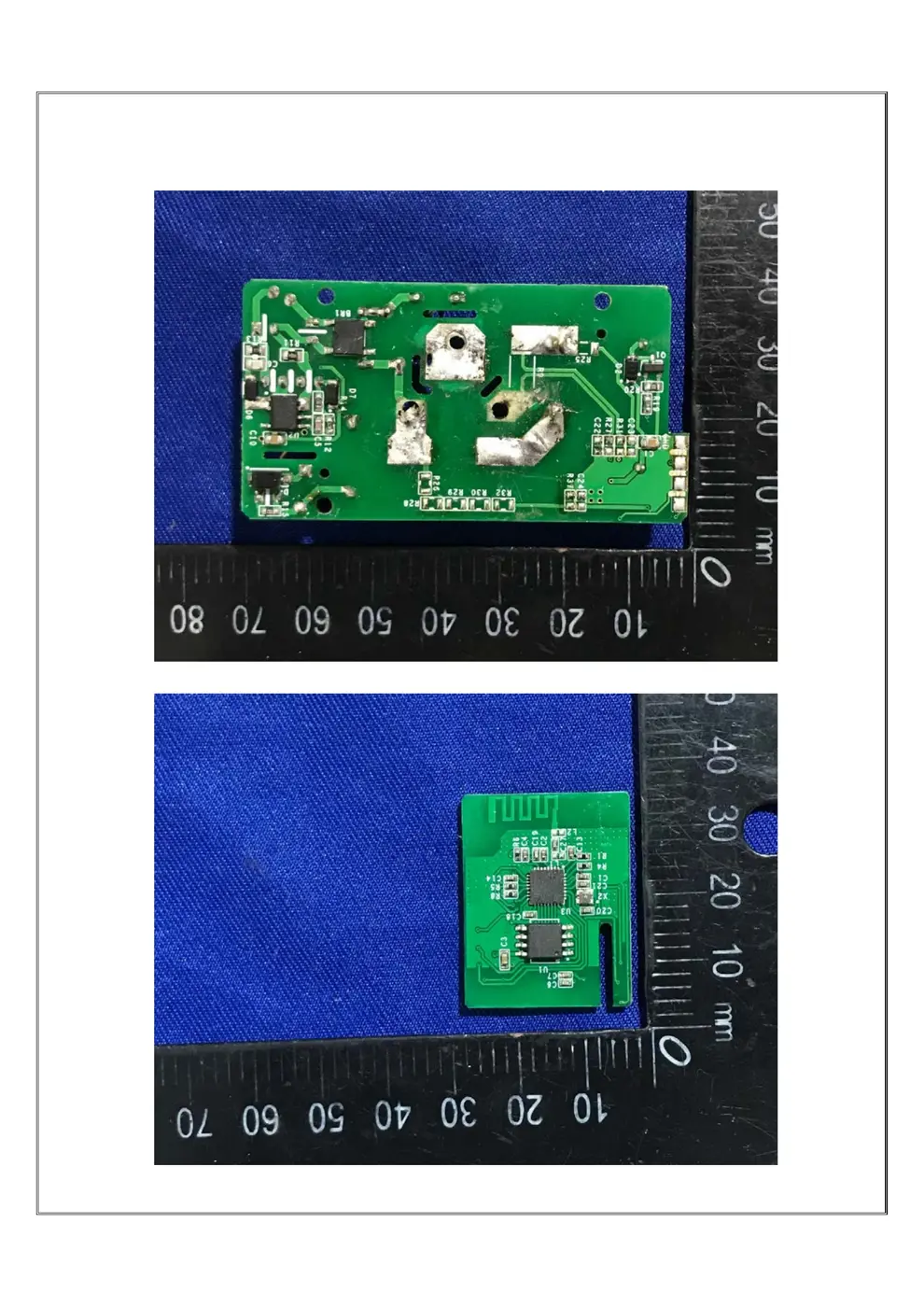
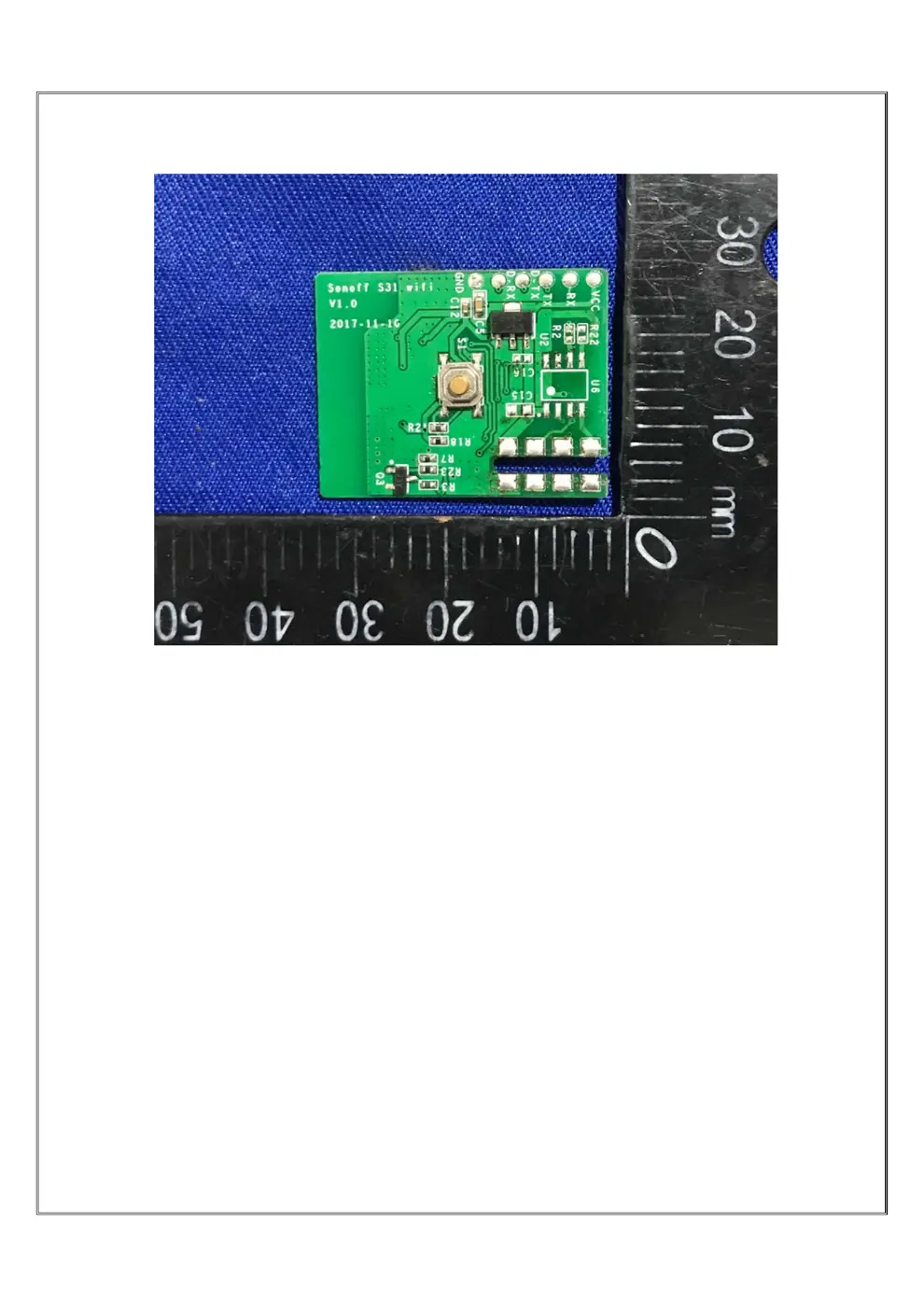
Verdict
The S31 is a WiFi device from the Sonoff ecosystem.
📄 Click to view full text manual (SEO)
S31
Wi-Fi Smart Plug with Power Monitoring
User manual V1.0
116mm(L)*70.4mm(W)*29.1mm(H)
S31
IEEE 802.11 b/g/n 2.4GHz
PC V0
Wi-Fi
Current
0-30℃
120V AC 60Hz
120V AC 60Hz
Model
Input
Output
Operating temps
Dimension
Material
Operating systems
Specifications
(Android 4.1 & iOS 9.0) or higher
Product Introduction
Configuration button/
Manual switch
Wi-Fi LED indicator
On/off LED indicator
15A max. for general use
1
S31 is a Wi-Fi smart plug with power monitoring
that can be used to turn on/off devices from
anywhere, schedule power on/off and share APP
with your family to control.
Use Instruction
1
eWeLink
eWeLink
eWeLink
works with everything
Features
App Control Timing Schedule Voice Control
Share Control Sync Status No Hub Required
Smart Scene LAN Control
Download the APP
2
2
3
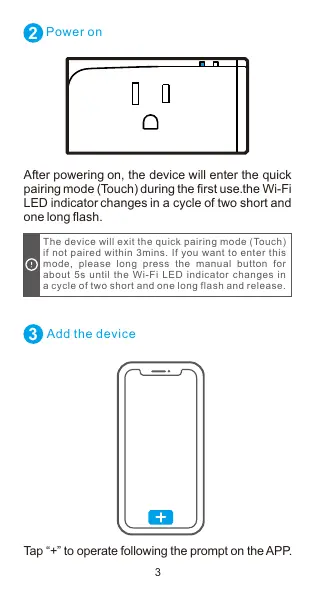
Power on
After powering on, the device will enter the quick
pairing mode (Touch) during the rst use.the Wi-Fi
LED indicator changes in a cycle of two short and
one long flash.
The device will exit the quick pairing mode (Touch)
if not paired within 3mins. If you want to enter this
mode, please long press the manual button for
about 5s until the Wi-Fi LED indicator changes in
a cycle of two short and one long flash and release.
Tap “+” to operate following the prompt on the APP.
Add the device
3
FCC Warning
Changes or modications not expressly
approved by the party responsible for compliance
could avoid the user’s authority to operate the
equipment.
This device complies with part 15 of the FCC
Rules. Operation is subject to the following
two conditions: (1) This device may not cause
harmful interference, and (2) this device
must accept any interference received,
including interference that may cause undesired
operation.
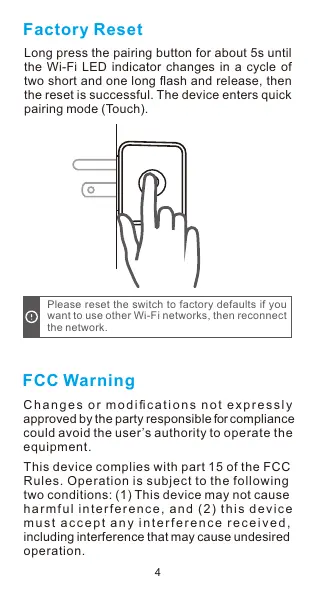
Long press the pairing button for about 5s until
the Wi-Fi LED indicator changes in a cycle of
two short and one long ash and release, then
the reset is successful. The device enters quick
pairing mode (Touch).
Factory Reset
Please reset the switch to factory defaults if you
want to use other Wi-Fi networks, then reconnect
the network.
4
Note: This equipment has been tested and
found to comply with the limits for a Class B
digital device, pursuant to part 15 of the FCC
Rules. These limits are designed to provide
re a so n a bl e prote cti on a ga inst ha rmful
interference in a residential installation. This
equipment generates, uses and can radiate
radio frequency energy and, if not installed
and used in accordance with the instructions,
may cause harmful interference to radio
communications. However, there is no guarantee
that interference will not occur in a particular
installation. If this equipment does cause
harmful interference to radio or television
reception, which can be determined by turning
the equipment off and on, the user is encouraged
to try to correct the interference by one or more
of the following measures:
— Reorient or relocate the receiving antenna.
— Increase the separation between the equ...