
SDLD01 Reset & Teardown (FCC ID 2AKIT-SDLD01)
Factory reset and internal photos for Aqara (Lumi United) SDLD01. Aqara Zigbee smart plug.
January 16, 2026
•
7 read
Before you buy the Aqara (Lumi United) SDLD01, check what's inside.
This device is an Aqara door lock sensor, likely a model like the SDLD01, designed for smart home integration via Zigbee. It focuses on door security and access control functions within the Aqara ecosystem.
⚠️ NOTE: Ensure correct battery polarity when replacing the CR2450 battery. Disconnect power before opening the device.
Quick Specs
- Manufacturer: Aqara (Lumi United)
- Model: SDLD01
- Protocol: Zigbee
- Chipset: Zigbee SoC
- Ecosystem: Aqara Zigbee
- App: Aqara Home
🔧 Geek Corner (Flashing Info)
- Chipset: Unknown
- Flashable: ❌ No
- Info: Proprietary Aqara Zigbee device, not designed for user flashing.
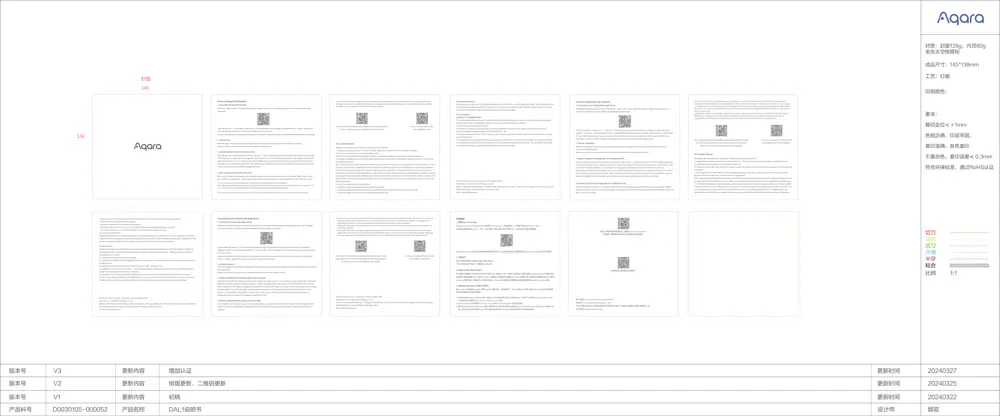
User Manual
Scanned pages from the official user manual:
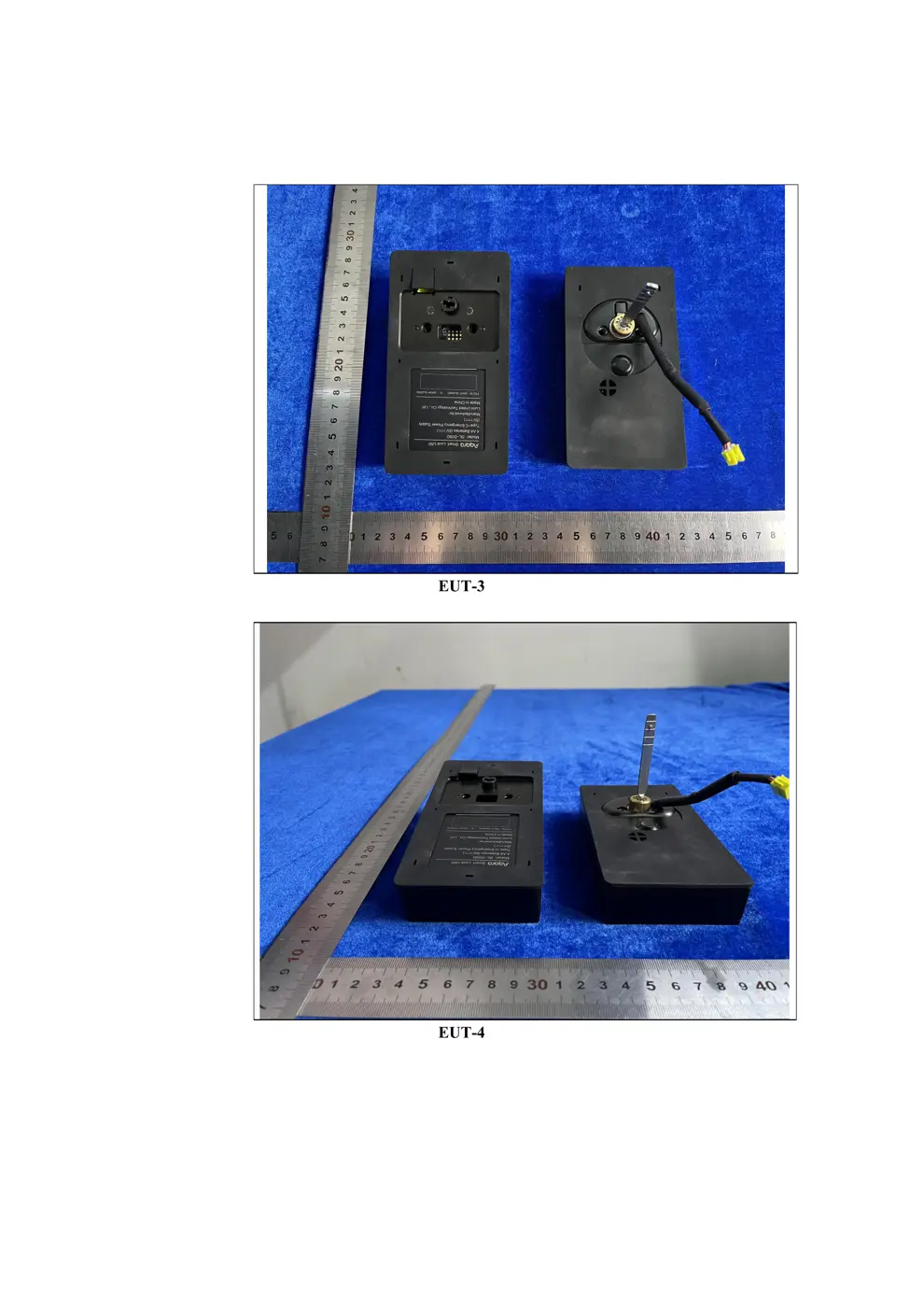
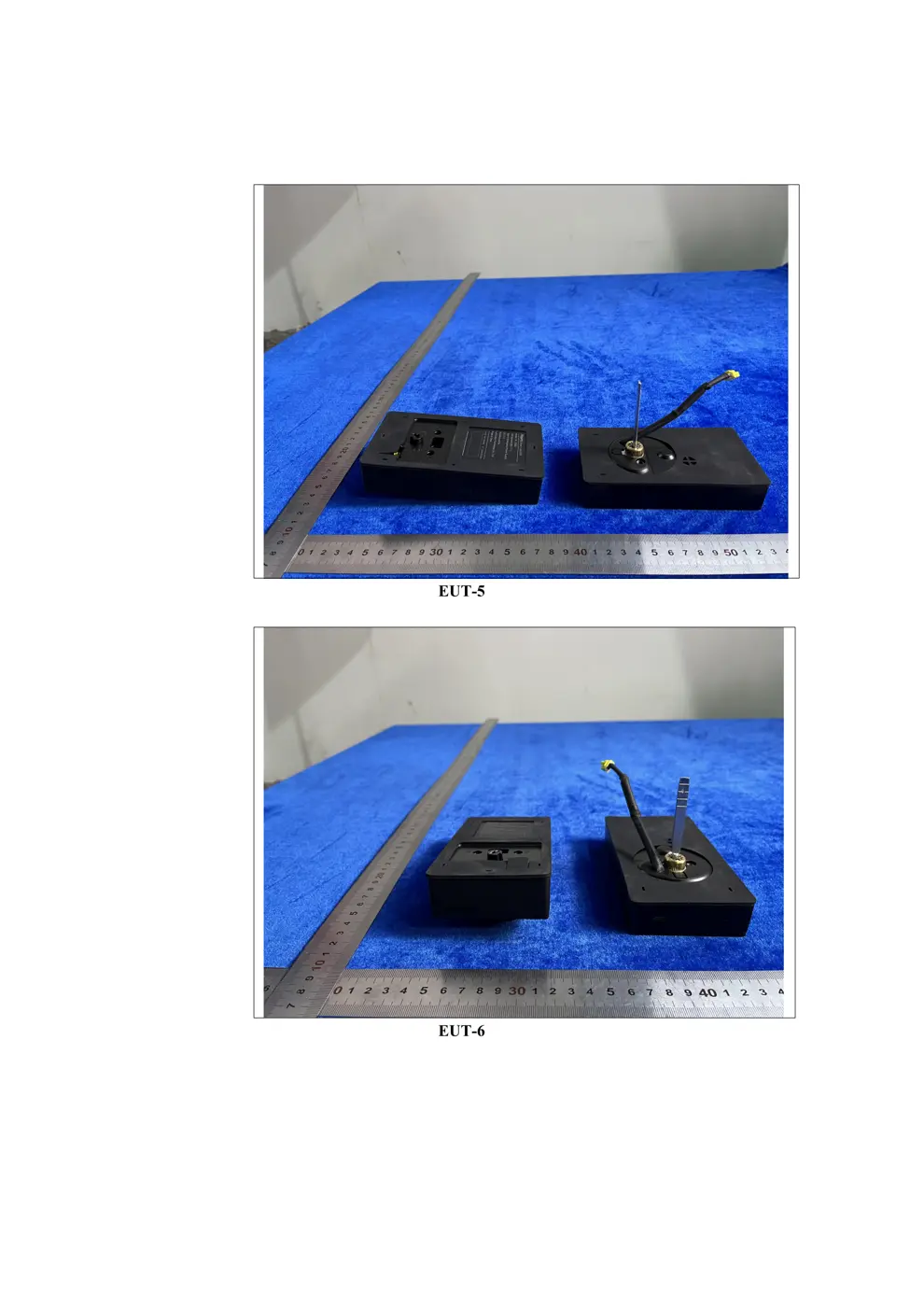
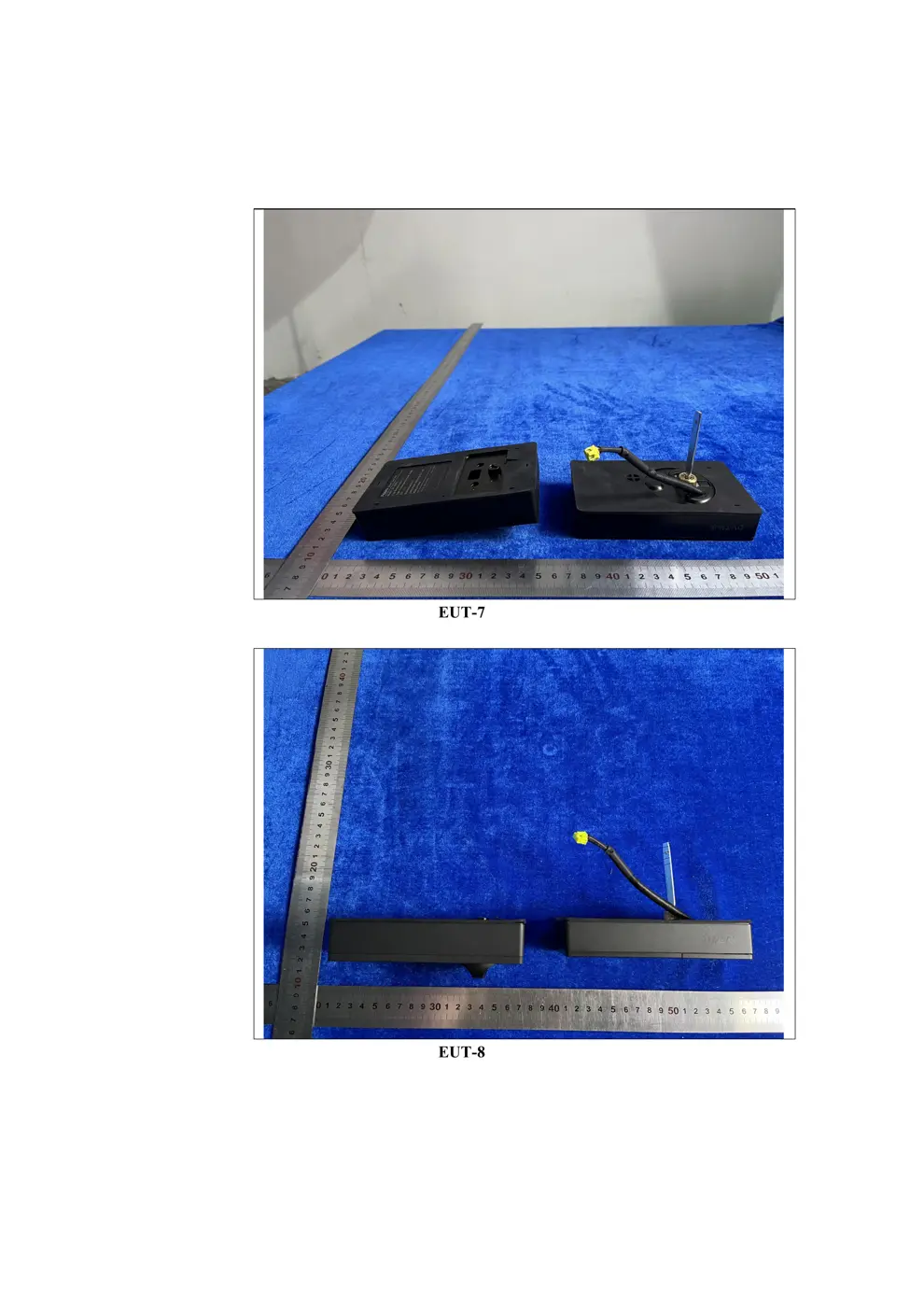
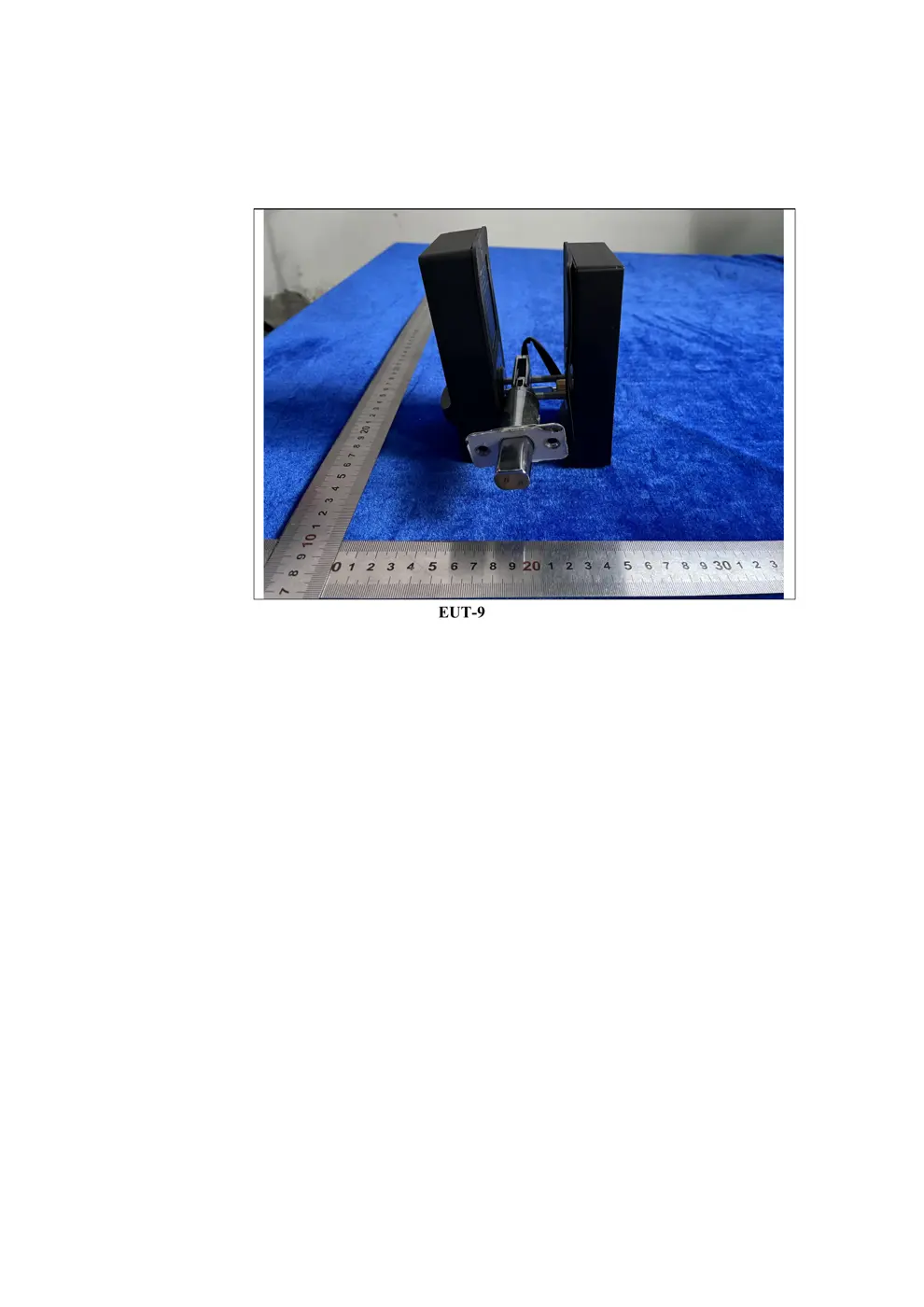
External Photos
Photos of the device exterior:
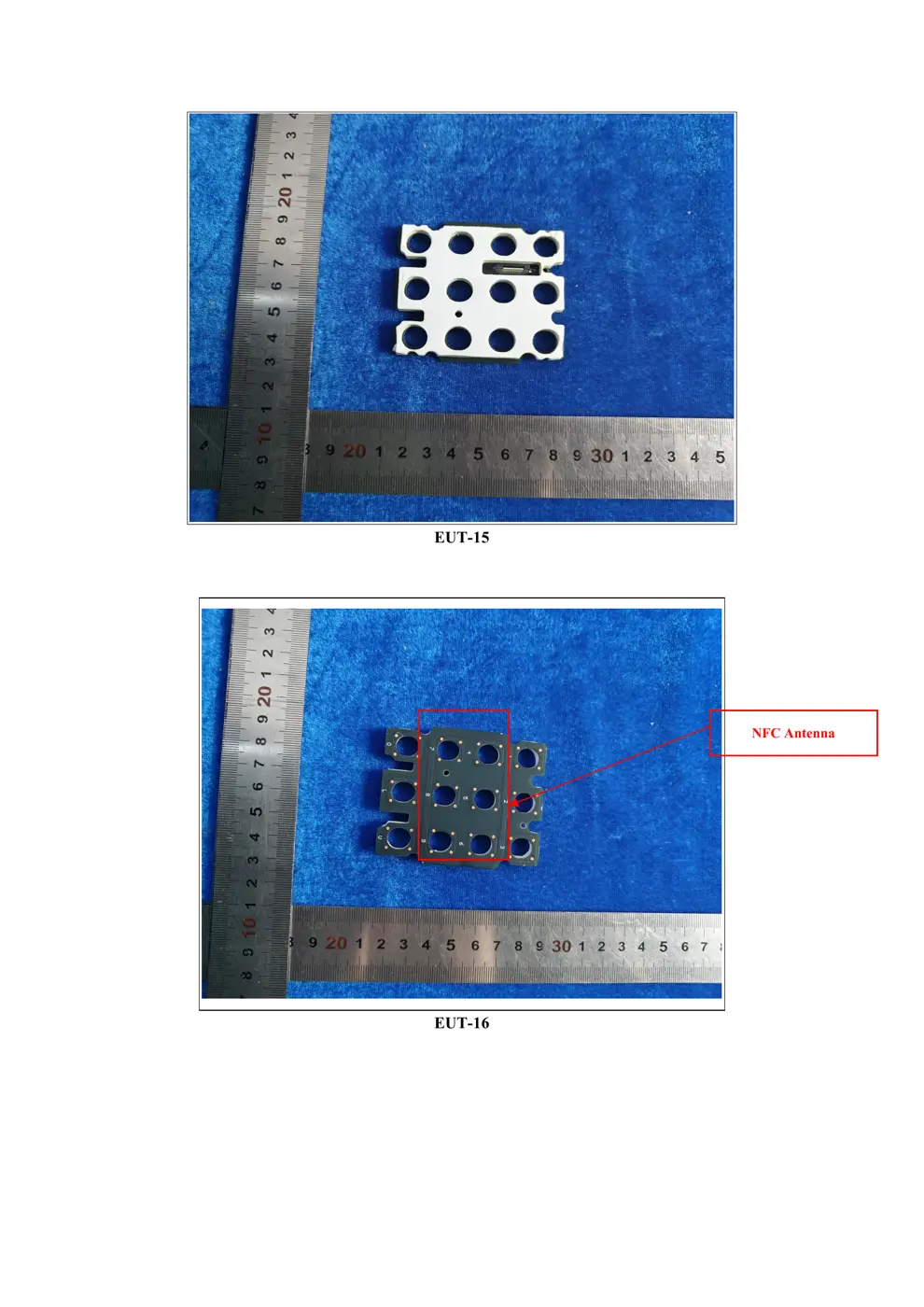
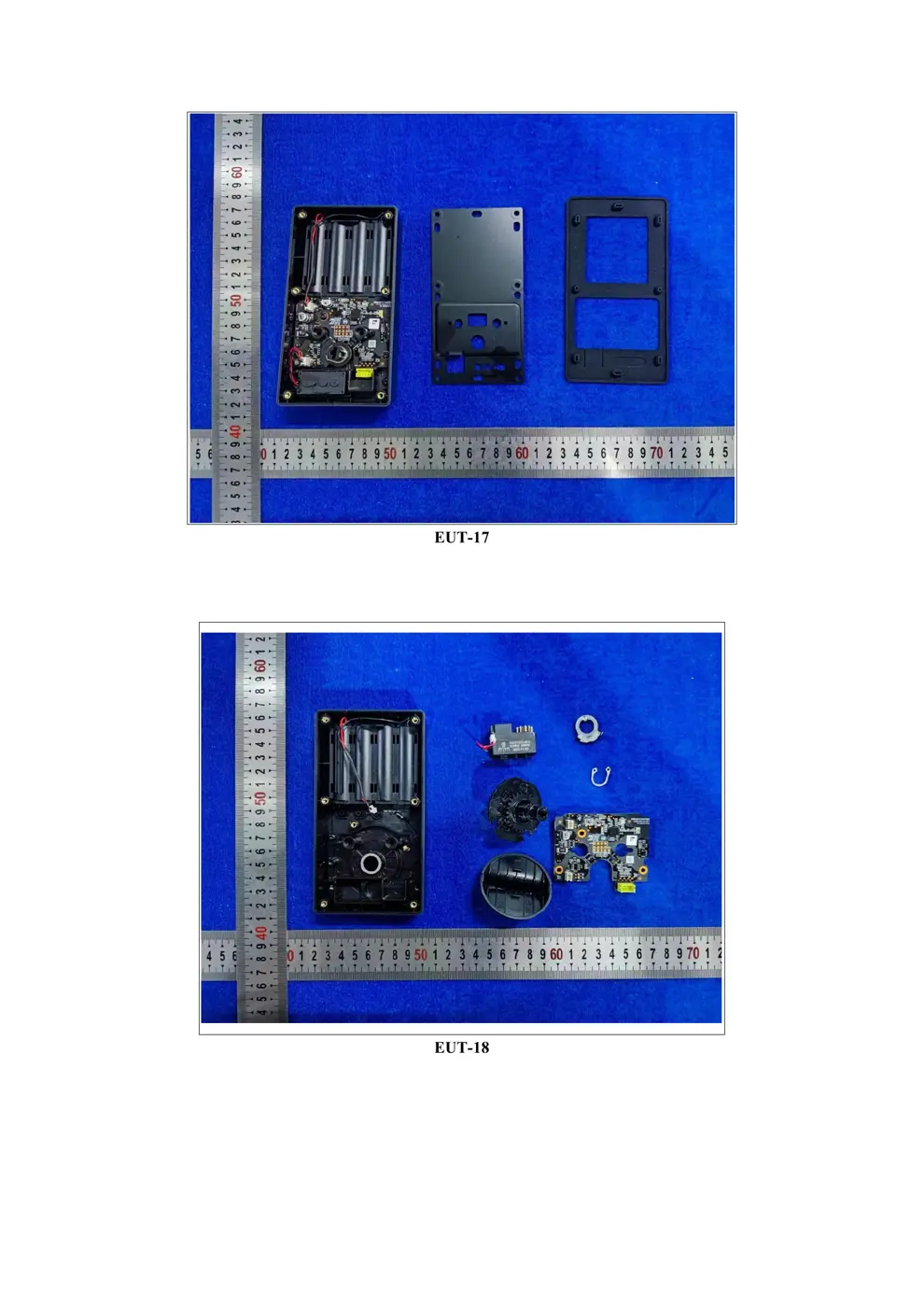
Internal Photos
Teardown photos showing the PCB and components:
Verdict
The SDLD01 is a Zigbee device from the Aqara Zigbee ecosystem.
📄 Click to view full text manual (SEO)
Device Binding & Initialization
1. Download the Aqara Home app
Search for "Aqara Home" in the Apple App Store or Google Play or can scan the following QR code to download the Aqara
Home app.
2. Add the User
Enter the page of the door lock device and add the door lock owner according to the instructions on the app.
Notes: The door lock cannot be locked normally without adding users.
3. Add the Device to HomeKit (for iOS users)
After the door lock is powered on for the first time, click "+" at the upper right corner of the Apple Home app in the iOS, select
"Add Accessory" or open Aqara Home app. Tap "Bind HomeKit" in the "General Settings" column of the setting on the detail
page of the door lock. Scan or manually input the HomeKit code as prompted (HomeKit code can be found when you open
the battery cover of the indoor door lock). Then add users according to the instructions. HomeKit only supports the lock and
unlock, smart automation setting and Apple Home Key.
4. Add to Apple Home Key (for iOS users)
After it is connected with HomeKit, one virtual door card will be automatically generated in the Apple "Wallet" app. You can
use an iPhone or Apple Watch, which supports the Apple Home Key function to unlock by holding it close to the door lock.
FCC ID:2AKIT-SDLD01
Federal Communications Commission (FCC) compliance statement:
1. This device complies with part 15 of the FCC Rules. Operation is subject to the following two conditions:
(1) This device may not cause harmful interference, and
(2) this device must accept any interference received, including interference that may cause undesired operation.
2. Changes or modifications not expressly approved by the party responsible for compliance could void the user's authority to
operate the equipment.
Note: This equipment has been tested and found to comply with the limits for a Class B digital device, pursuant to part 15 of the
FCC Rules. These limits are designed to provide reasonable protection against harmful interference in a residential installation.
This equipment generates, uses and can radiate radio frequency energy and, if not installed and used in accordance with the
instructions, may cause harmful interference to radio communications. However, there is no guarantee that interference will not
occur in a particular installation. If this equipment does cause harmful interference to radio or television reception, which can be
determined by turning the equipment off and on, the user is encouraged to try to correct the interference by one or more of the
following measures:
—Reorient or relocate the receiving antenna.
—Increase the separation between the equipment and receiver.
—Connect the equipment into an outlet on a circuit different from that to which the receiver is connected.
—Consult the dealer or an experienced radio/TV technician for help.
For more details about the product, please visit www.aqara.com/us
or scan the QR code to get the detailed electronic manual.
Or scan...