
ZHWG11LM Reset & Teardown (FCC ID 2AKIT-ZHWG11LM)
Factory reset and internal photos for Aqara (Lumi United) ZHWG11LM. Aqara Zigbee smart plug.
January 15, 2026
•
9 read
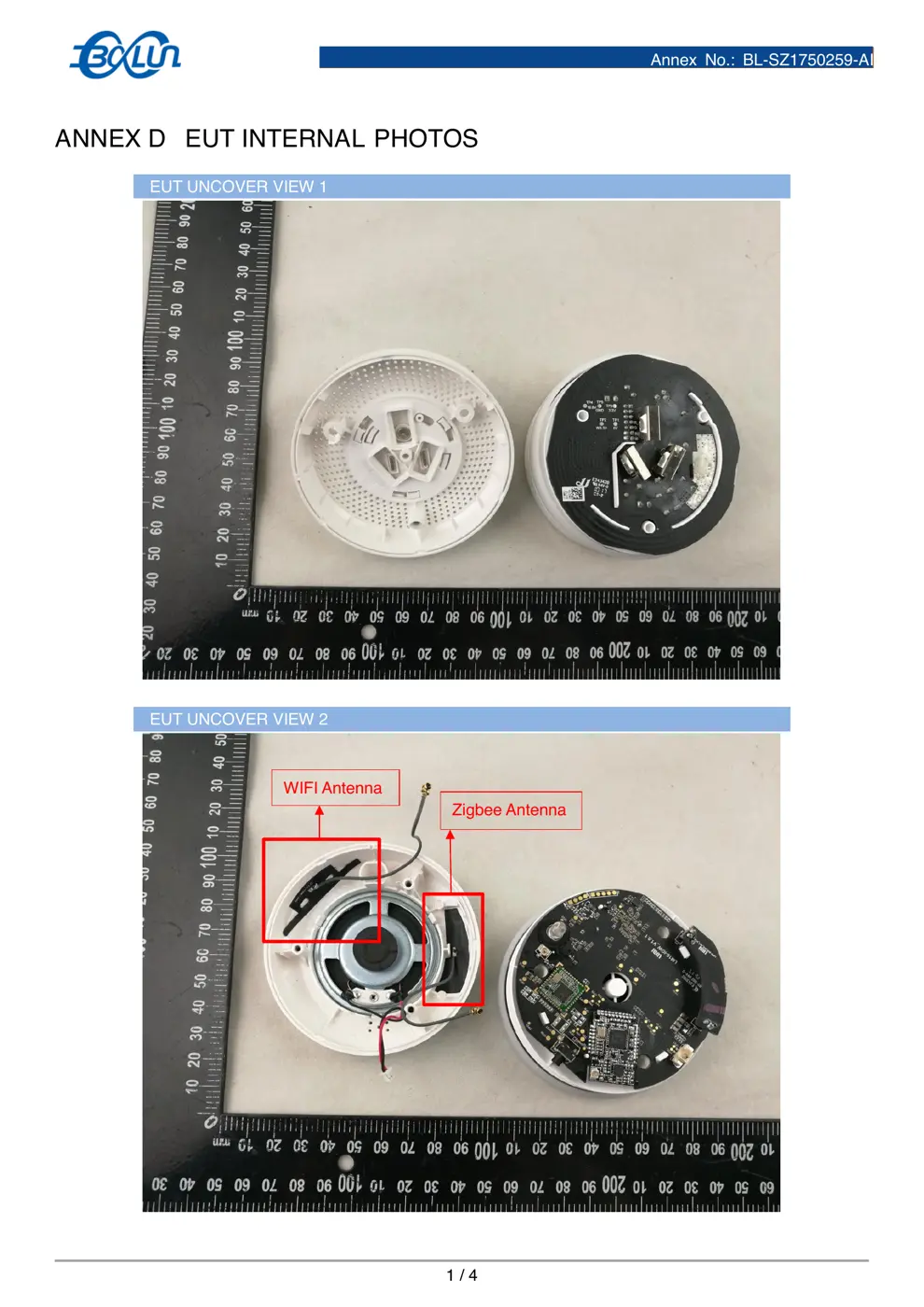
Before you buy the Aqara (Lumi United) ZHWG11LM, check what's inside.
The Aqara Hub (ZHWG11LM) is a central control unit for Aqara smart home devices. It connects sensors and controllers via Zigbee and also communicates with your home network via 2.4GHz Wi-Fi.
⚠️ NOTE: Ensure the device is powered from a stable 100-240V AC mains outlet and avoid placement in areas with high humidity.
Quick Specs
- Manufacturer: Aqara (Lumi United)
- Model: ZHWG11LM
- Protocol: Zigbee
- Chipset: Zigbee SoC
- Ecosystem: Aqara Zigbee
- App: Aqara Home
🔧 Geek Corner (Flashing Info)
- Chipset: Unknown (Likely a proprietary Zigbee SoC with Wi-Fi support)
- Flashable: ❌ No
- Info: Proprietary Aqara hardware and firmware, not designed for flashing with custom firmware like Tasmota or ESPHome.
User Manual
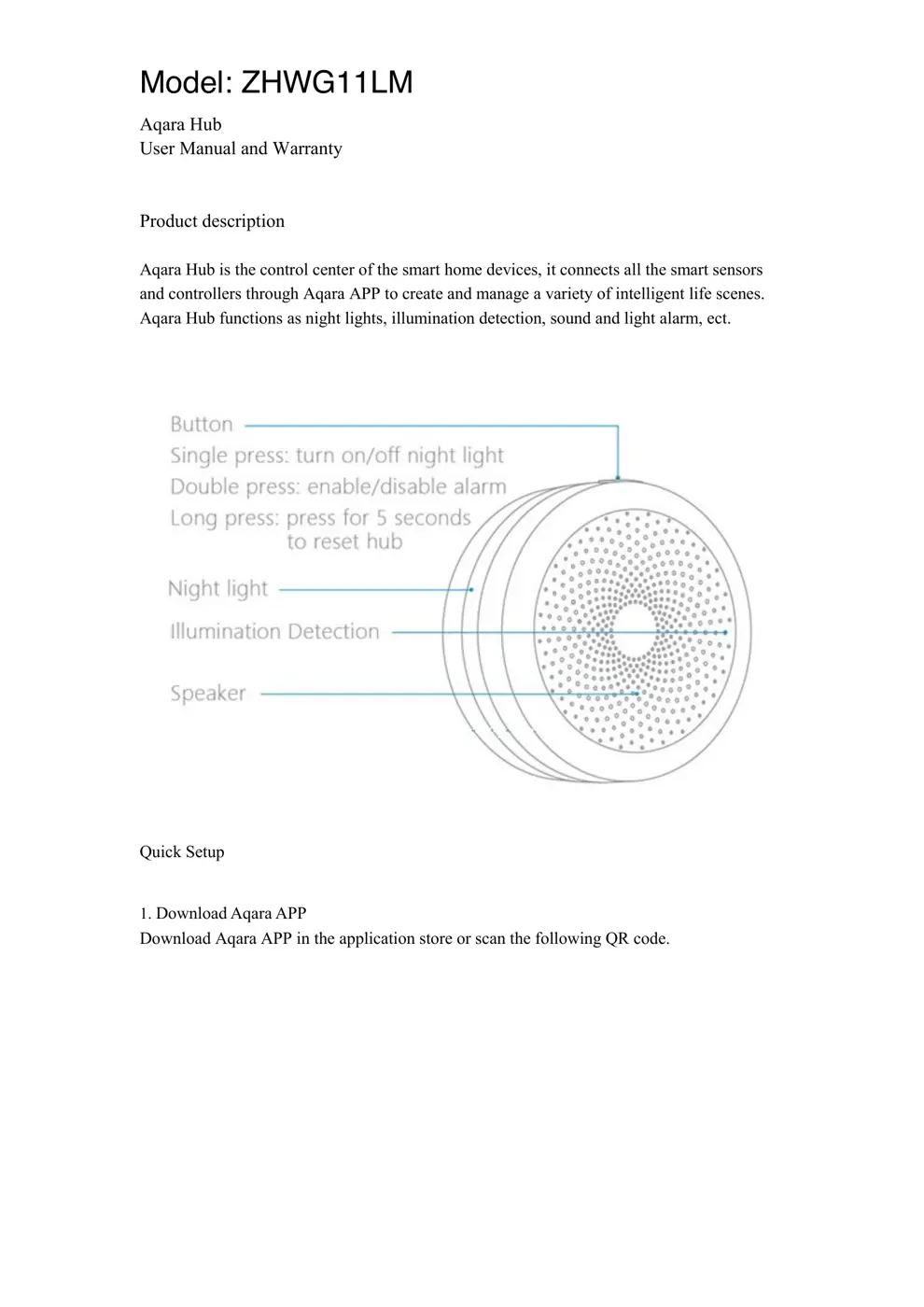
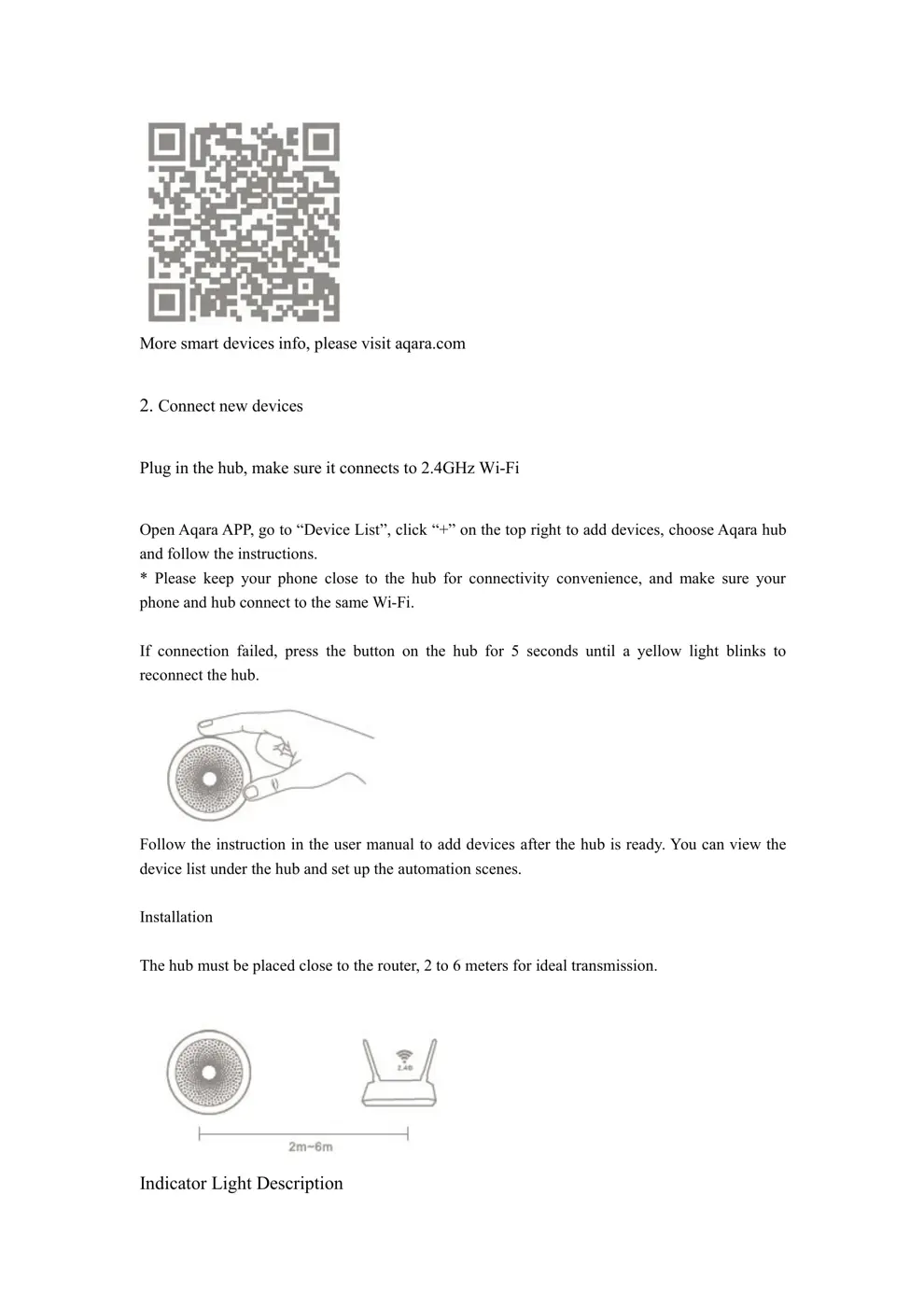
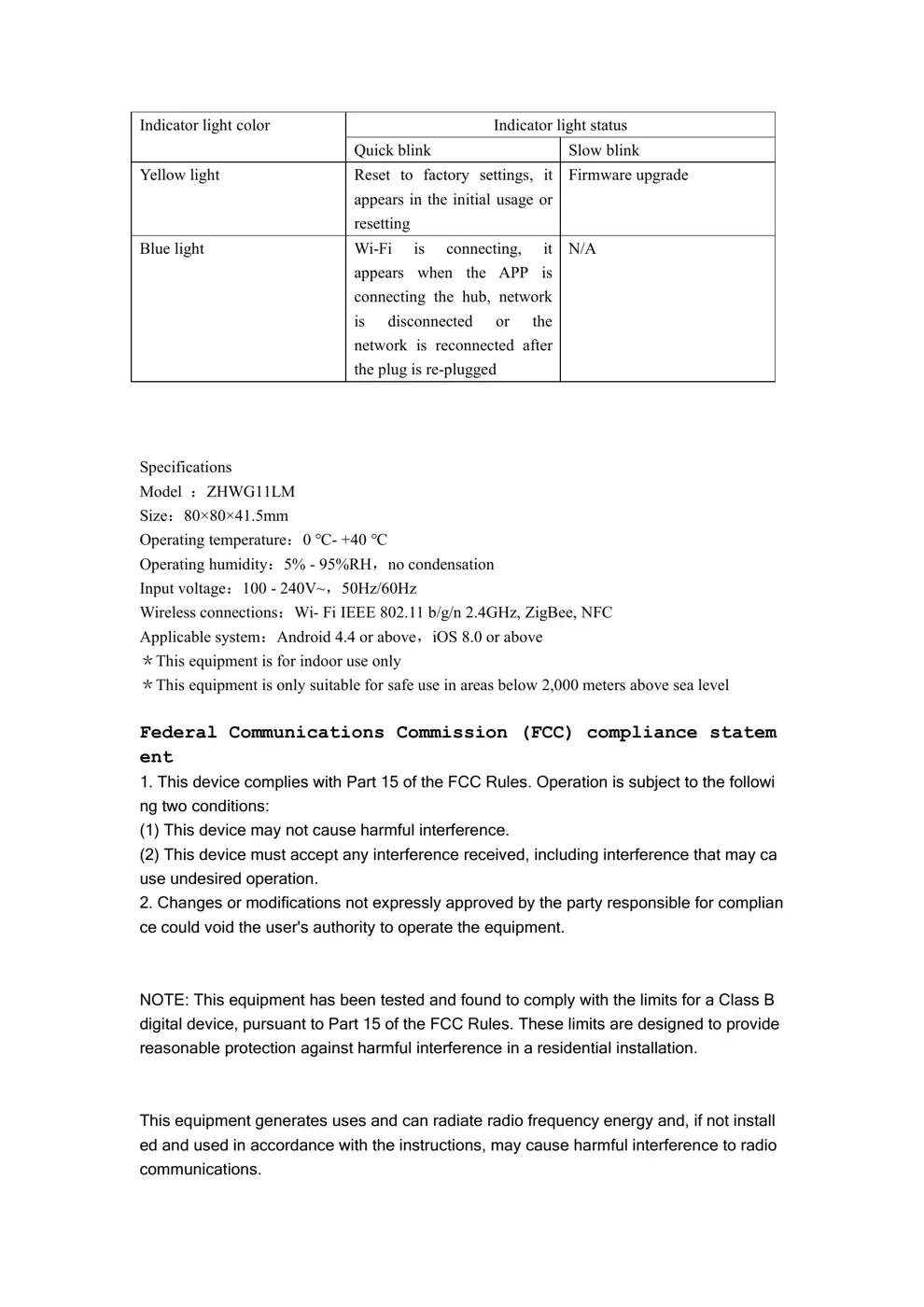
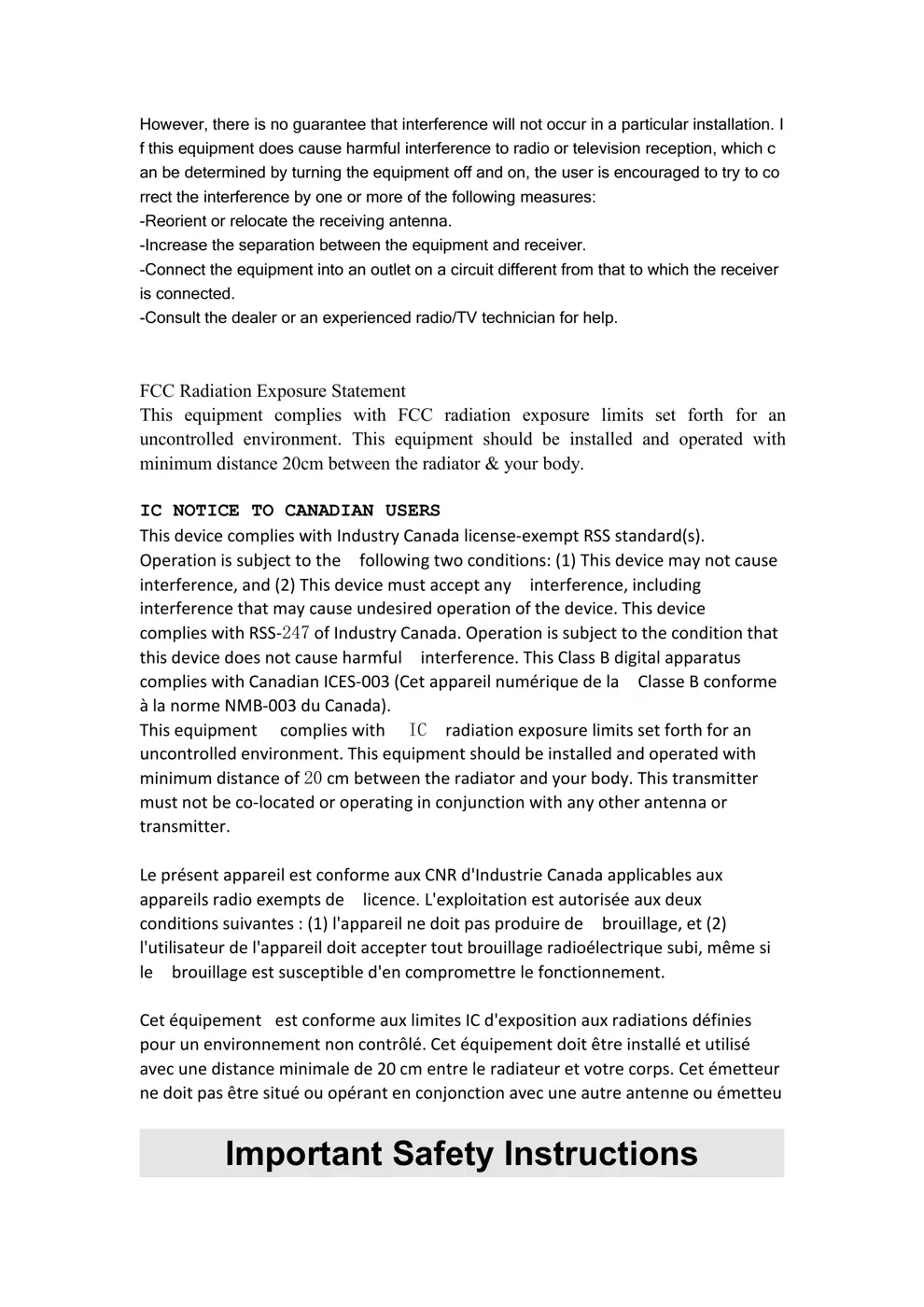
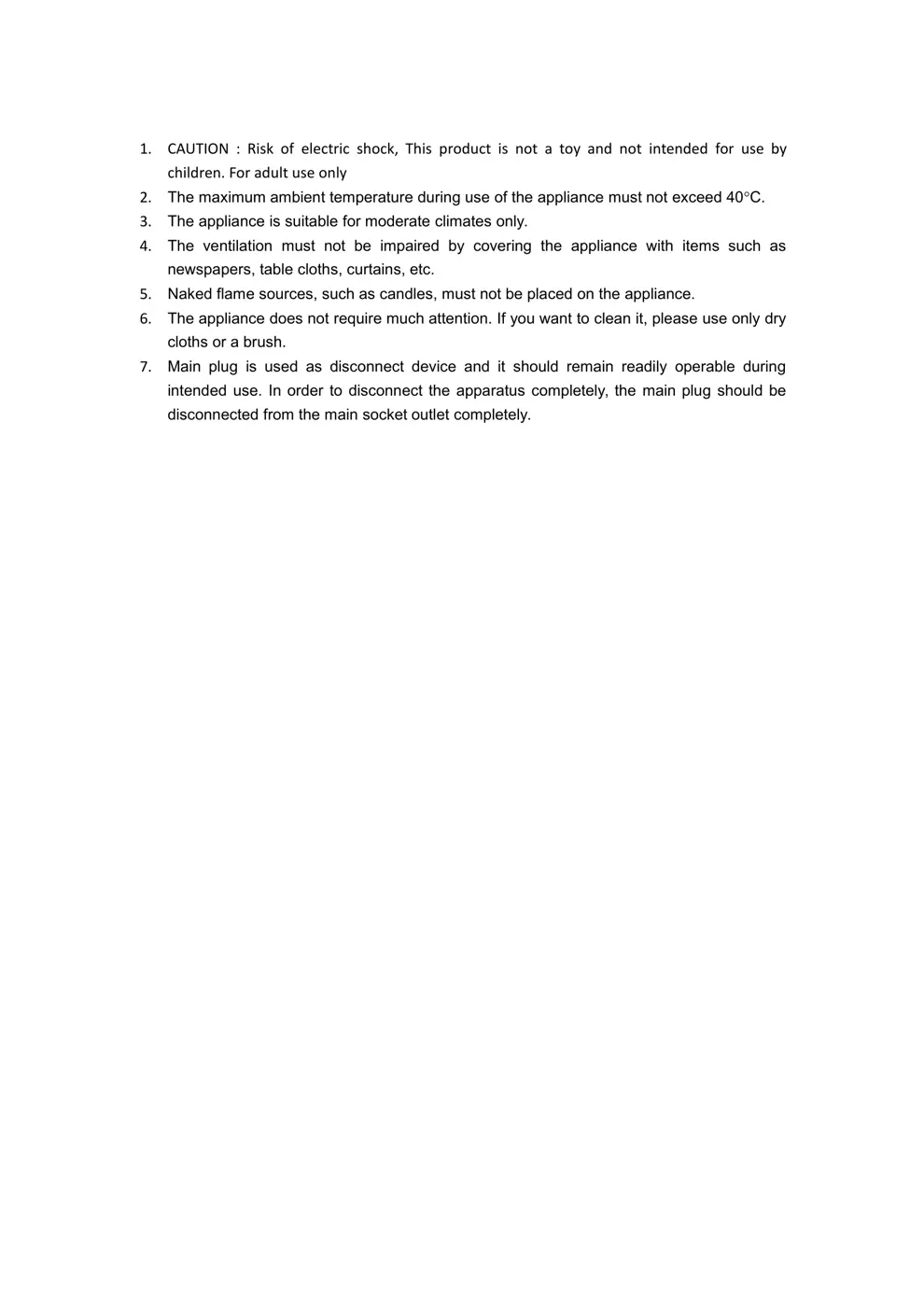
Scanned pages from the official user manual:
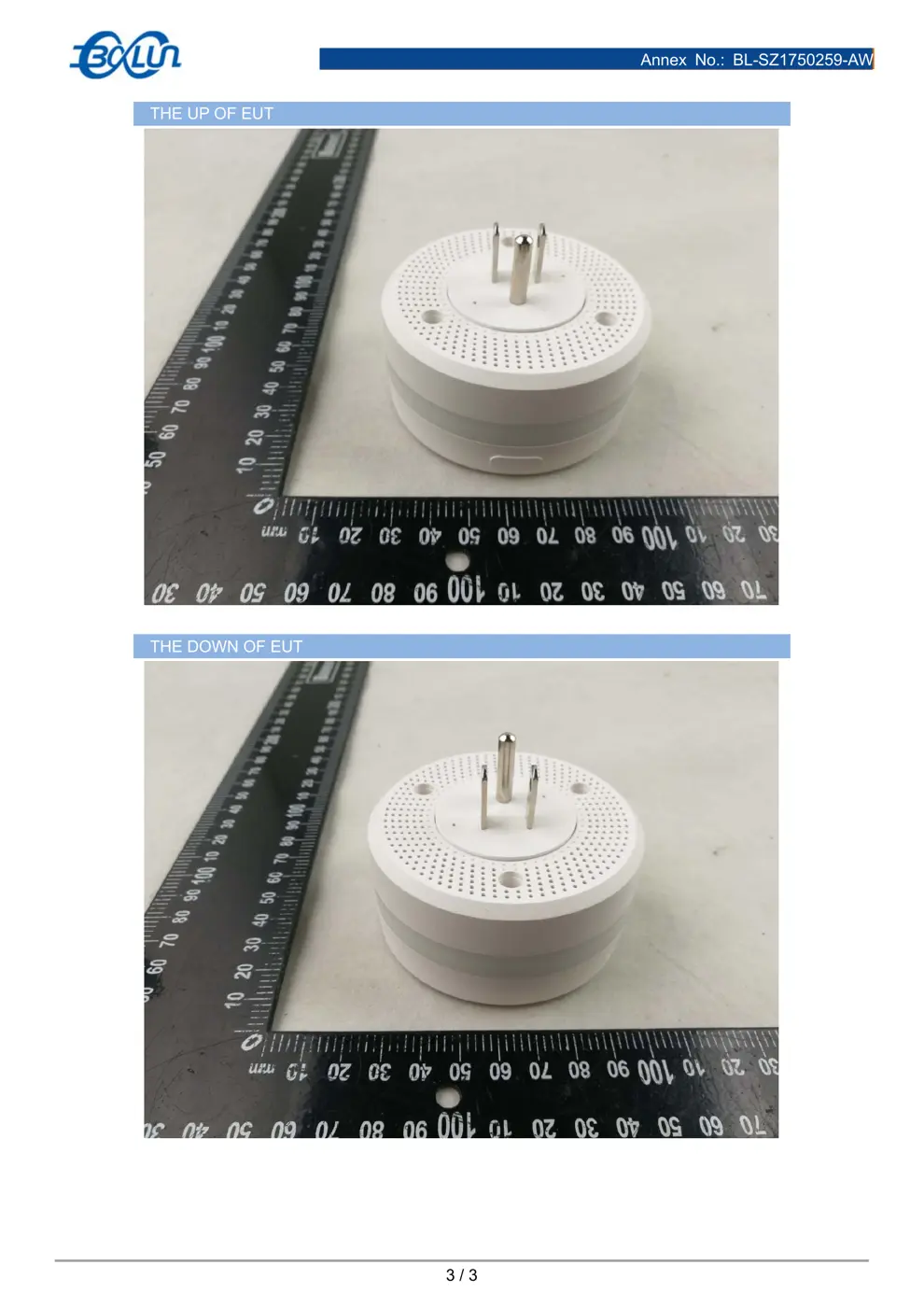
External Photos
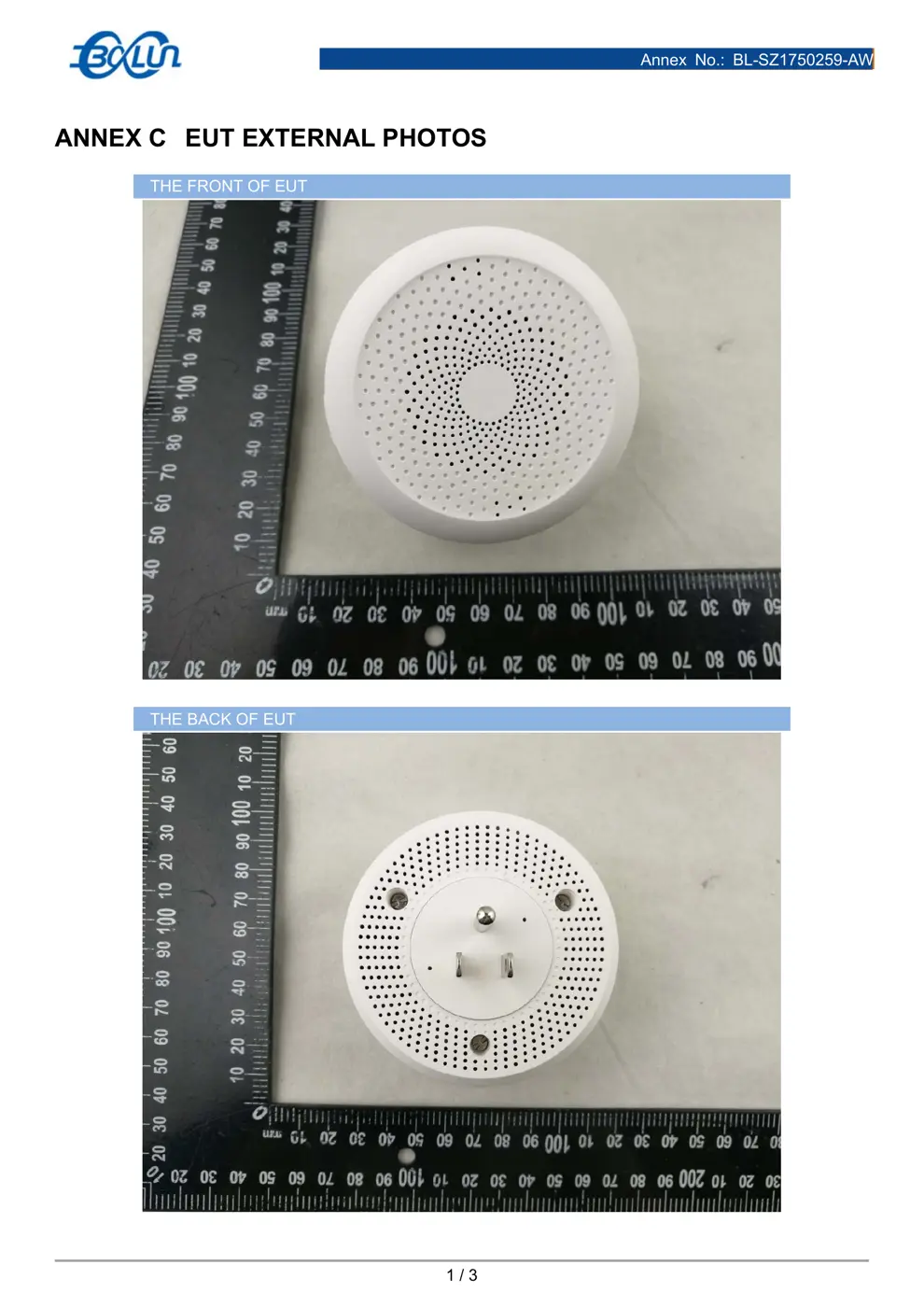
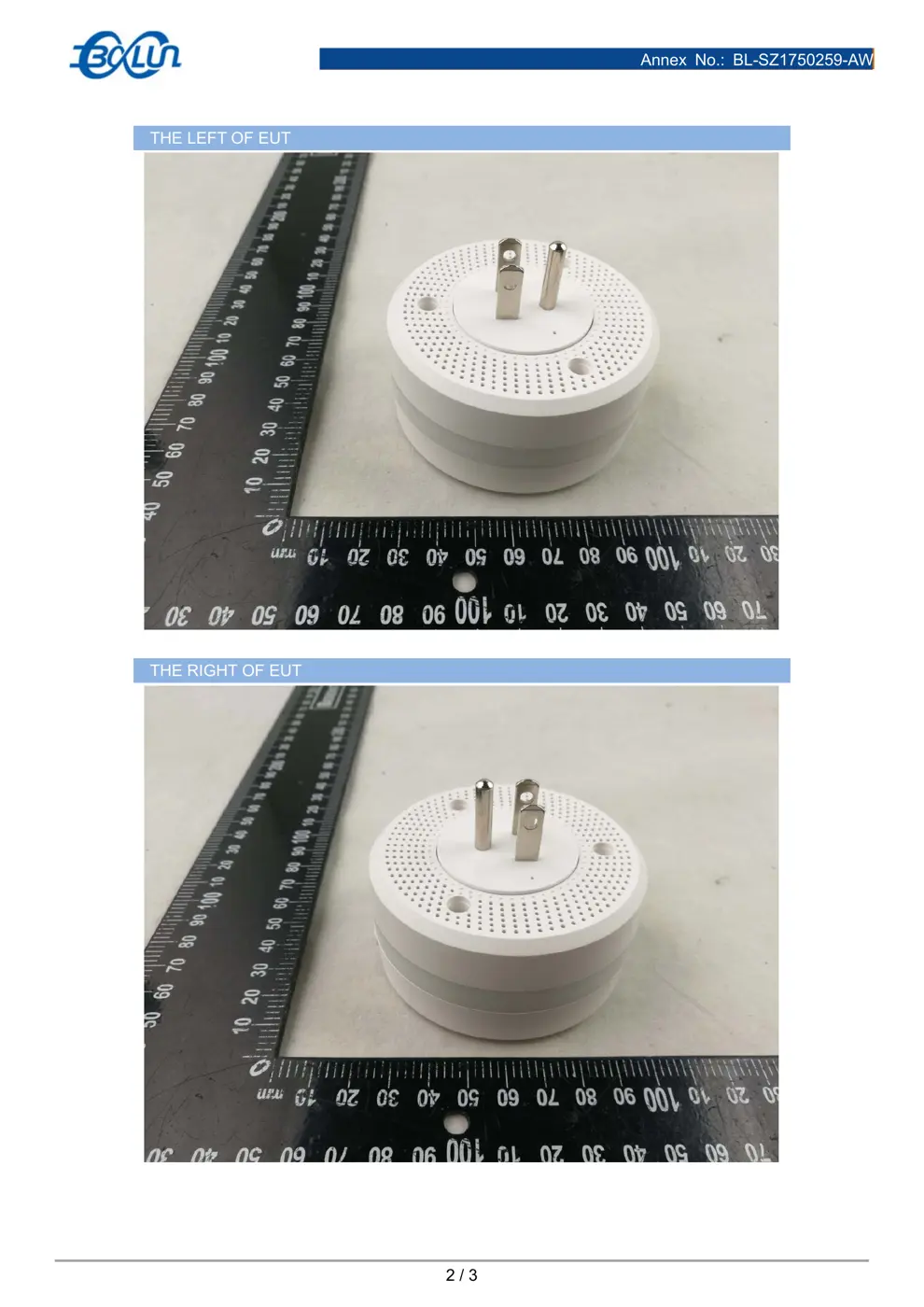
Photos of the device exterior:
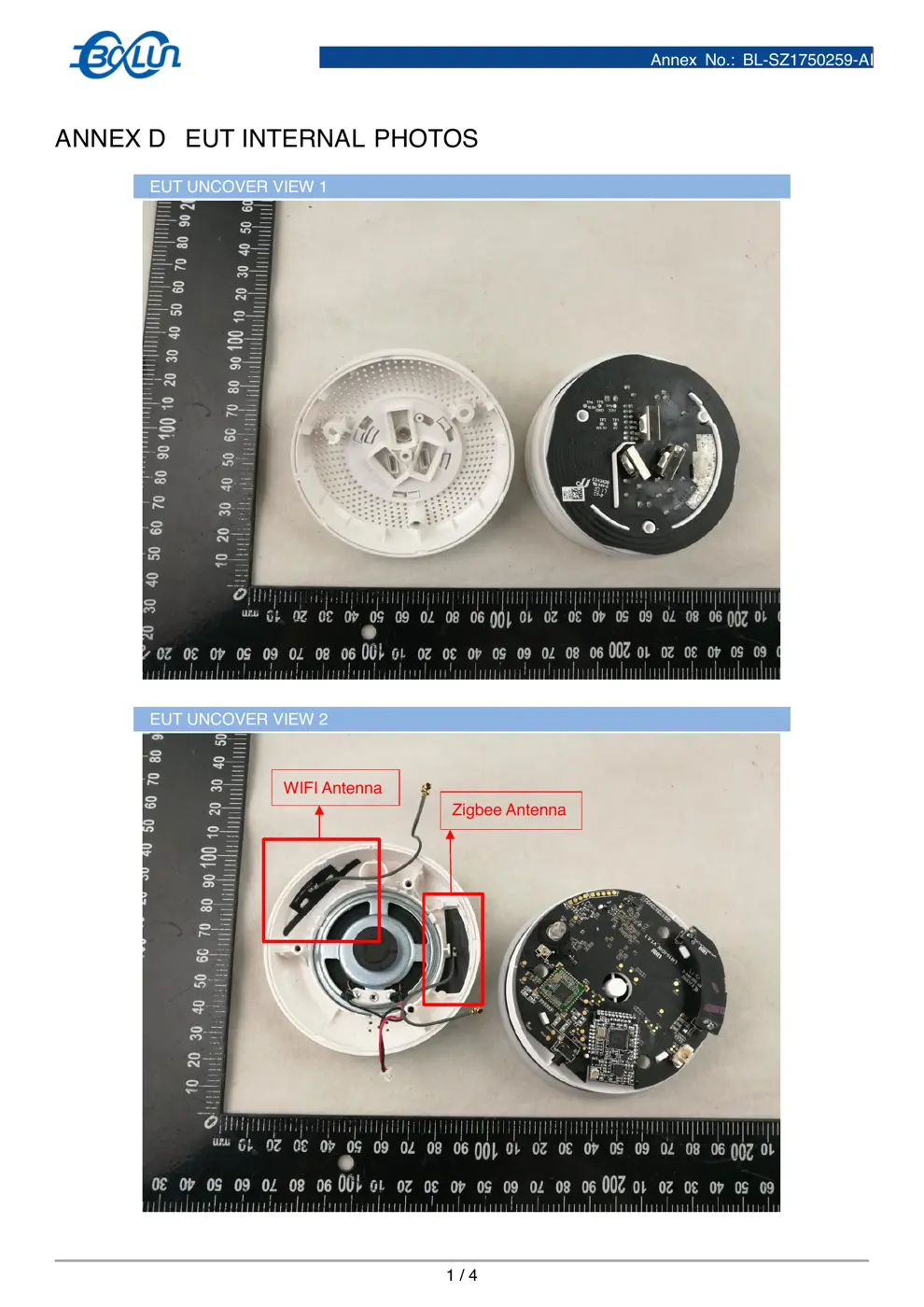
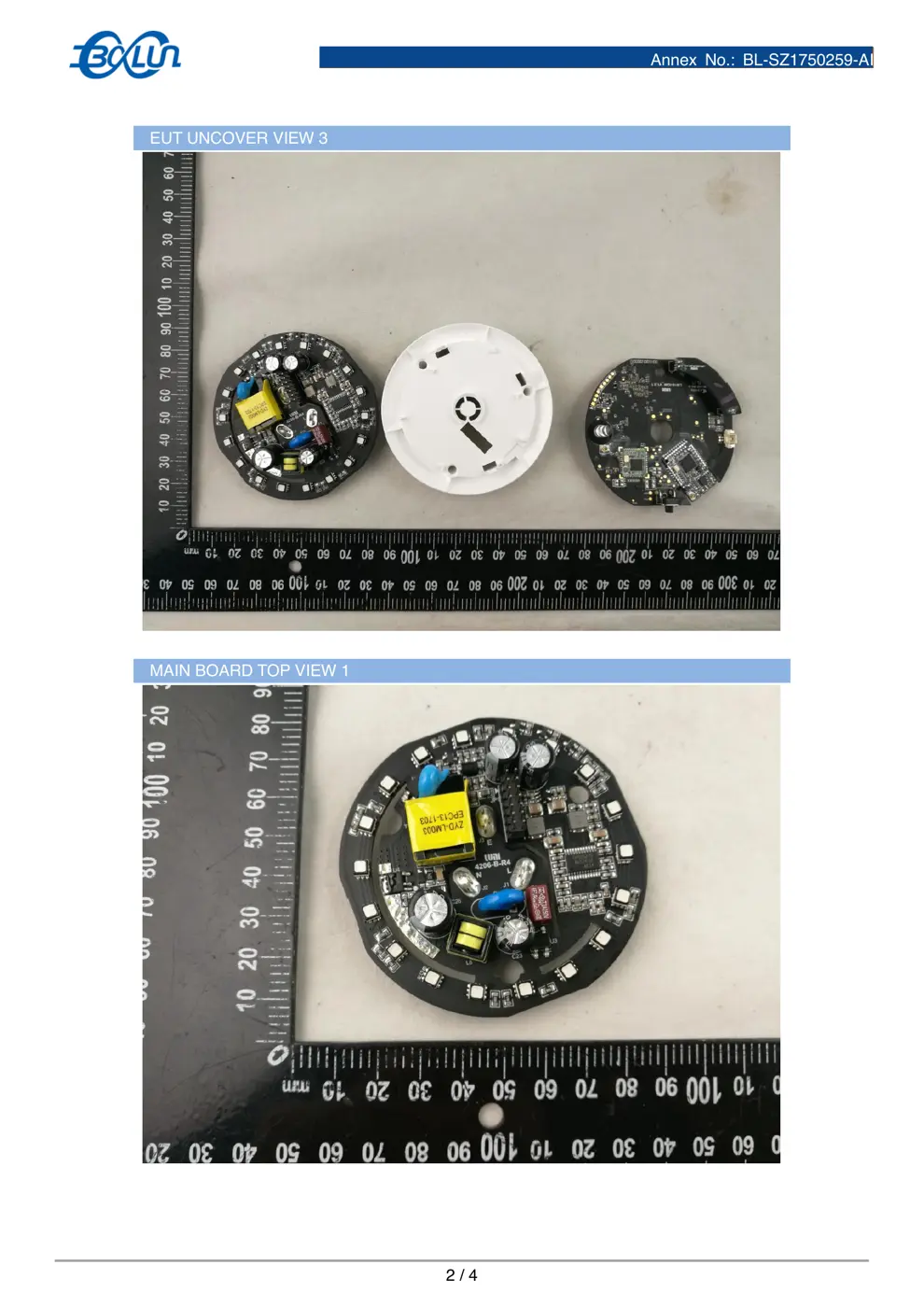
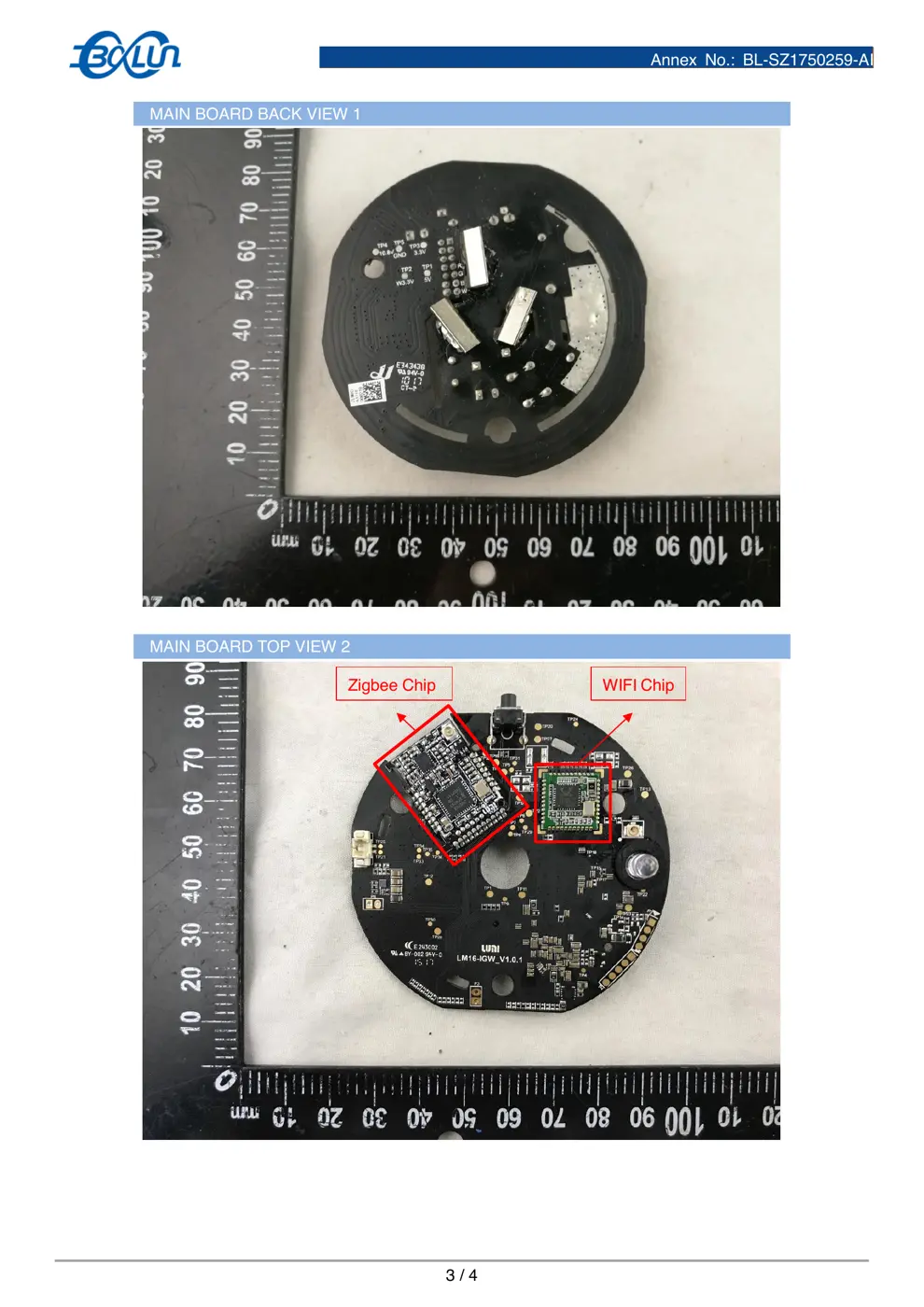
Internal Photos
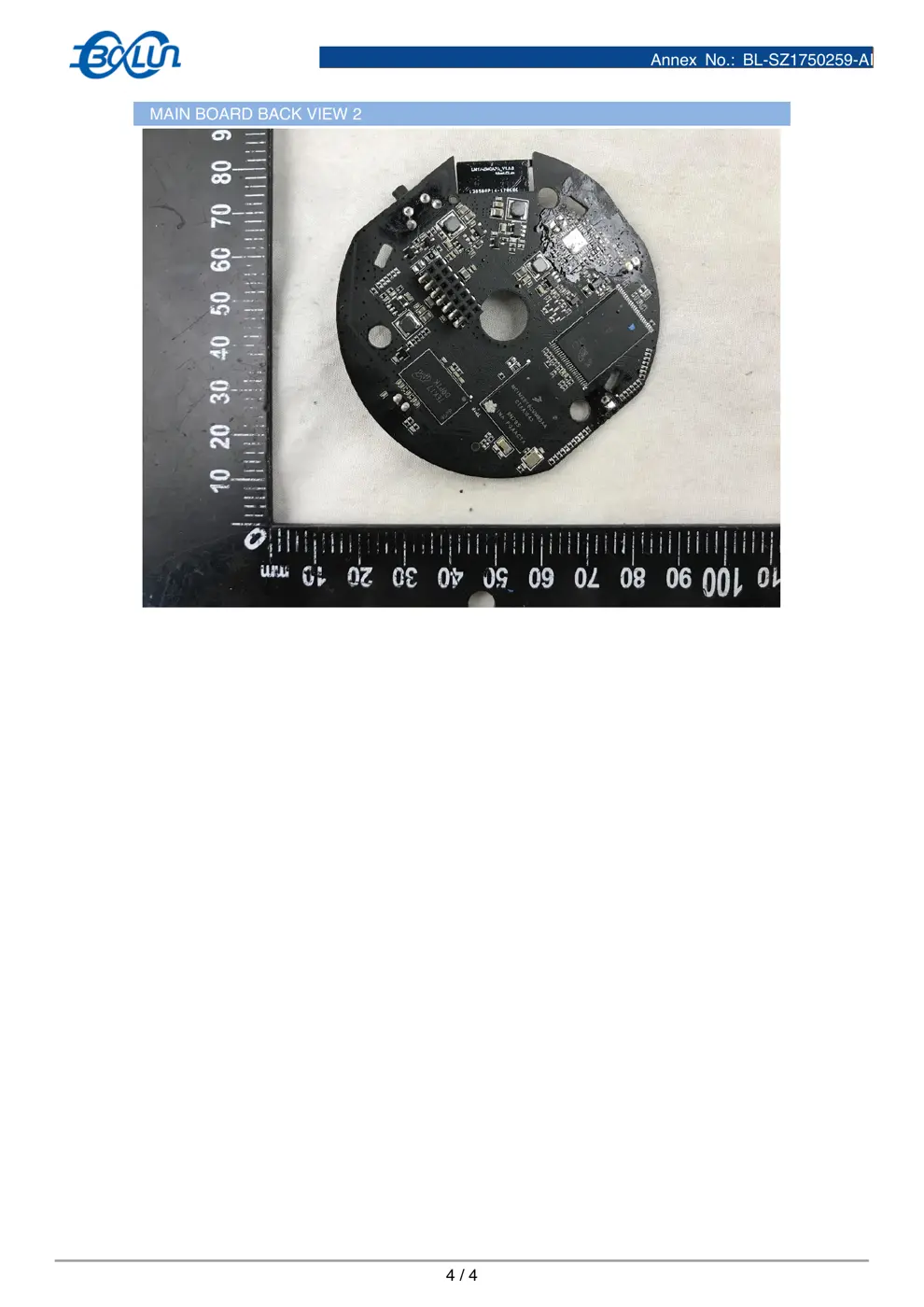
Teardown photos showing the PCB and components:
Verdict
The ZHWG11LM is a Zigbee device from the Aqara Zigbee ecosystem.
📄 Click to view full text manual (SEO)
Aqara
Hub
User
Manual
and
Warranty
Product
description
Aqara
Hub
is
the
control
center
of
the
smart
home
devices,
it
connects
all
the
smart
sensors
and
controllers
through
Aqara
APP
to
create
and
manage
a
variety
of
intelligent
life
scenes.
Aqara
Hub
functions
as
night
lights,
illumination
detection,
sound
and
light
alarm
,
ect
.
Quick
Setup
1.
Download
Aqara
APP
Download
Aqara
APP
in
the
application
store
or
scan
the
following
QR
code.
M
ore
smart
devices
info
,
please
visit
a
qara.com
2.
Connect
new
device
s
Plug
in
the
hub
,
make
sure
it
connect
s
to
2.4GHz
Wi-Fi
Open
Aqara
APP,
go
to
“
Device
List
”
,
click
“
+
”
on
the
top
right
to
add
devices,
cho
o
se
Aqara
hub
and
follow
the
instructions.
*
Please
keep
your
phone
close
to
the
hub
for
connectivity
convenience,
and
make
sure
your
phone
and
hub
connect
to
the
same
Wi-Fi.
If
connection
failed,
press
the
button
on
the
hub
for
5
seconds
until
a
yellow
light
blinks
to
reconnect
the
hub
.
Follow
the
instruction
i
n
the
user
manual
to
add
devices
after
the
hub
is
ready.
You
can
view
the
device
list
under
the
hub
and
set
up
the
automation
scenes
.
Installation
The
hub
must
be
placed
close
to
the
router
,
2
to
6
meters
for
ideal
transmission.
Indicator
Light
Description
Indicator
light
c
olor
Indicator
light
status
Quick
b
link
Slow
b
link
Yellow
light
Reset
to
factory
settings
,
it
appears
in
the
initial
usage
or
resetting
Firmware
upgrade
Blue
light
Wi-Fi
is
connecting,
it
appears
when
the
APP
is
connecting
the
hub,
network
is
disconnected
or
the
network
is
reconnected
after
the
plug
is
re-plugged
N/A
Specifications
M
odel
:
ZHWG11LM
Size
:
80
×
80
×
41.5mm
Operating
temperature
:
0
℃
-
+40
℃
Operating
humidity
:
5%
-
95%RH
,
no
condensation
Input
voltage
:
100
-
240V~
,
50Hz/60Hz
Wireless
connections
:
Wi-
Fi
IEEE
802.11
b/g/n
2.4GHz,
ZigBee,
NFC
Applicable
system
:
Android
4.4
or
above
,
iOS
8.0
or
above
*
This
equipment
is
for
indoor
use
only
*
This
equipment
is
only
suitable
for
safe
use
in
areas
below
2
,
000
meters
above
sea
level
Federal
Communications
Commission
(FCC)
compliance
statem
ent
1.
This
device
complies
with
Part
15
of
the
FCC
Rules.
Operation
is
subject
to
the
followi
ng
two
conditions:
(1)
This
device
may
not
cause
harmful
interference.
(2)
This
device
must
accept
any
interference
received,
including
interference
that
may
ca
use
undesired
operation.
2.
Changes
or
modifications
not
expressly
approved
by
the
party
responsible
for
complian
ce
could
void
the
user's
authority
to
operate
the
equipment.
NOTE:
This
equipment
has
been
tested
and
found
to
comply
with
the
limits
for
a
Class
B
digital
device,
pursuant
to
Part
15
of
the
FCC
Rules.
These
limits
are
designed
to
provide
reasonable
protection
against
harmful
interference
in
a
residential
installation.
This
equipment
generates
uses
and
can
radiate
radio
frequency
energy
and,
if
not
install
ed
and
used
in
accordance
with
the
instructions,
may
cause
harmful
interference
to
radio
communications.
However,
there
is
no
guarantee
that
...