
CHC01 Reset & Teardown (FCC ID 2AKIT-CHC01)
Factory reset and internal photos for Aqara (Lumi United) CHC01. Aqara Zigbee smart plug.
January 16, 2026
•
10 read
Before you buy the Aqara (Lumi United) CHC01, check what's inside.
The Aqara Camera Hub G2H Pro is a versatile smart home device combining a security camera with a Zigbee hub. It supports HomeKit Secure Video and allows for local storage, making it a robust option for smart home automation.
⚠️ NOTE: Ensure the correct voltage and polarity when connecting the Micro USB power supply. Avoid placing near water sources.
Quick Specs
- Manufacturer: Aqara (Lumi United)
- Model: CHC01
- Protocol: Zigbee
- Chipset: Zigbee SoC
- Ecosystem: Aqara Zigbee
- App: Aqara Home
🔧 Geek Corner (Flashing Info)
- Chipset: Unknown
- Flashable: ❌ No
- Info: Proprietary Aqara/Xiaomi hardware, not designed for custom firmware flashing.
User Manual
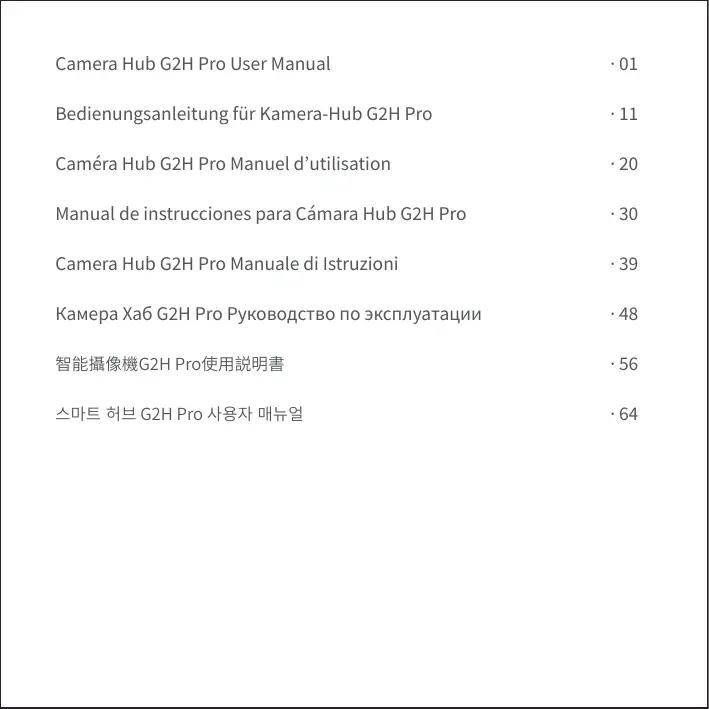
Scanned pages from the official user manual:


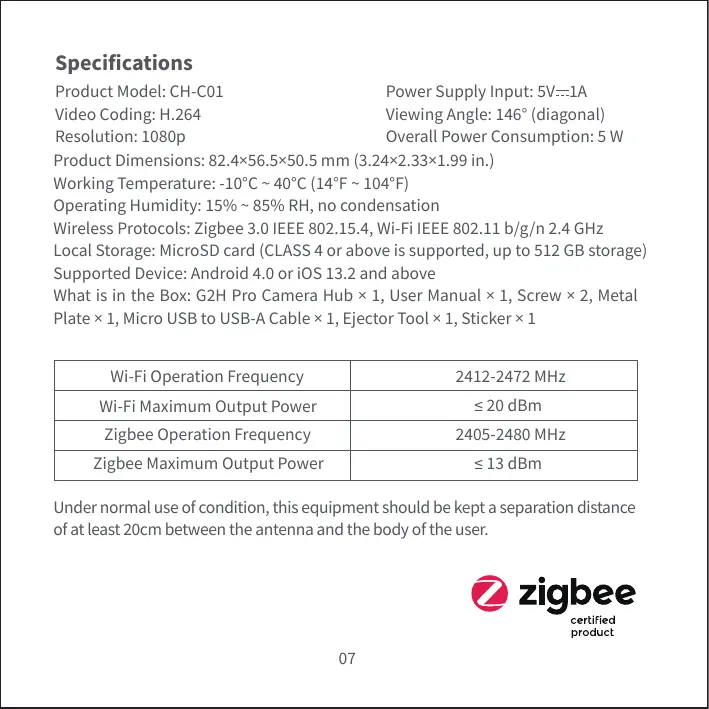
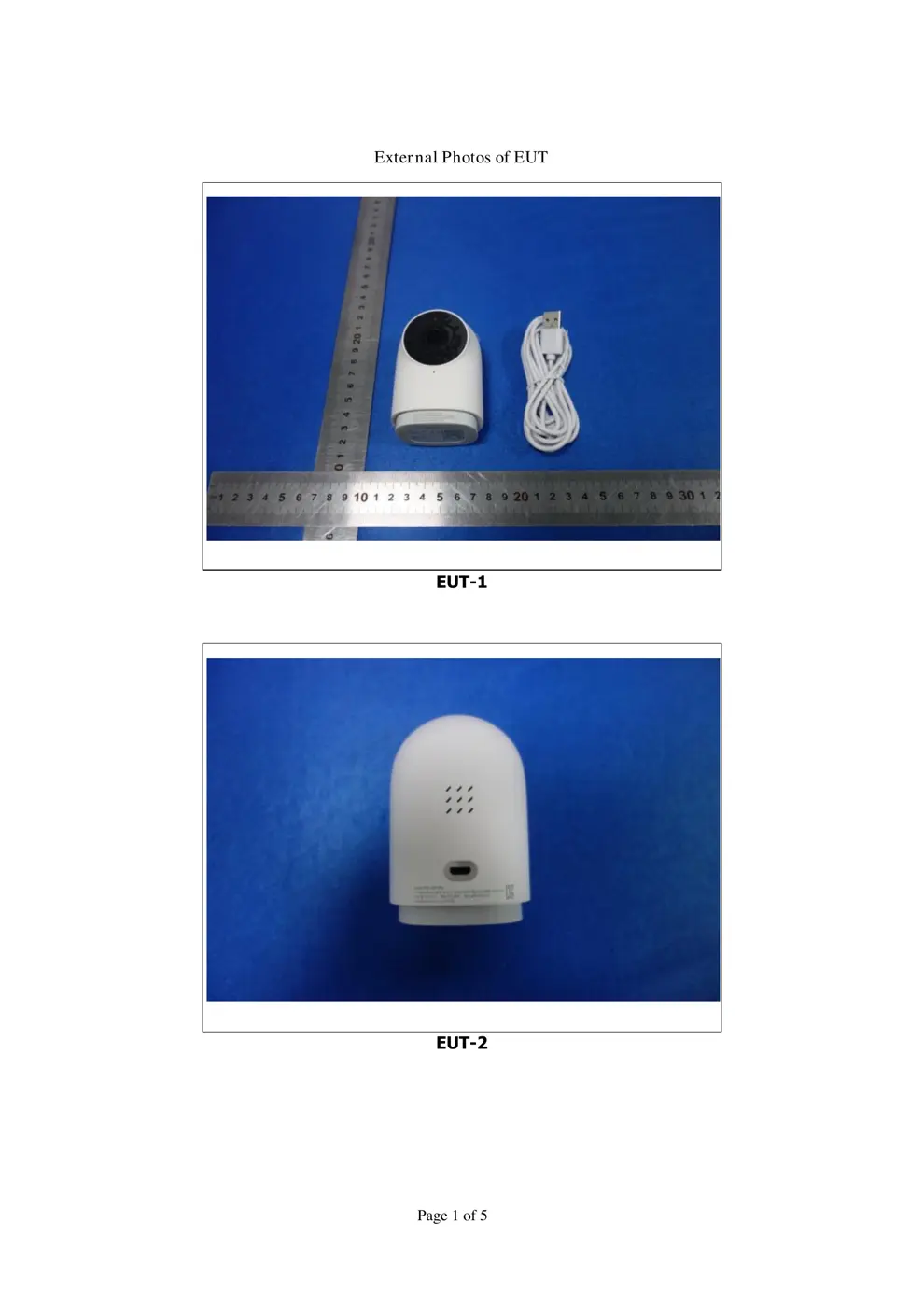
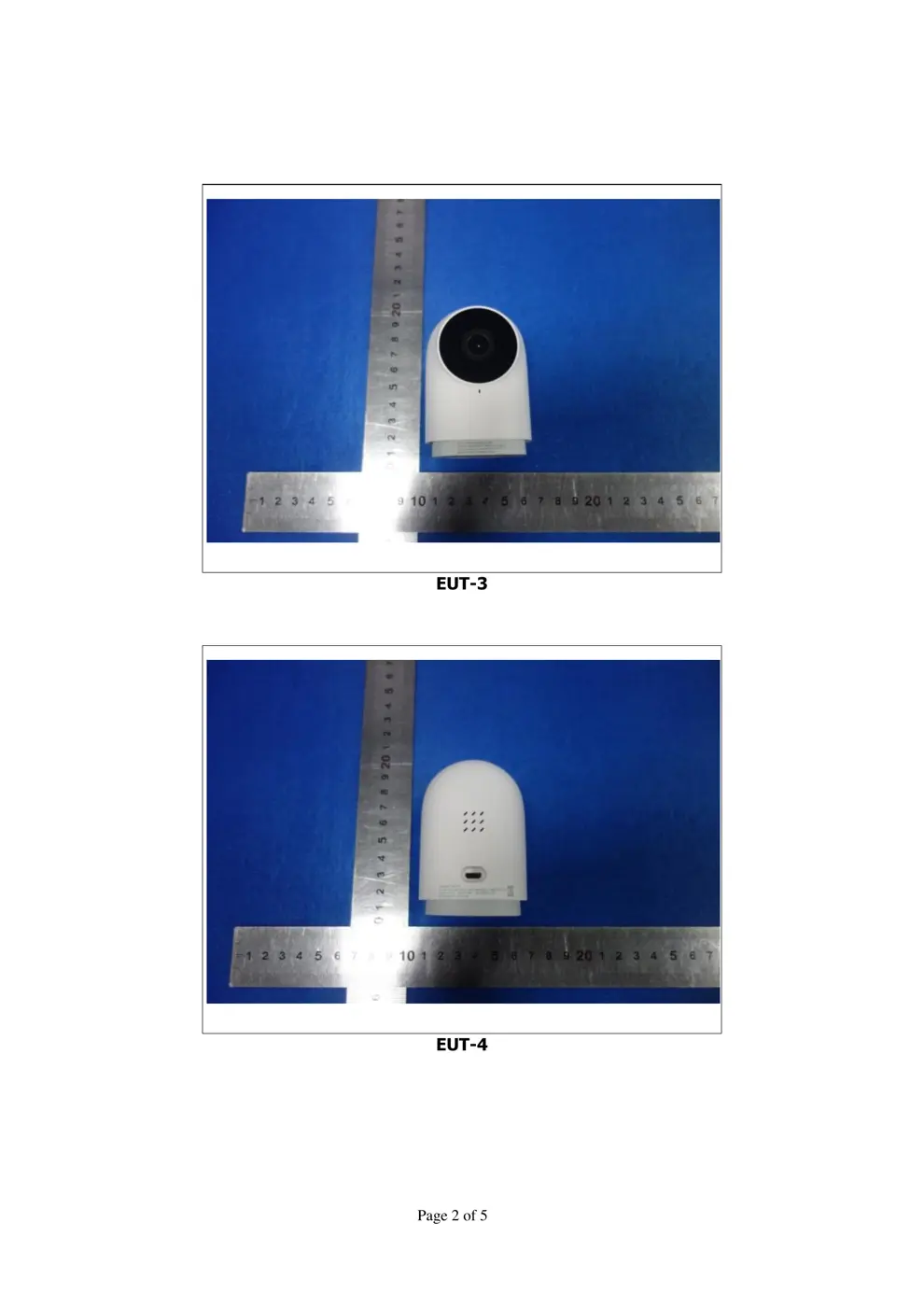
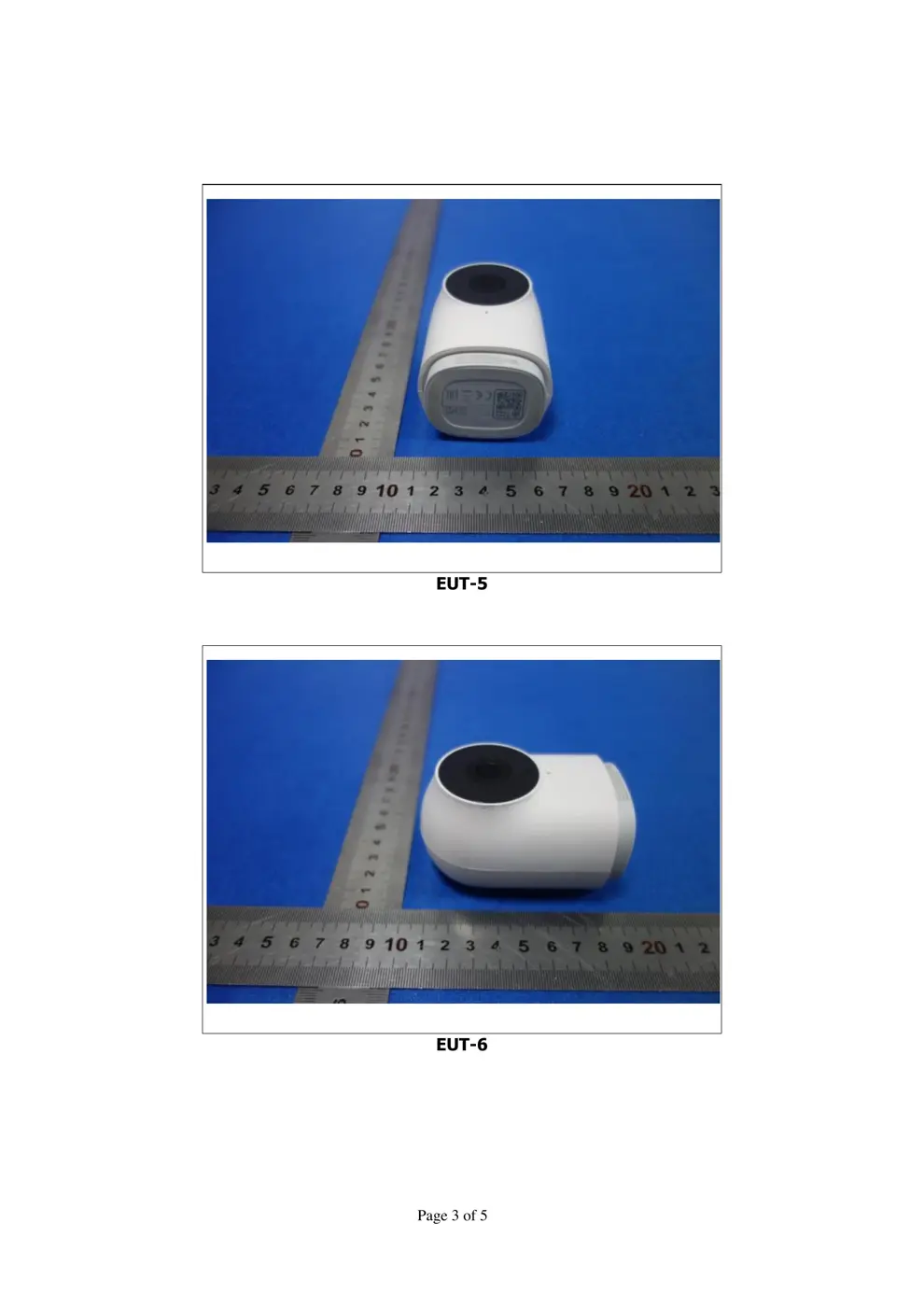
External Photos
Photos of the device exterior:
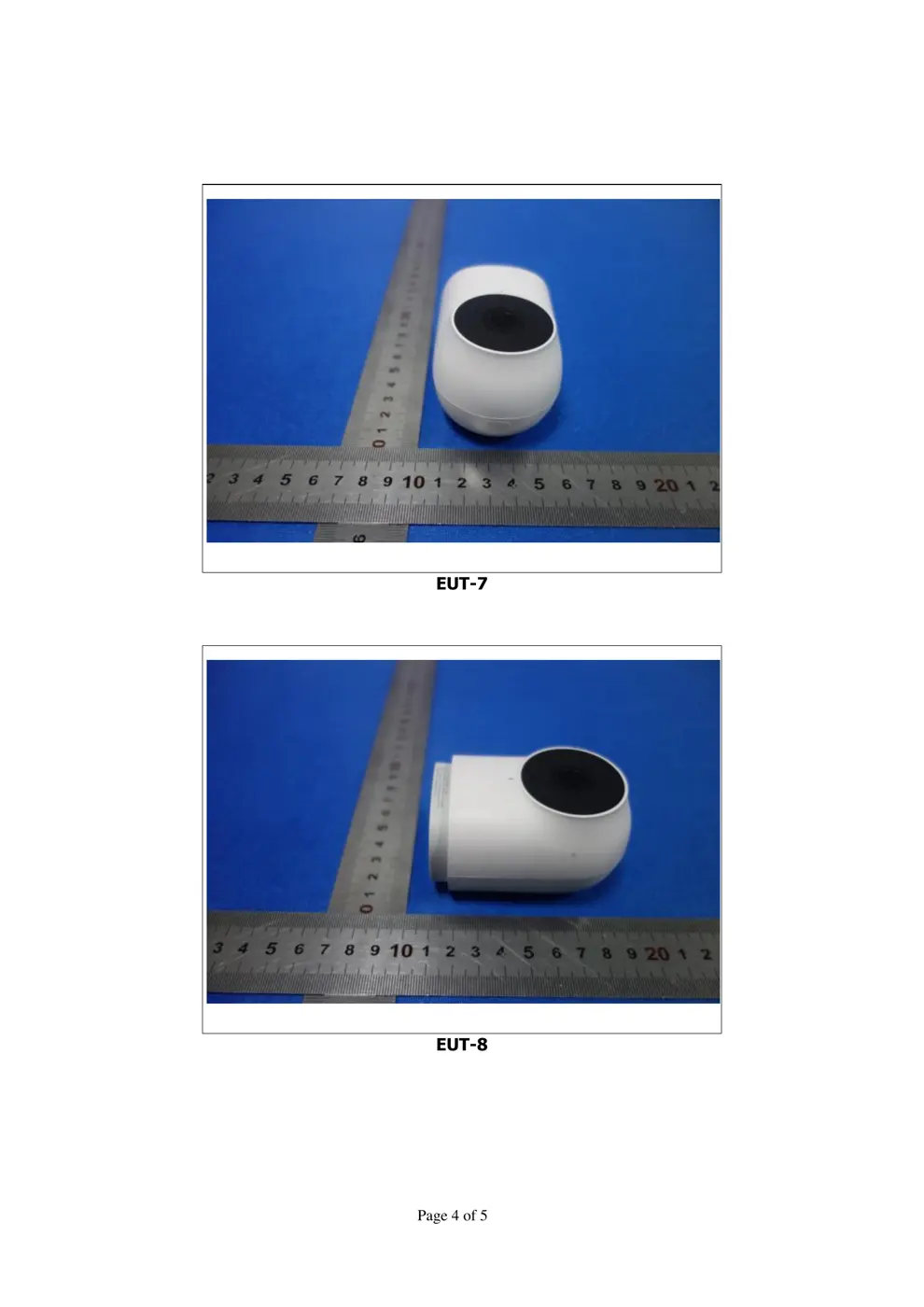
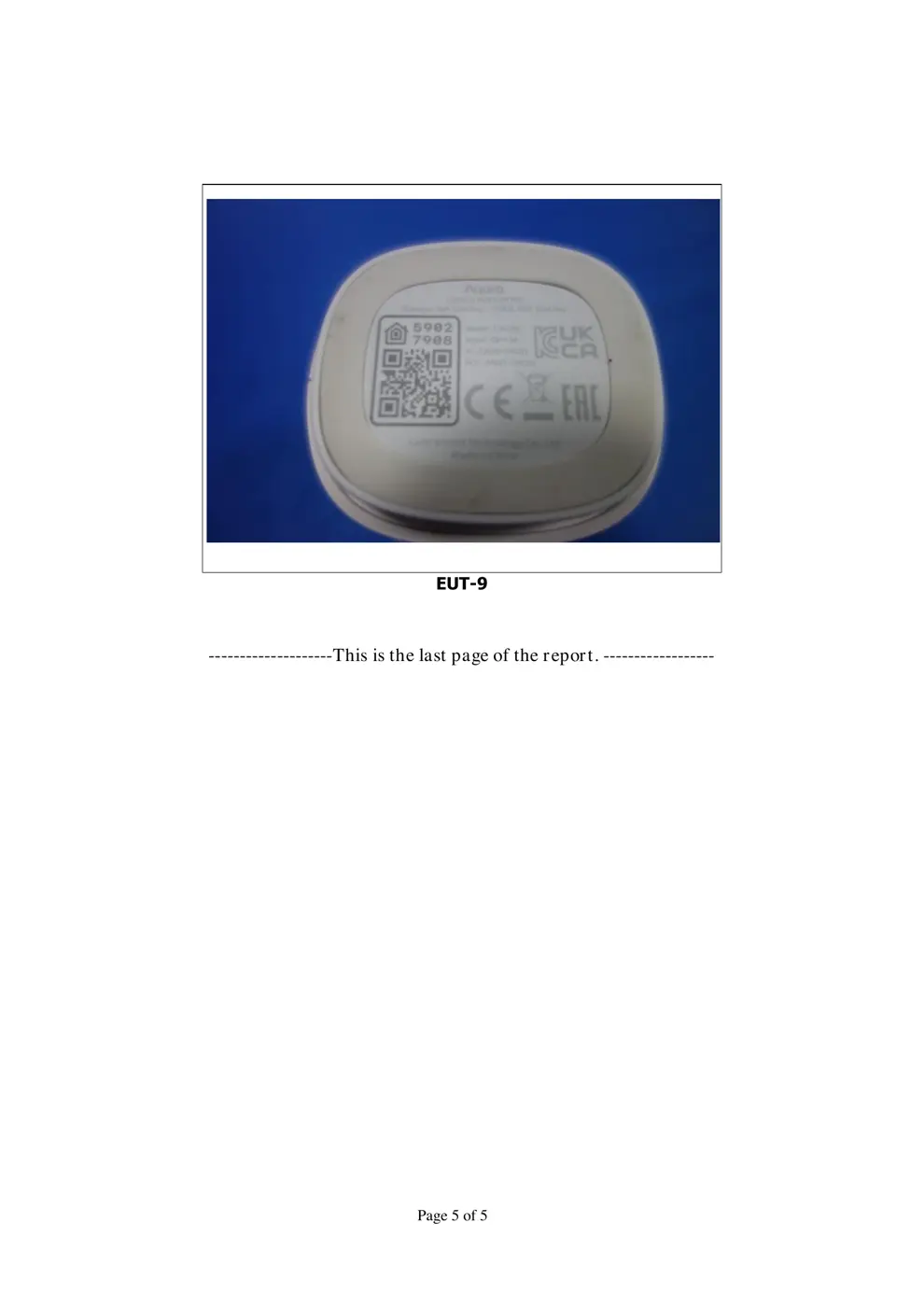
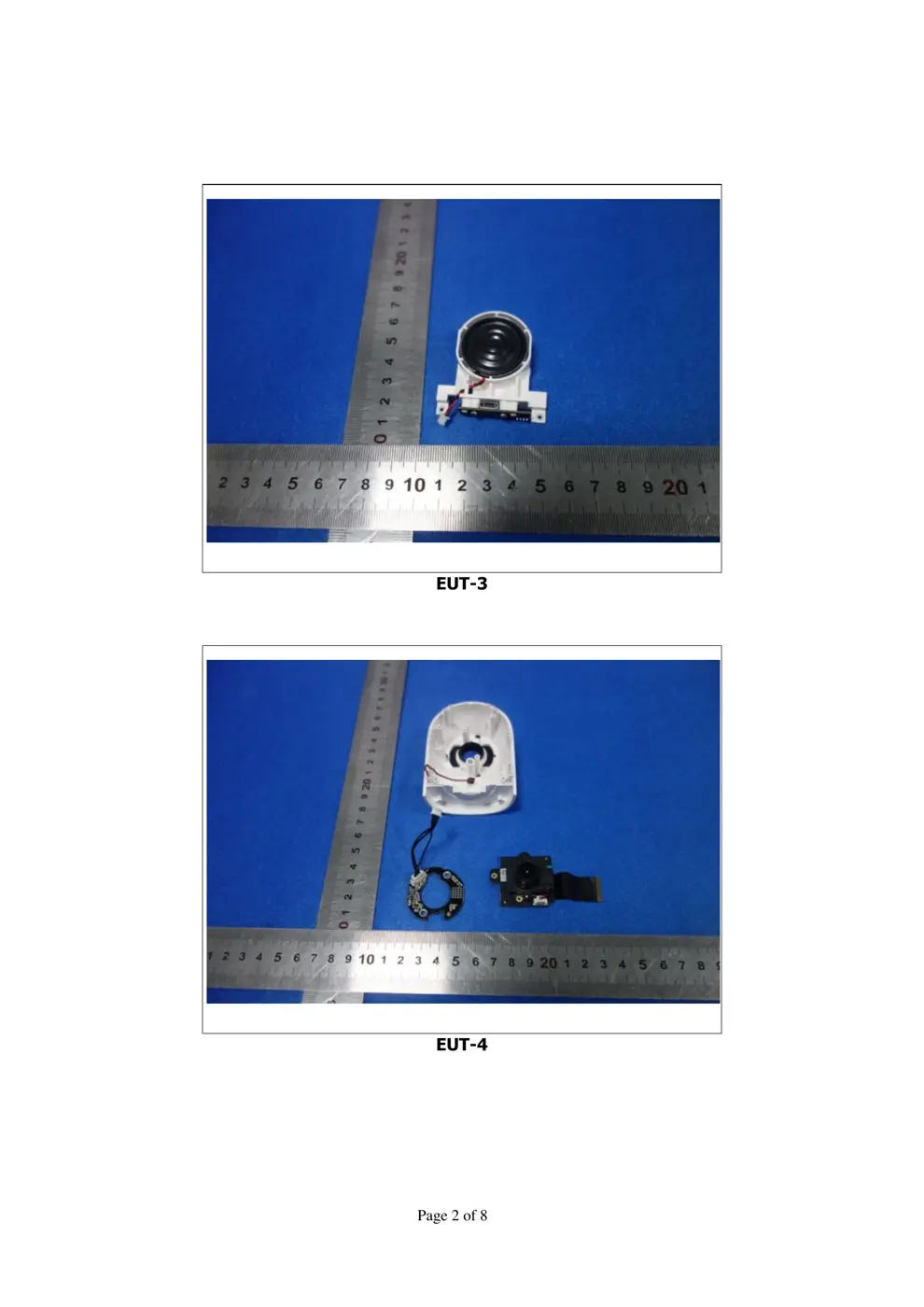
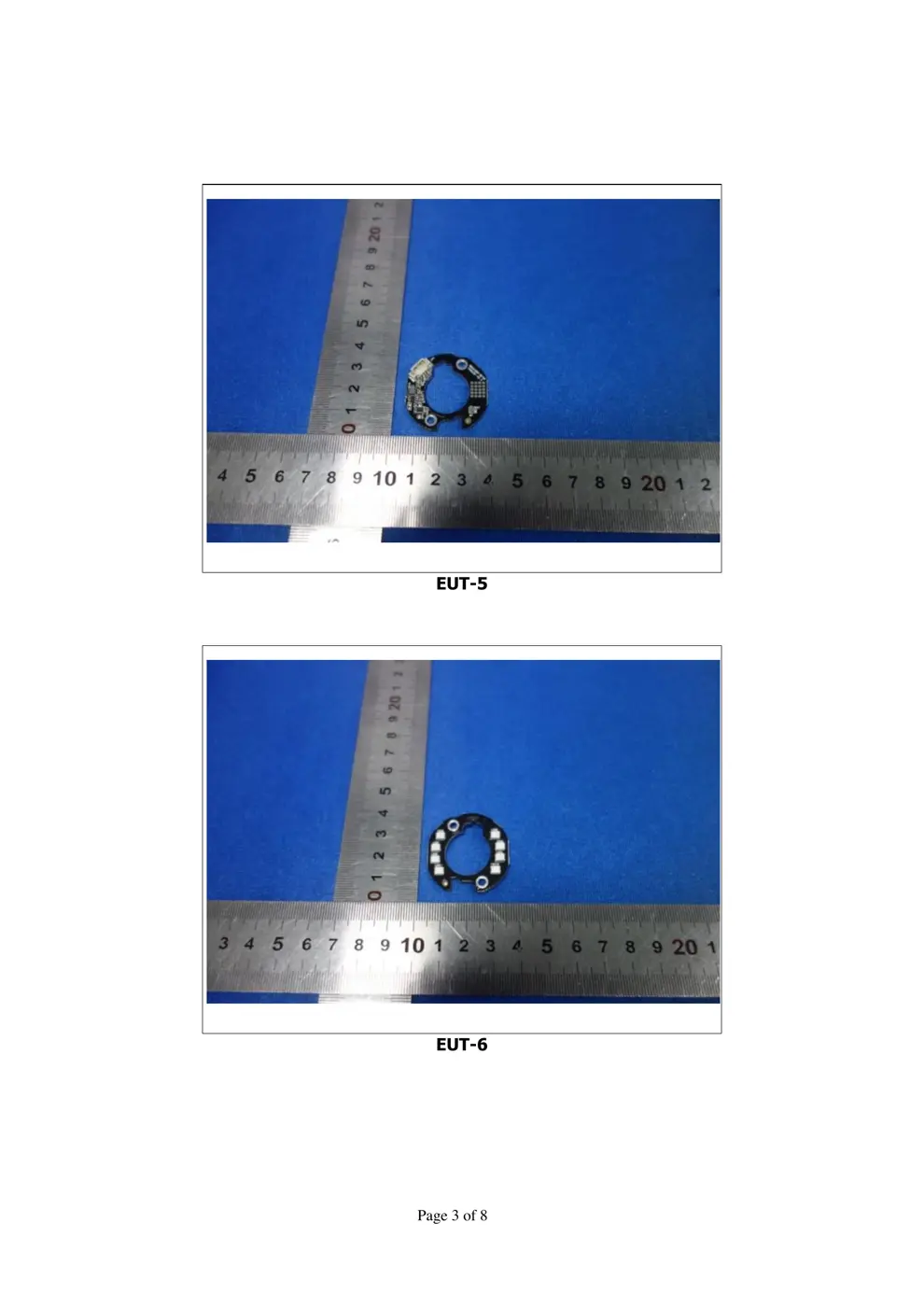
Internal Photos
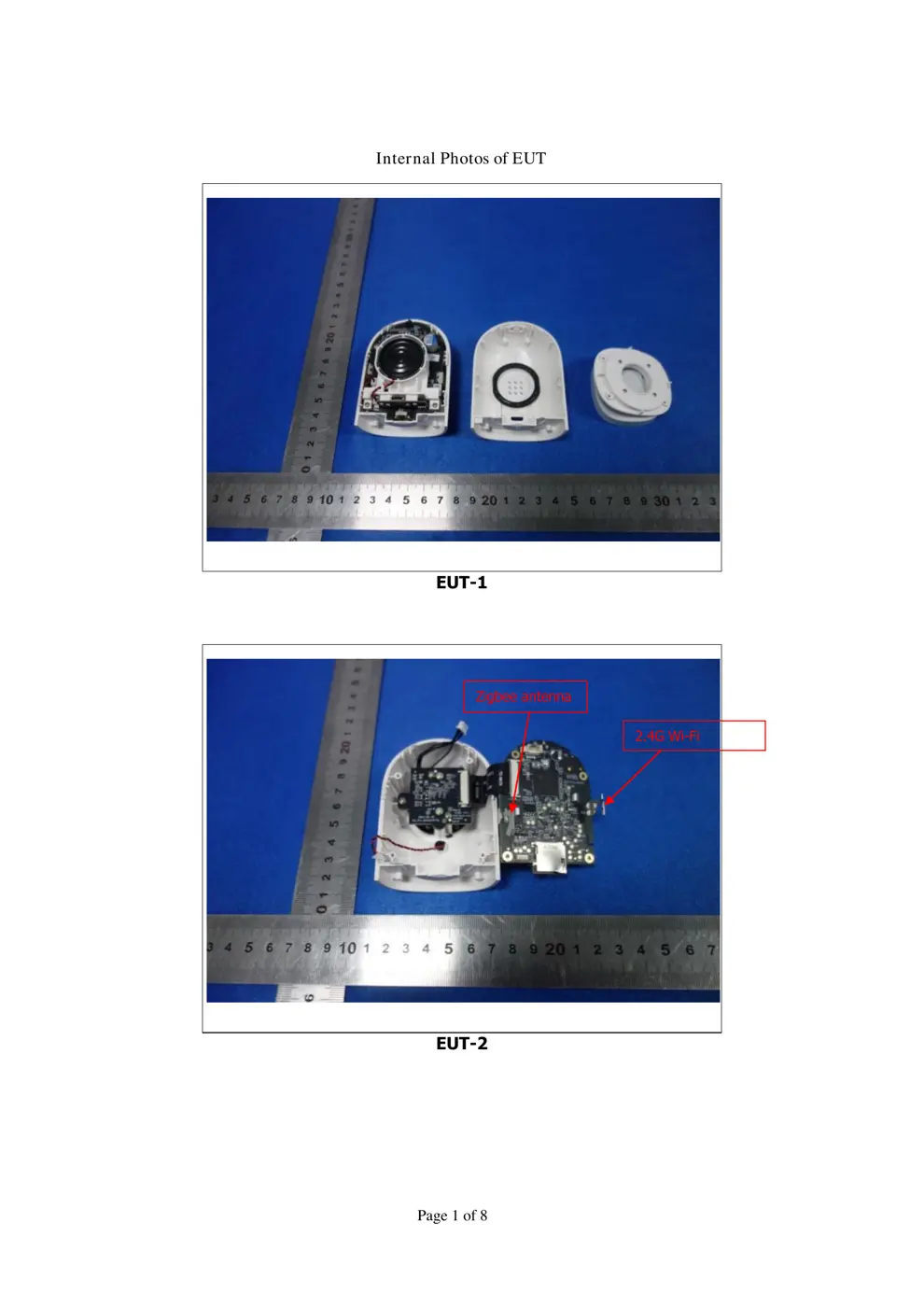
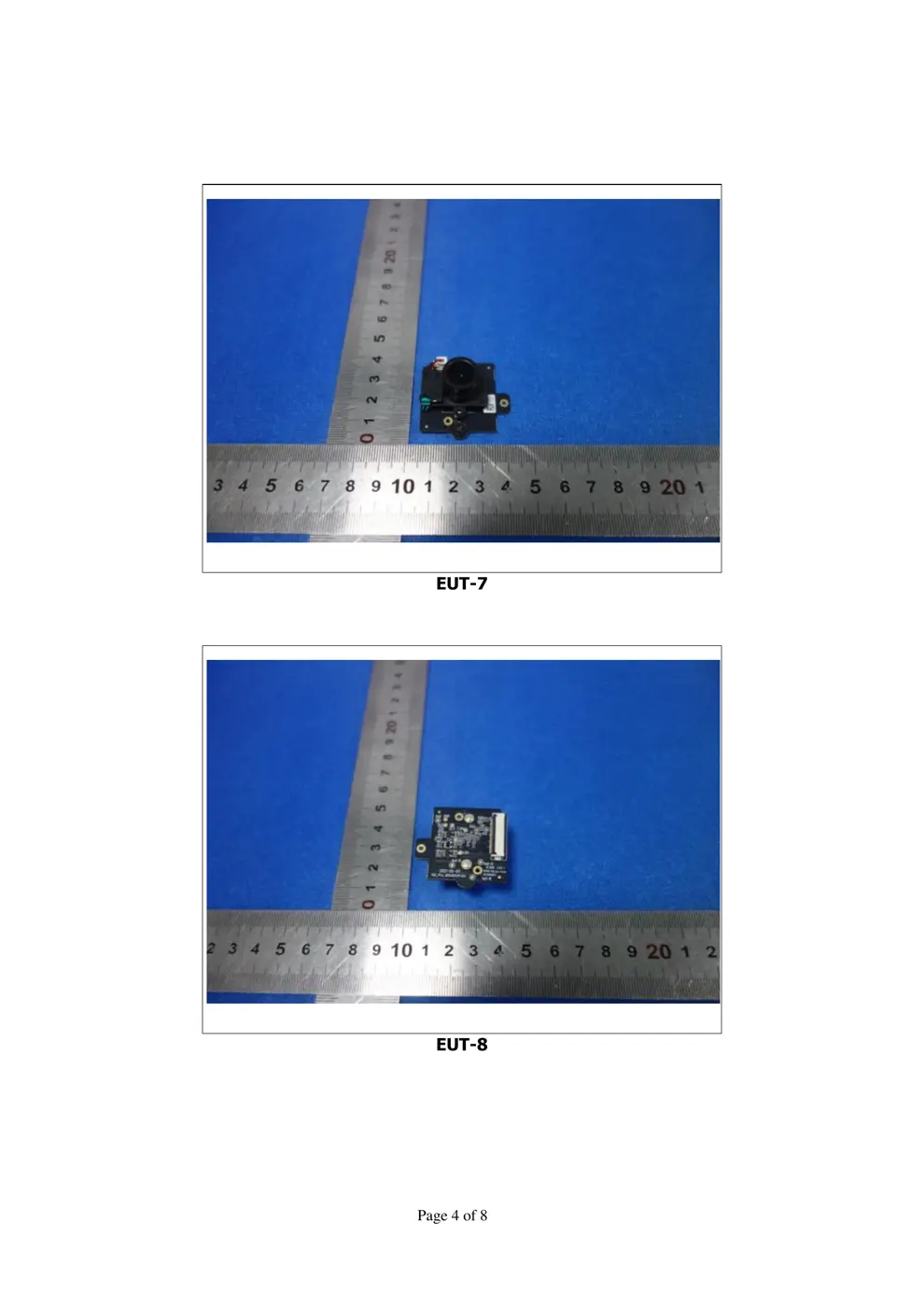
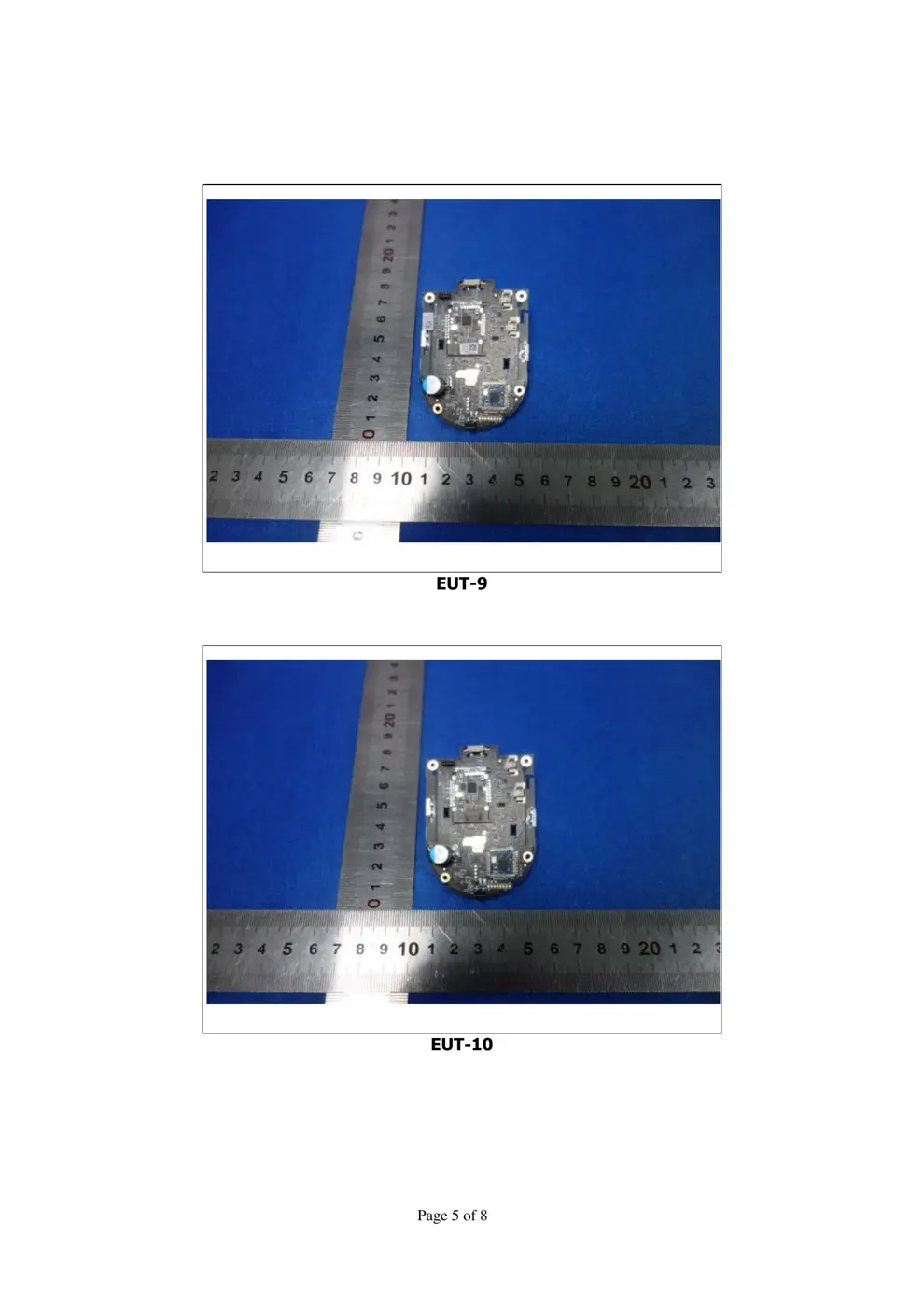
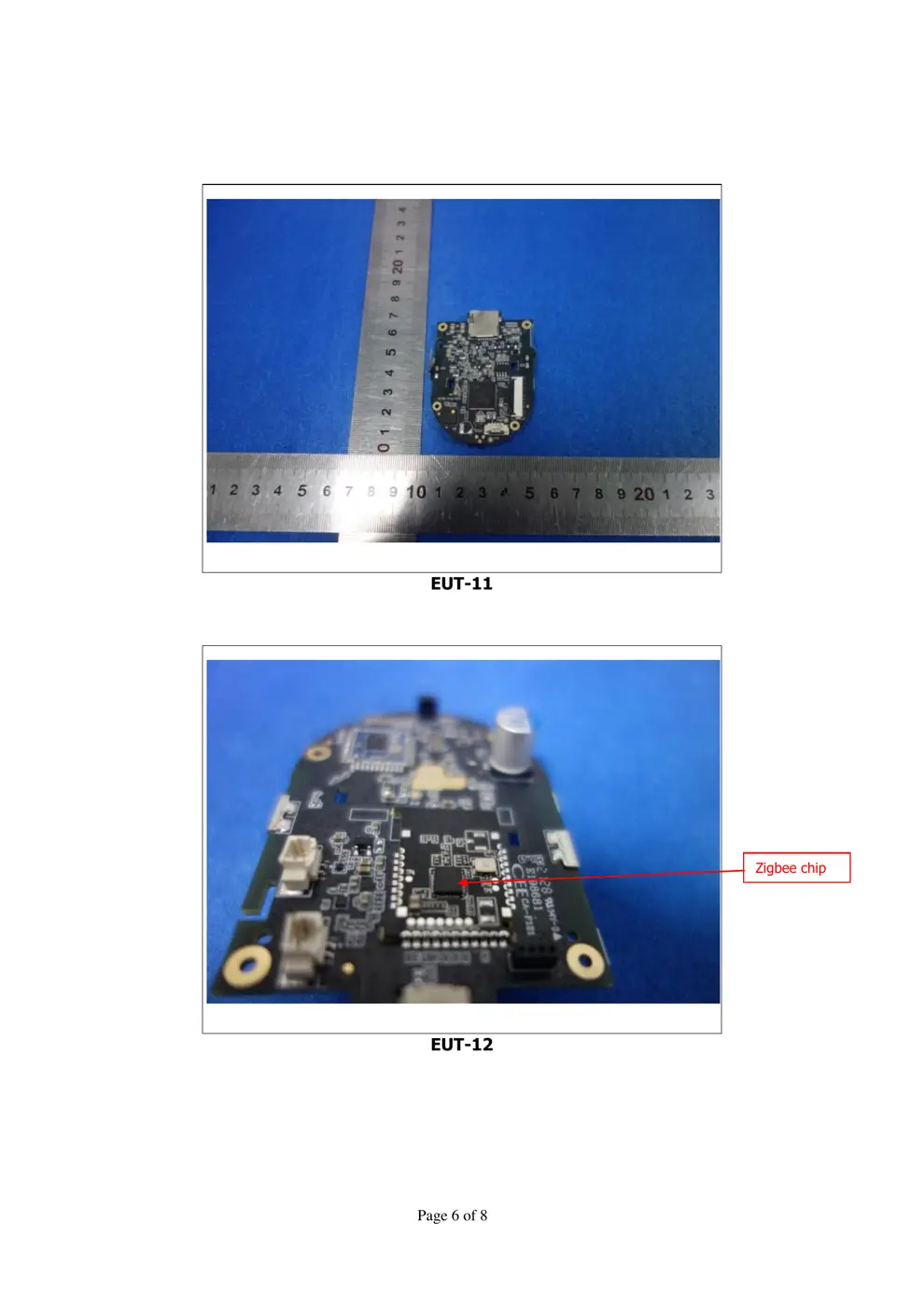
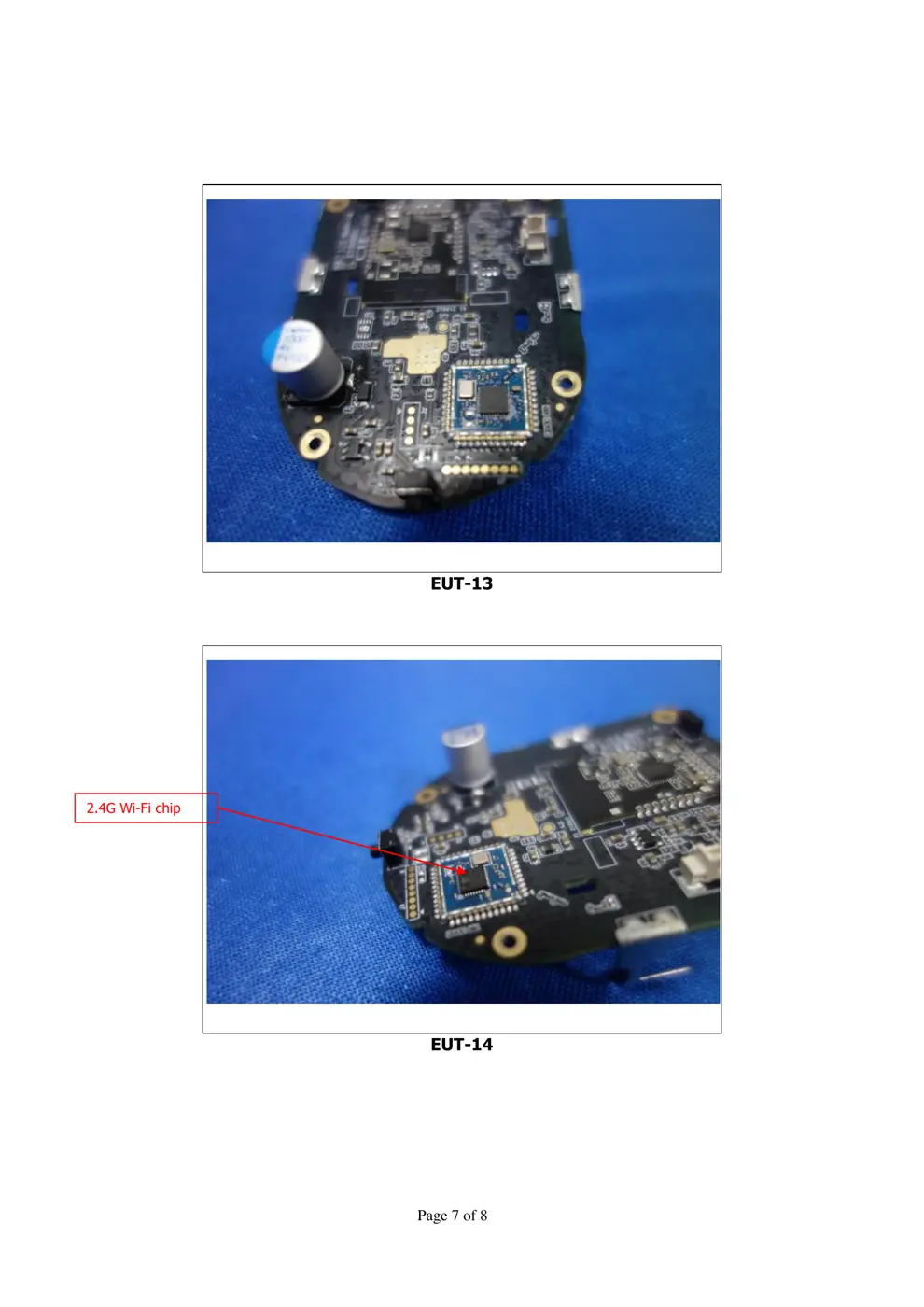
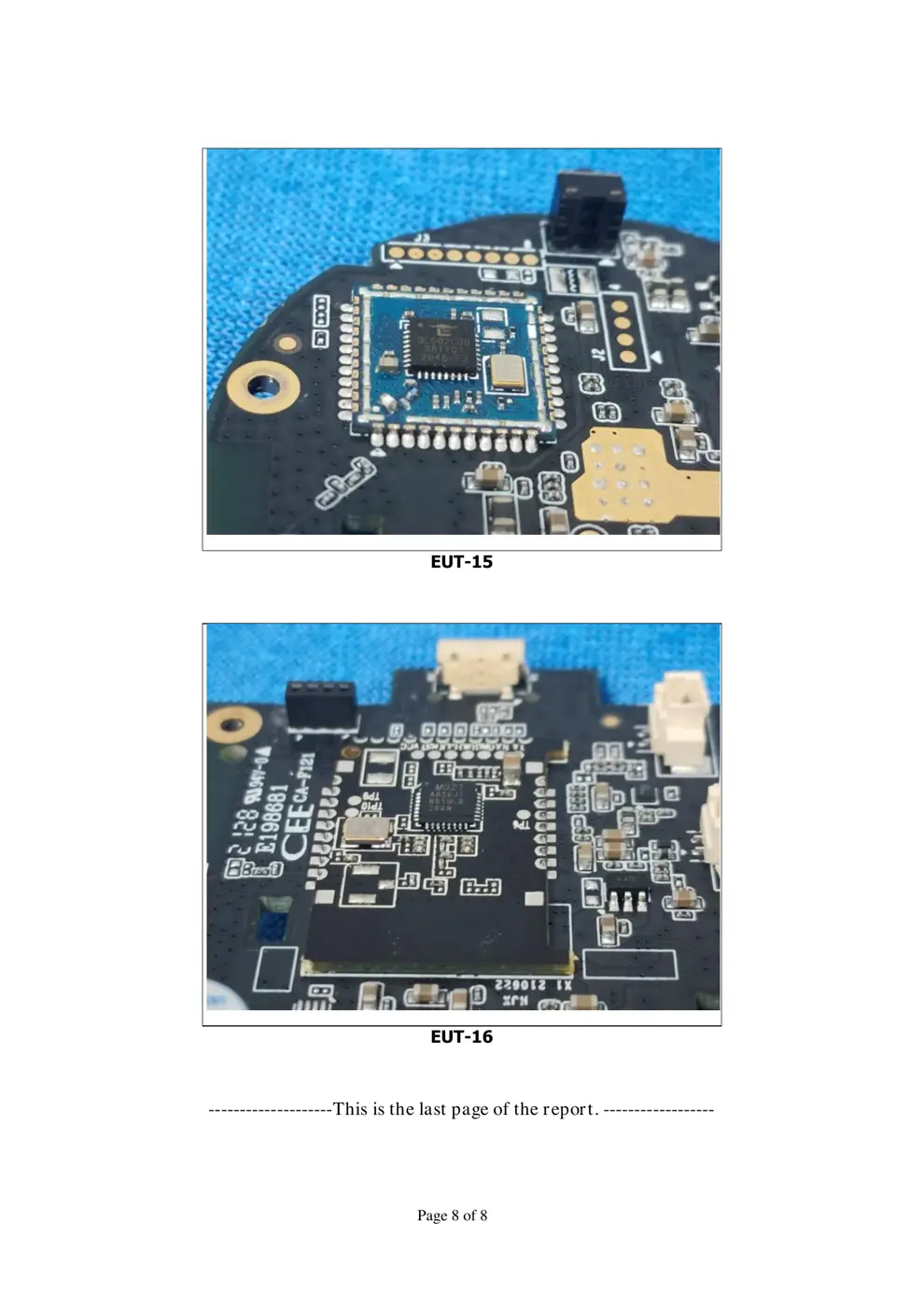
Teardown photos showing the PCB and components:
Verdict
The CHC01 is a Zigbee device from the Aqara Zigbee ecosystem.
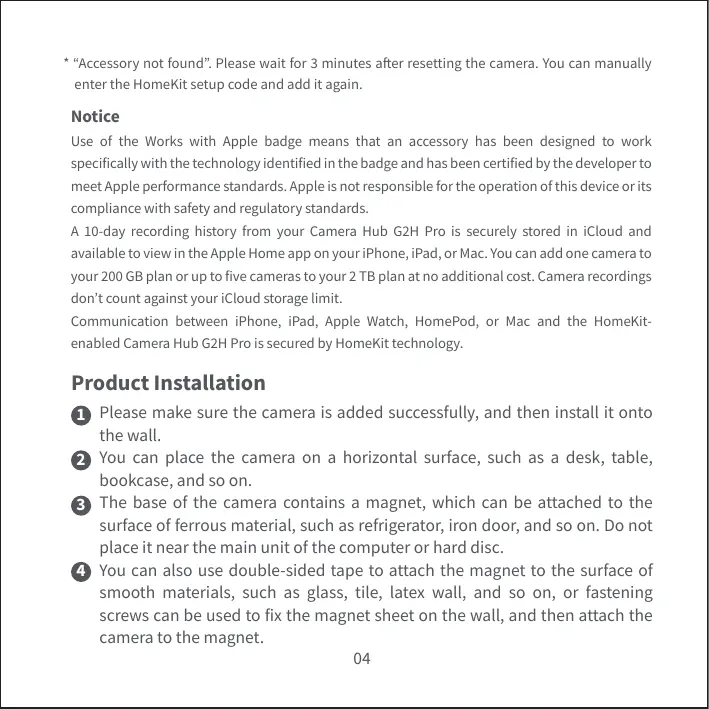
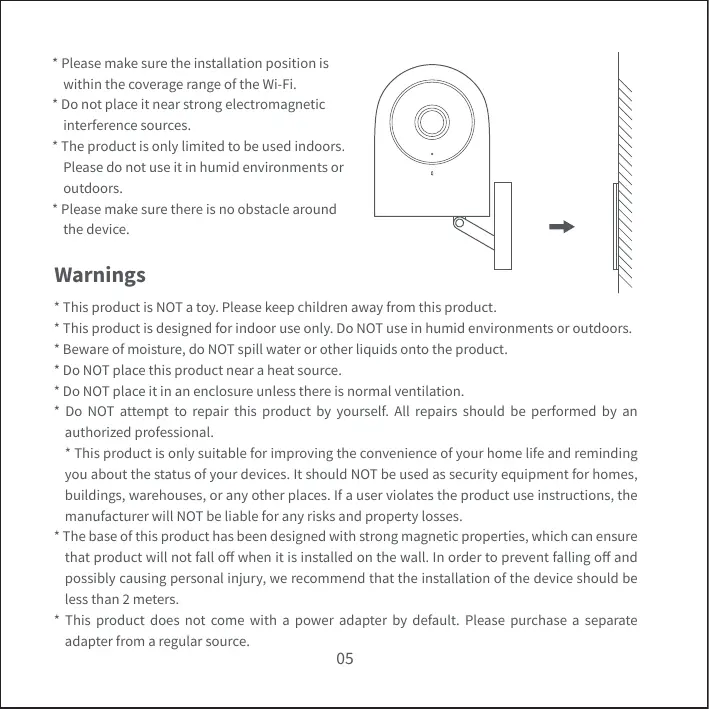
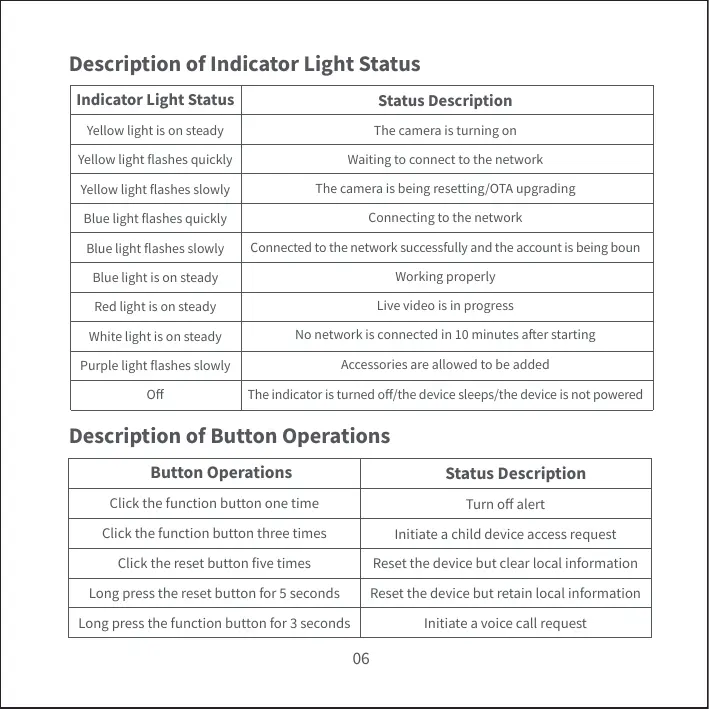
📄 Click to view full text manual (SEO)
Camera Hub G2H Pro User Manual
Bedienungsanleitung für Kamera-Hub G2H Pro
Caméra Hub G2H ProManuel d’utilisation
Manual de instrucciones paraCámara Hub G2H Pro
Camera Hub G2H Pro Manuale di Istruzioni
· 01
· 11
· 20
· 30
· 39
· 48
· 56
· 64
01
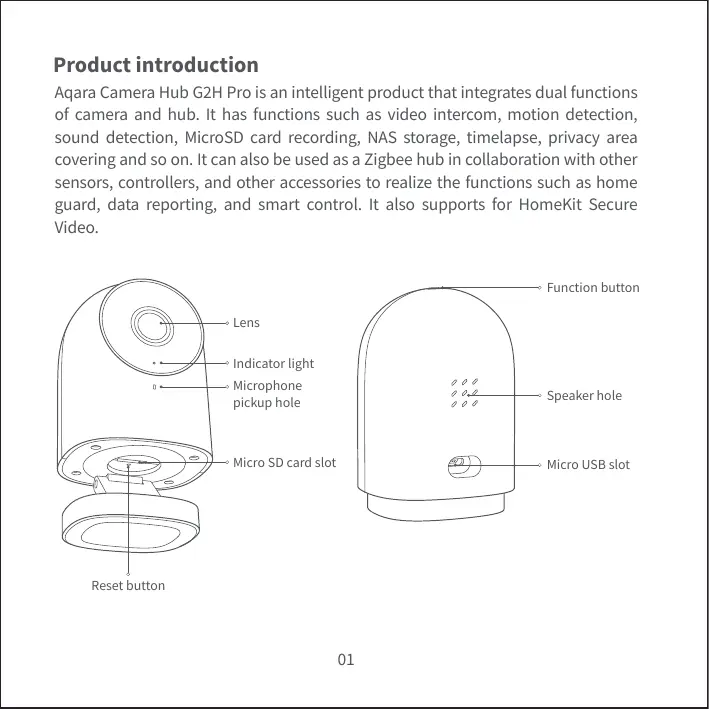
Product introduction
Aqara Camera Hub G2H Pro is an intelligent product that integrates dual functions
of camera and hub. It has functions such as video intercom, motion detection,
sound detection, MicroSD card recording, NAS storage, timelapse, privacy area
covering and so on.It can also be used as a Zigbee hub in collaboration with other
sensors, controllers, and otheraccessoriesto realize the functions such as home
guard, data reporting, and smart control. It also supports for HomeKit Secure
Video.
Speaker hole
Micro USB slot
Function button
Indicator light
Micro SD card slot
Lens
Microphone
pickup hole
Reset button
02
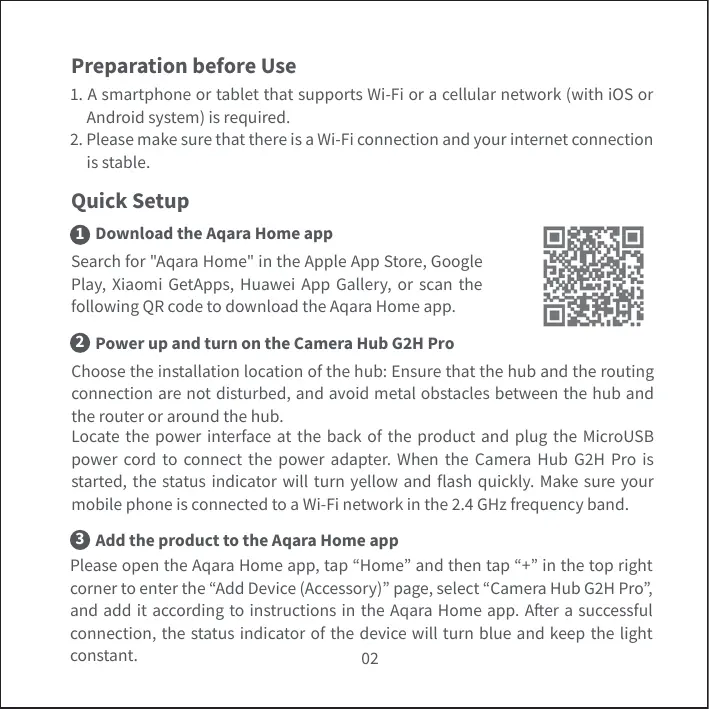
Preparation before Use
Download the Aqara Home app
Power up and turn on the Camera Hub G2H Pro
Quick Setup
1. A smartphone or tablet that supports Wi-Fi or a cellularnetwork (with iOS or
Android system) is required.
2. Please make sure that there is a Wi-Fi connection and yourinternet connection
is stable.
Search for "Aqara Home" in the Apple App Store, Google
Play, Xiaomi GetApps, Huawei App Gallery, or scan the
following QR code to download the Aqara Homeapp.
1
2
Add the product to the Aqara Home app3
Choose the installation location of the hub: Ensure that the hub and the routing
connection are not disturbed, and avoid metal obstacles between the hub and
the router or around thehub.
Locate the power interface at the back of the product and plug the MicroUSB
power cord to connect the power adapter. When the Camera Hub G2H Pro is
started, the status indicator will turn yellow and flash quickly. Make sure your
mobile phone is connected to a Wi-Fi network in the 2.4 GHz frequency band.
Please open the Aqara Home app, tap “Home” and then tap “+” in the topright
corner to enter the “Add Device (Accessory)” page, select “Camera Hub G2H Pro” ,
and add it according to instructions in the Aqara Home app. After a successful
connection, the status indicator of the device will turn blue and keep the light
constant.
03
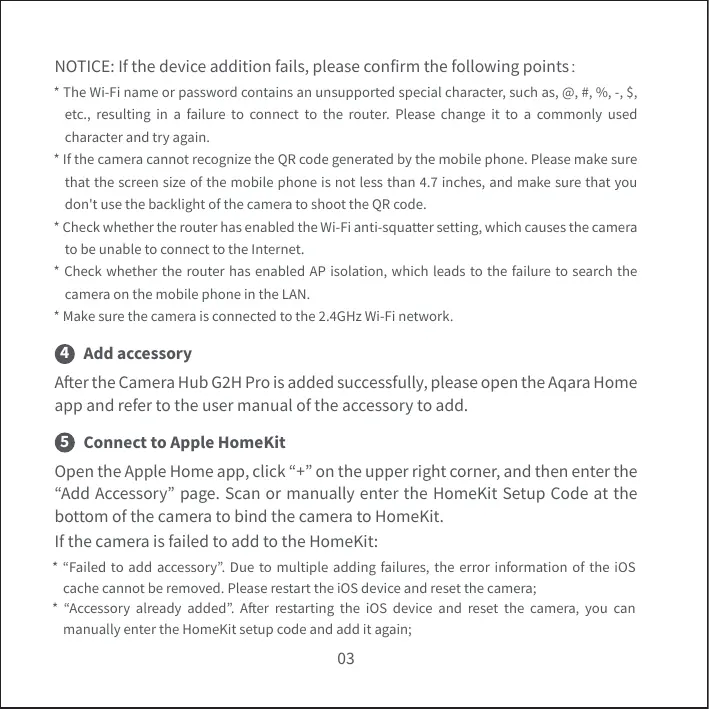
After theCamera Hub G2H Prois added successfully, please open the Aqara Home
app and refer to the user manual of the accessory to add.
Add accessory4
Open the Apple Home app, click “+” on the upper right corner, and then enter the
“Add Accessory” page. Scan or manually enter the HomeKit Setup Code at the
bottom of the camera to bind the camera to HomeKit.
If the camera is failed to add to the HomeKit:
* “Failed to add accessory” . Due to multiple adding failures, the error information of the iOS
cache cannot be removed. Please restart the iOS device and reset the camera;
* “Accessory already added” . After restarting the iOS device and reset the camera, you can
manually enter the HomeKit setup code and add it again;
Connect to Apple HomeKit5
NOTICE: If the device...