
CHH03 Reset & Teardown (FCC ID 2AKIT-CHH03)
Factory reset and internal photos for Aqara (Lumi United) CHH03. Aqara Zigbee smart plug.
January 16, 2026
•
10 read
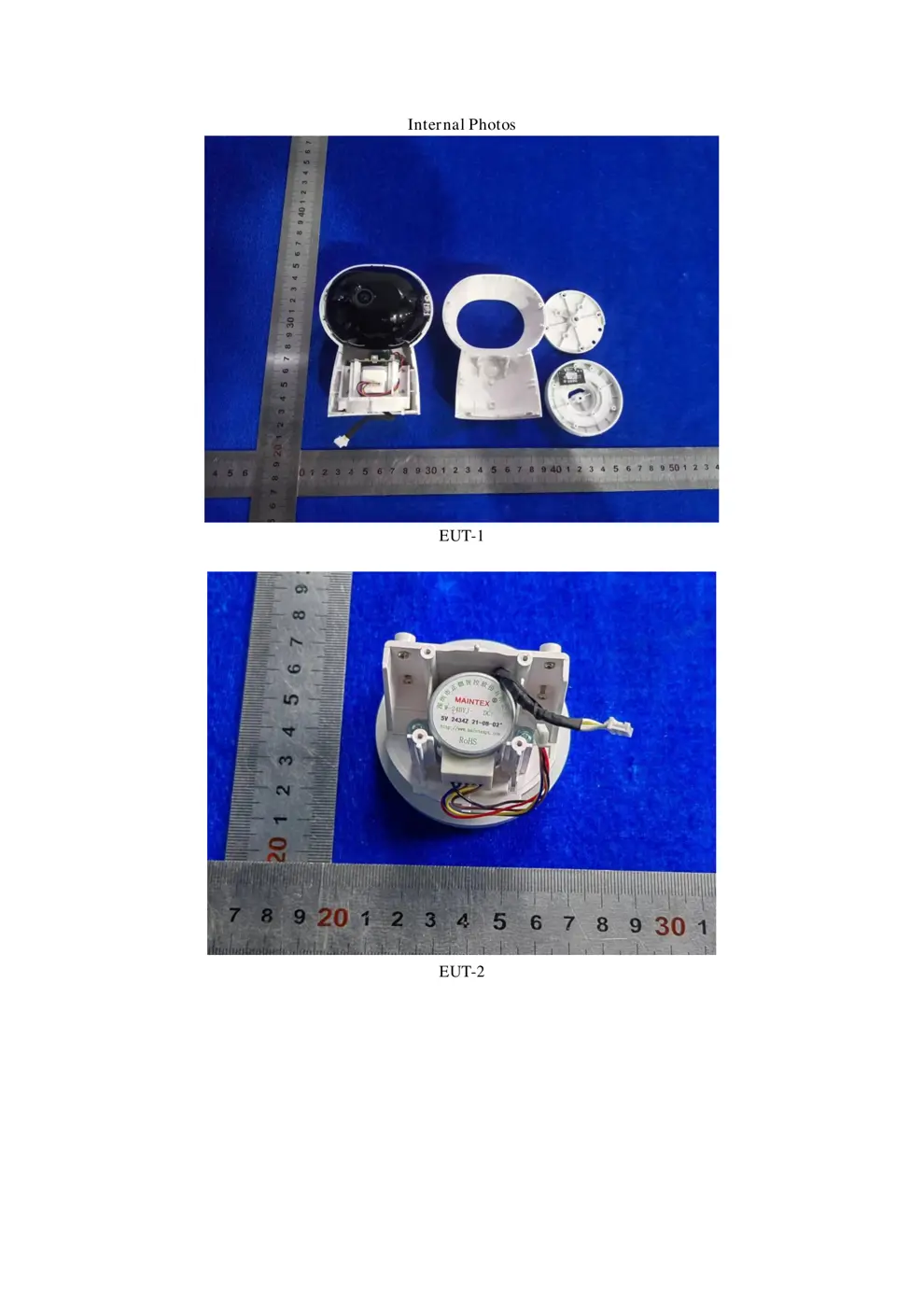
Before you buy the Aqara (Lumi United) CHH03, check what's inside.
The Aqara Camera Hub G3 is a versatile device that combines a 2K pan-and-tilt surveillance camera with a Zigbee hub. It offers advanced AI features, HomeKit Secure Video support, and an integrated infrared remote control module for smart home control.
⚠️ NOTE: Ensure the Type-C power cable is correctly connected to a 5V 2A power source. Do not expose to water.
Quick Specs
- Manufacturer: Aqara (Lumi United)
- Model: CHH03
- Protocol: Zigbee
- Chipset: Zigbee SoC
- Ecosystem: Aqara Zigbee
- App: Aqara Home
🔧 Geek Corner (Flashing Info)
- Chipset: Unknown
- Flashable: ❌ No
- Info: Proprietary Aqara hardware and software; not designed for third-party firmware flashing.
User Manual
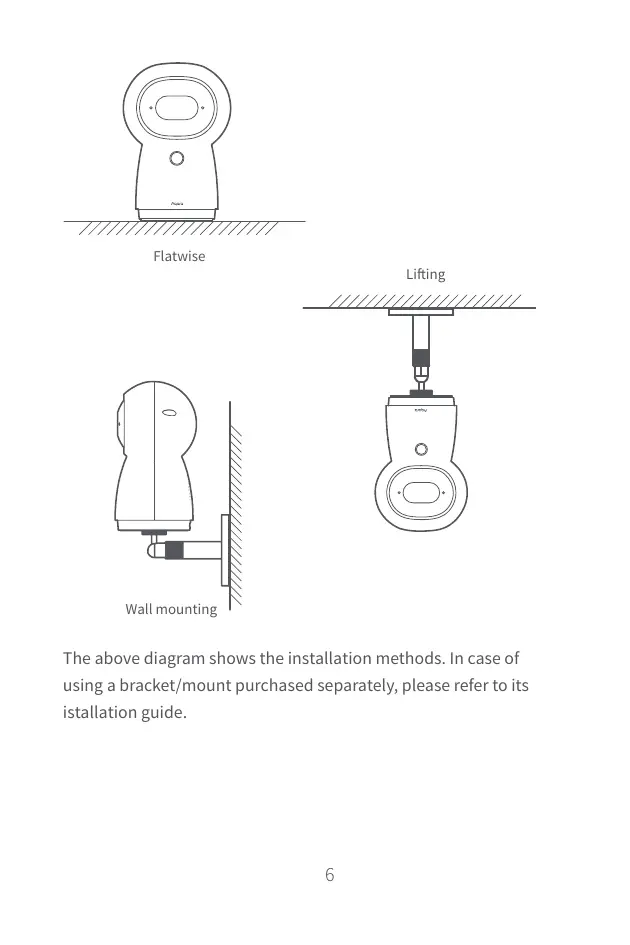
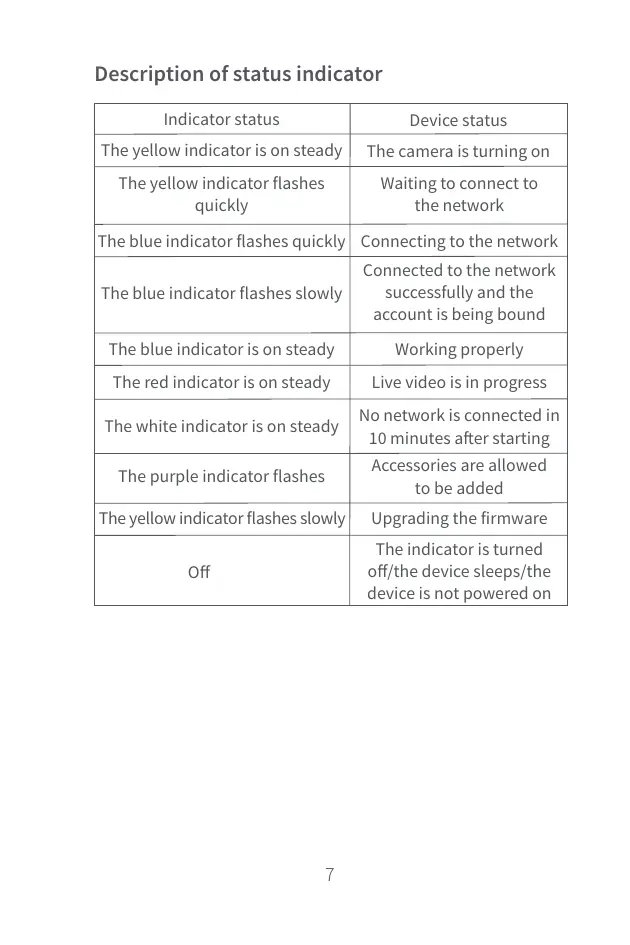
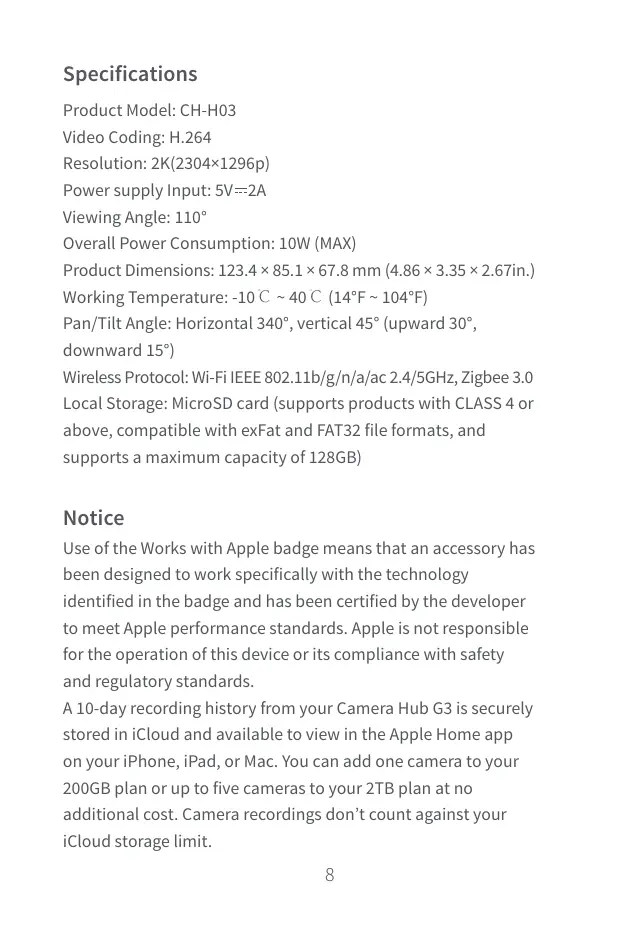
Scanned pages from the official user manual:
External Photos
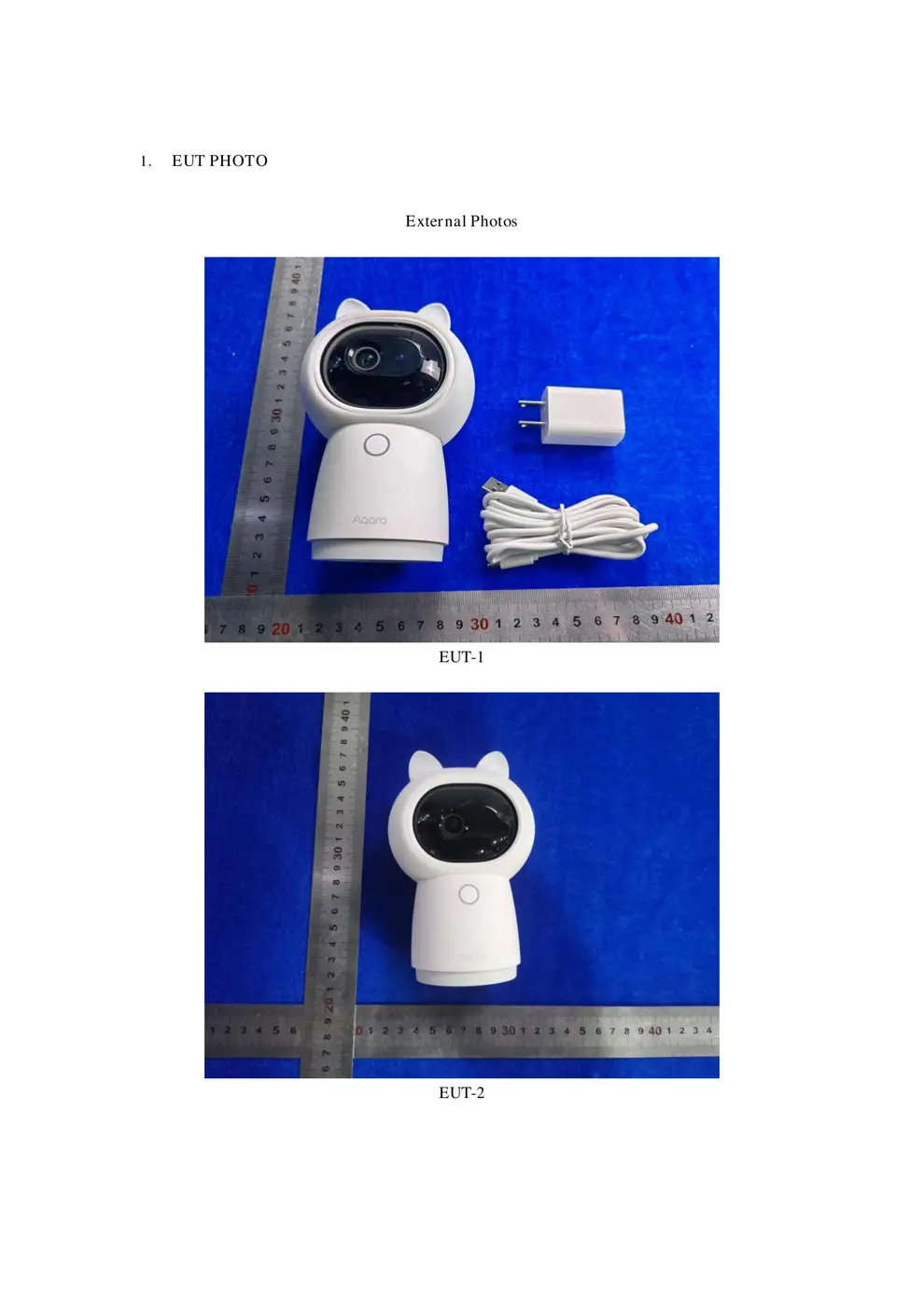
Photos of the device exterior:
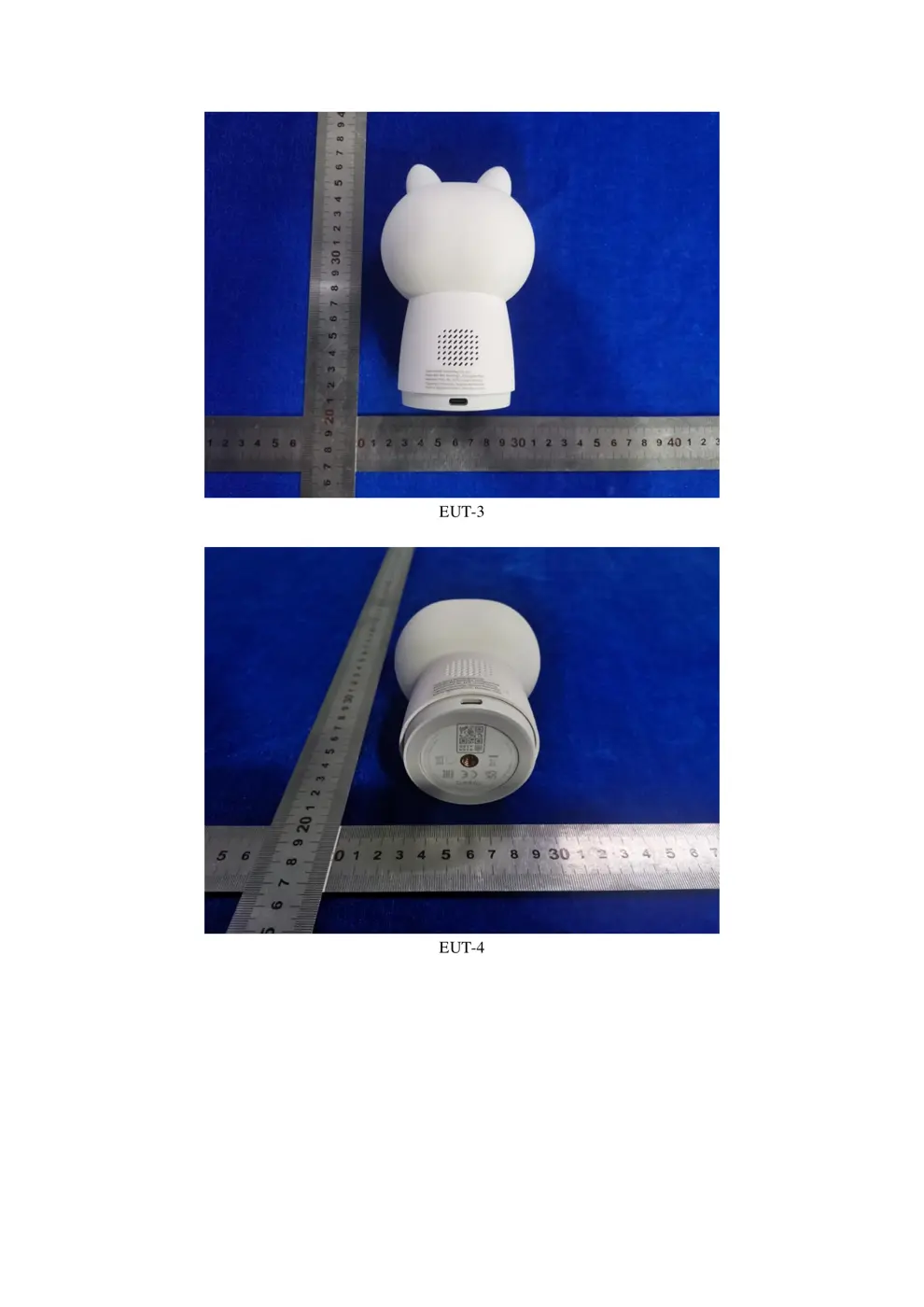
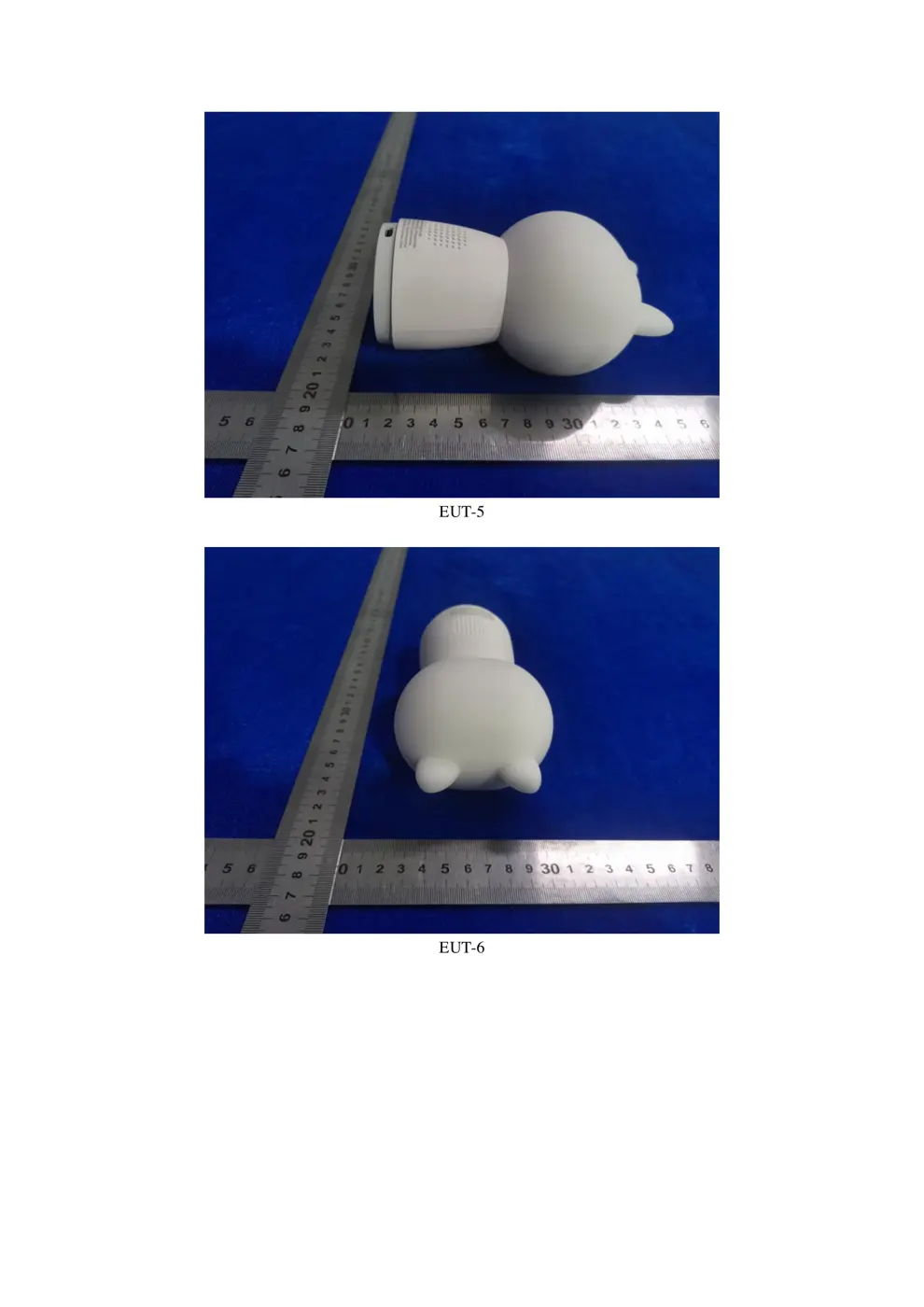
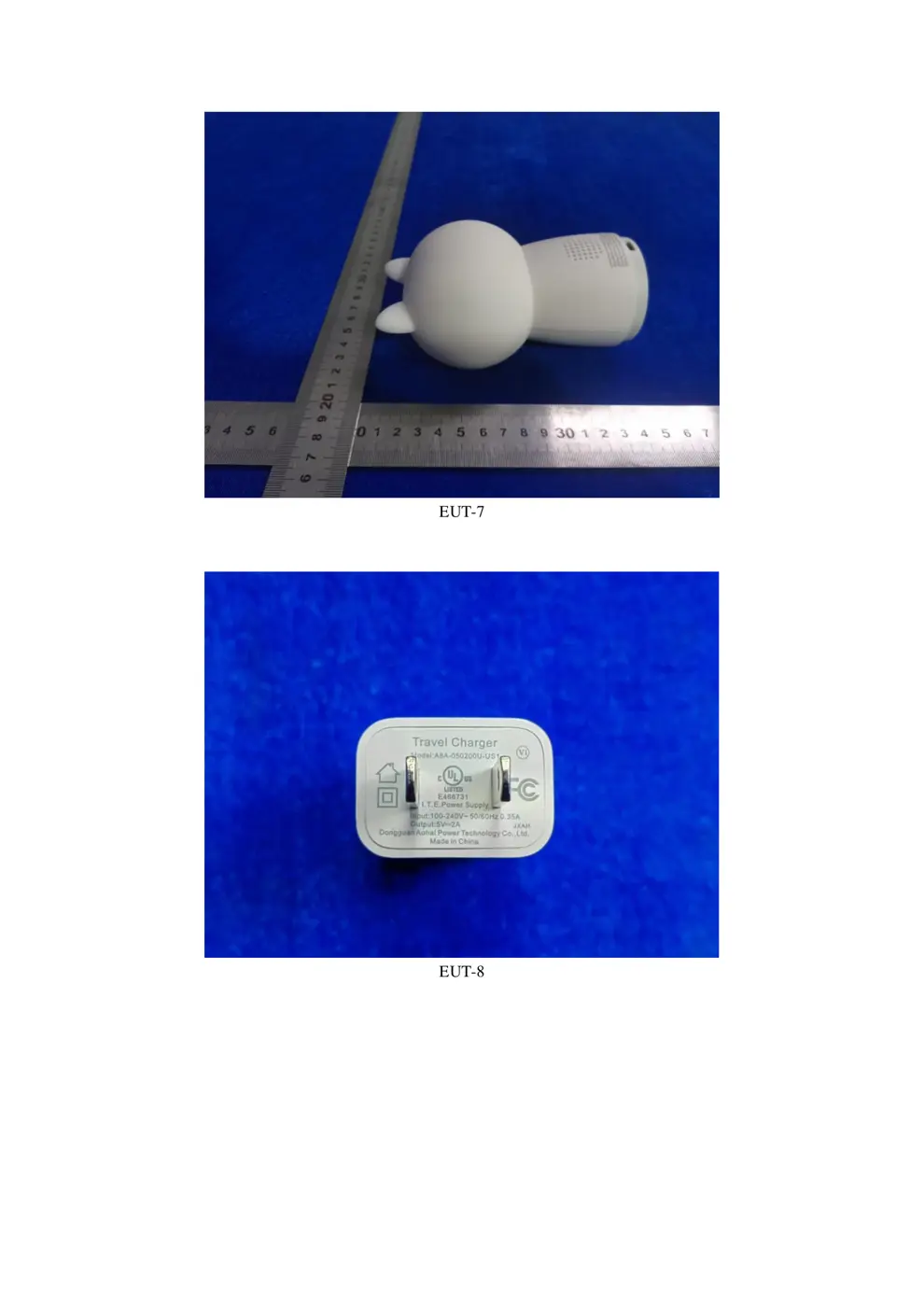
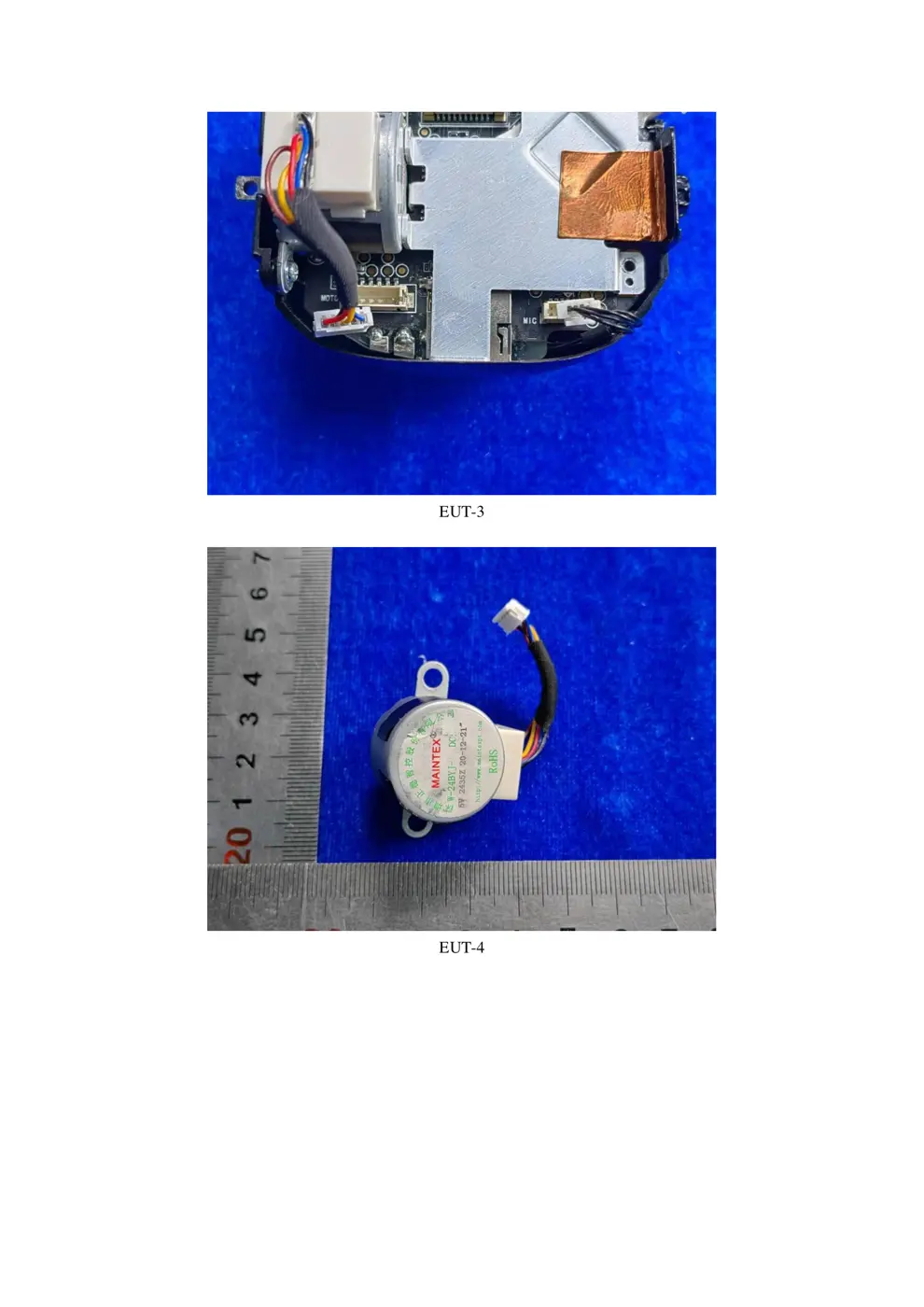
Internal Photos
Teardown photos showing the PCB and components:
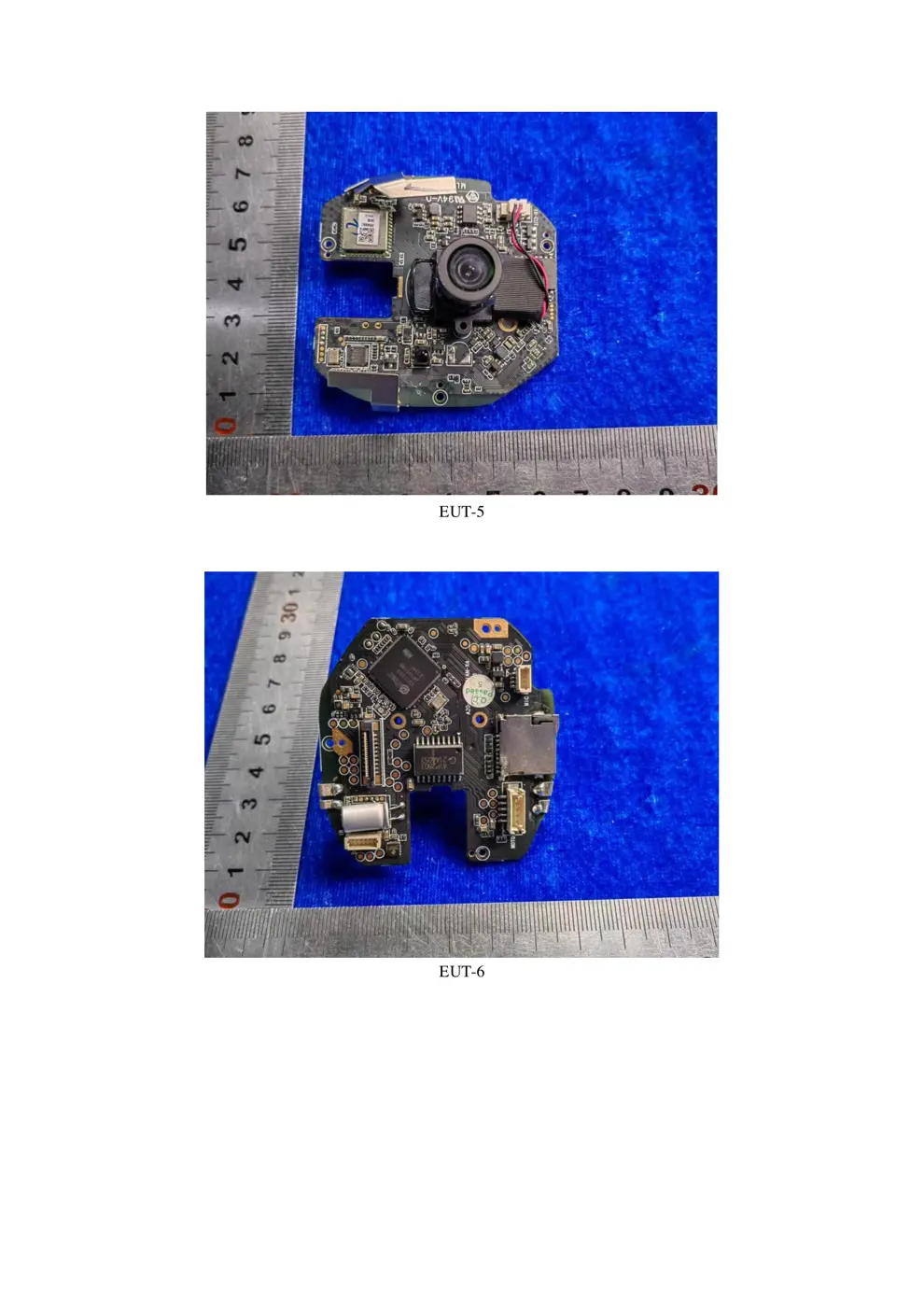
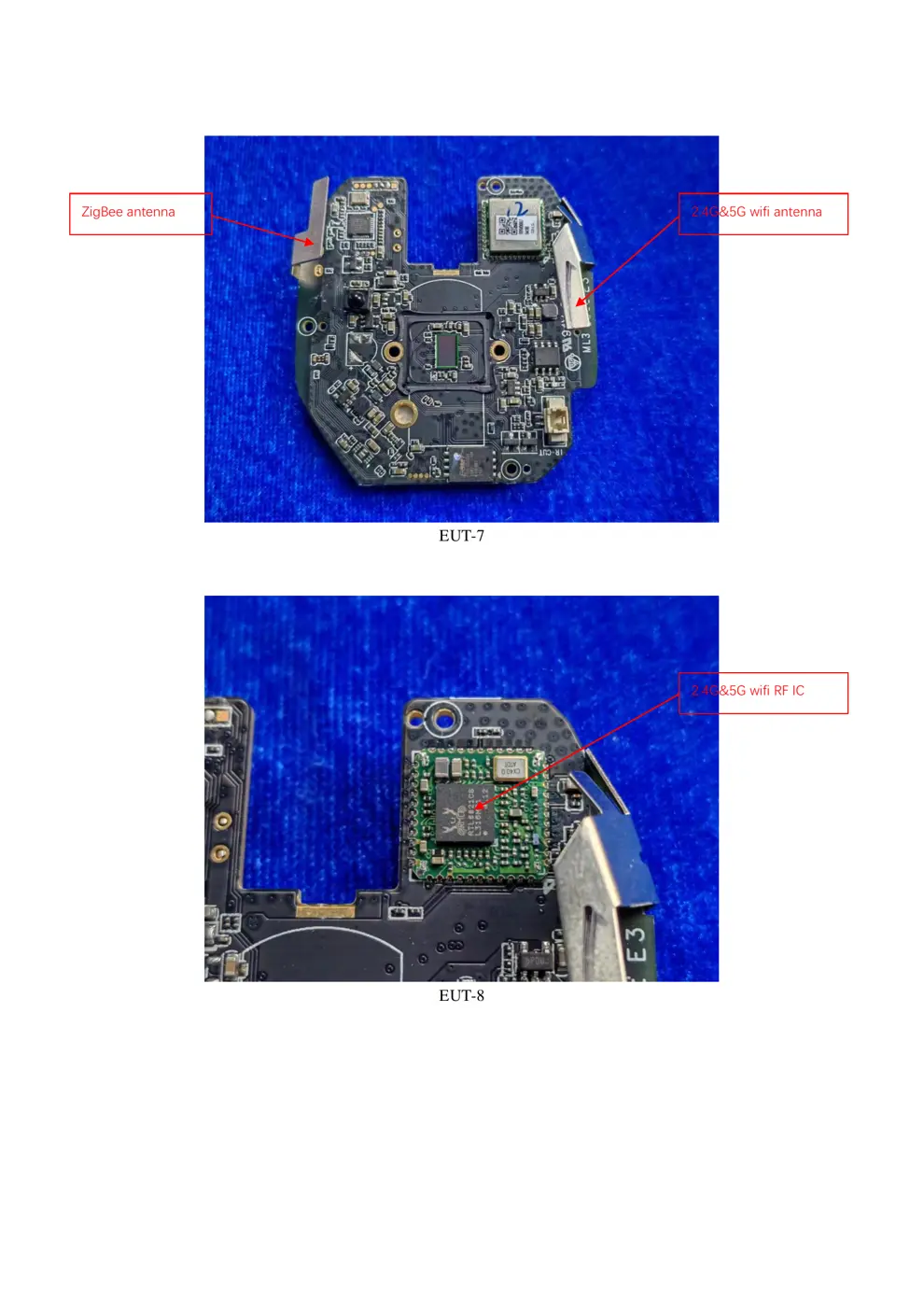
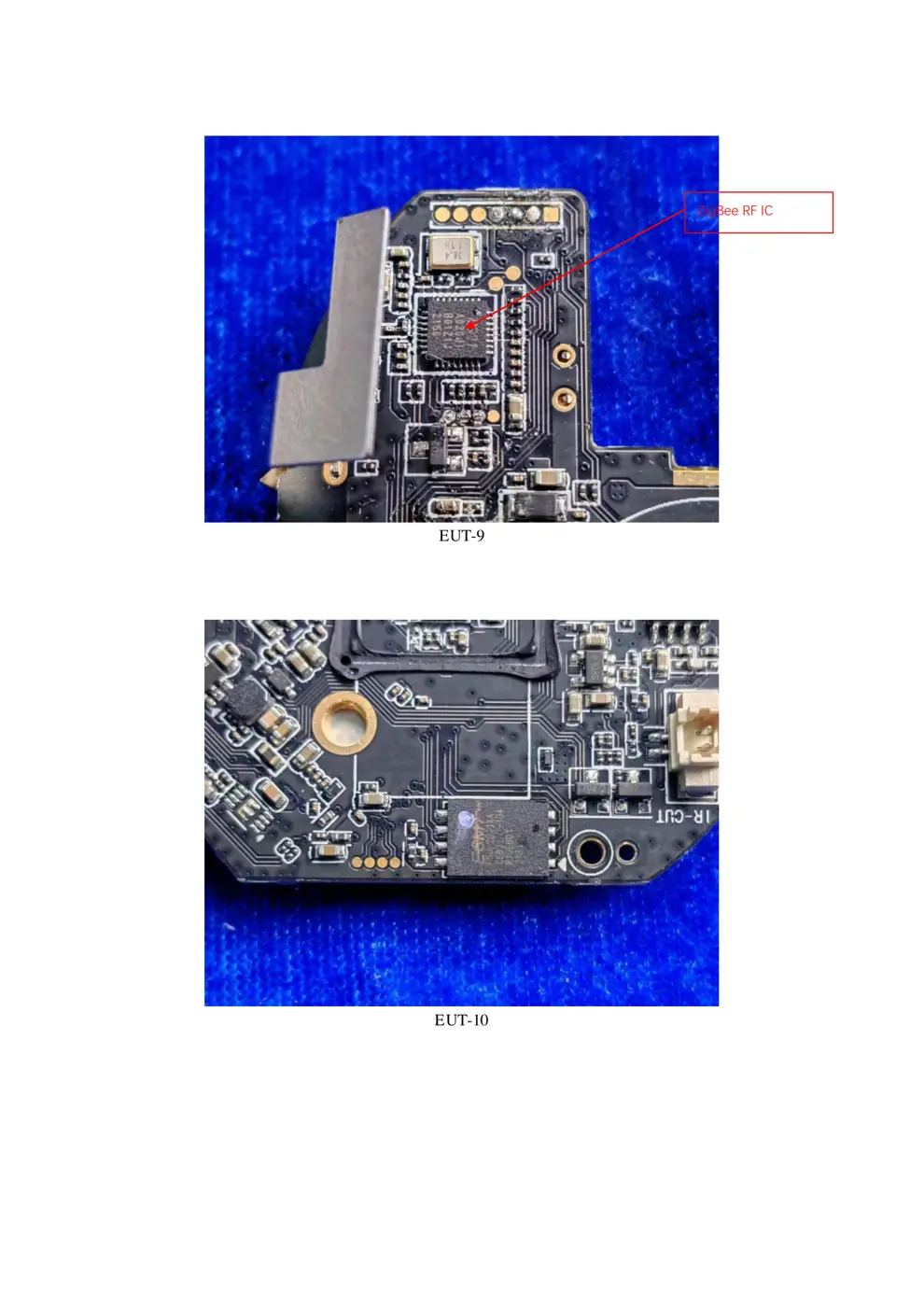
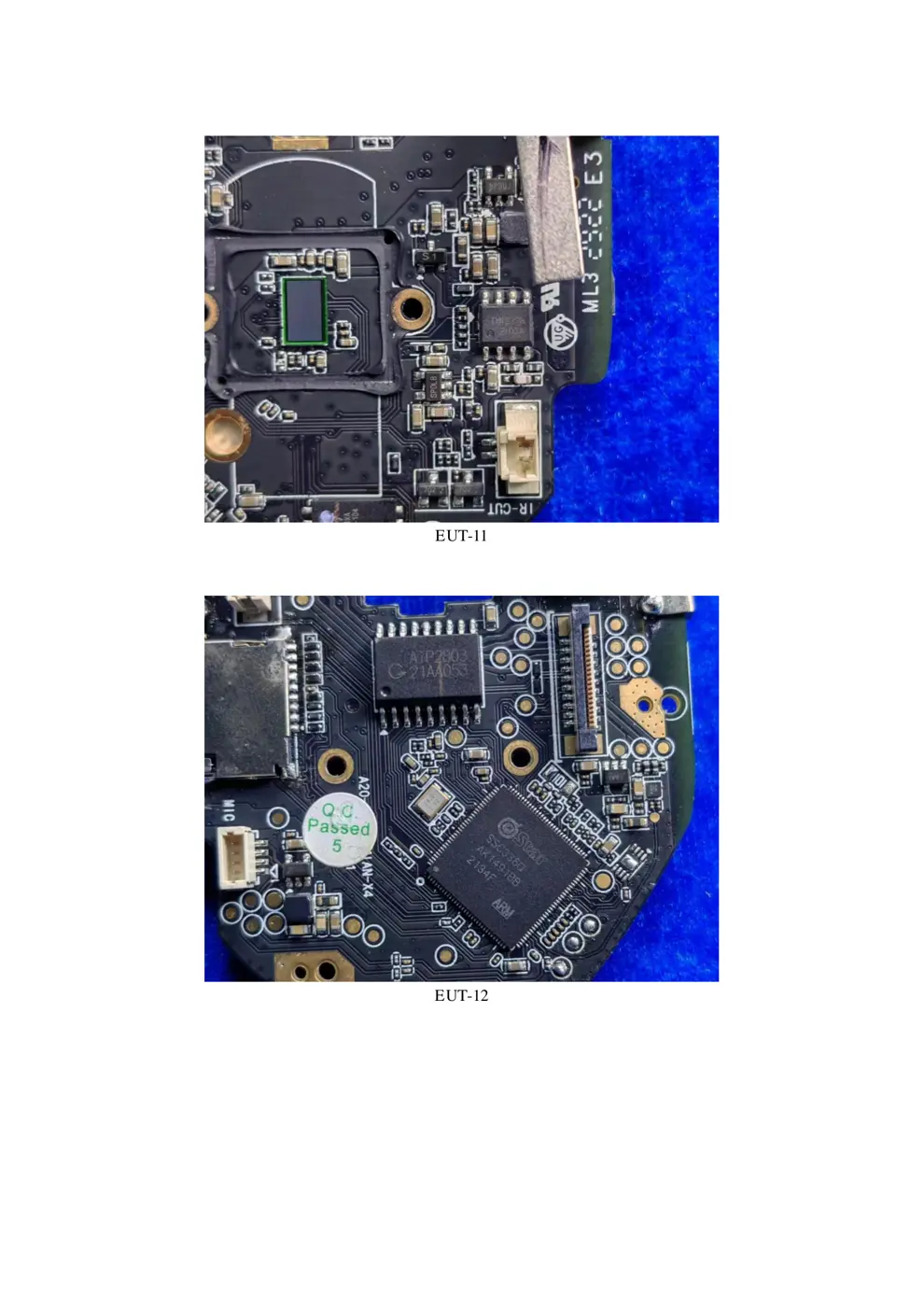
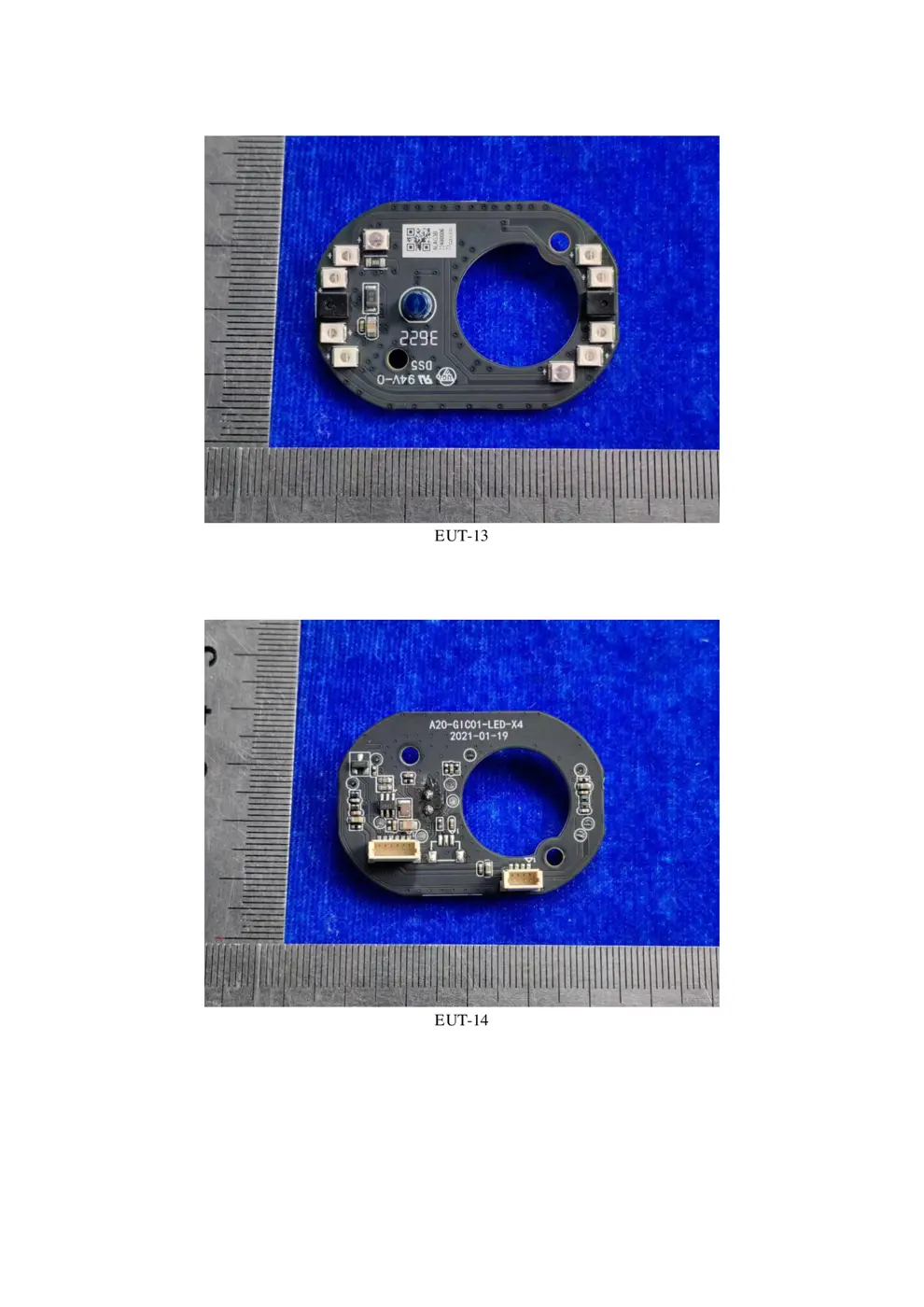
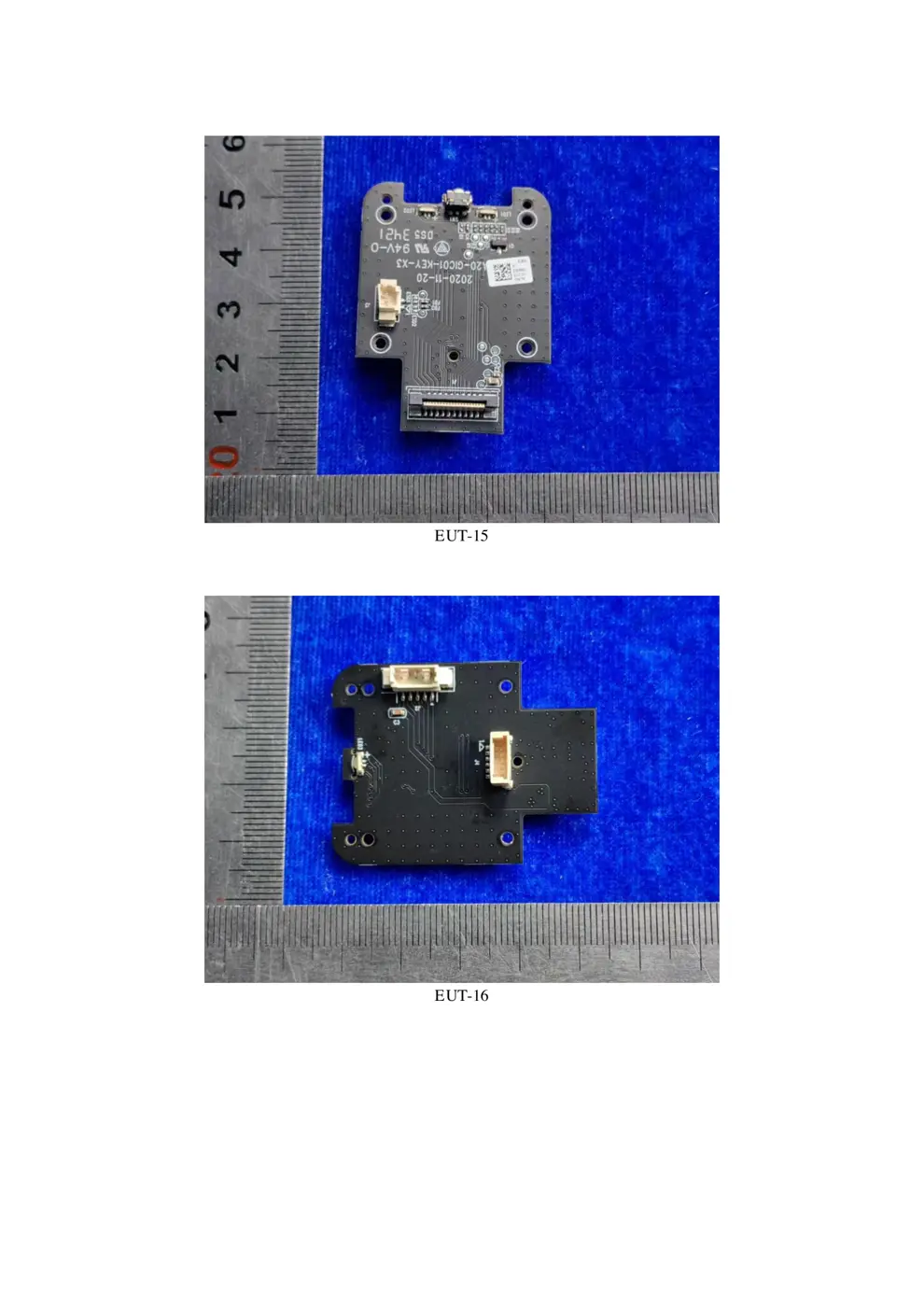
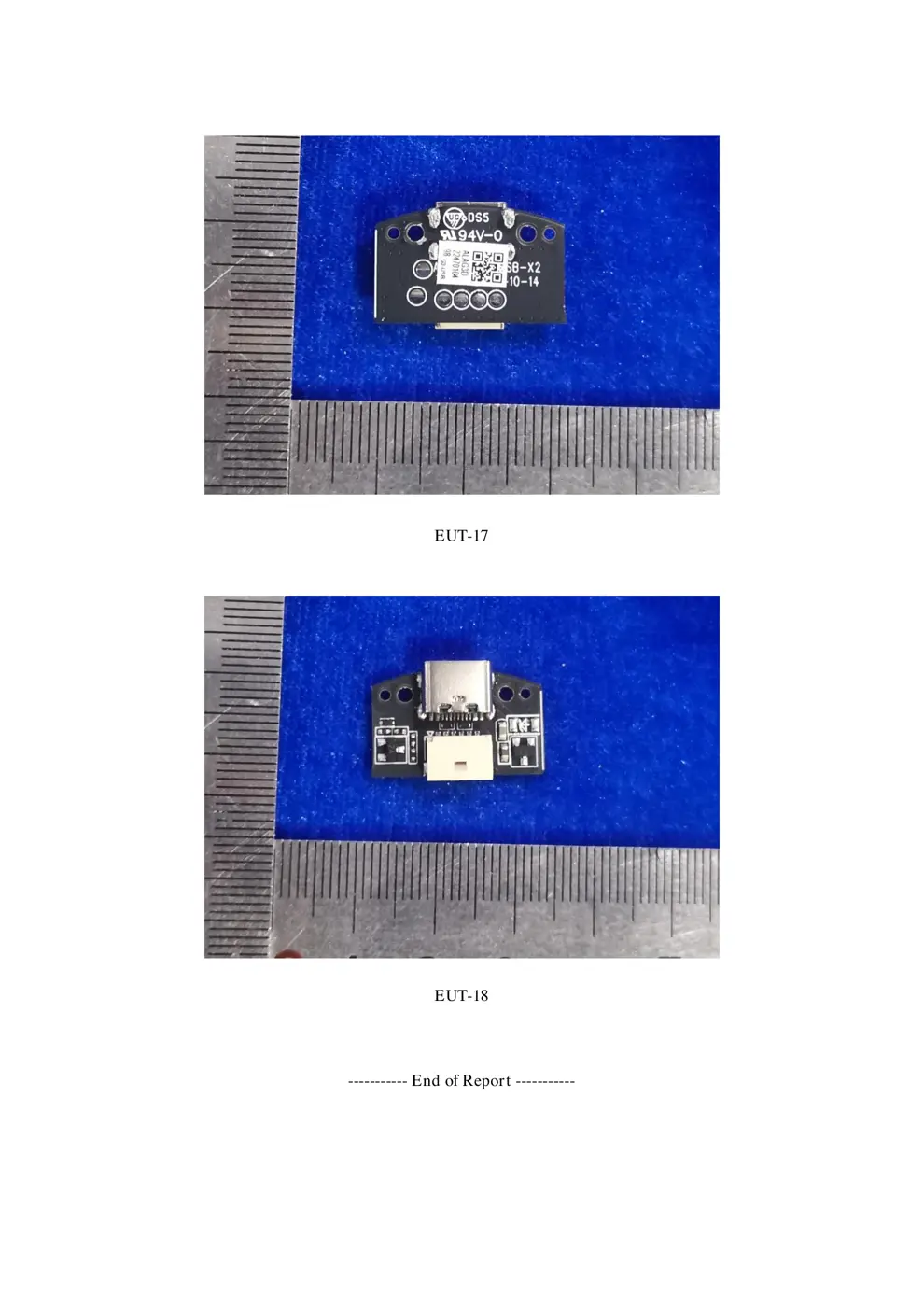
Verdict
The CHH03 is a Zigbee device from the Aqara Zigbee ecosystem.
📄 Click to view full text manual (SEO)
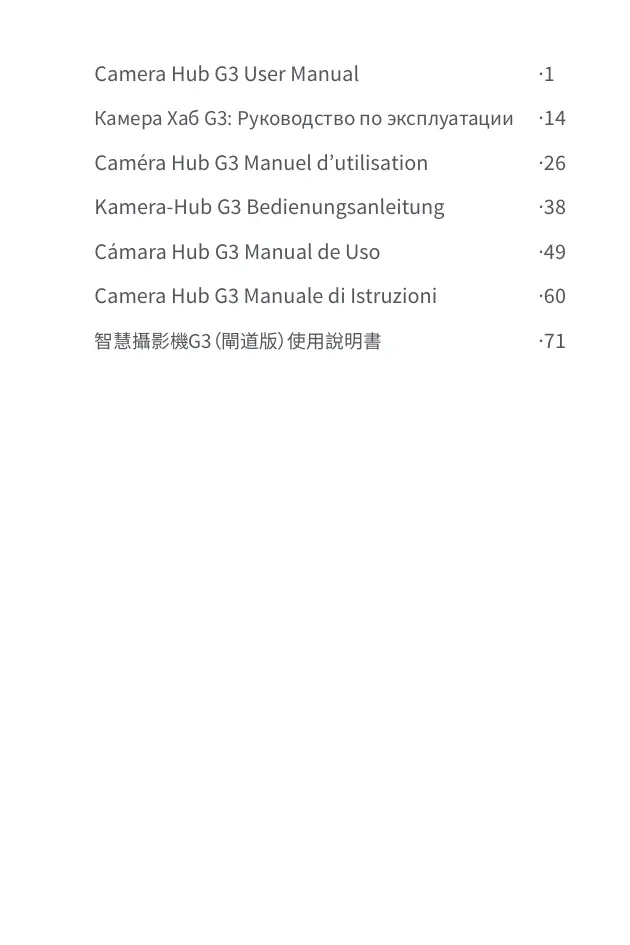
Camera Hub G3 User Manual
Caméra Hub G3 Manuel d’utilisation
Kamera-Hub G3 Bedienungsanleitung
Cámara/uni00A0Hub G3 Manual de Uso
Camera Hub G3 Manuale di Istruzioni
·14
·26
·38
·49
·60
·71
Product Introduction
The Camera Hub G3 is a pan and tilt (PT) surveillance camera,
which integrates the hub function of the new generation of
Zigbee and supports 2K (1296p) video. With the built-in NPU
(neural network computing unit), it supports rich AI facial
recognition functions, as well as HomeKit Secure Video. With
automatic PT function, it supports fixed position setting, video
cruise path planning, power-off memory, and other functions,
and allows learning and replacing the remote control of various
household appliances through the embedded infrared remote
control module, which is a new generation of integrated hub
camera product for home security and intelligent control for
Aqara.
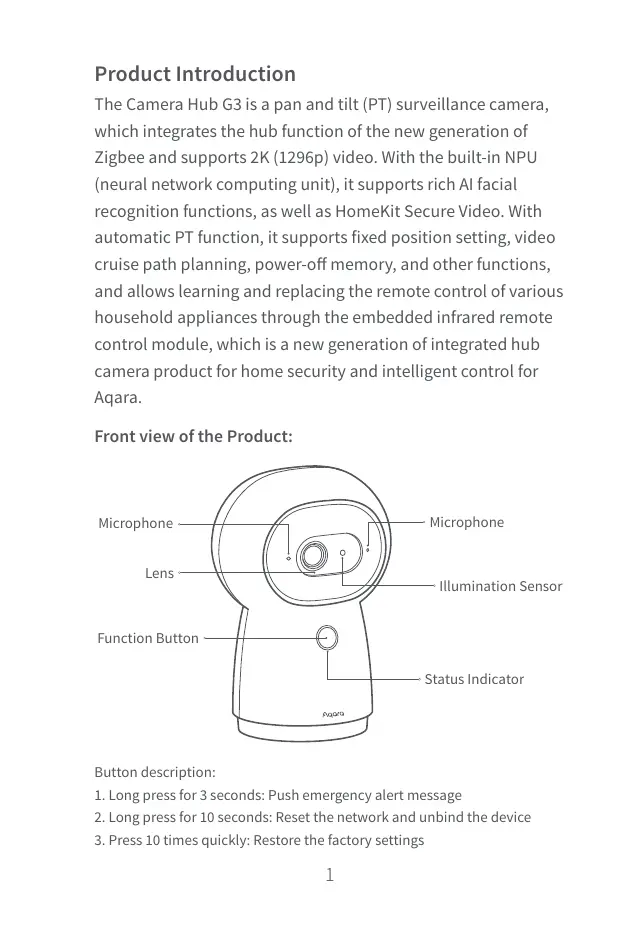
Front view of the Product:
Function Button
Lens
MicrophoneMicrophone
Illumination Sensor
Status Indicator
Button description:
1. Long press for 3 seconds: Push emergency alert message
2. Long press for 10 seconds: Reset the network and unbind the device
3. Press 10 times quickly: Restore the factory settings
1
2
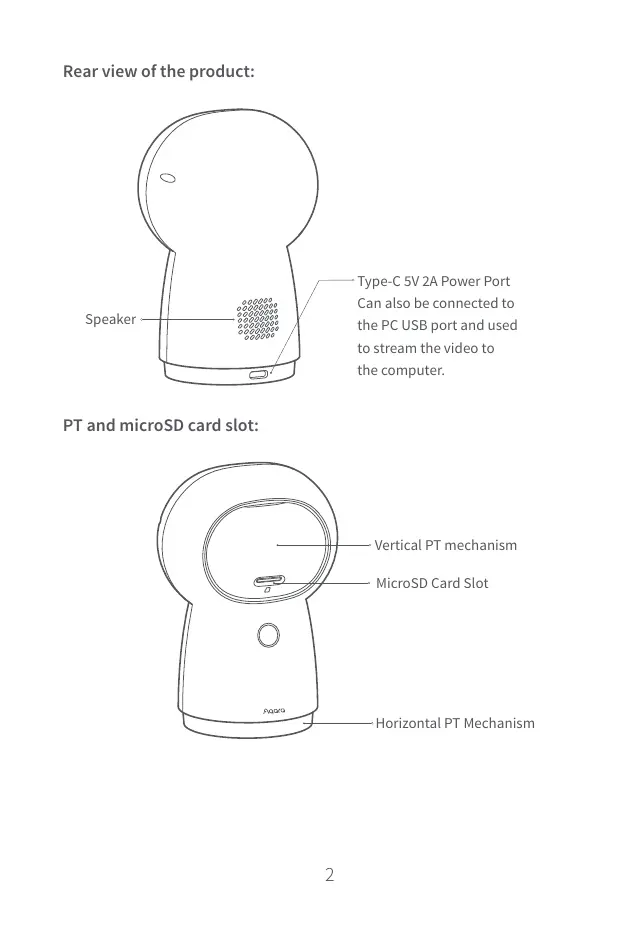
Rear view of the product:
Speaker
Type-C 5V 2A Power Port
Can also be connected to
the PC USB port and used
to stream the video to
the computer.
PT and microSD card slot:
MicroSD Card Slot
Vertical PT mechanism
Horizontal PT Mechanism
3
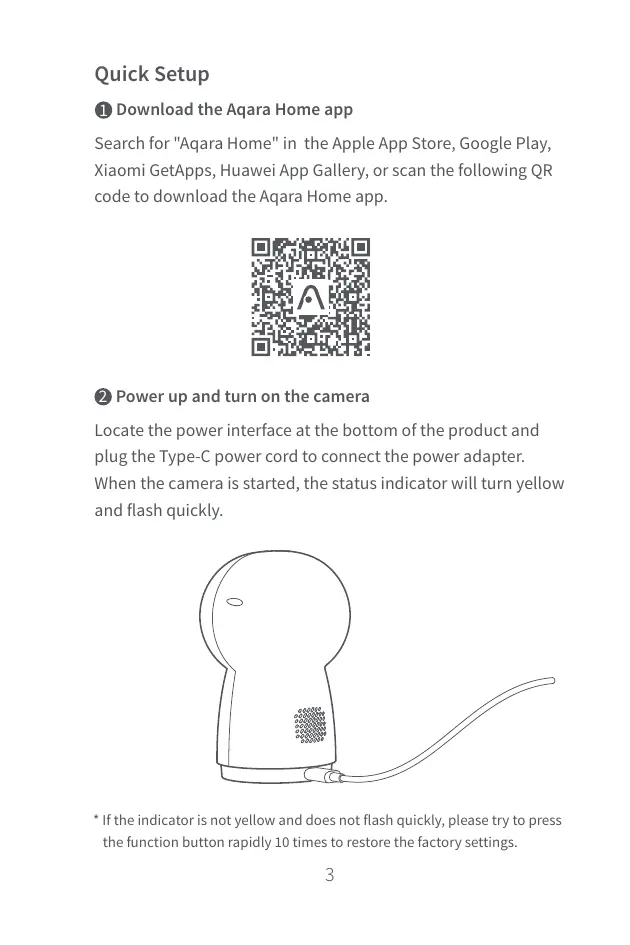
Quick Setup
Download the Aqara Home app1
Power up and turn on the camera2
Search for "Aqara Home" in the Apple App Store, Google Play,
Xiaomi GetApps, Huawei App Gallery, or scan the following QR
code to download the Aqara Home app.
Locate the power interface at the bottom of the product and
plug the Type-C power cord to connect the power adapter.
When the camera is started, the status indicator will turn yellow
and flash quickly.
* If the indicator is not yellow and does not flash quickly, please try to press
the function button rapidly 10 times to restore the factory settings.
4
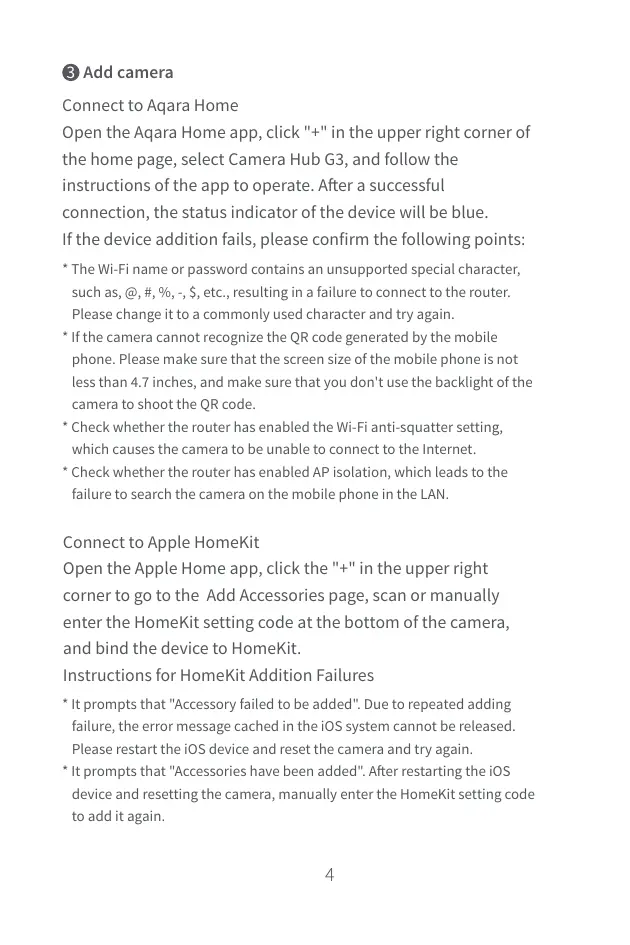
Add camera 3
Connect to Aqara Home
Open the Aqara Home app, click "+" in the upper right corner of
the home page, select Camera Hub G3, and follow the
instructions of the app to operate. A/f_ter a successful
connection, the status indicator of the device will be blue.
If the device addition fails, please confirm the following points: /uni00A0
Connect to Apple HomeKit
Open the Apple Home app, click the "+" in the upper right
corner to go to the Add Accessories page, scan or manually
enter the HomeKit setting code at the bottom of the camera,
and bind the device to HomeKit.
Instructions for HomeKit Addition Failures
* The Wi-Fi name or password contains an unsupported special character,
such as, @, #, %, -, $, etc., resulting in a failure to connect to the router.
Please change it to a commonly used character and try again.
* If the camera cannot recognize the QR code generated by the mobile
phone. Please make sure...