
MINIR4 Reset & Teardown (FCC ID 2APN5MINIR4)
Factory reset and internal photos for Sonoff (Itead) MINIR4. Sonoff smart plug.
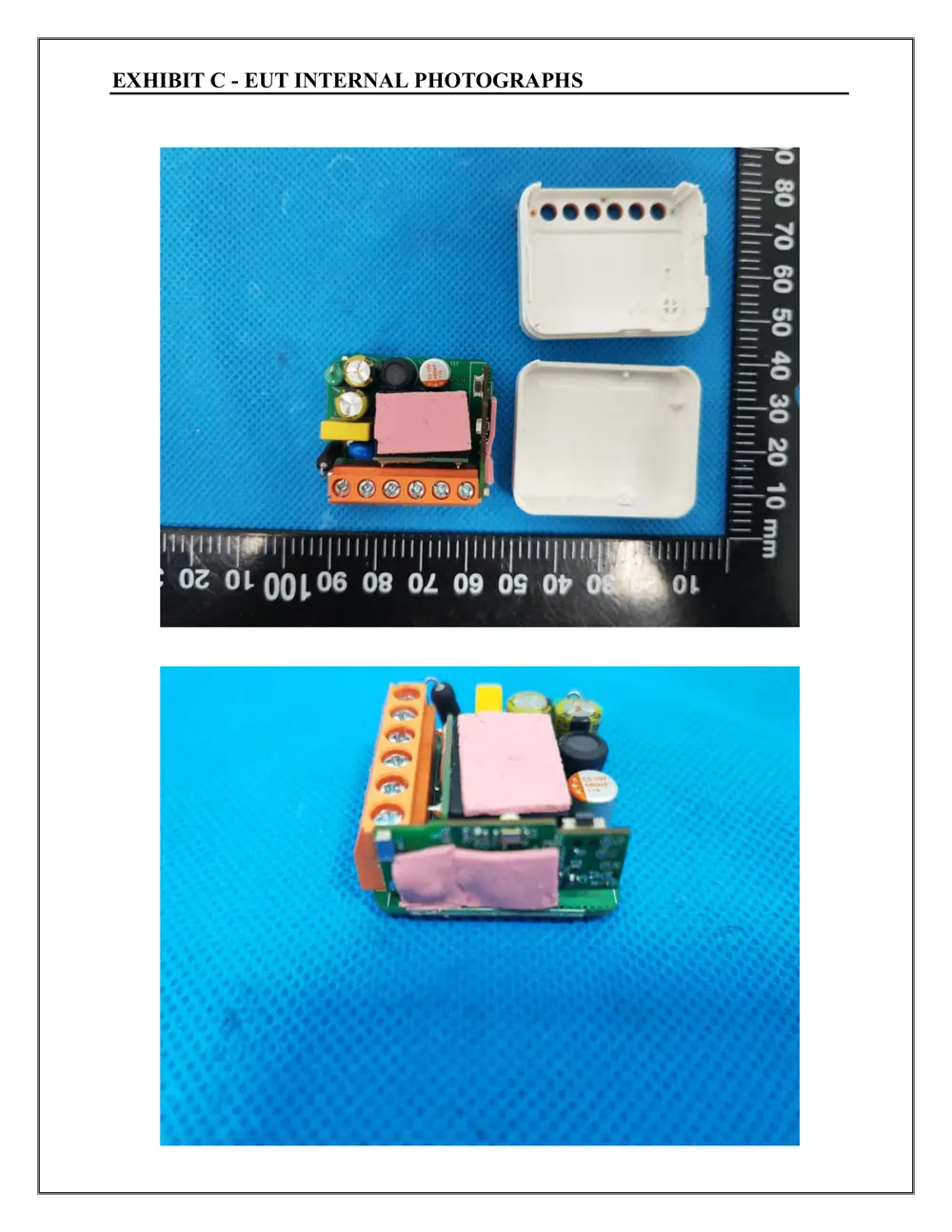
Before you buy the Sonoff (Itead) MINIR4, check what's inside.
The Sonoff MINIR4 is a compact WiFi smart switch designed to convert traditional light switches into smart ones. It supports a maximum load of 10A and integrates with the eWeLink app for remote control, scheduling, and smart scene automation.
⚠️ NOTE: Disconnect Mains power before installation and maintenance. This device should be installed and maintained by a professional electrician.
Quick Specs
- Manufacturer: Sonoff (Itead)
- Model: MINIR4
- Protocol: WiFi
- Chipset: ESP/CK Chip
- Ecosystem: Sonoff
- App: eWeLink
🔧 Geek Corner (Flashing Info)
- Chipset: ESP8285
- Flashable: ✅ Yes
- Info: Based on FCC information and common Sonoff devices, it likely uses an ESP8285 chip, which is flashable with custom firmware like Tasmota or ESPHome.
Reset Guide
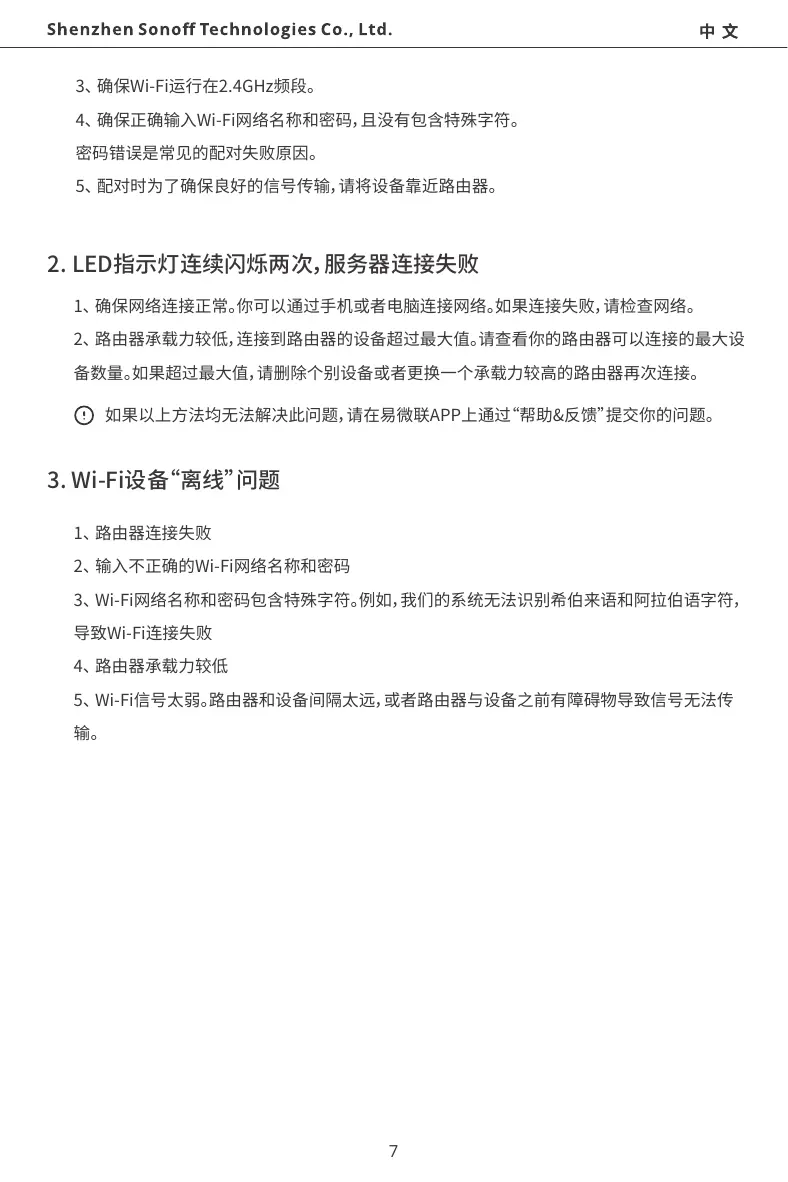
Factory reset 13 14 english 3amake sure your wi-fi works on 2.
User Manual
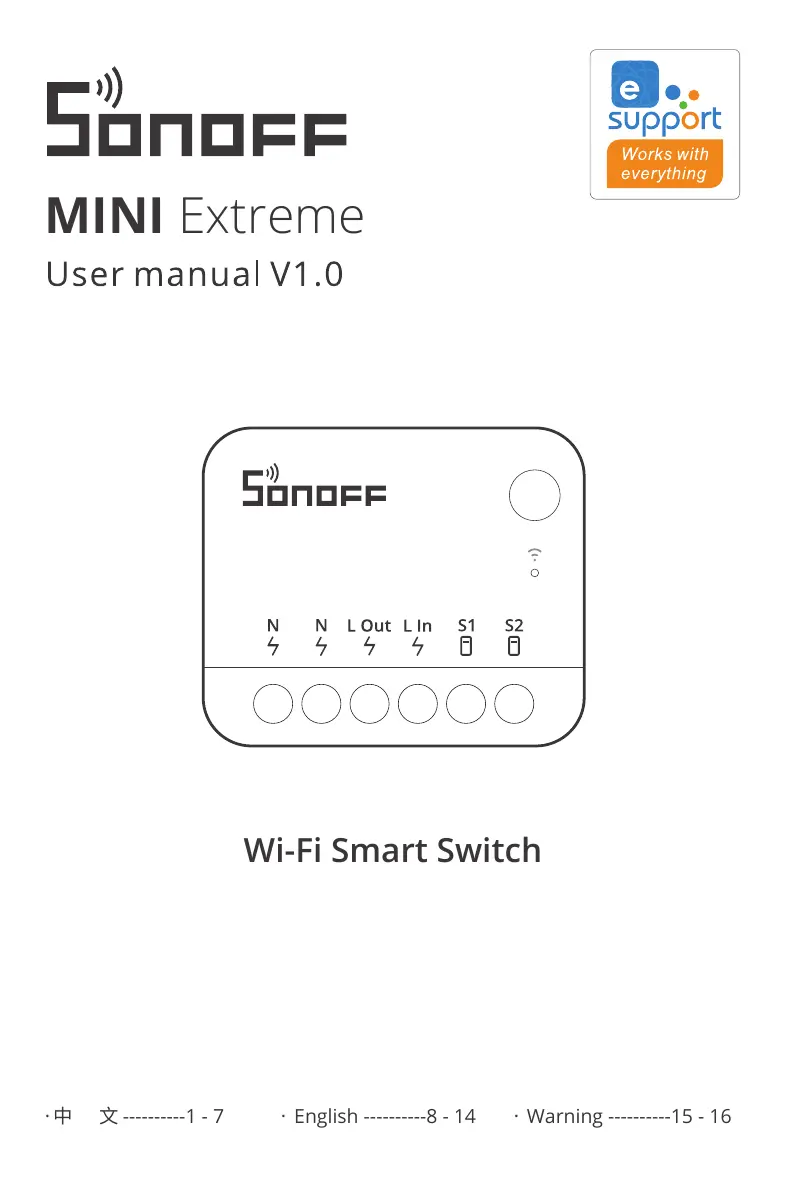
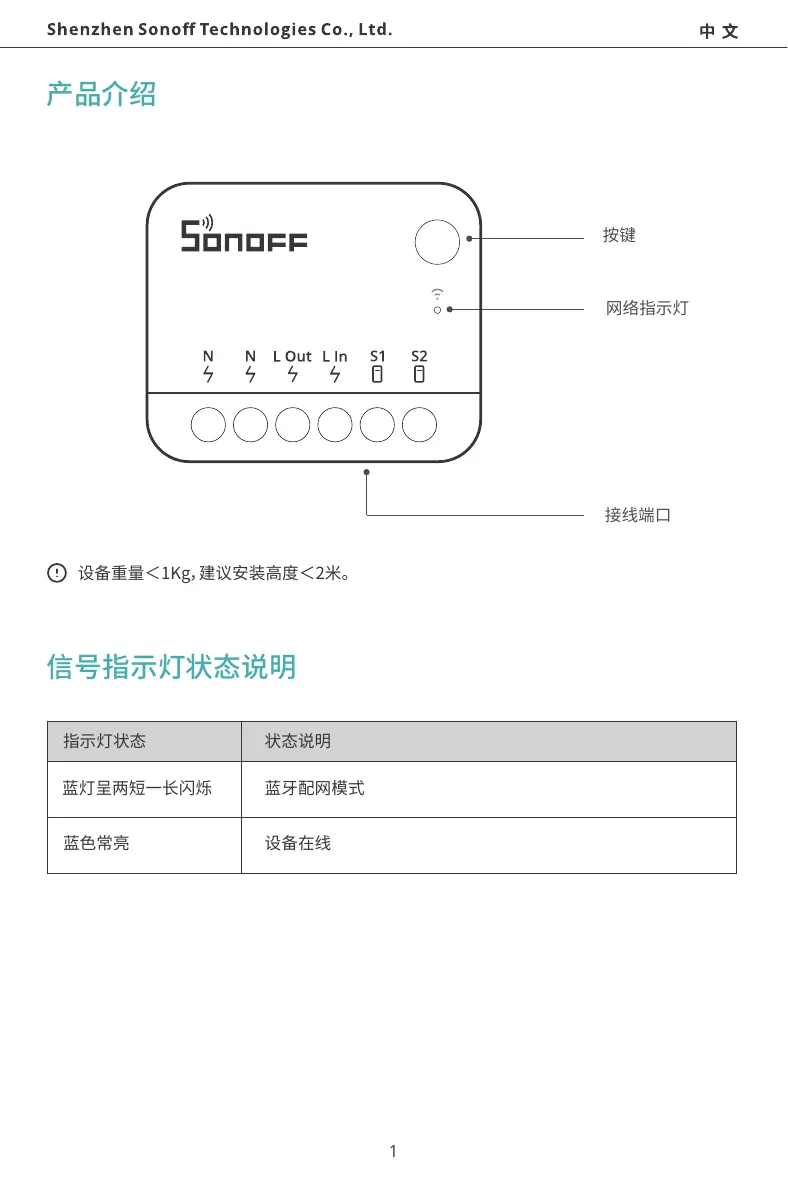
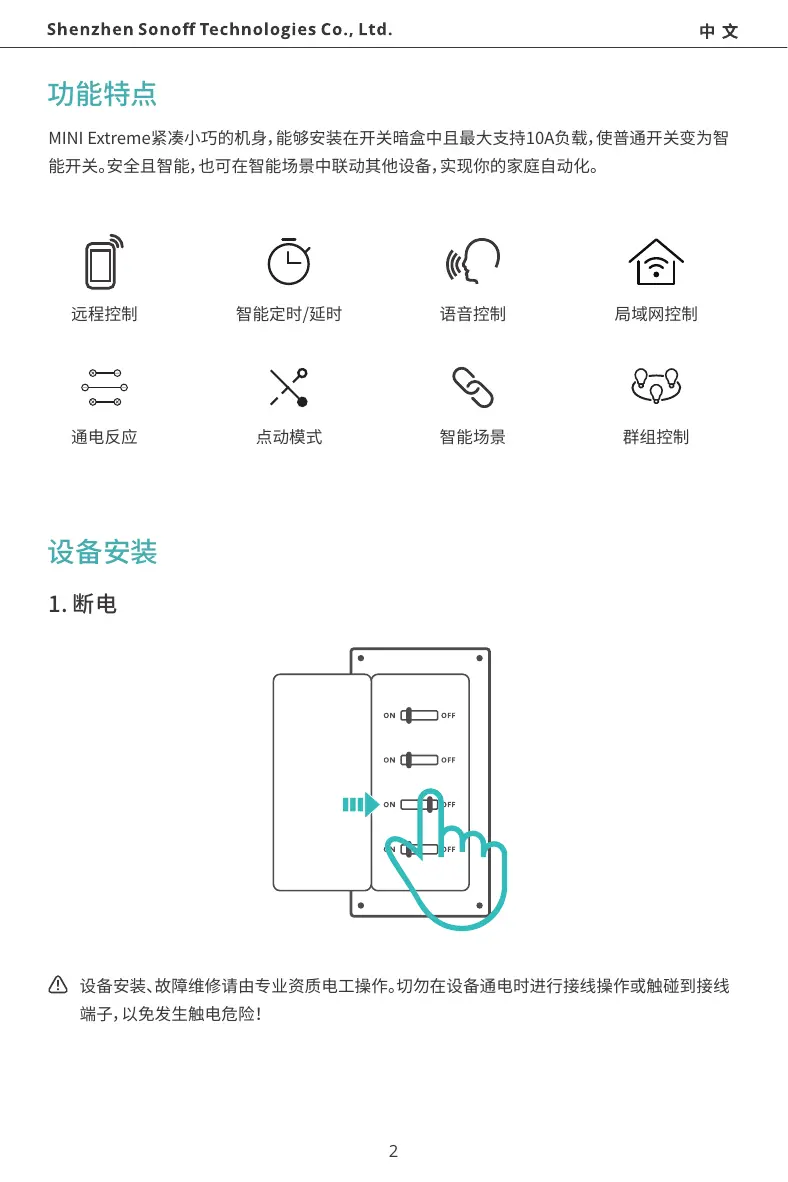
Scanned pages from the official user manual:
External Photos
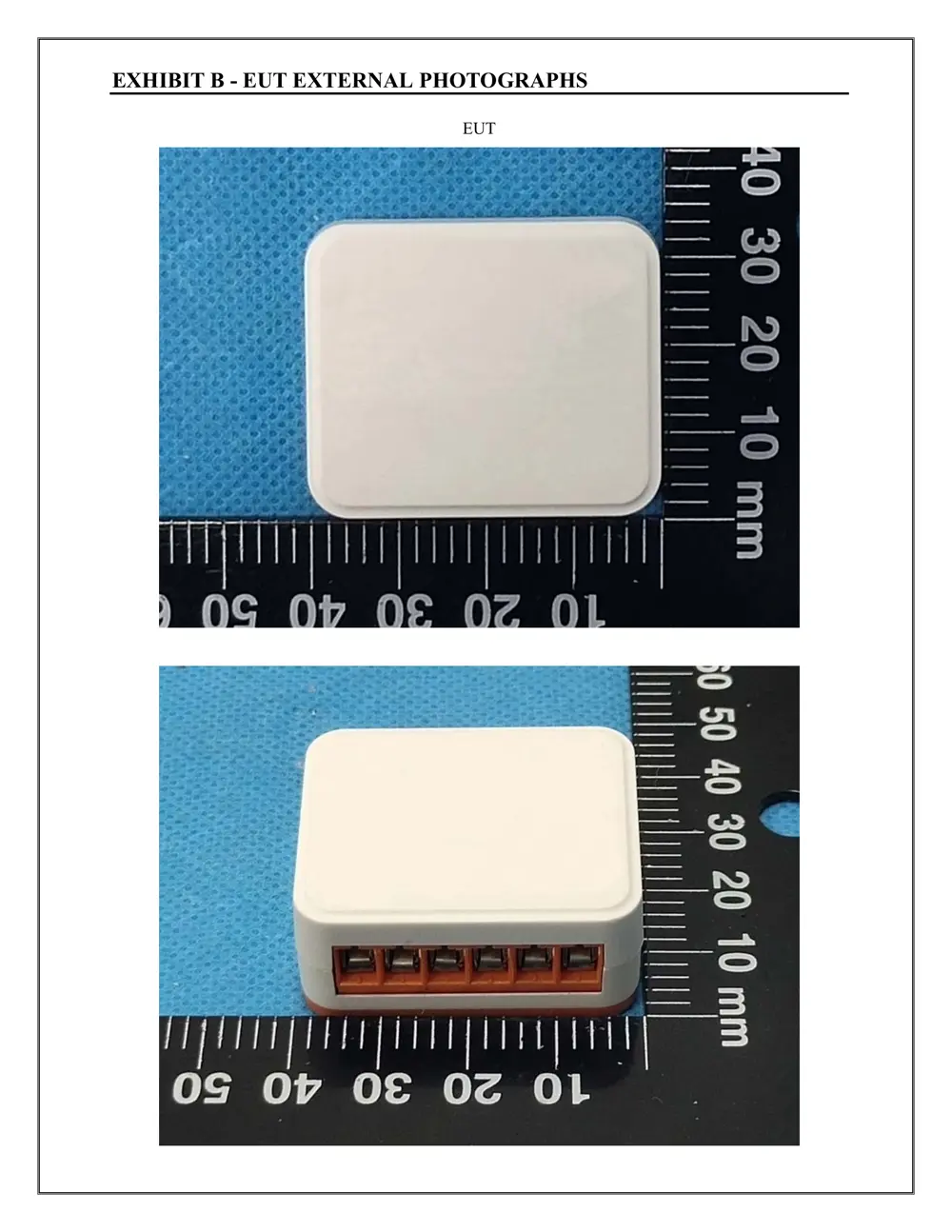
Photos of the device exterior:
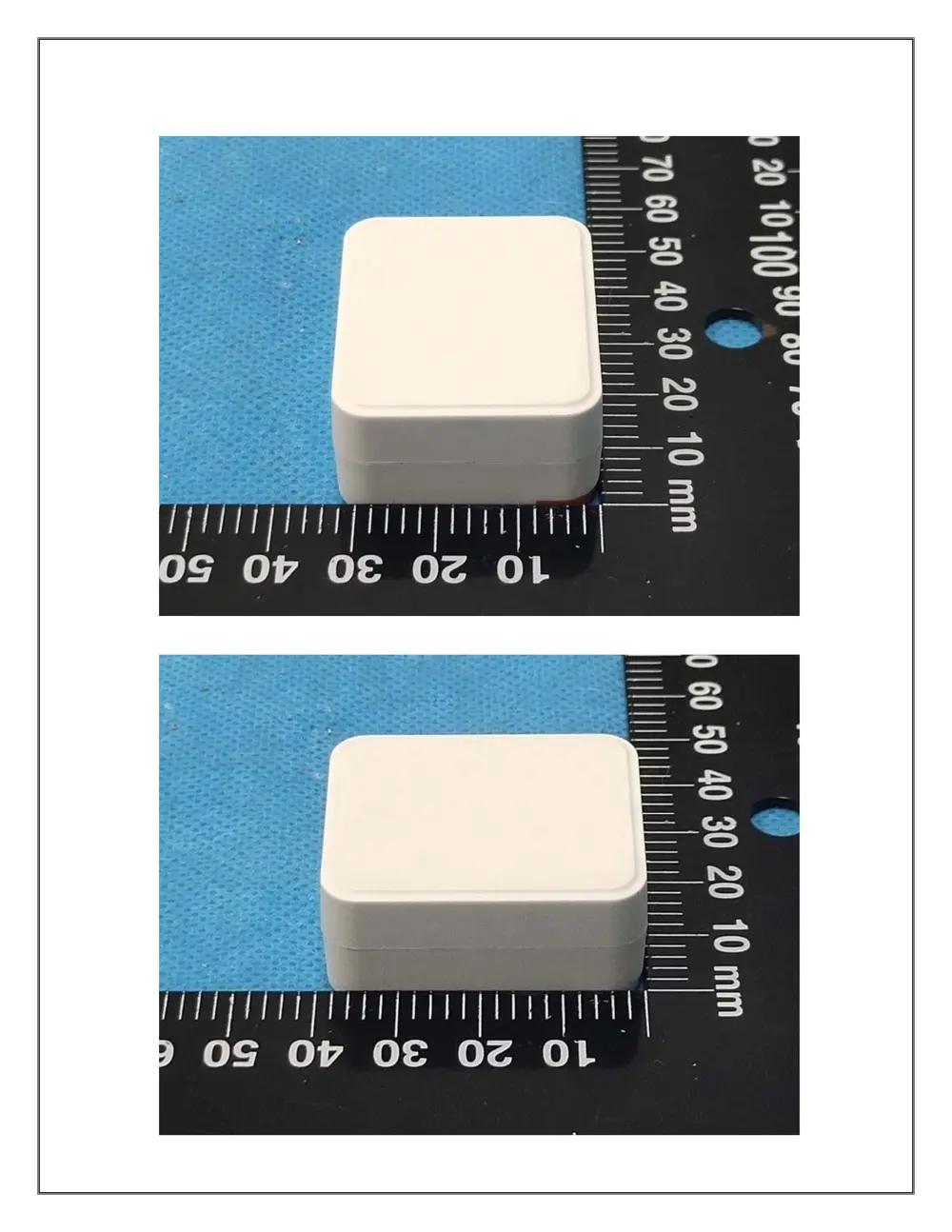
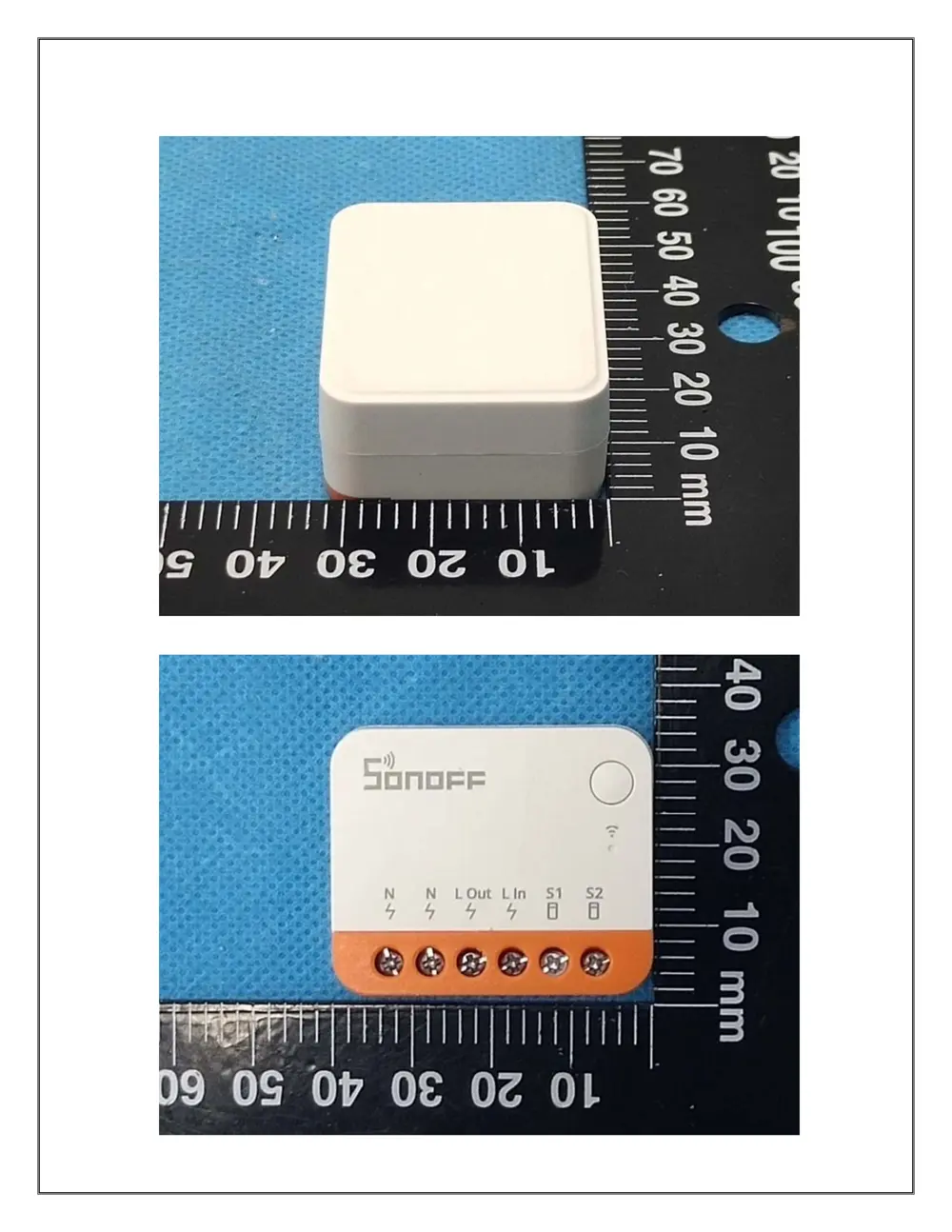
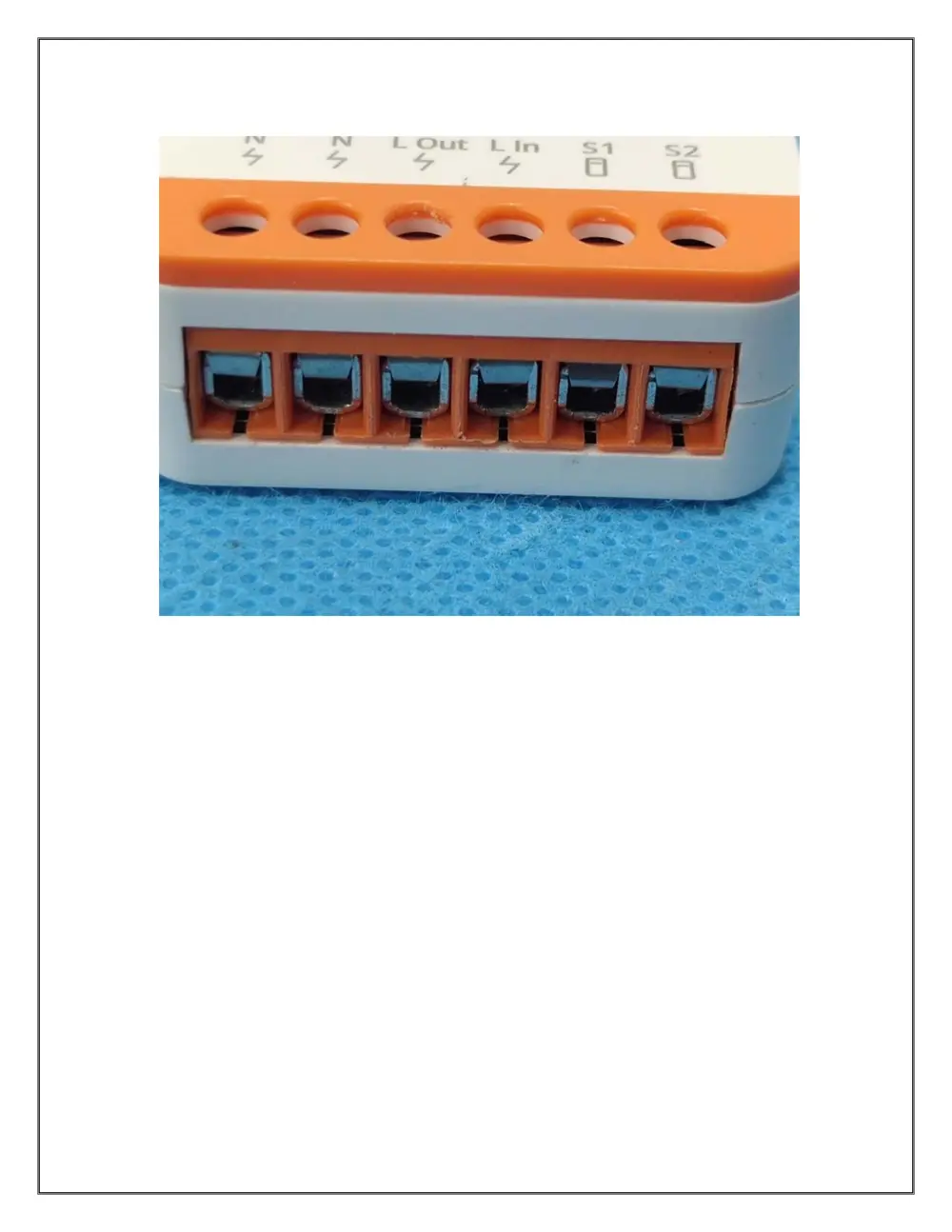
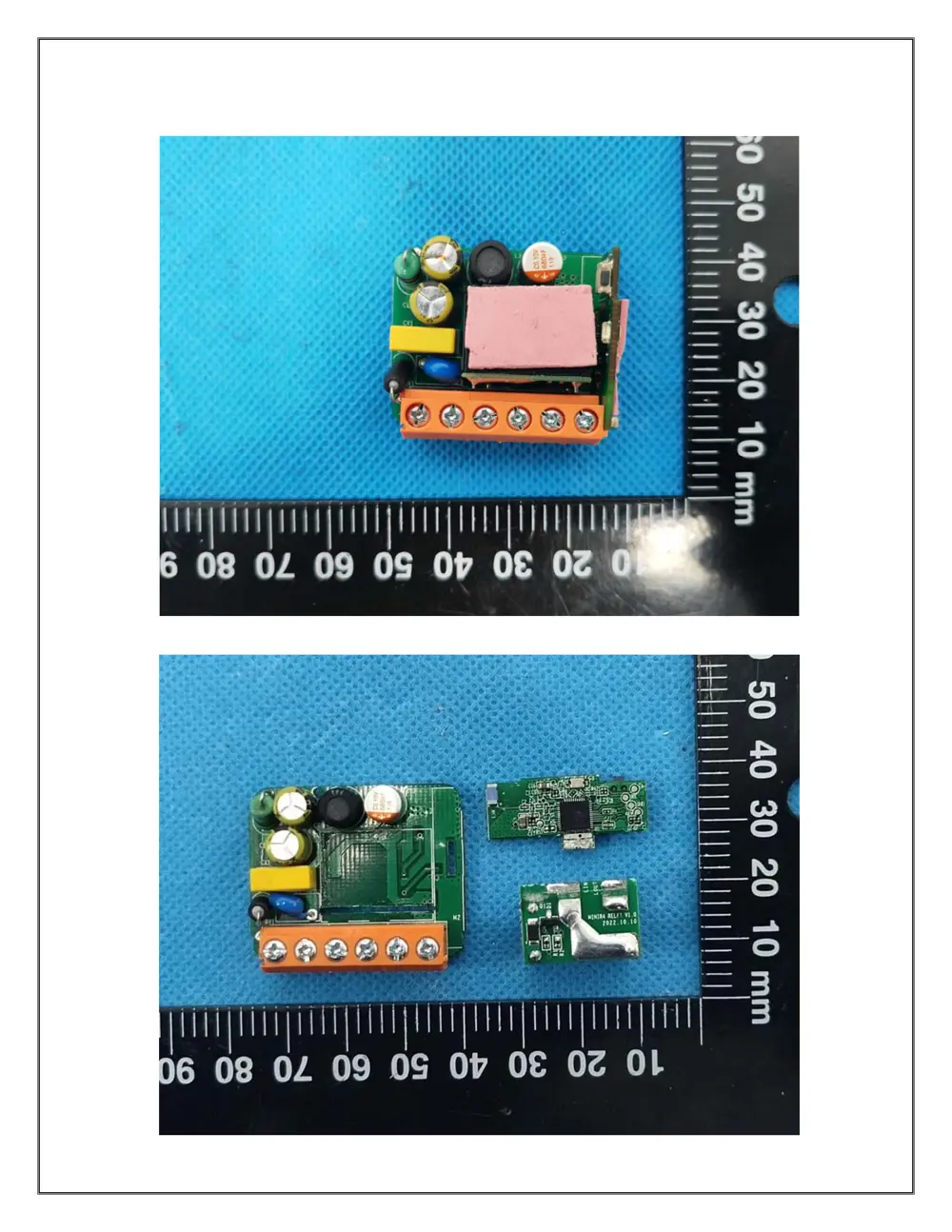
Internal Photos
Teardown photos showing the PCB and components:
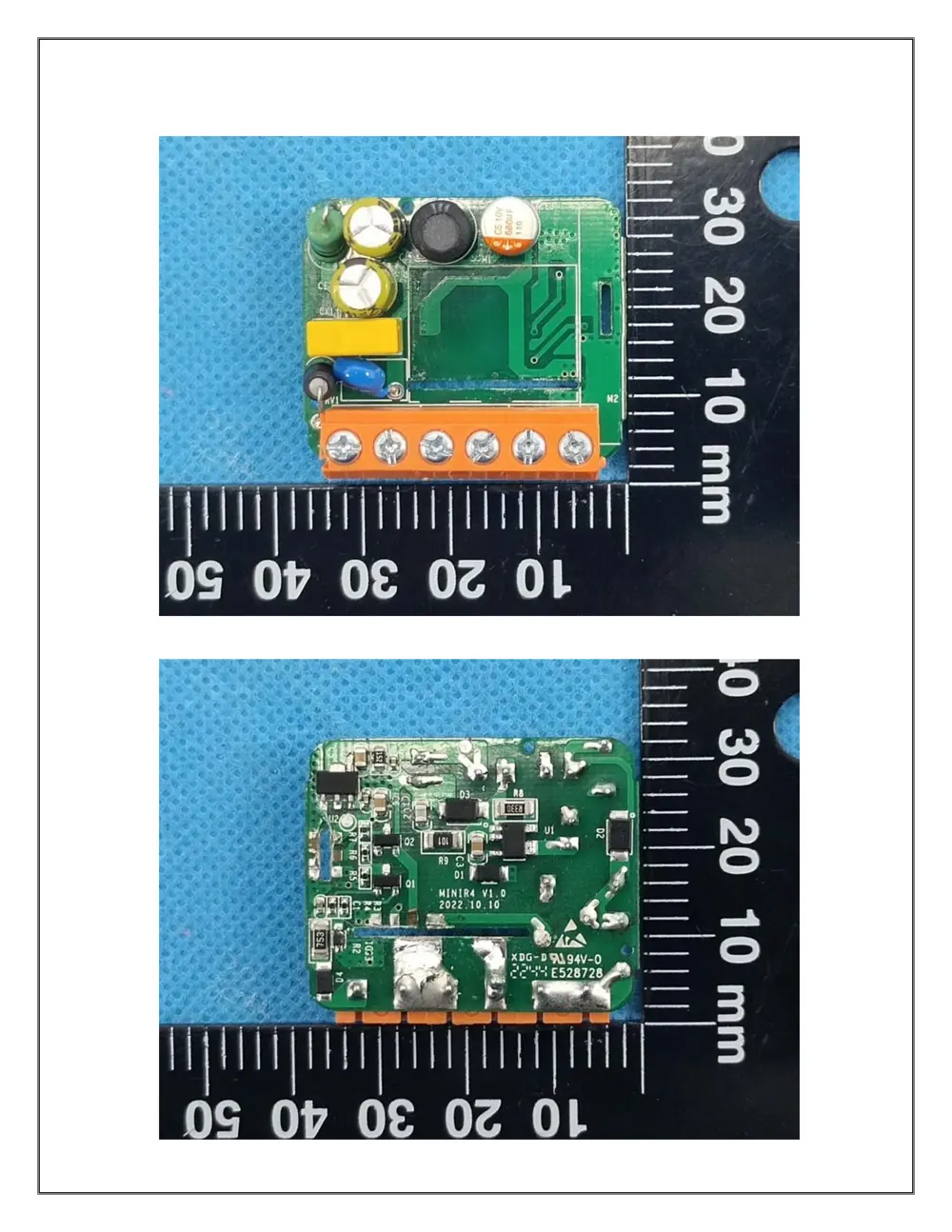
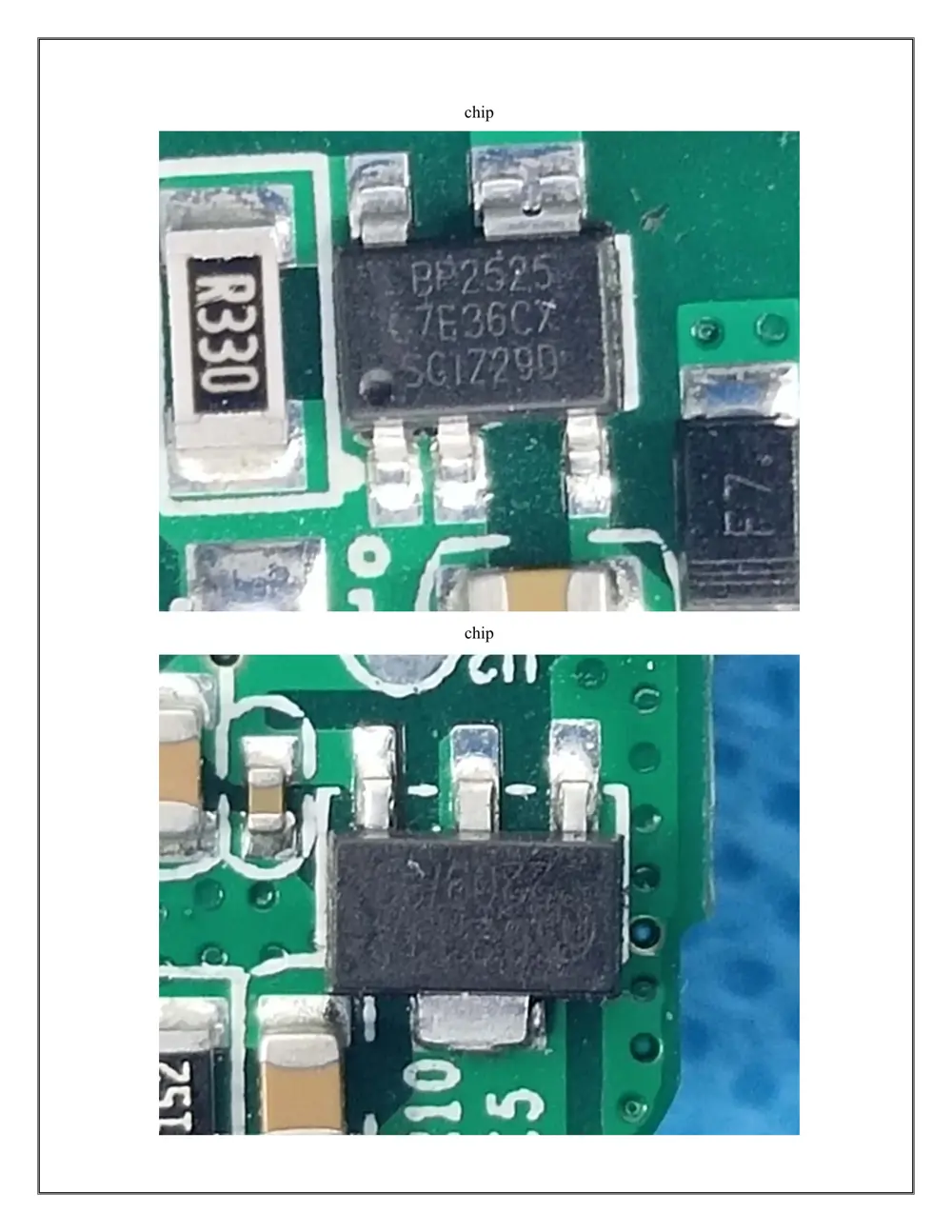
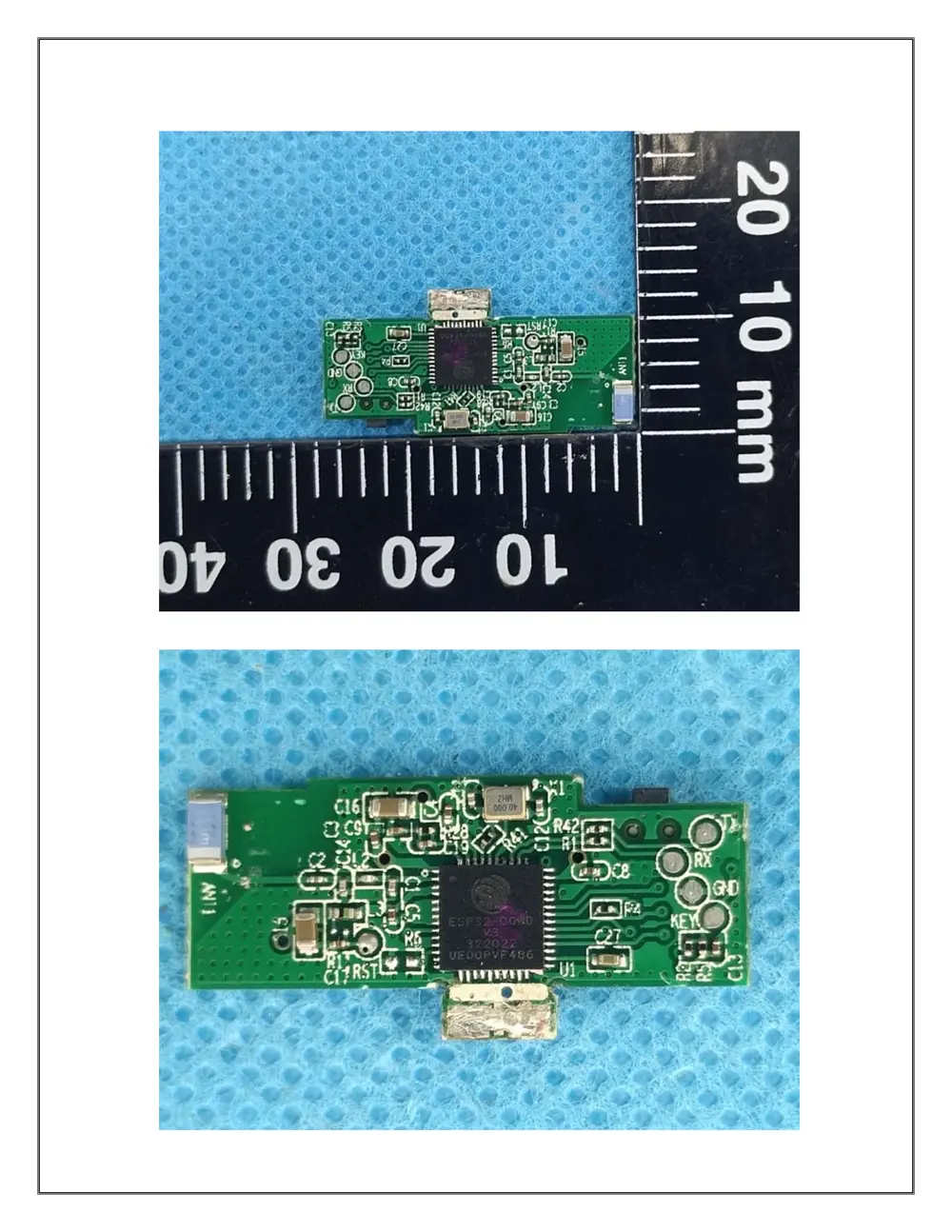
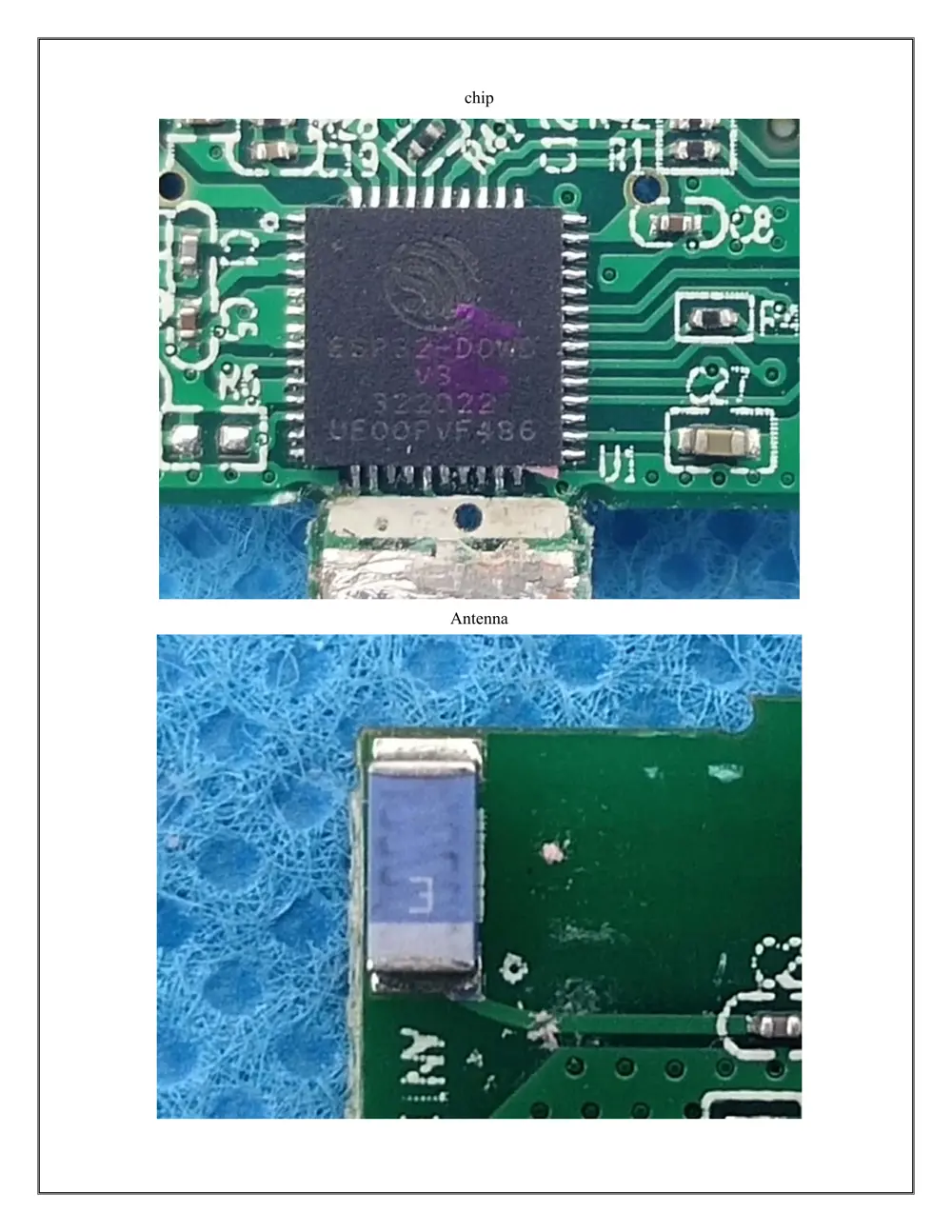
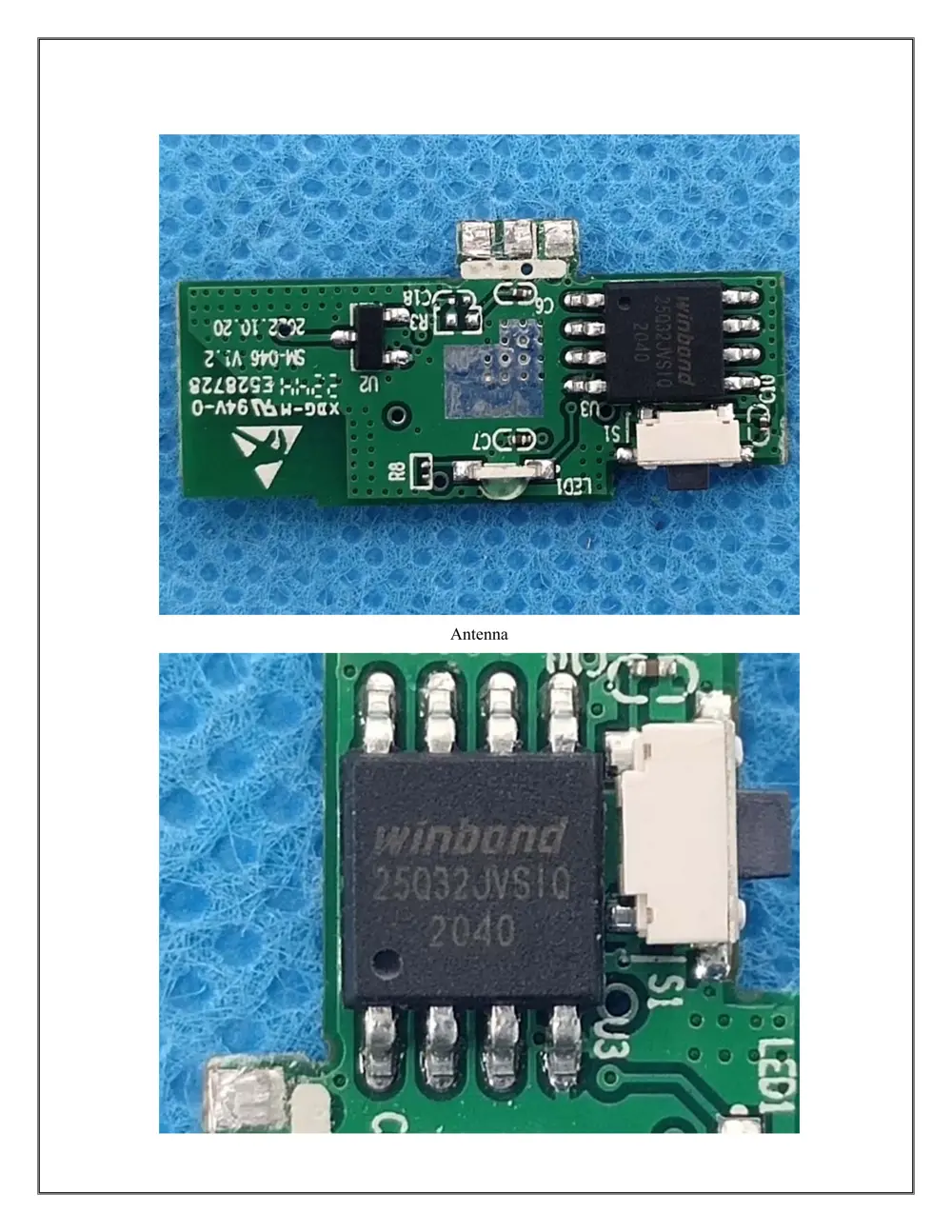
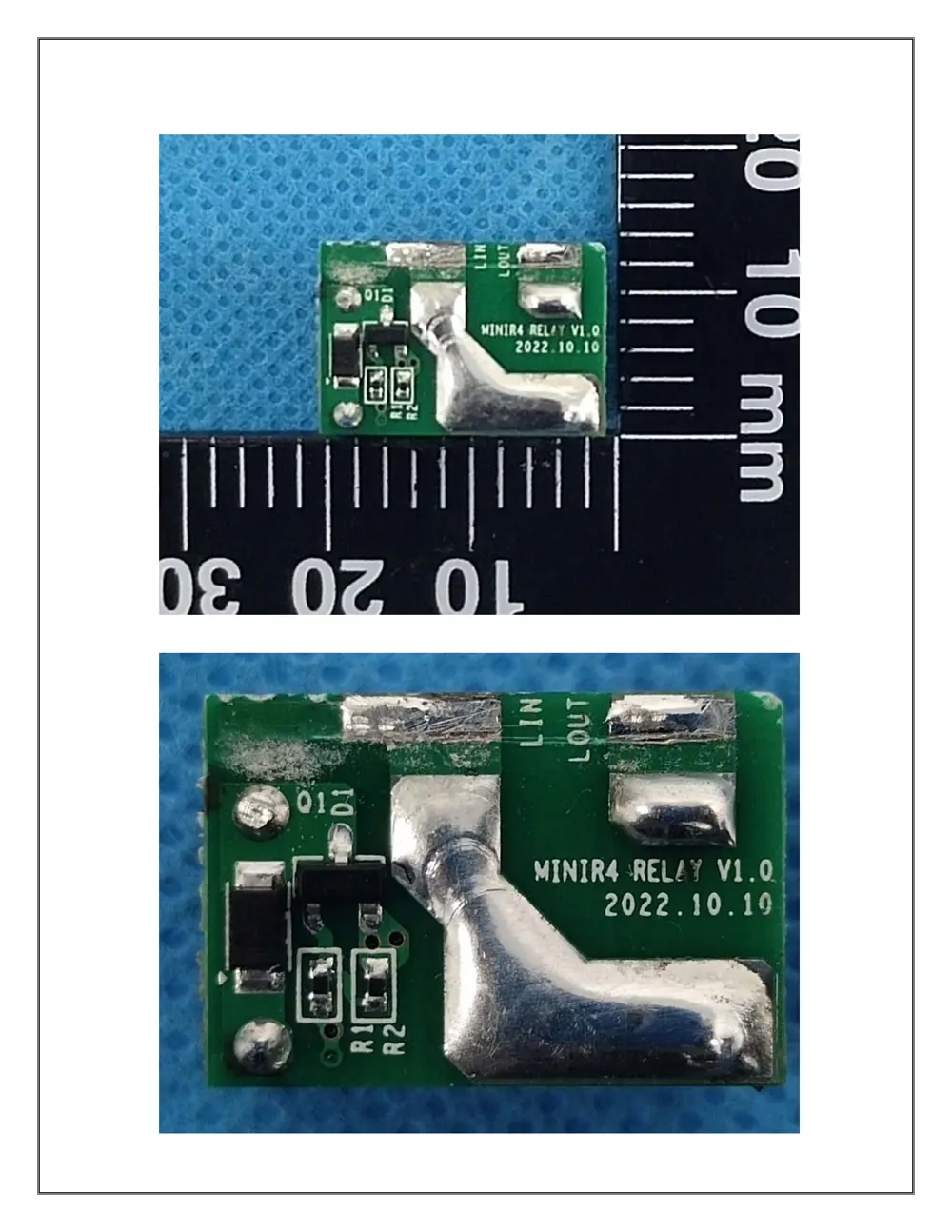
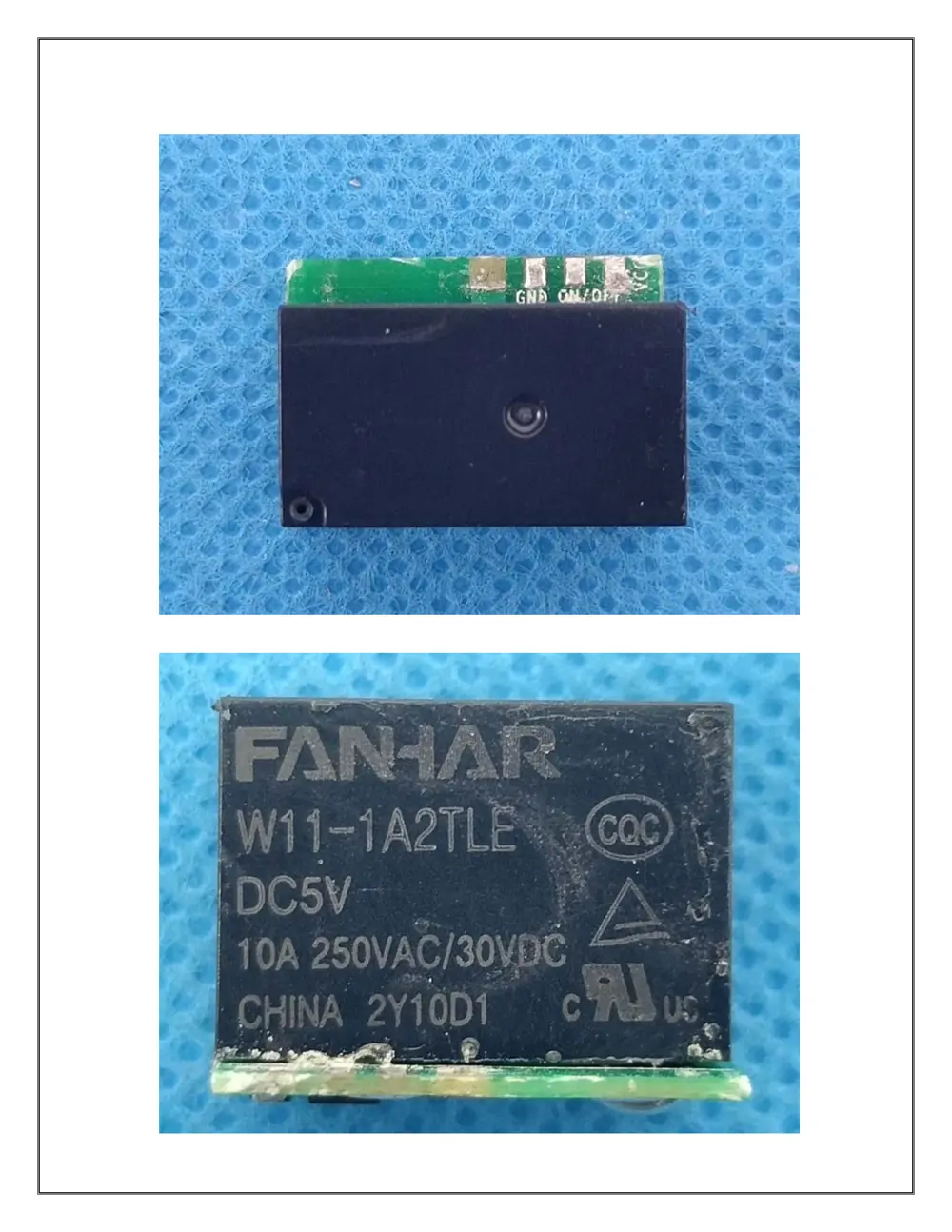
Verdict
The MINIR4 is a WiFi device from the Sonoff ecosystem.
📄 Click to view full text manual (SEO)
·中 文 ----------1 - 7 · English ----------8 - 14 · Warning ----------15 - 16
MINI Extreme
Wi-Fi Smart Switch
1
1. 断电
2
请前往应用商店、 Google Play Store或Apple App Store搜索"易微联"进行下载。
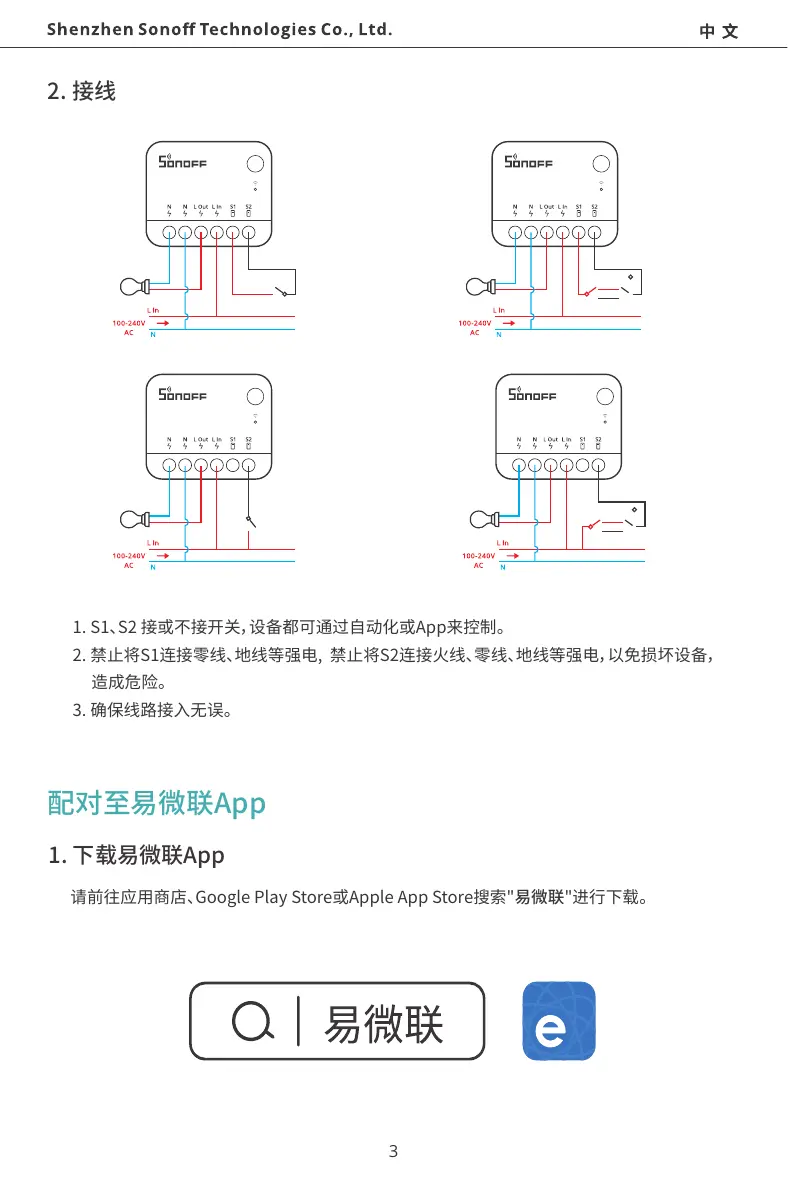
2. 接线
3
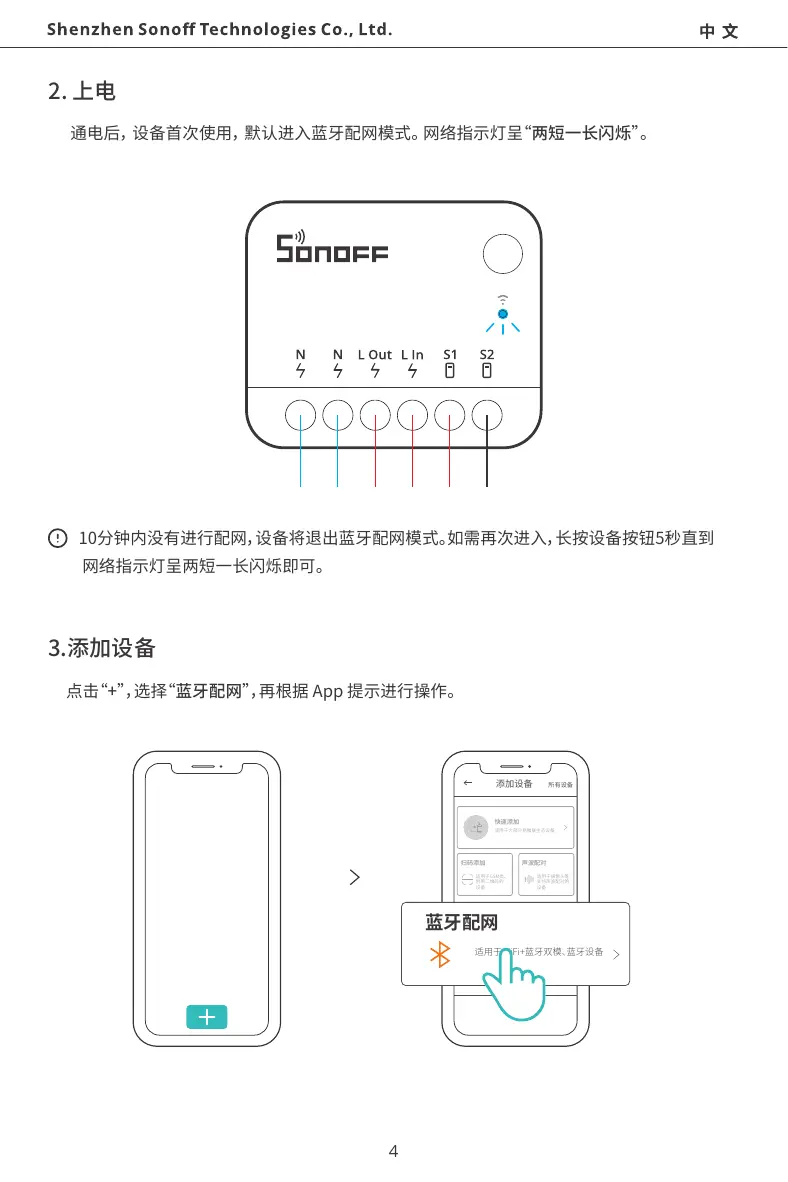
2. 上电
4
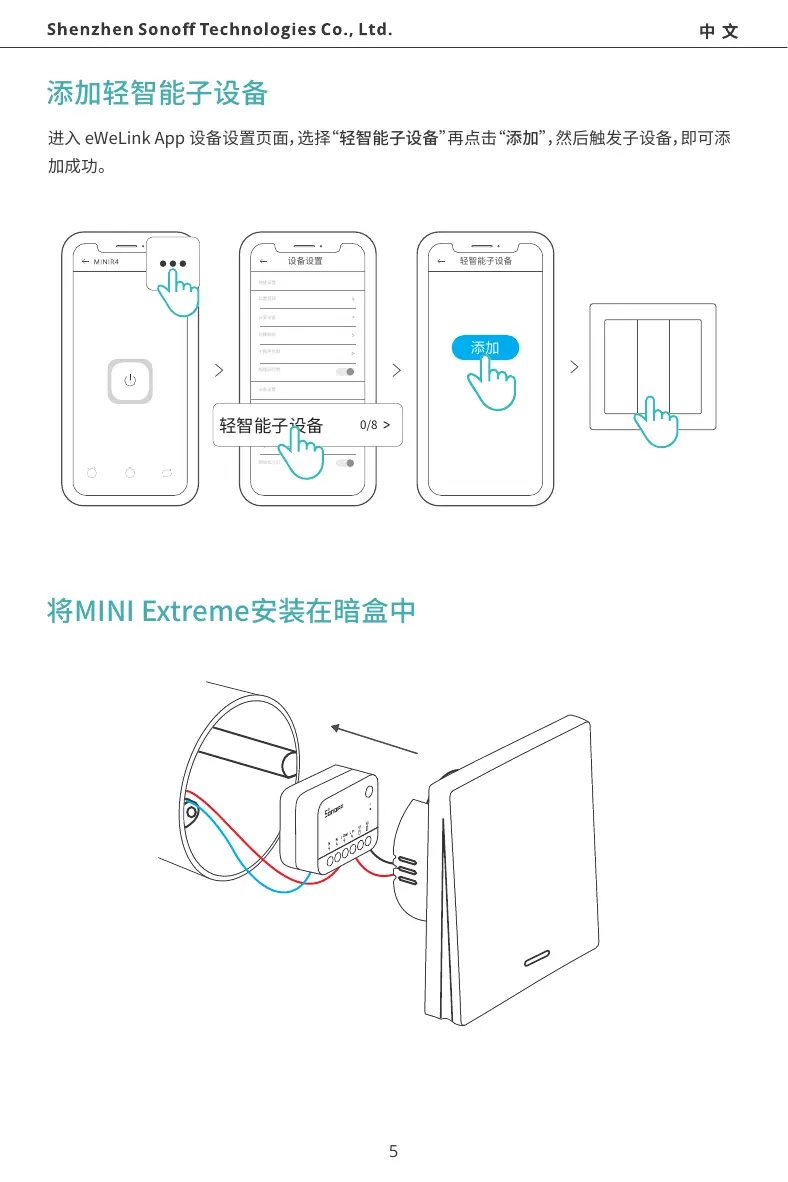
将MINI Extreme安装在暗盒中
5
Wi-Fi
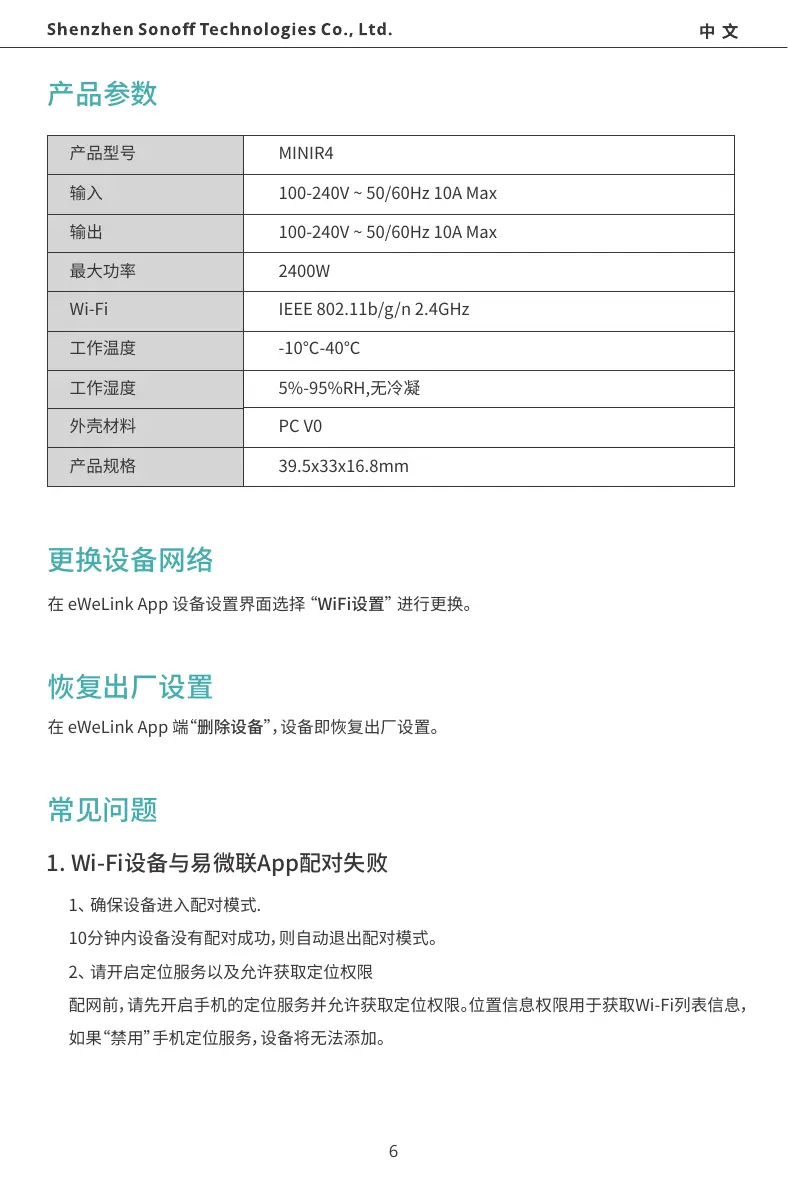
MINIR4
100-240V ~ 50/60Hz 10A Max
100-240V ~ 50/60Hz 10A Max
2400W
IEEE 802.11b/g/n 2.4GHz
-10℃-40℃
5%-95%RH,无冷凝
PC V0
39.5x33x16.8mm
6
3、 确保Wi-Fi运行在2.4GHz频段。
7
English
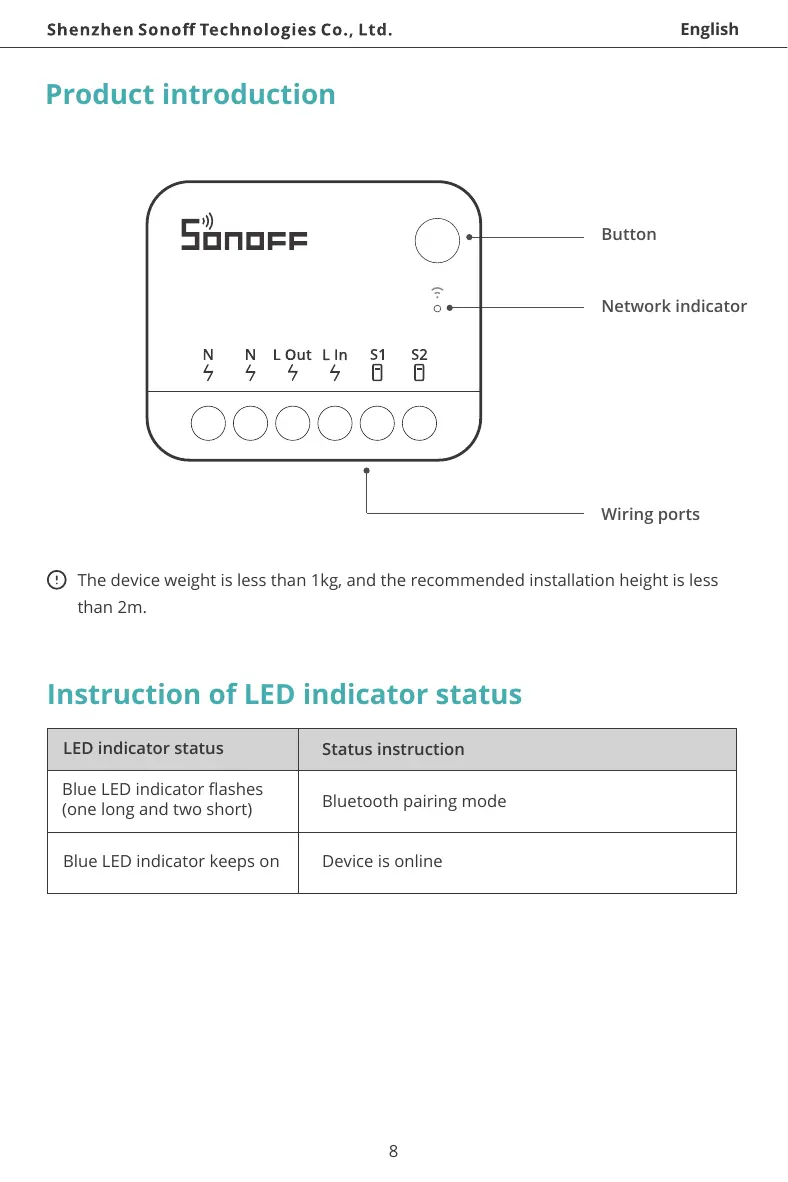
Button
Wiring ports
Network indicator
Product introduction
8
Instruction of LED indicator status
LED indicator status Status instruction
Blue LED indicator flashes
(one long and two short) Bluetooth pairing mode
Device is onlineBlue LED indicator keeps on
The device weight is less than 1kg, and the recommended installation height is less
than 2m.
English
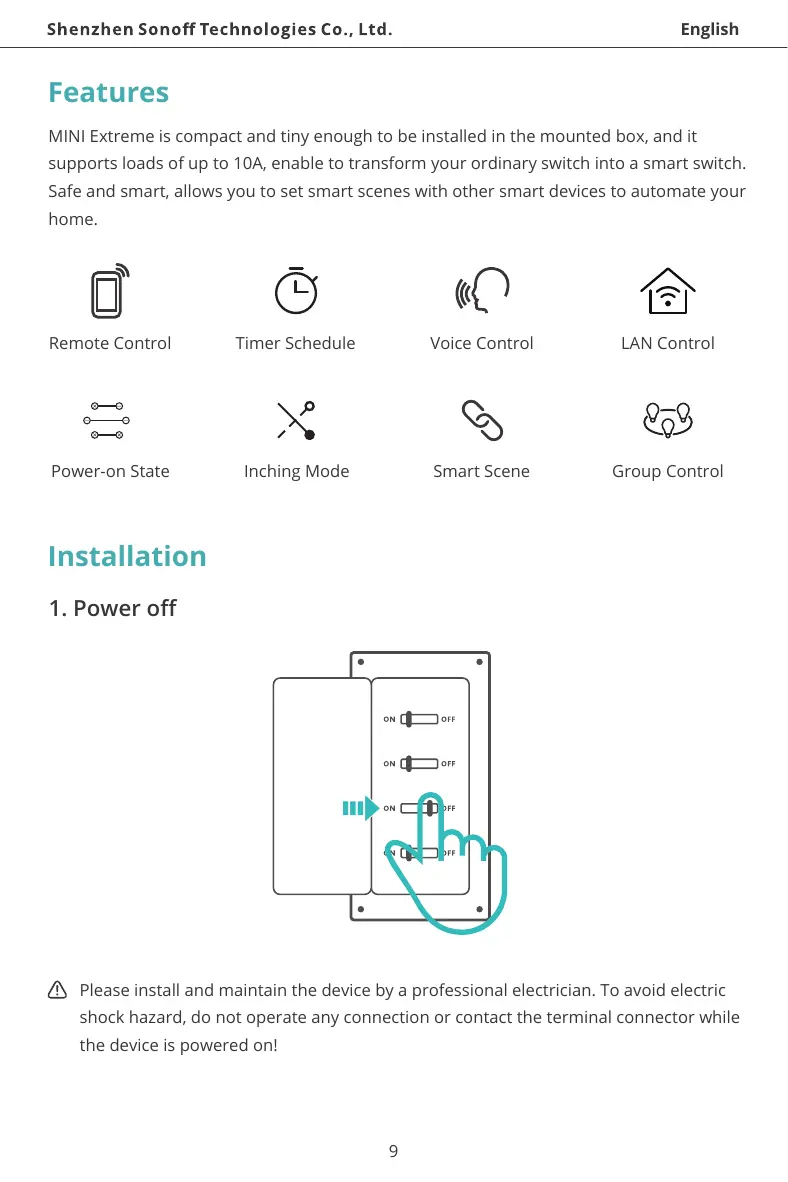
Features
MINI Extreme is compact and tiny enough to be installed in the mounted box, and it
supports loads of up to 10A, enable to transform your ordinary switch into a smart switch.
Safe and smart, allows you to set smart scenes with other smart devices to automate your
home.
Voice Control
Smart Scene
Remote Control
Power-on State
LAN Control
Group Control
Timer Schedule
Inching Mode
Installation
1. Power off
Please install and maintain the device by a professional electrician. To avoid electric
shock hazard, do not operate any connection or contact the terminal connector while
the device is powered on!
9
English
Pair with eWeLink App
1. Download the eWeLink App
Please download the "eWeLink" App from Google Play Store or Apple App Store.
2. Wiring instruction
Before installing the device, please install an air switch as the protective device
(Air switch: 10A/250V).
1aNo matter S1 and S2 are connected or left idle to the external switch, this device
canbe controlled by automation or the App.
2aTo avoid damaging the equipment and causing danger, it is forbidden to connect
S1 to strong electricity such as neutral wire or earth wire or to connect S2 to strong
electricity such as live wire, neutral wire, earth wire and etc.
3aMake sure all wires are connected correctly.
10
English
3.Add device
Tap “+” and select “Bluetooth Pairing”, then operate following the prompt on the App.
2. Power on
After powering on, the device will enter the Bluetooth Pairing Mode defaulted during
the first use, and the Network indicator flashes in a cycle of two short and one long.
The device will exit the Bluetooth Pairing Mode if not been paired within 10mins. If
you want to enter this mode again, please long press the button for 5s until the
Network indicator flashes in a cycle of two short and one long and then release.
11
English
Add eWeLink-Remote Sub-devices
Install the MINI Extreme in the mounting box
Enter the Device Settings page on the eWeLink App, select "eWeLink-Remote sub-devices"
and tap "Add", then trigger the sub-device to add it successfully.
12
English
Change the device's network by "Wi-Fi Settings" in the "Device Settings" page on the
eWeLink App.
Specifications
Model
Input
Output
Max. power
Wi-Fi
Working temperatu...