
POWR3 Reset & Teardown (FCC ID 2APN5POWR3)
Factory reset and internal photos for Sonoff (Itead) POWR3. Sonoff smart plug.
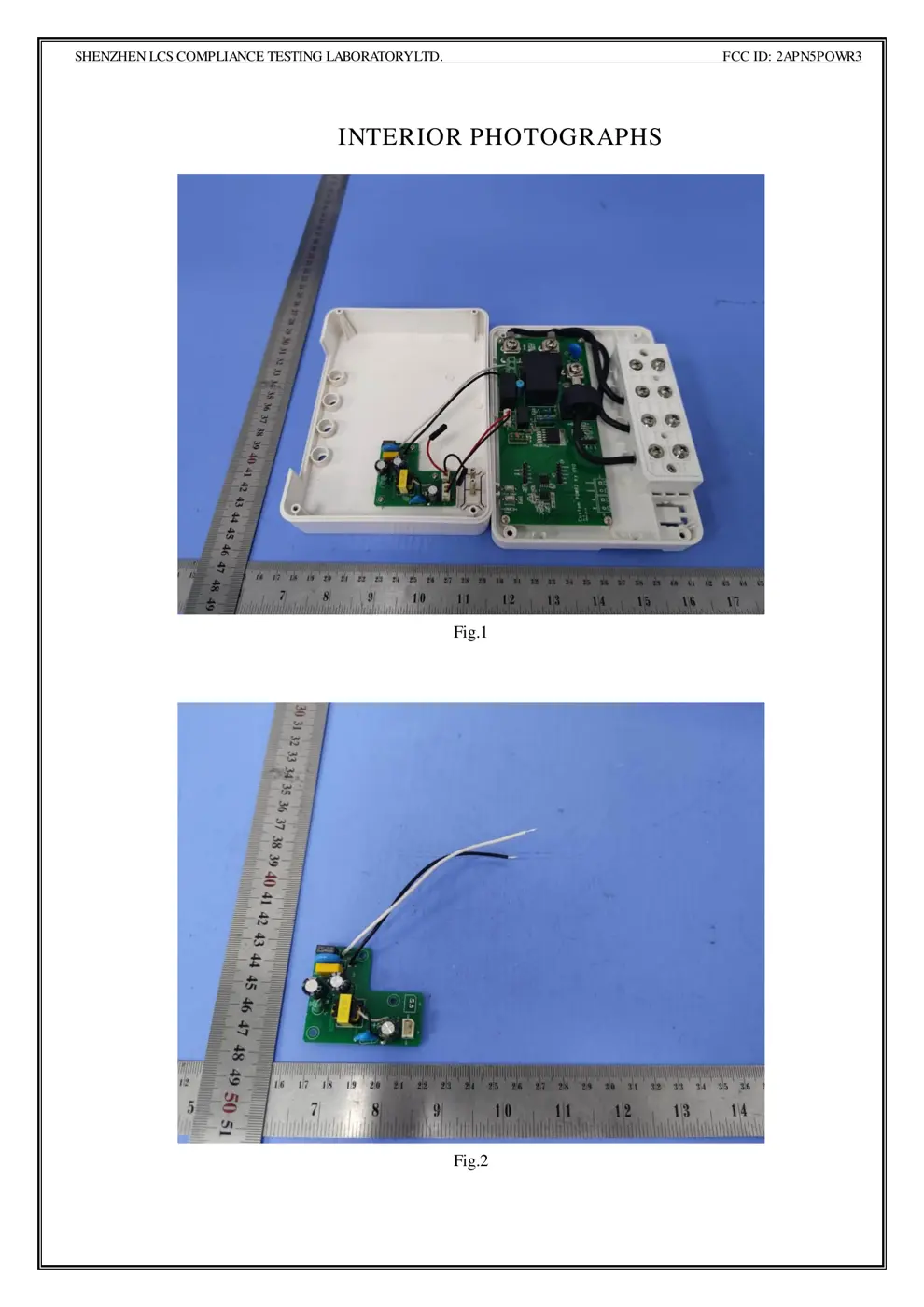
Before you buy the Sonoff (Itead) POWR3, check what's inside.
The Sonoff POWR3 is a high-power WiFi smart switch designed for integration into eWeLink ecosystem. It offers energy monitoring capabilities and supports a maximum load of 5500W, making it suitable for demanding appliances.
⚠️ NOTE: Disconnect Mains before installation and repair. Ensure correct wiring of Live and Neutral wires.
Quick Specs
- Manufacturer: Sonoff (Itead)
- Model: POWR3
- Protocol: WiFi
- Chipset: Realtek RTL8720
- Ecosystem: Sonoff
- App: eWeLink
🔧 Geek Corner (Flashing Info)
- Chipset: Realtek RTL8720DN
- Flashable: ❌ No
- Info: Device uses Realtek RTL8720DN chipset, which is not easily flashable with custom firmware like Tasmota or ESPHome. Official firmware is required for operation.
Reset Guide
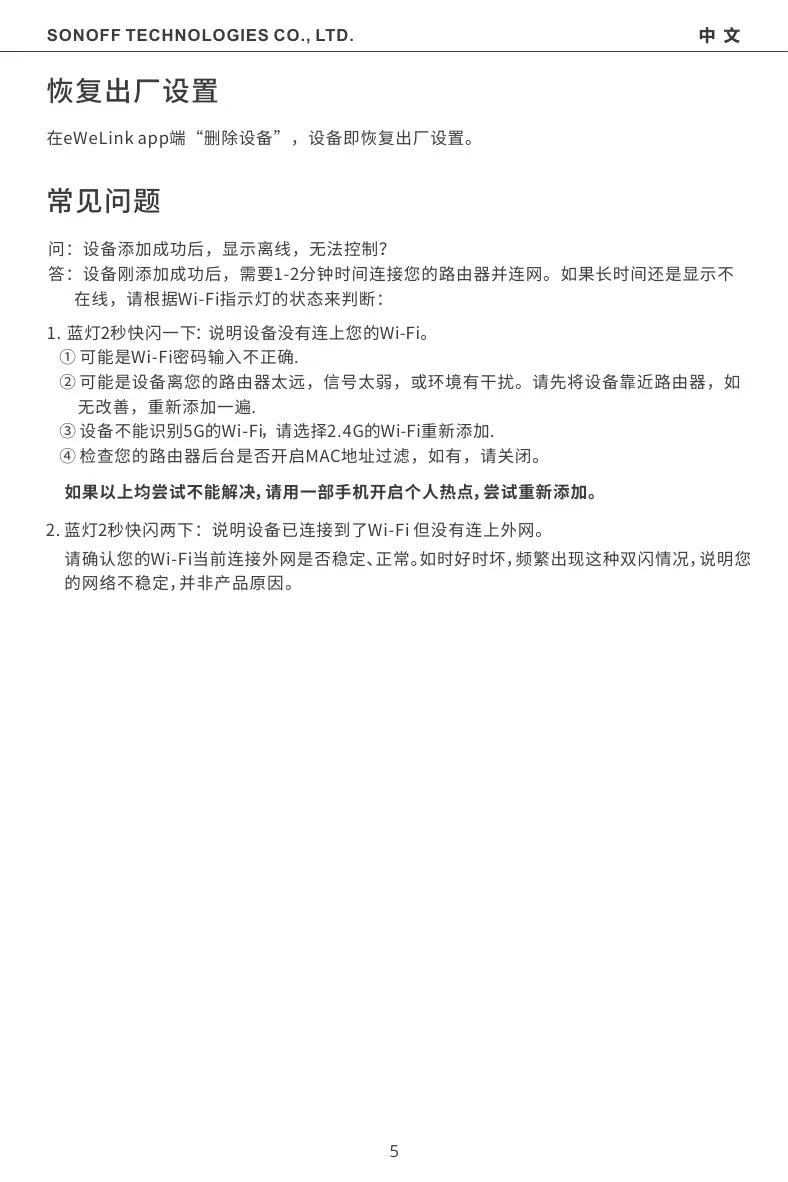
Factory reset common problems q: why my device stays “offline”? a: the newly added device needs 1 – 2mins to connect wi-fi and network.
User Manual
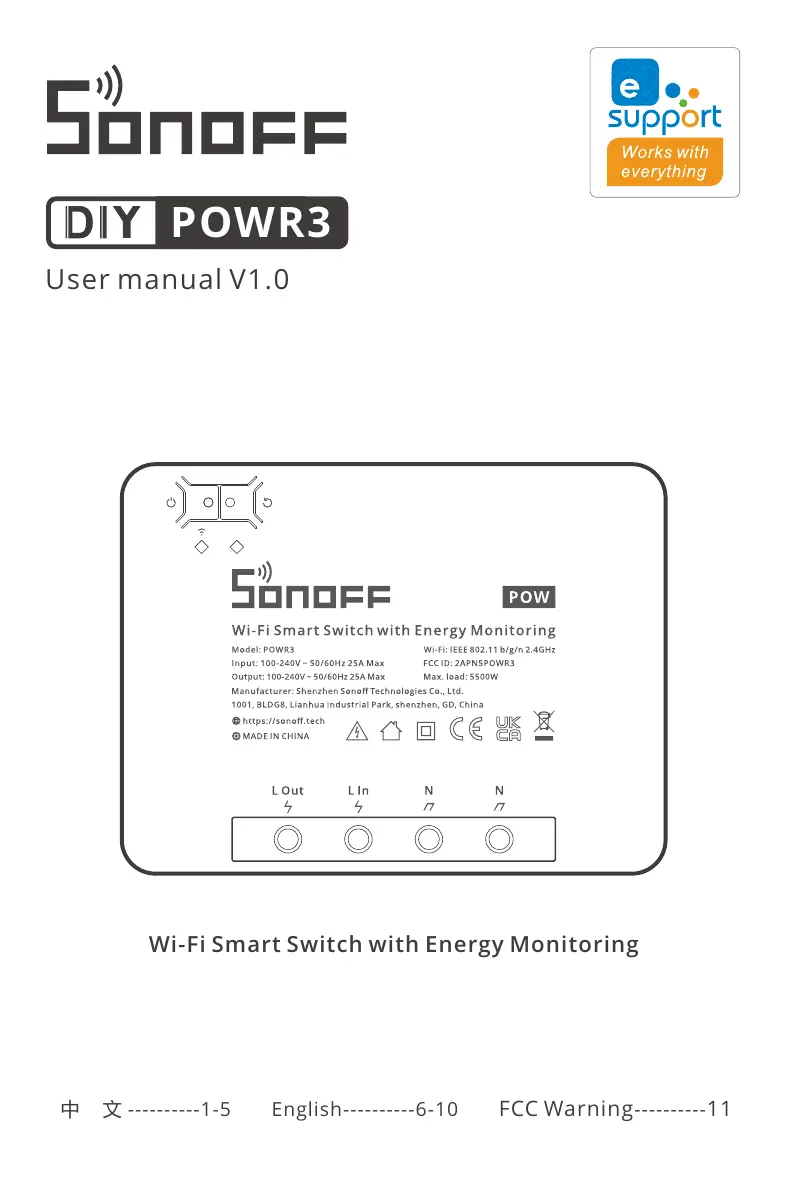
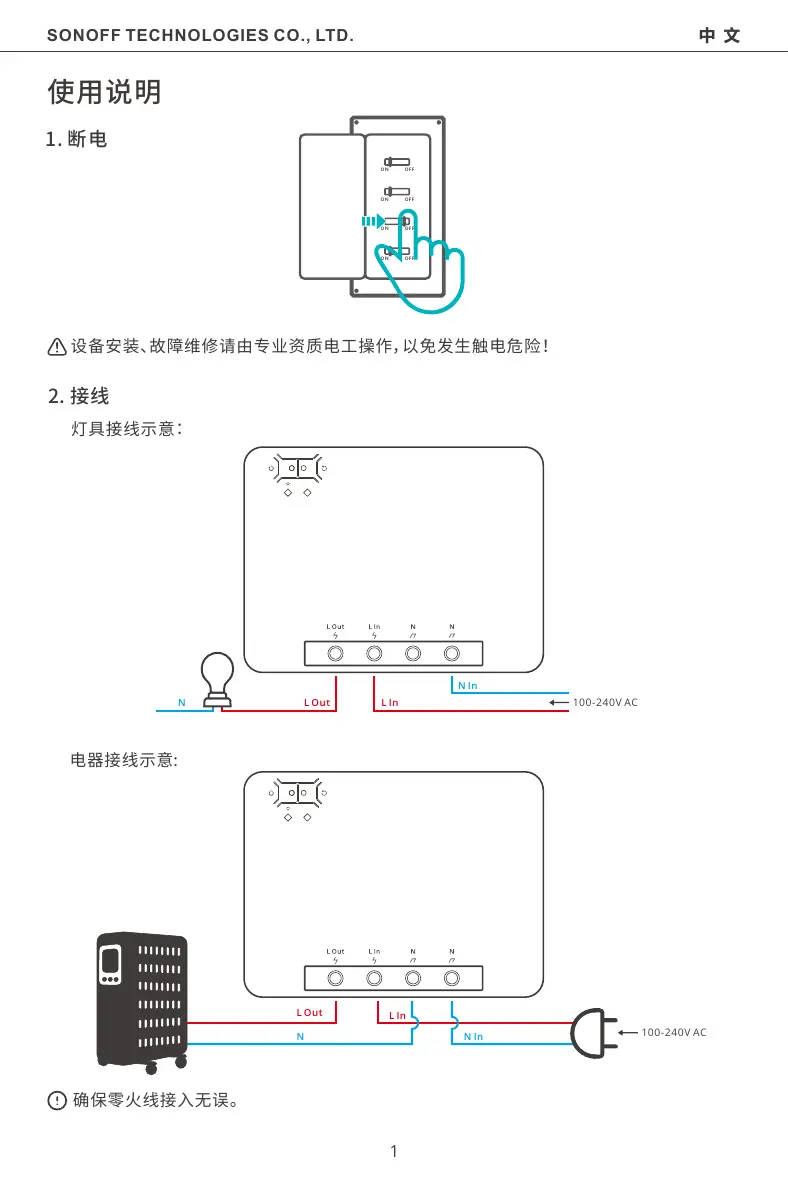
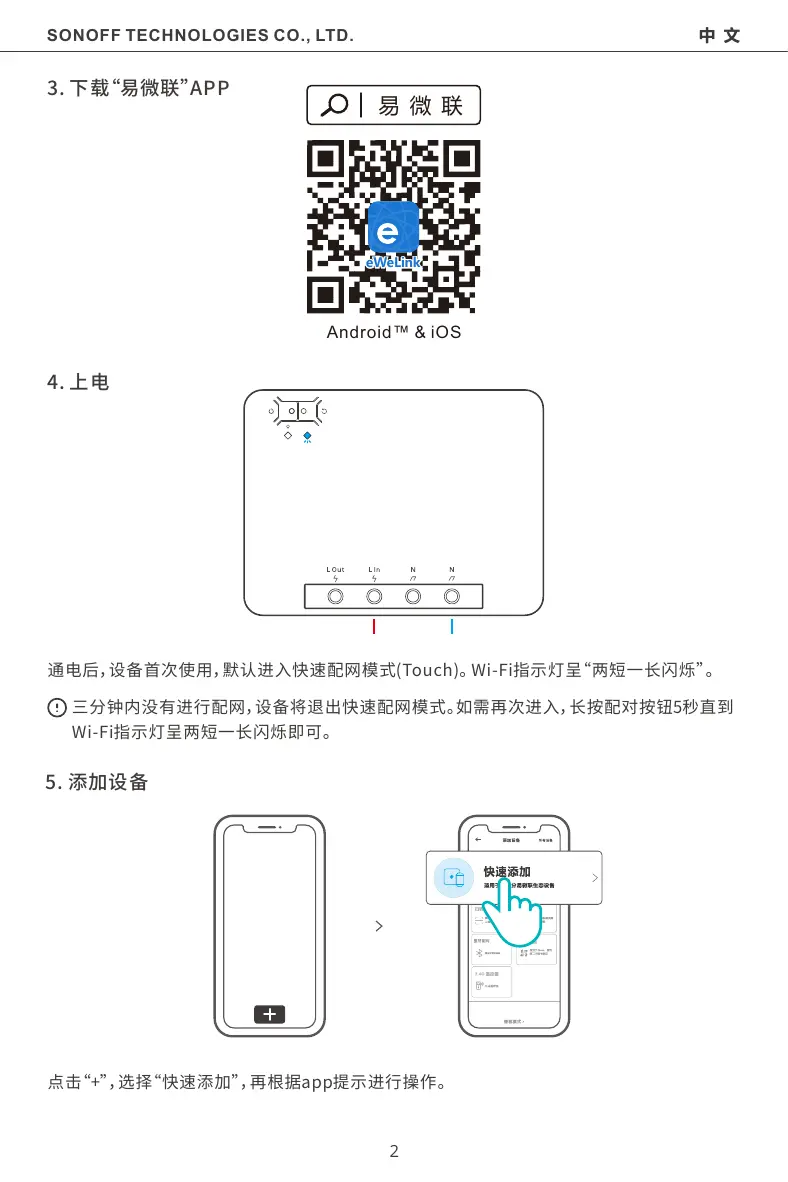
Scanned pages from the official user manual:
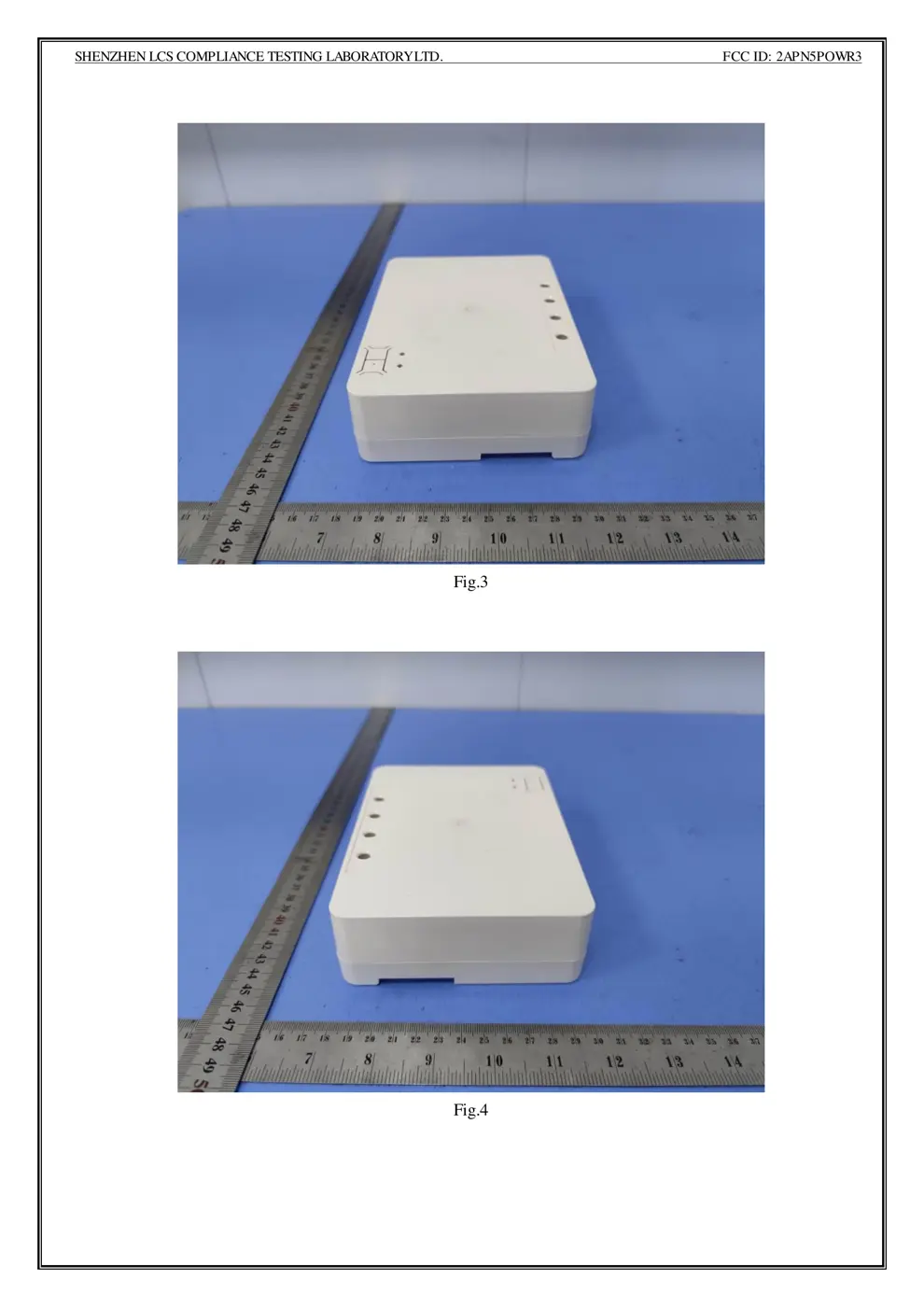
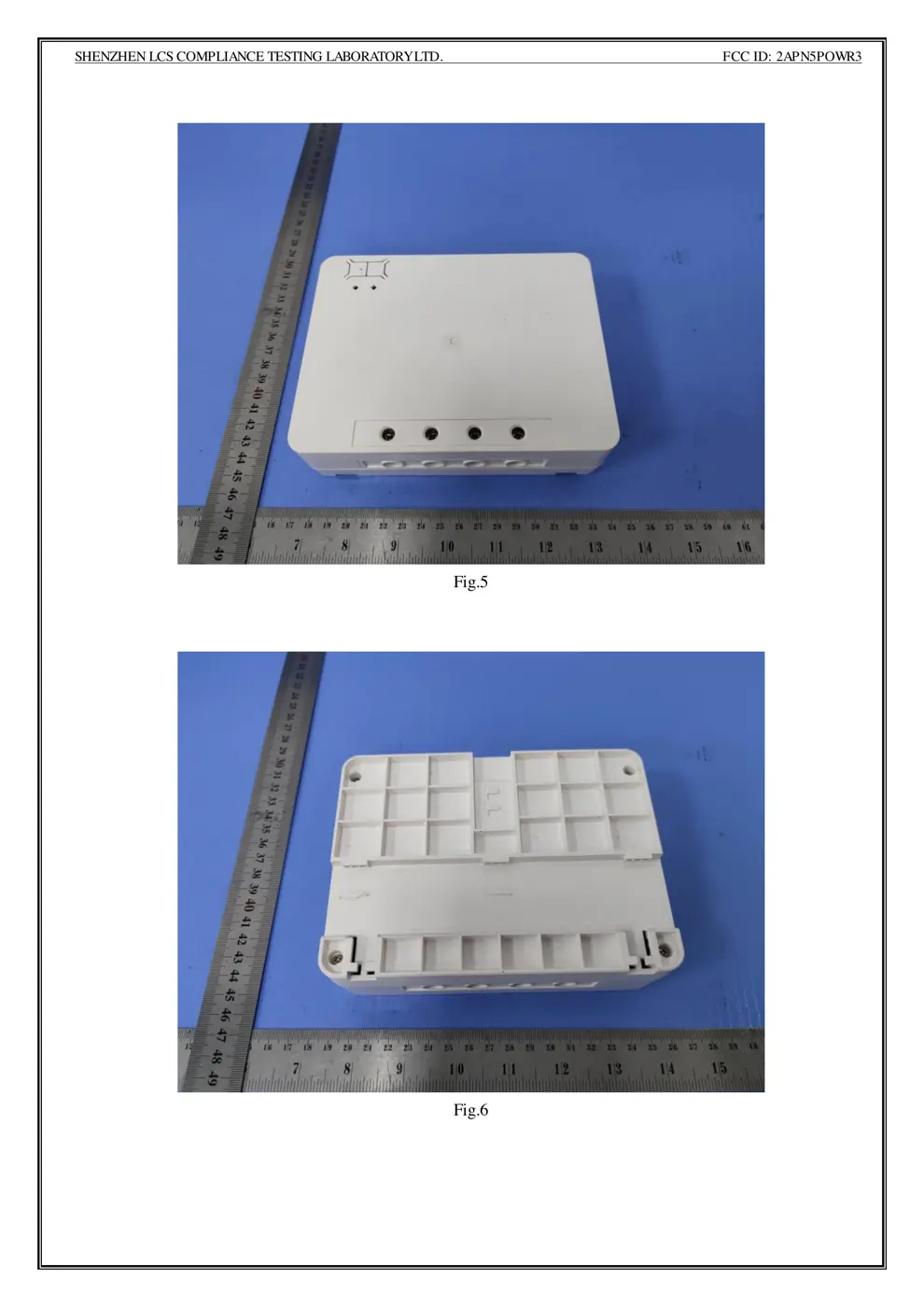
External Photos
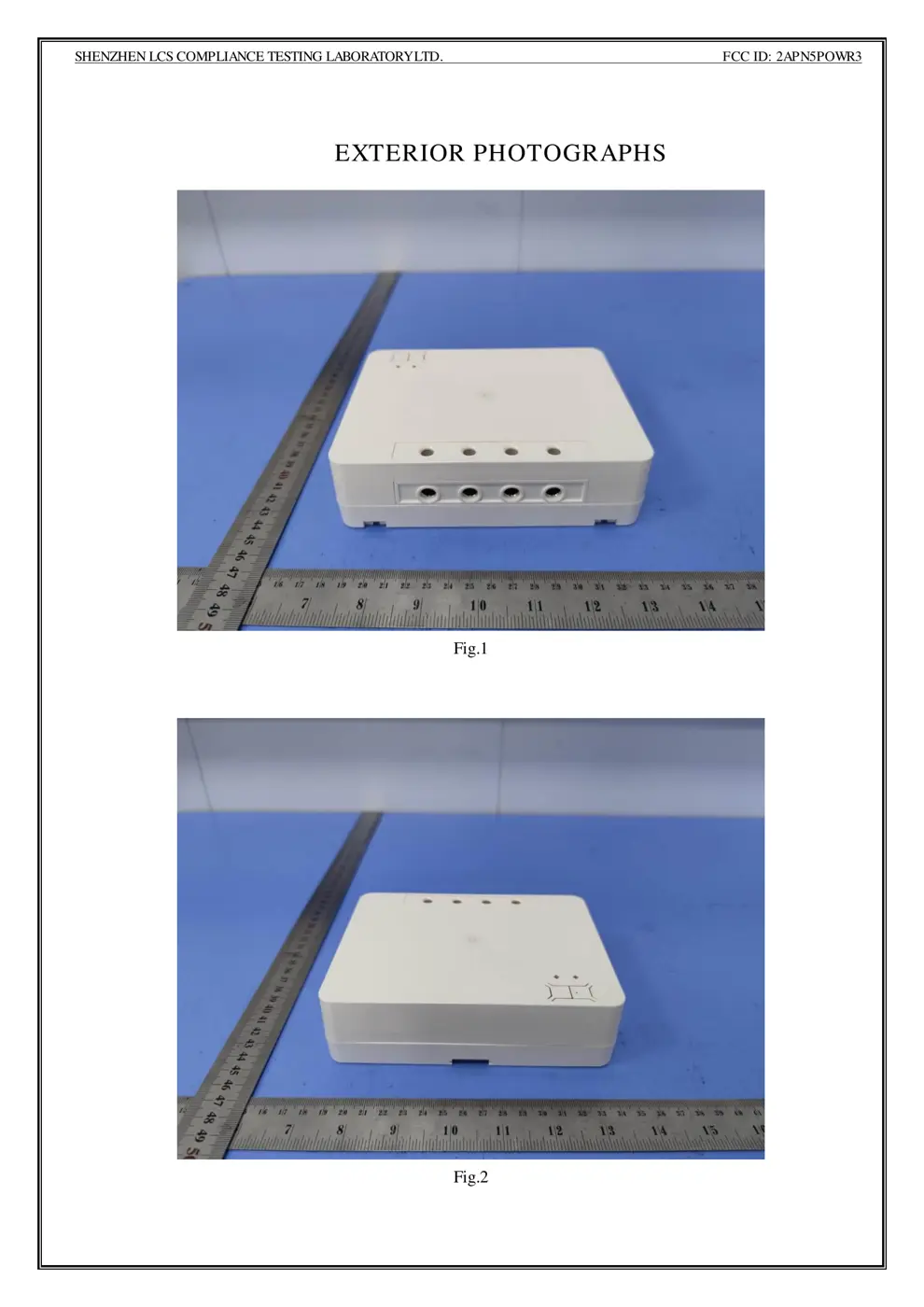
Photos of the device exterior:
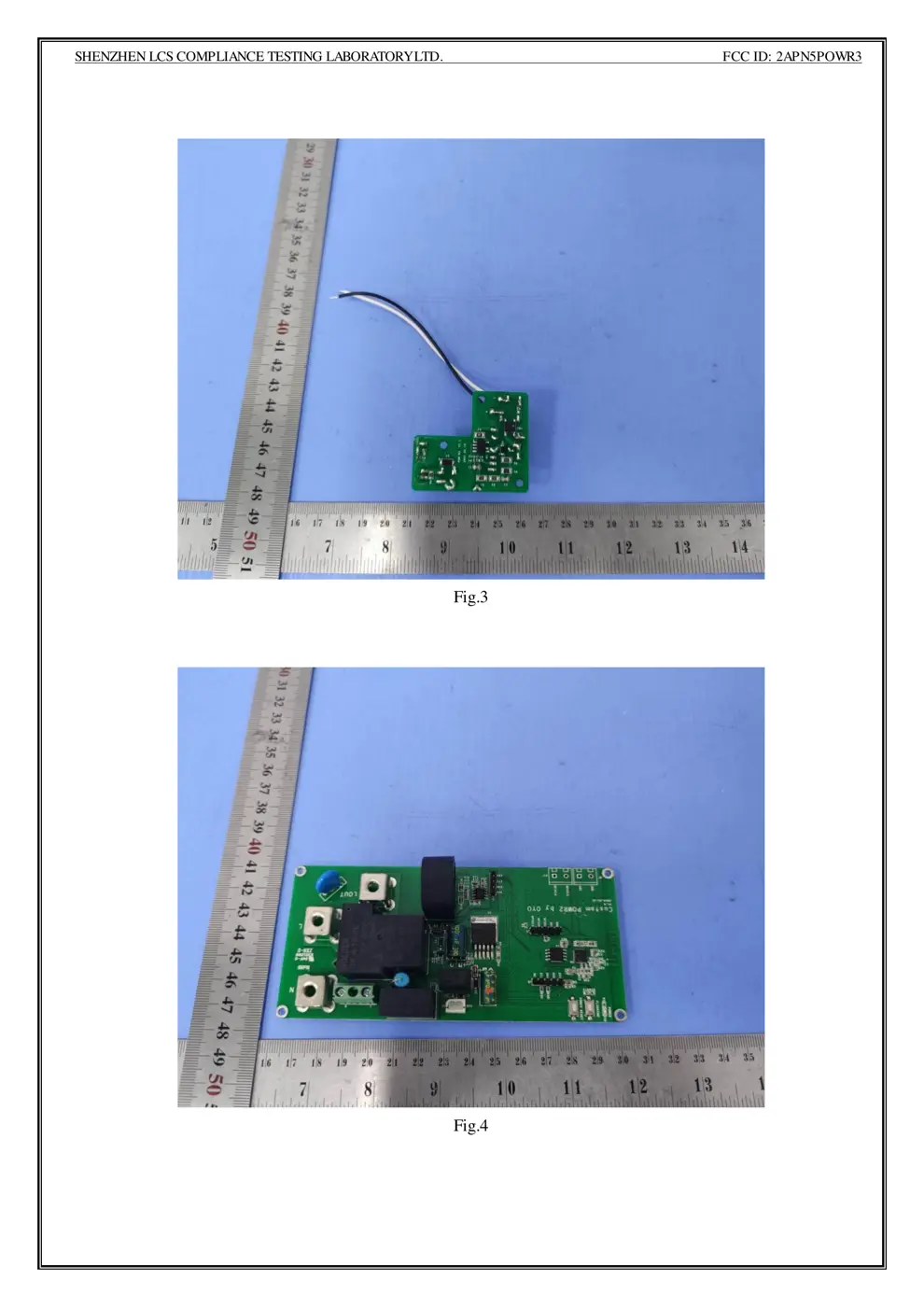
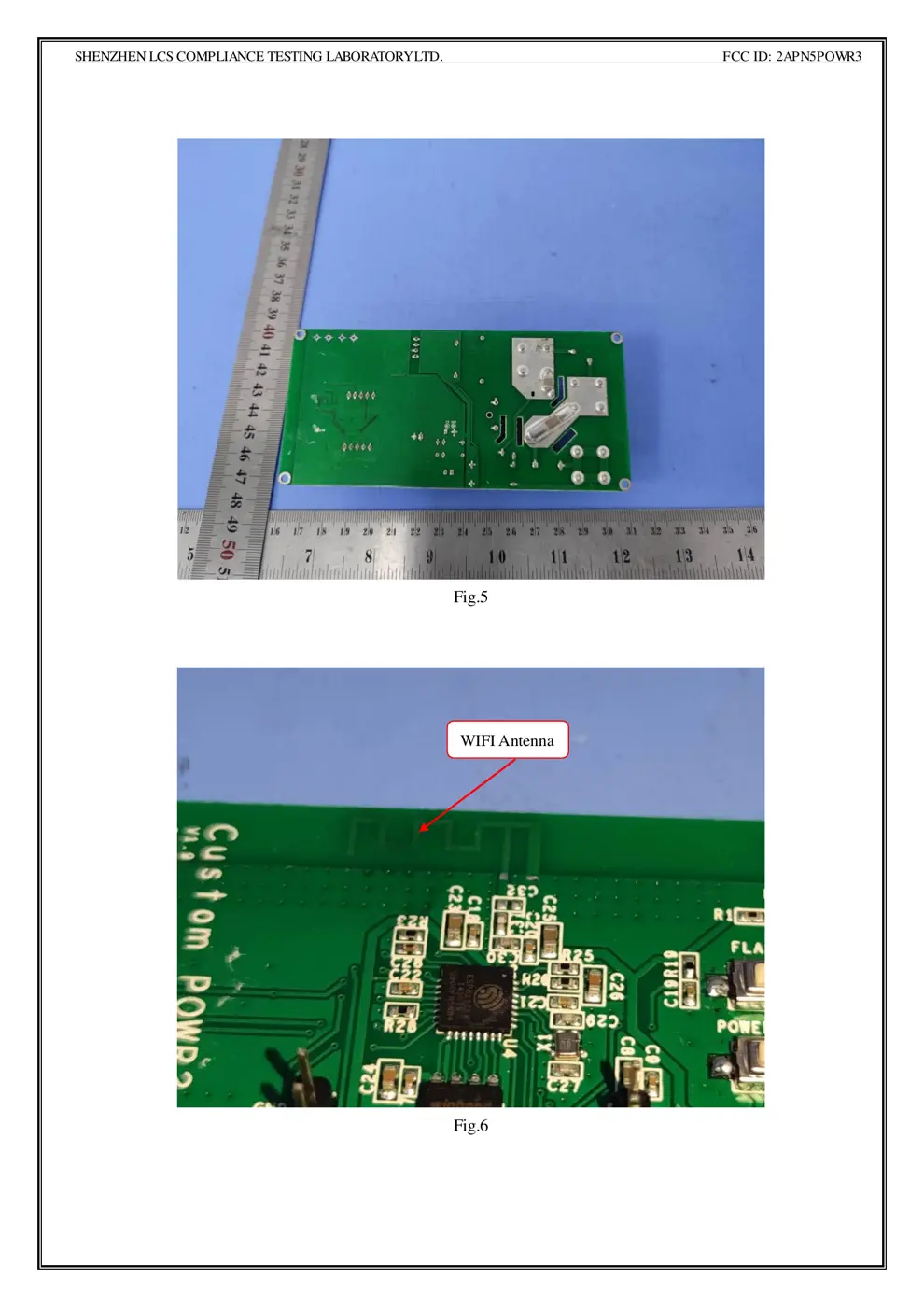
Internal Photos
Teardown photos showing the PCB and components:
Verdict
The POWR3 is a WiFi device from the Sonoff ecosystem.
📄 Click to view full text manual (SEO)
User manual V1.0
POWR3
中 文 ----------1-5 English----------6-10 FCC Warning----------11
Wi-Fi Smart Switch with Energy Monitoring
SONOFF TECHNOLOGIES CO., LTD. 中 文
1.断电
2.接线
1
ON OFF
ON OFF
ON OFF
ON OFF
LIn
NIn
100-240V ACLOutN
LIn
NIn
LOut
N 100-240V AC
SONOFF TECHNOLOGIES CO., LTD. 中 文
eWeLink
Android™ & iOS
4.上电
2
SONOFF TECHNOLOGIES CO., LTD. 中 文
Wi-Fi
POWR3
100-240V~50/60Hz25AMax
100-240V~50/60Hz25AMax
IEEE802.11b/g/n2.4GHz
PCV0
162x122x45.5mm
Android&iOS
最⼤负载 5500W
3
Android设备:
iOS设备:
SONOFF TECHNOLOGIES CO., LTD. 中 文
4
SONOFF TECHNOLOGIES CO., LTD. 中 文
5
SONOFF TECHNOLOGIES CO., LTD. English
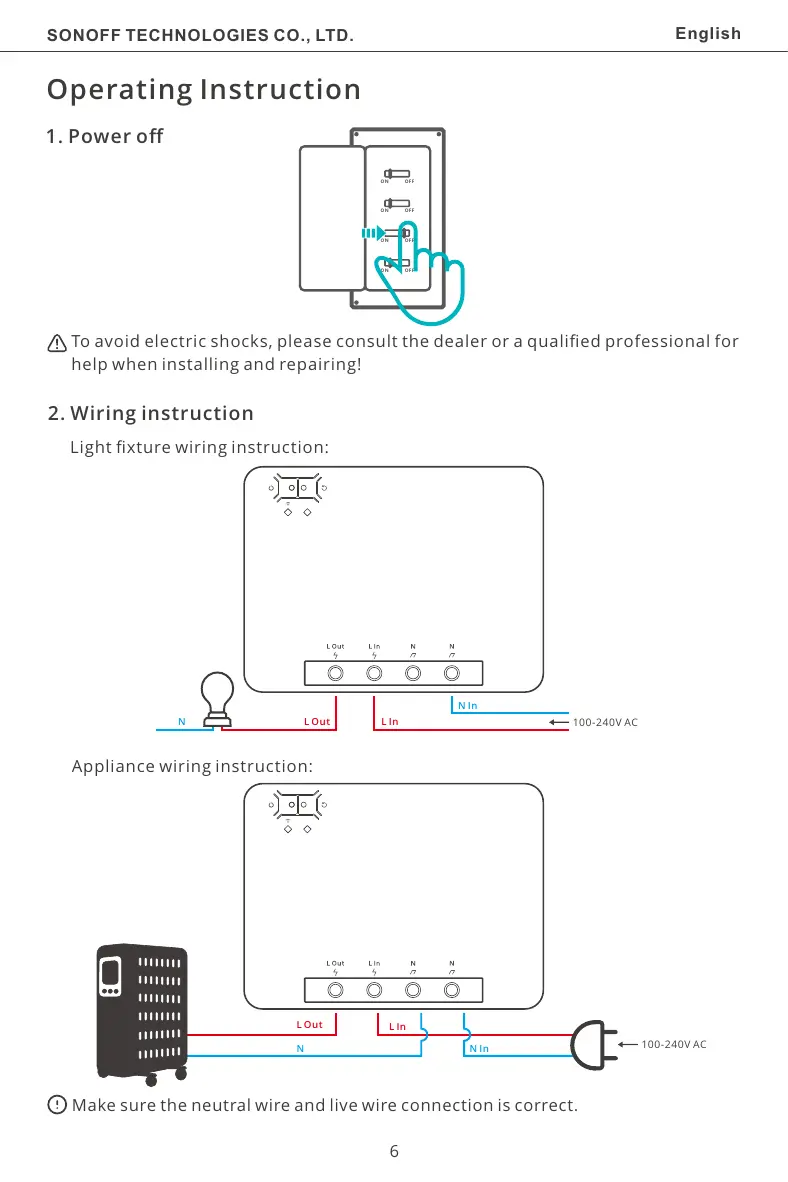
To avoid electric shocks, please consult the dealer or a qualified professional for
help when installing and repairing!
1. Power off
Operating Instruction
6
ON OFF
ON OFF
ON OFF
ON OFF
LIn
NIn
100-240V ACLOutN
LIn
NIn
LOut
N 100-240V AC
Appliance wiring instruction:
Make sure the neutral wire and live wire connection is correct.
2. Wiring instruction
Light fixture wiring instruction:
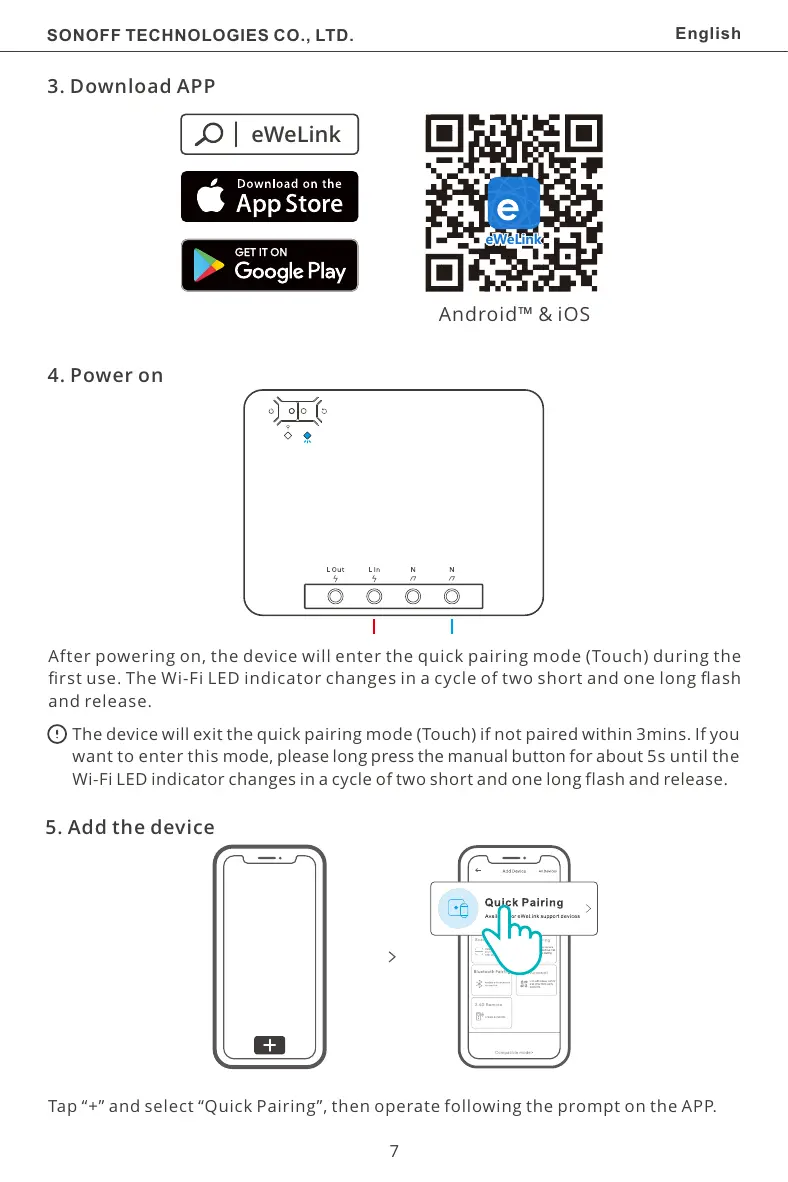
3. Download APP
eWeLink
eWeLink
Android™ & iOS
4. Power on
After powering on, the device will enter the quick pairing mode (Touch) during the
first use. The Wi-Fi LED indicator changes in a cycle of two short and one long flash
and release.
The device will exit the quick pairing mode (Touch) if not paired within 3mins. If you
want to enter this mode, please long press the manual button for about 5s until the
Wi-Fi LED indicator changes in a cycle of two short and one long flash and release.
SONOFF TECHNOLOGIES CO., LTD. English
5. Add the device
Tap “+” and select “Quick Pairing”, then operate following the prompt on the APP.
7
1
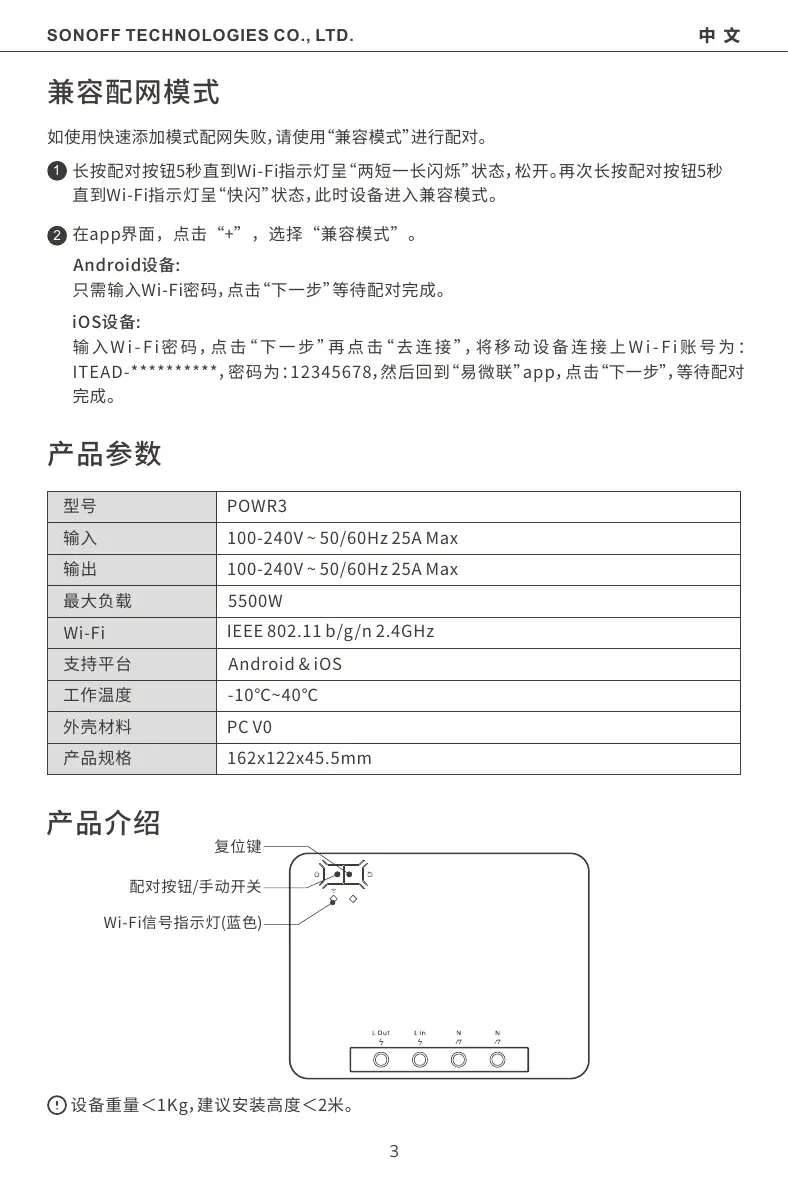
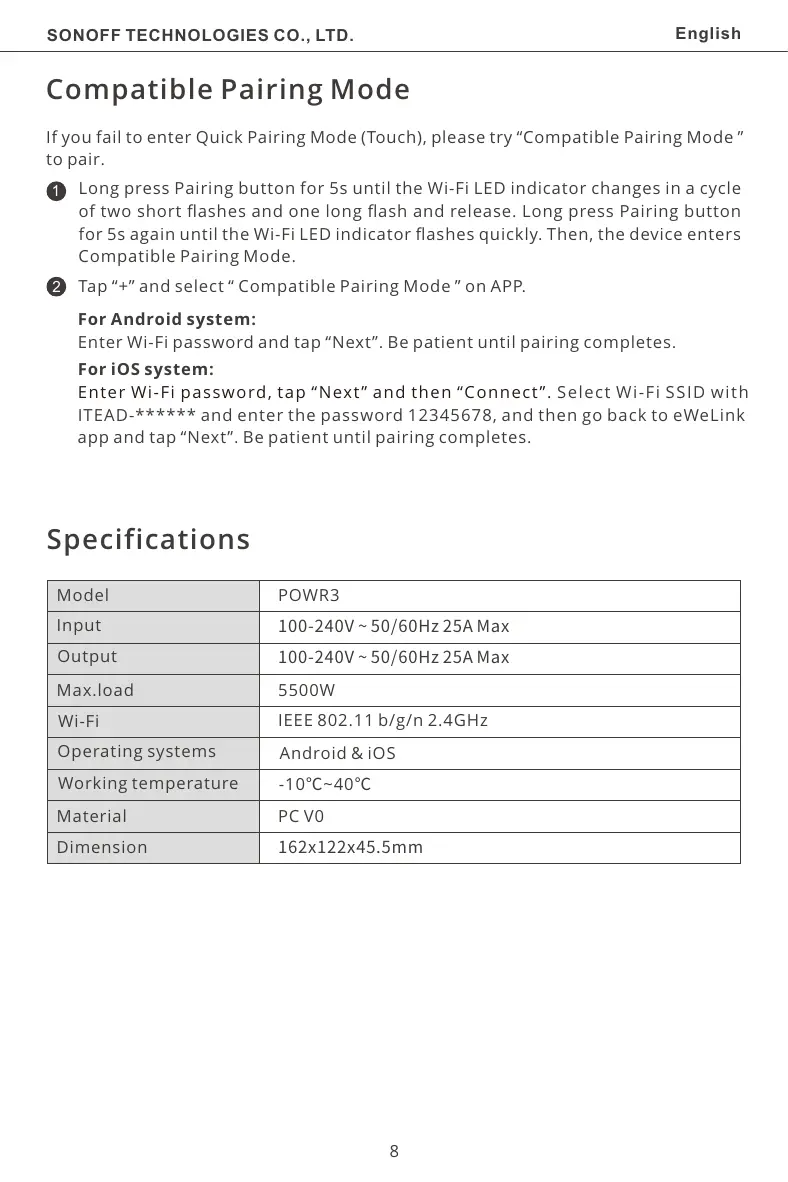
Compatible Pairing Mode
If you fail to enter Quick Pairing Mode (Touch), please try “Compatible Pairing Mode ”
to pair.
Long press Pairing button for 5s until the Wi-Fi LED indicator changes in a cycle
of two short flashes and one long flash and release. Long press Pairing button
for 5s again until the Wi-Fi LED indicator flashes quickly. Then, the device enters
Compatible Pairing Mode.
2 Tap “+” and select “ Compatible Pairing Mode ” on APP.
SONOFF TECHNOLOGIES CO., LTD. English
POWR3
IEEE 802.11 b/g/n 2.4GHz
PC V0
Android & iOS
5500W
-10℃~40℃
Wi-Fi
Material
Dimension
Operating systems
Model
Input
Max.load
Working temperature
Output
Specifications
8
For Android system:
Enter Wi-Fi password and tap “Next”. Be patient until pairing completes.
For iOS system:
 Select Wi-Fi SSID with Enter Wi-Fi password, tap “Next” and then “Connect”.
ITEAD-****** and enter the password 12345678, and then go back to eWeLink
app and tap “Next”. Be patient until pairing completes.
100-240V~50/60Hz25AMax
162x122x45.5mm
100-240V~50/60Hz25AMax
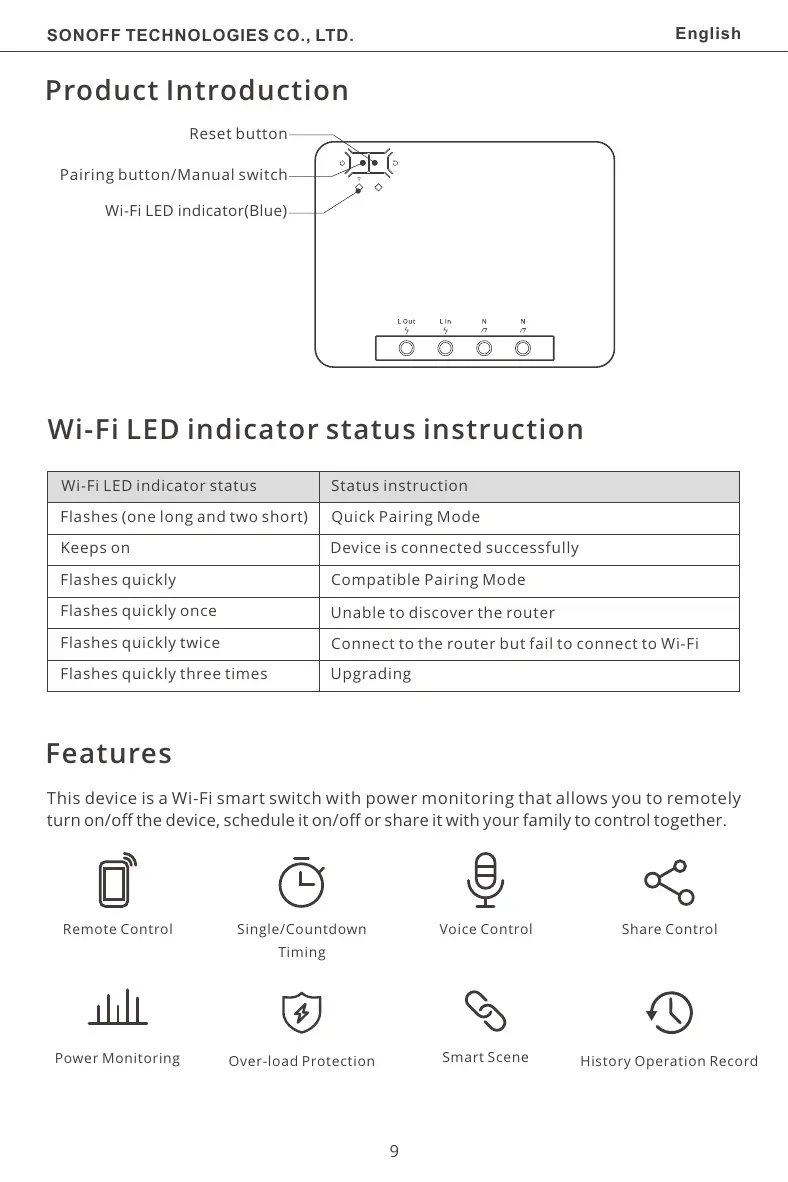
Reset button
Pairing button/Manual switch
Wi-Fi LED indicator(Blue)
Product Introduction
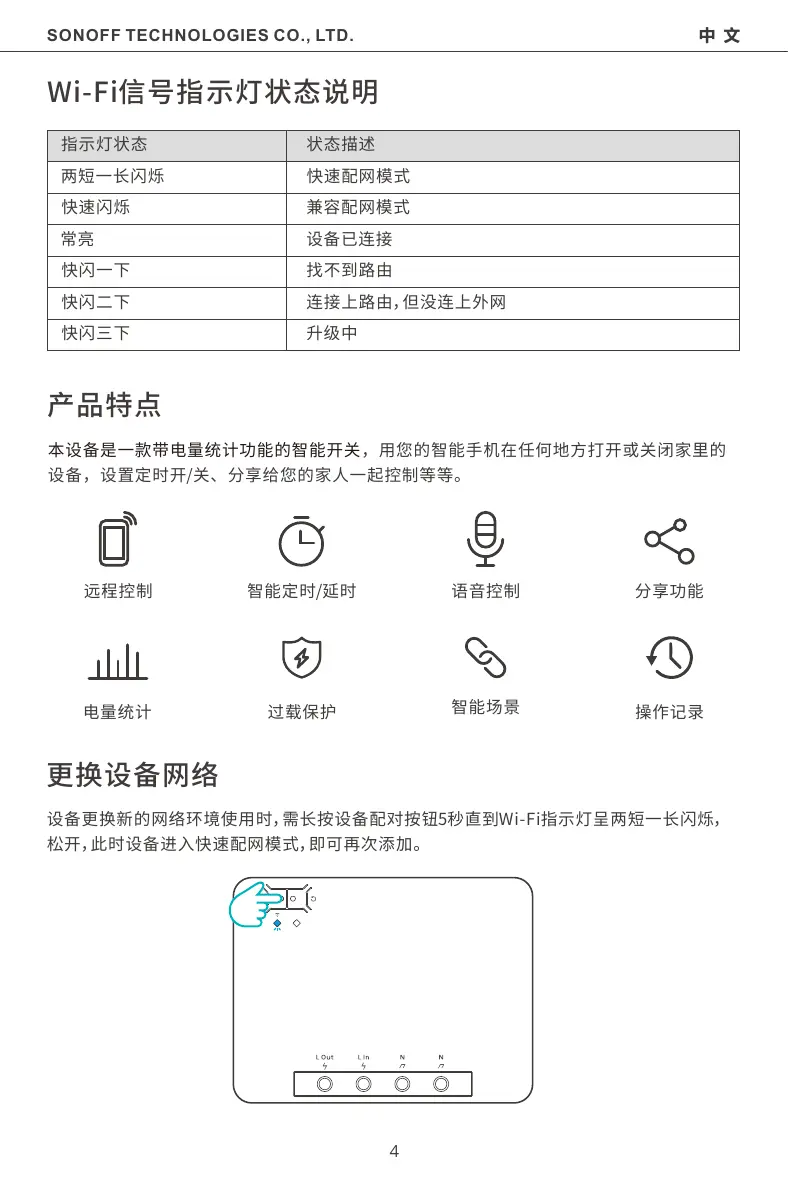
Wi-Fi LED indicator status instruction
Status instructionWi-Fi LED indicator status
Quick Pairing ModeFlashes (one long and two short)
 Device is connected successfullyKeeps on
Flashes quickly Compatible Pairing Mode
Unable to discov...