
R8806 Reset & Teardown (FCC ID 2ANDLTY-R8806)
Factory reset and internal photos for Generic IoT R8806. Unknown smart plug.
January 15, 2026
•
9 read
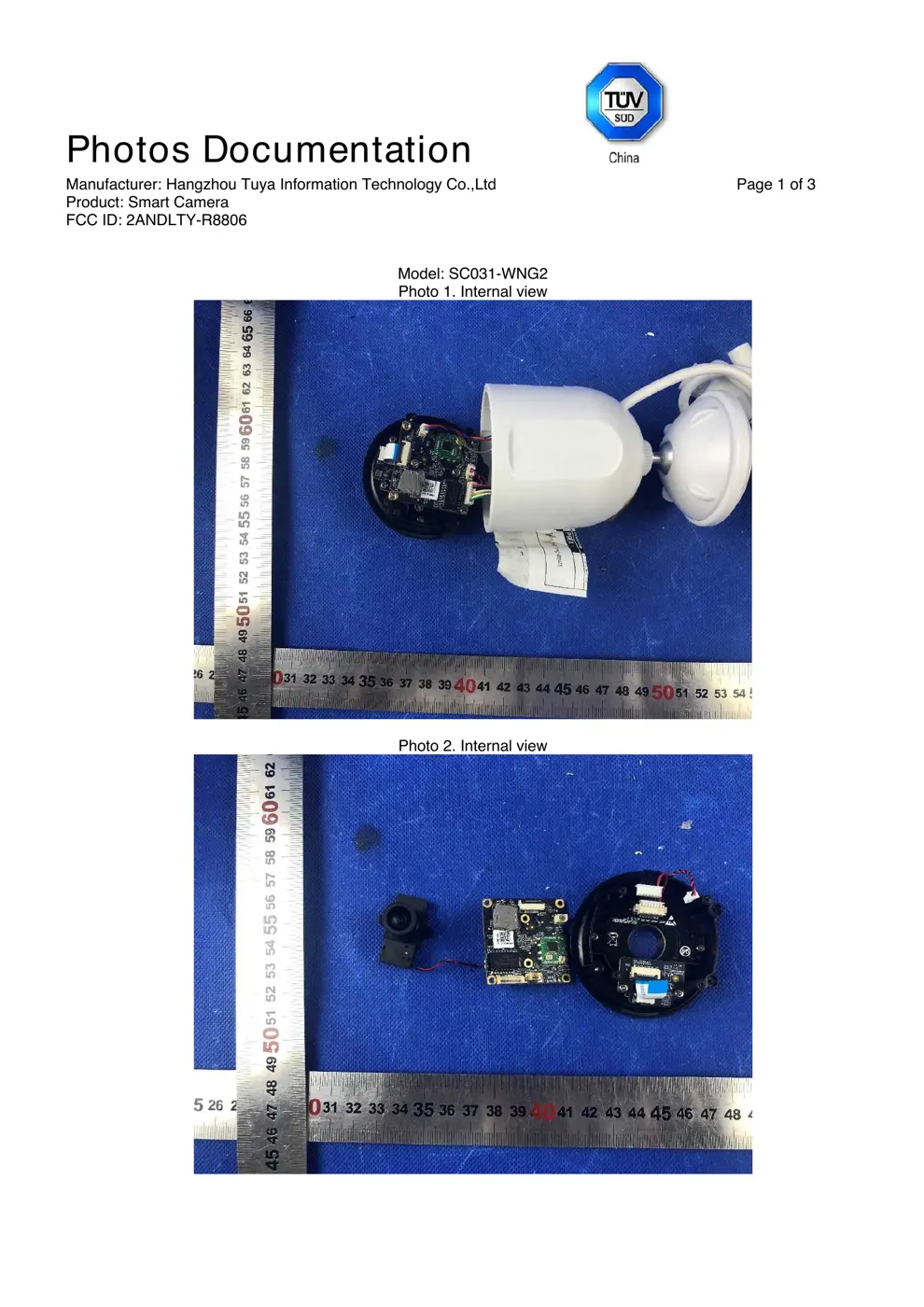
Before you buy the Generic IoT R8806, check what's inside.
This device is a Tuya-based Wi-Fi connected smart camera designed for home security and monitoring. It connects to a 2.4GHz Wi-Fi network and is controlled via the TuyaSmart mobile application.
⚠️ NOTE: Ensure the power adapter is rated for 5V DC and use the provided USB cable. Do not expose the device to water or extreme temperatures.
Quick Specs
- Manufacturer: Generic IoT
- Model: R8806
- Protocol: WiFi
- Chipset: Unknown
- Ecosystem: Unknown
- App: Unknown
🔧 Geek Corner (Flashing Info)
- Chipset: Tuya IoT Module (e.g., TYWE3S or similar)
- Flashable: ❌ No
- Info: Typically uses proprietary Tuya IoT modules that are difficult to flash with custom firmware like Tasmota without significant hardware modification.
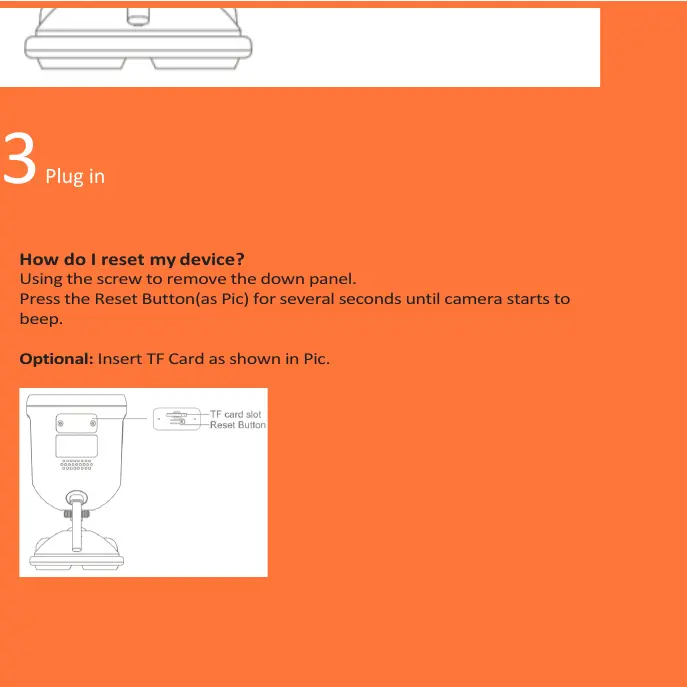
Reset Guide
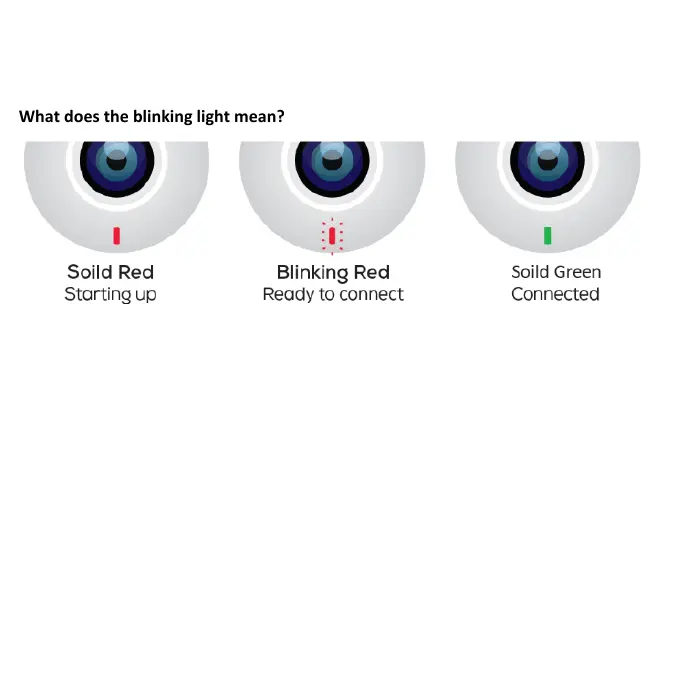
Reset the device so that indicator light is flashing red.
User Manual
Scanned pages from the official user manual:
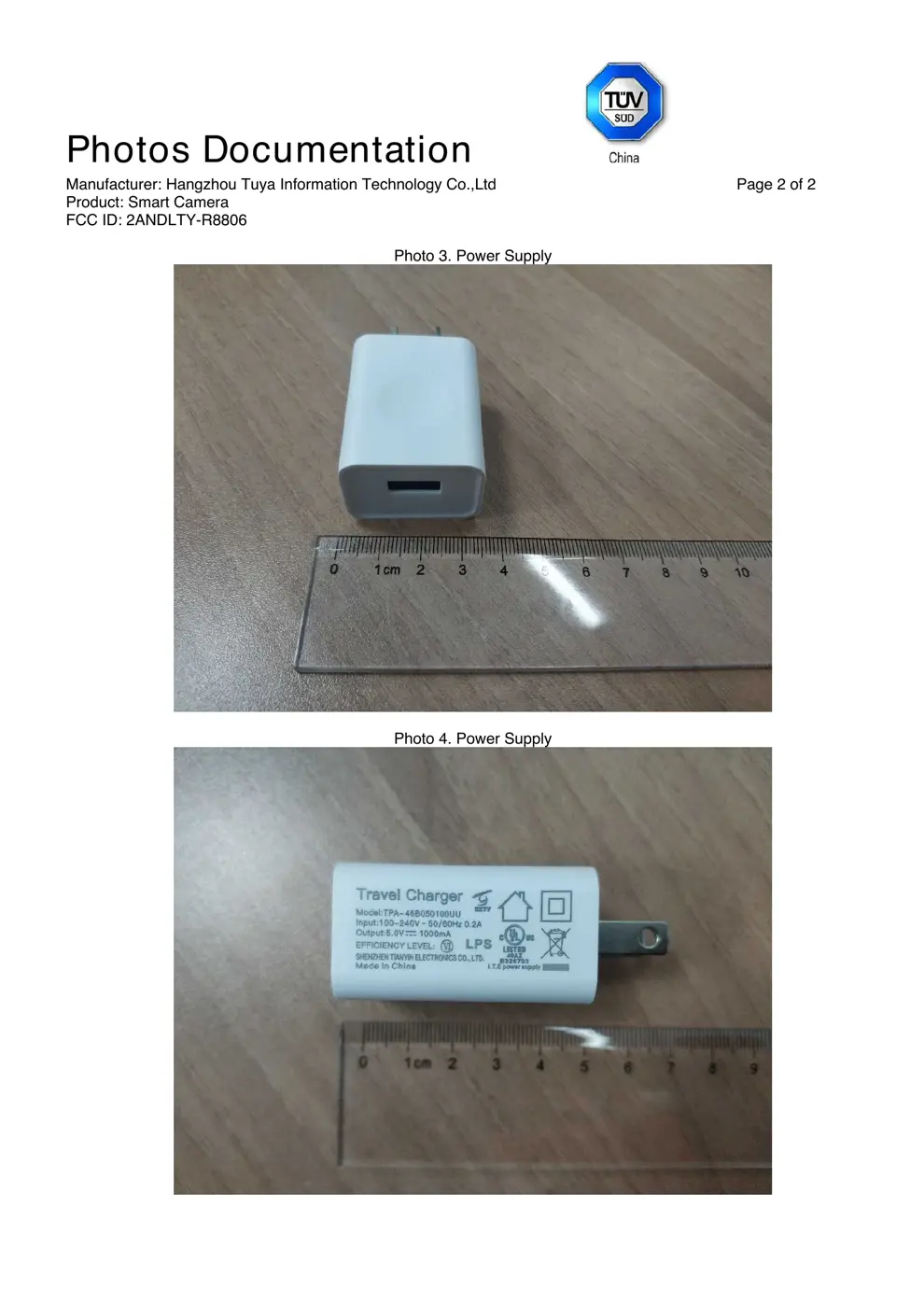
External Photos
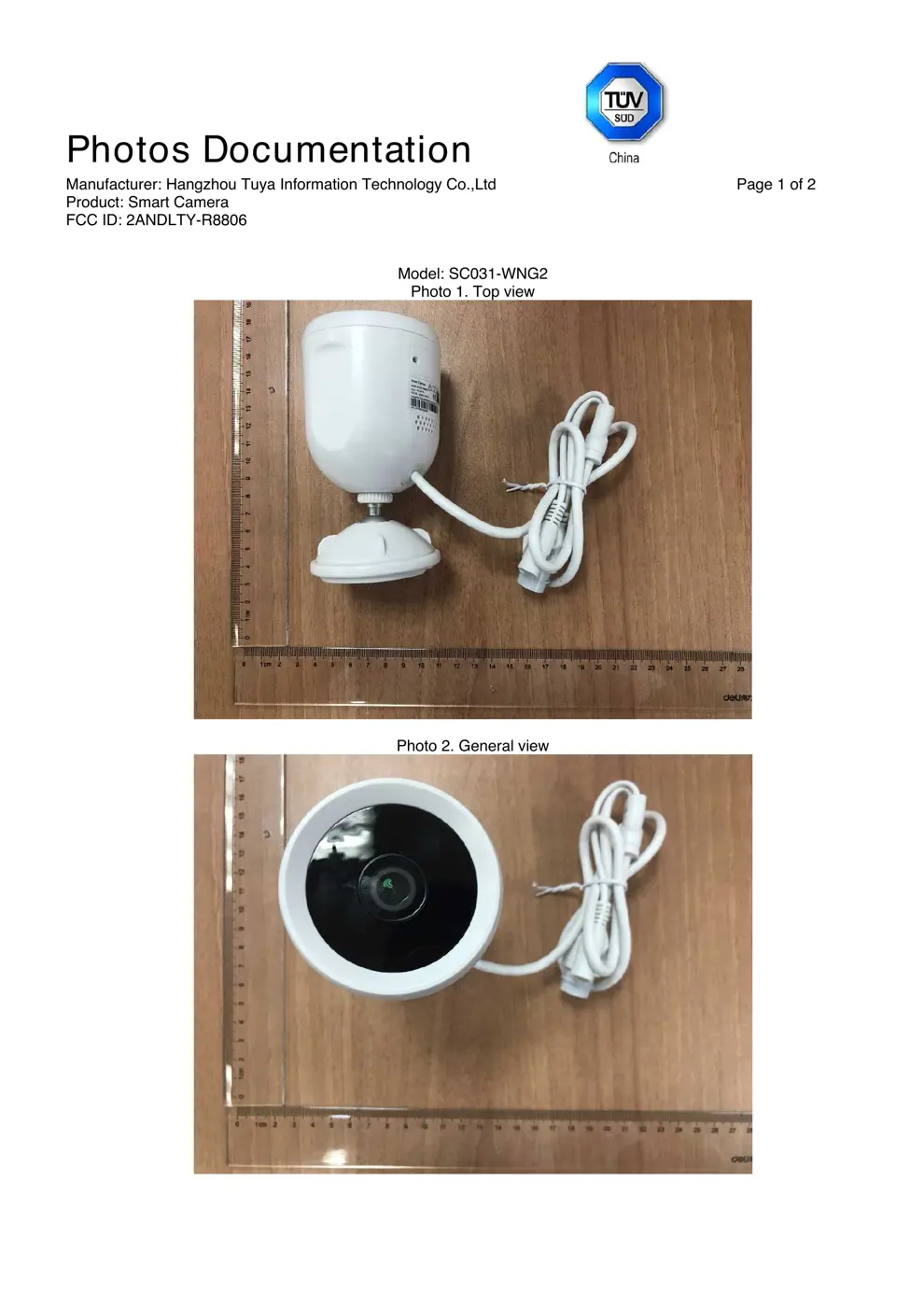
Photos of the device exterior:
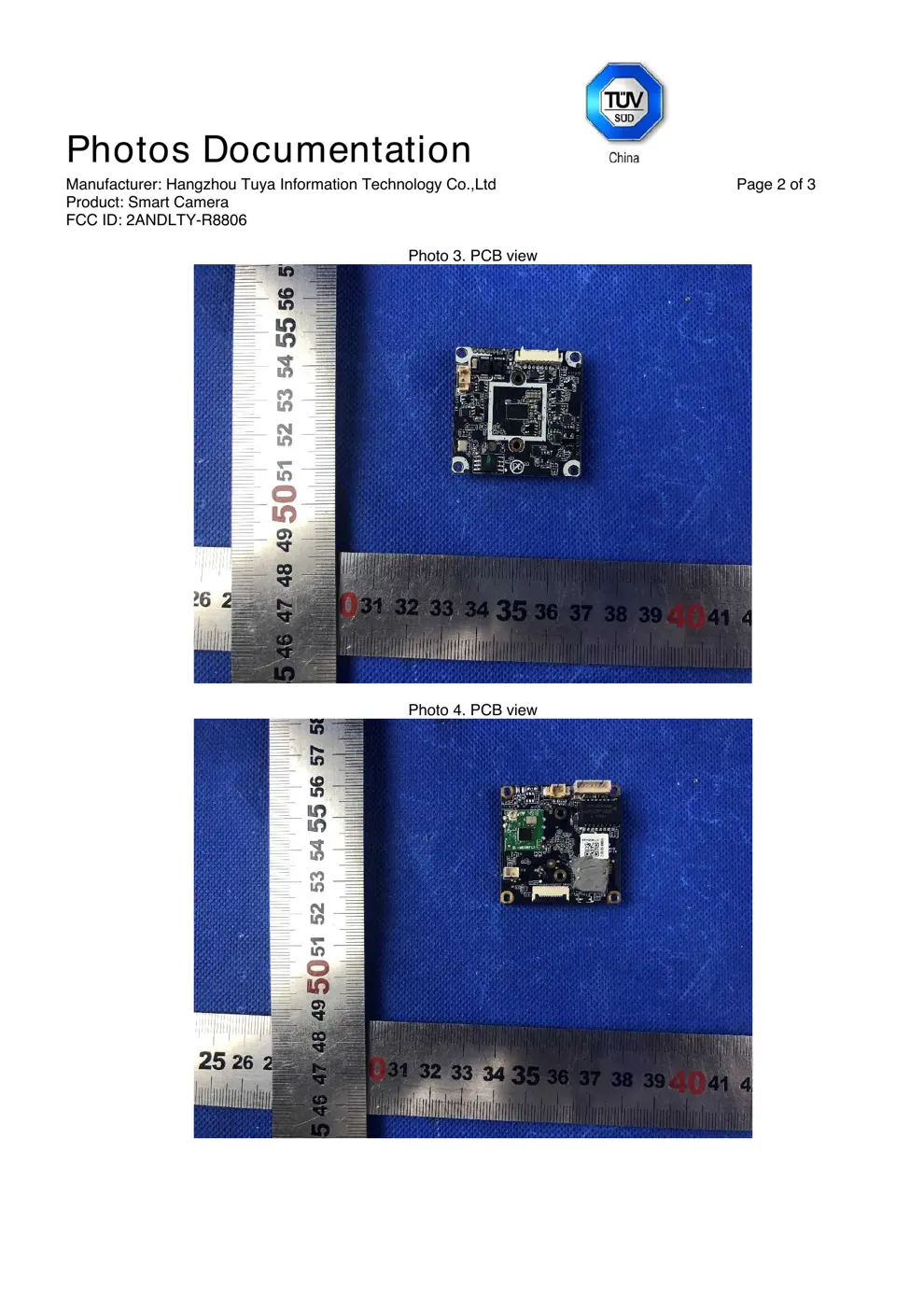
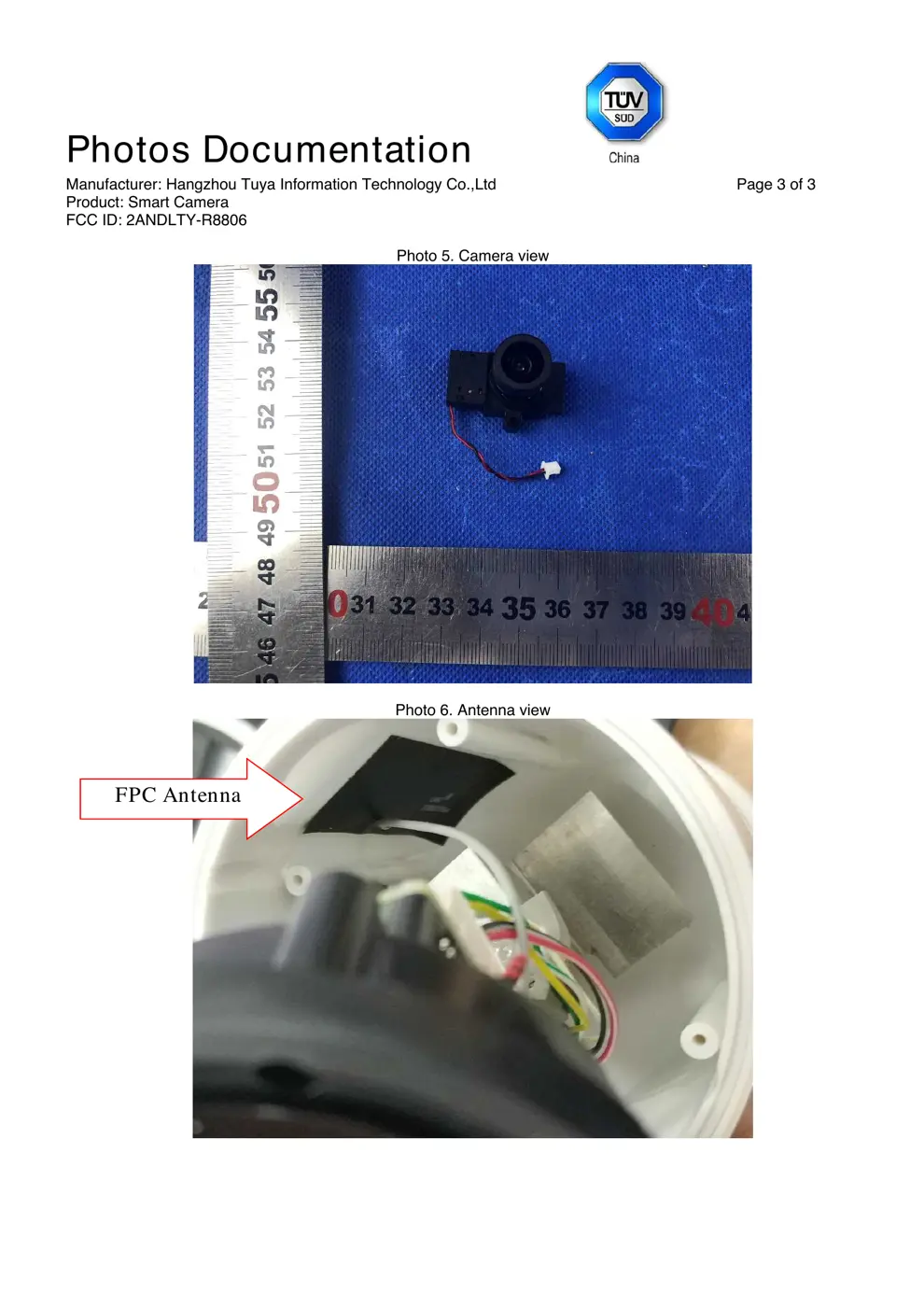
Internal Photos
Teardown photos showing the PCB and components:
Verdict
The R8806 is a WiFi device from the Unknown ecosystem.
📄 Click to view full text manual (SEO)
SMART WI-FI
C A M E R A
USER MANUAL
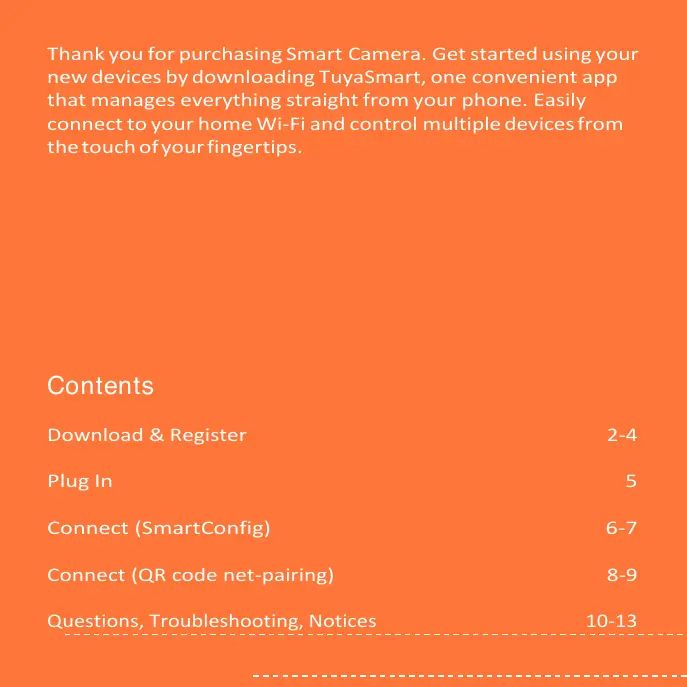
Thank you for purchasing Smart Camera. Get started using your
new devices by downloading TuyaSmart, one convenient app
that manages everything straight from your phone . Easily
connect to your home Wi-Fi and control multiple devices from
the touch of your fingertips.
Contents
Download & Register 2-4
Plug In 5
Connect (SmartConfig) 6-7
Connect (QR code net-pairing) 8-9
Questions, Troubleshooting, Notices 10-13
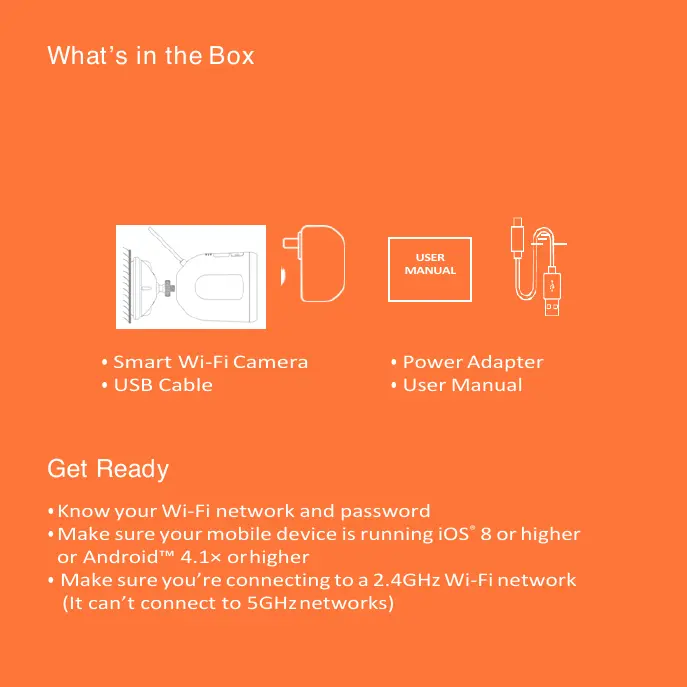
What’s in the Box

• Smart Wi-Fi Camera
• USB Cable
• Power Adapter
• User Manual
Get Ready
•Know your Wi-Fi network and password
•Make sure your mobile device is running iOS ® 8 or higher
or Android™ 4.1× or higher
• Make sure you’re connecting to a 2.4GHz Wi-Fi network
(It can’t connect to 5GHz networks)
U SER
M A N U A L
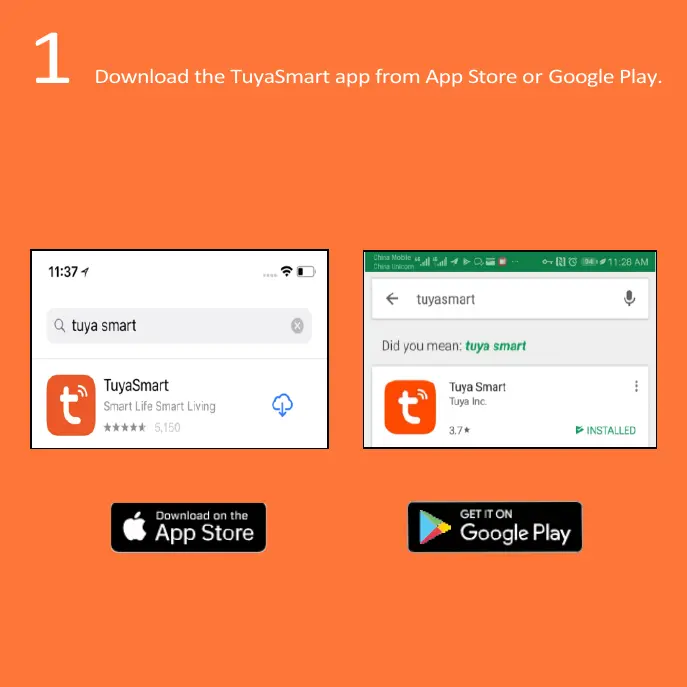
1 Download the TuyaSmart app from App Store or Google Play.

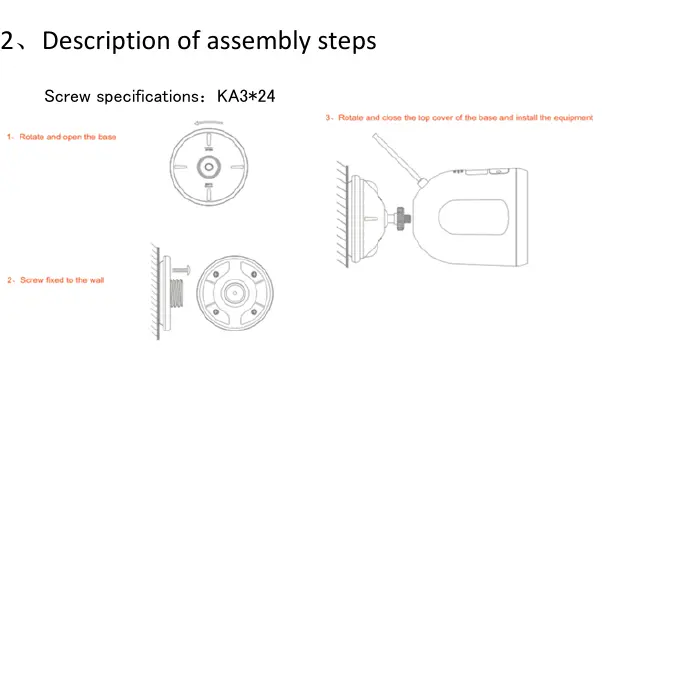
2、Description of assembly steps
 Screw specifications:KA3*24

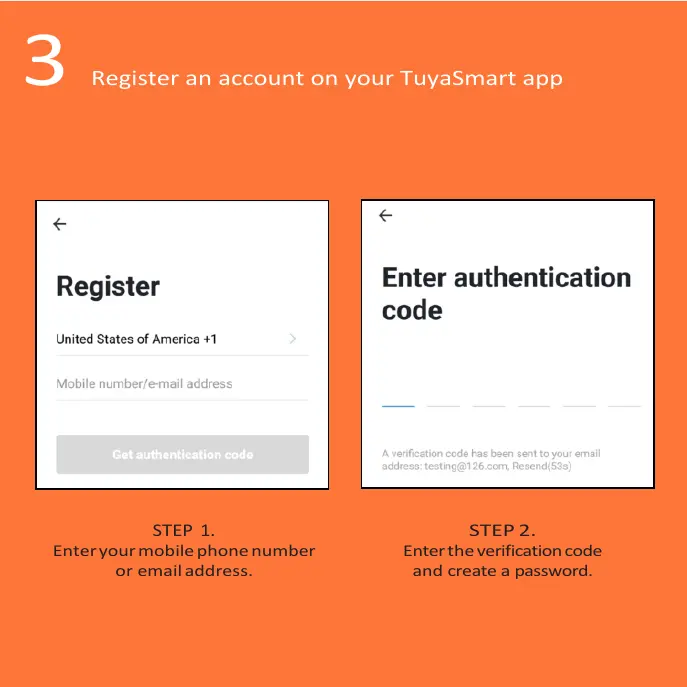
 3 Register an account on your TuyaSmart app

STEP 1.
Enter your mobile phone number
or email address.
STEP 2.
Enter the verification code
and create a password.

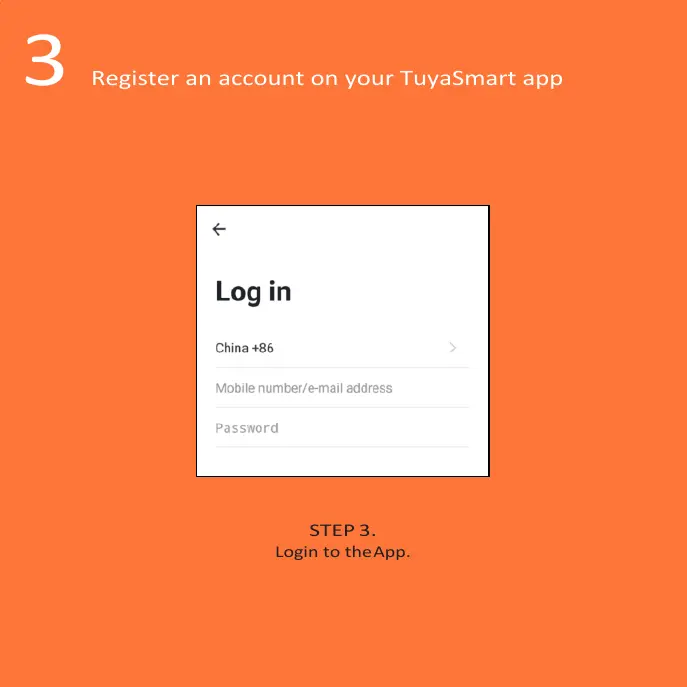
 3 Register an account on your TuyaSmart app
STEP 3.
Login to the App.

3 Plug in
How do I reset my device?
Using the screw to rem ove the dow n panel.
Press the Reset Button(as Pic) for several seconds until cam era starts to
beep.
Optional: Insert TF Card as show n in Pic.

 What does the blinking light mean?

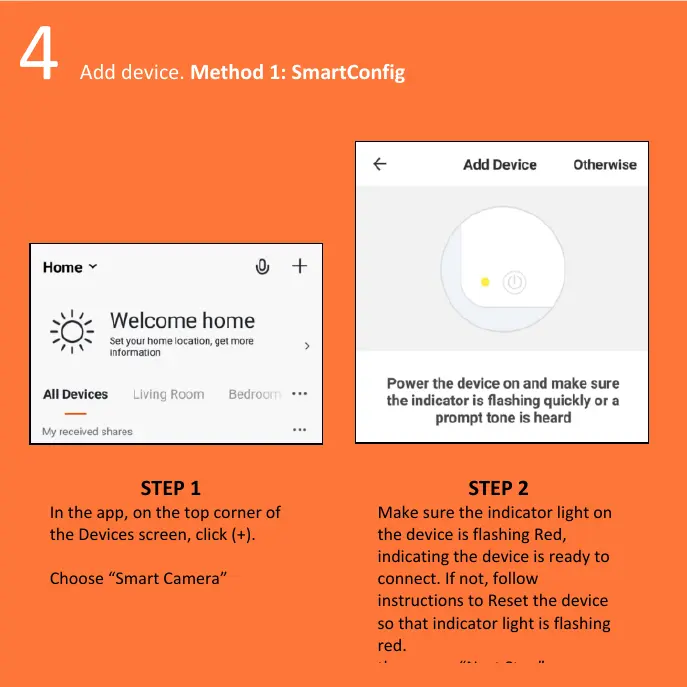
 4 Add device. Method 1: SmartConfig
STEP 1
In the app, on the top corner of
the Devices screen, click (+).
Choose “Smart Camera”
STEP 2
Make sure the indicator light on
the device is flashing Red,
indicating the device is ready to
connect. If not, follow
instructions to Reset the device
so that indicator light is flashing
red.
then press “Next Step”.
 4 Add device. Method 1: SmartConfig
STEP 3
Enter your Wi-Fi network and
password.
STEP 4
The app will try to connect your
device. During this time, the
camera will beep, start quickly
blinking Red, and then turn solid
Green.
*If the connection fails, try to connect directly using QR Code Mode.
Add device. Method 1: SmartConfig
 5 Add device. Method 2: QR code net-pairing
STEP 1
In the app, on the top corner of the
Devices screen, click (Otherwise)
STEP 2
Choose “QR code ”

 5 Add device. Method 2: QR code net-pairing
STEP 3
Enter your Wi-Fi network and
password.
STEP 4
Scan the QR Code with
the camera. ”

10
Frequently Asked Questions
1. Can I share with family and friends?
Yes, you can share your cameras with family and friends who will have
access to view the camera and control your bulbs, plugs, and other devices.
In the app, press the Profile button and click on the “Device Sharing”
button, and you will be able to give or revoke sharing permissions. In
order to share, the other user should already have downloaded the app
and registered a new account.
2. What’s the Wireless Range?
The range of your home Wi-Fi is heavily dependent on your home router
and the conditions of the room. Check with your router specificati...