
RFBRIDGE Reset & Teardown (FCC ID 2APN5RFBRIDGE)
Factory reset and internal photos for Sonoff (Itead) RFBRIDGE. Sonoff smart plug.
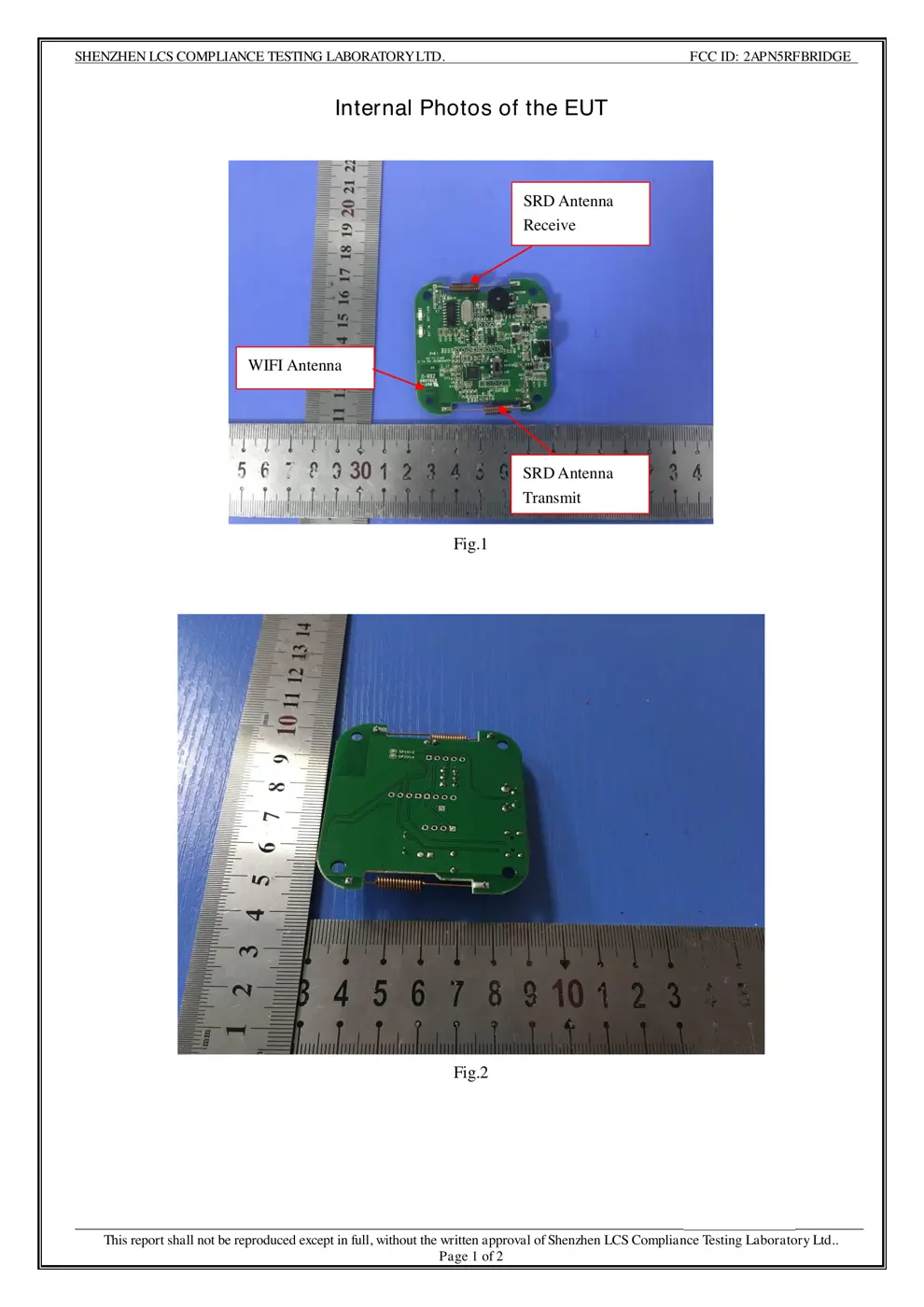
Before you buy the Sonoff (Itead) RFBRIDGE, check what's inside.
The Sonoff RF Bridge is a 433MHz RF to WiFi gateway that allows you to remotely control and automate existing 433MHz RF devices through the eWeLink app. It acts as a central hub, translating RF signals into commands that can be managed via your smartphone.
⚠️ NOTE: Ensure a stable 5V 1A power supply is used.
Quick Specs
- Manufacturer: Sonoff (Itead)
- Model: RFBRIDGE
- Protocol: RF 433MHz
- Chipset: ESP/CK Chip
- Ecosystem: Sonoff
- App: eWeLink
🔧 Geek Corner (Flashing Info)
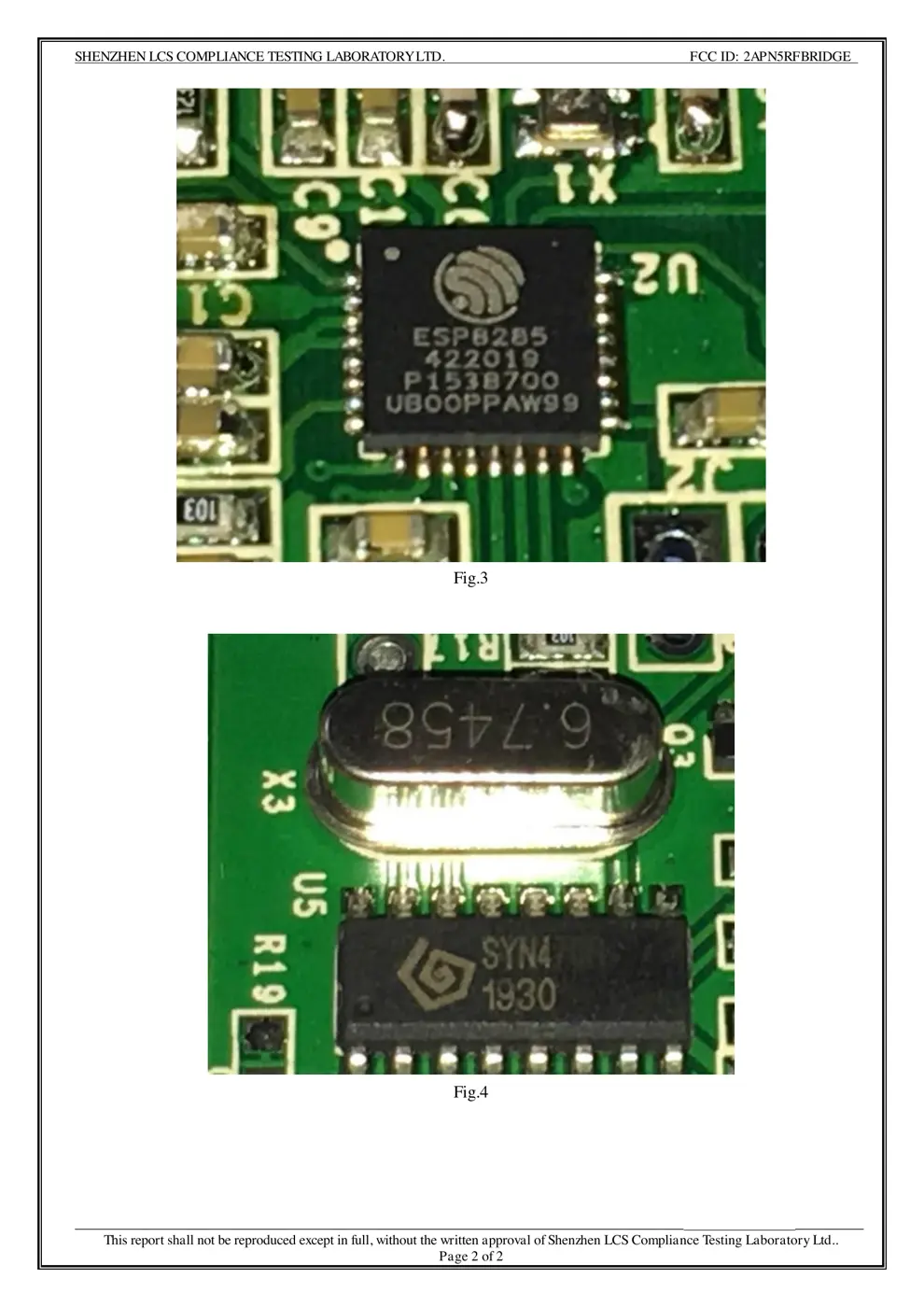
- Chipset: ESP8266
- Flashable: ✅ Yes
- Info: Uses ESP8266 chipset, commonly flashable with custom firmware like Tasmota or ESPHome after disabling WiFi protection.
Reset Guide
Reset the device to factory defaults if you want to change the wi-fi network, then reconnect the new network.
User Manual
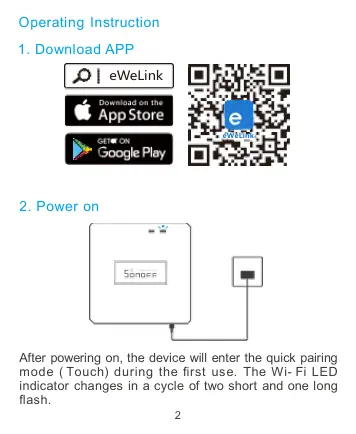
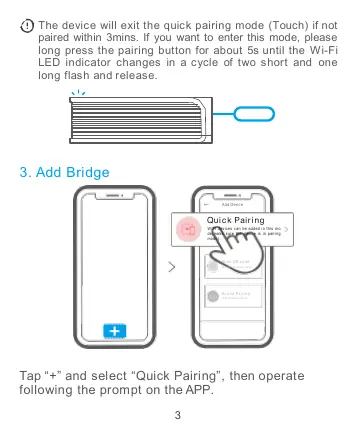
Scanned pages from the official user manual:
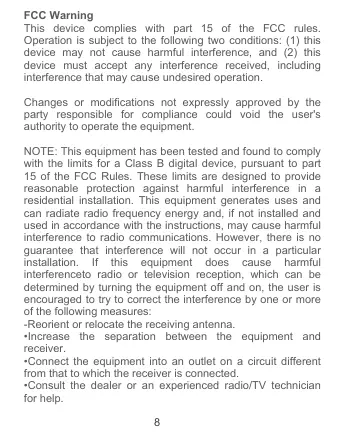
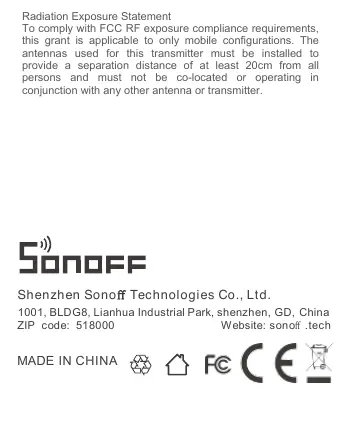
External Photos
Photos of the device exterior:
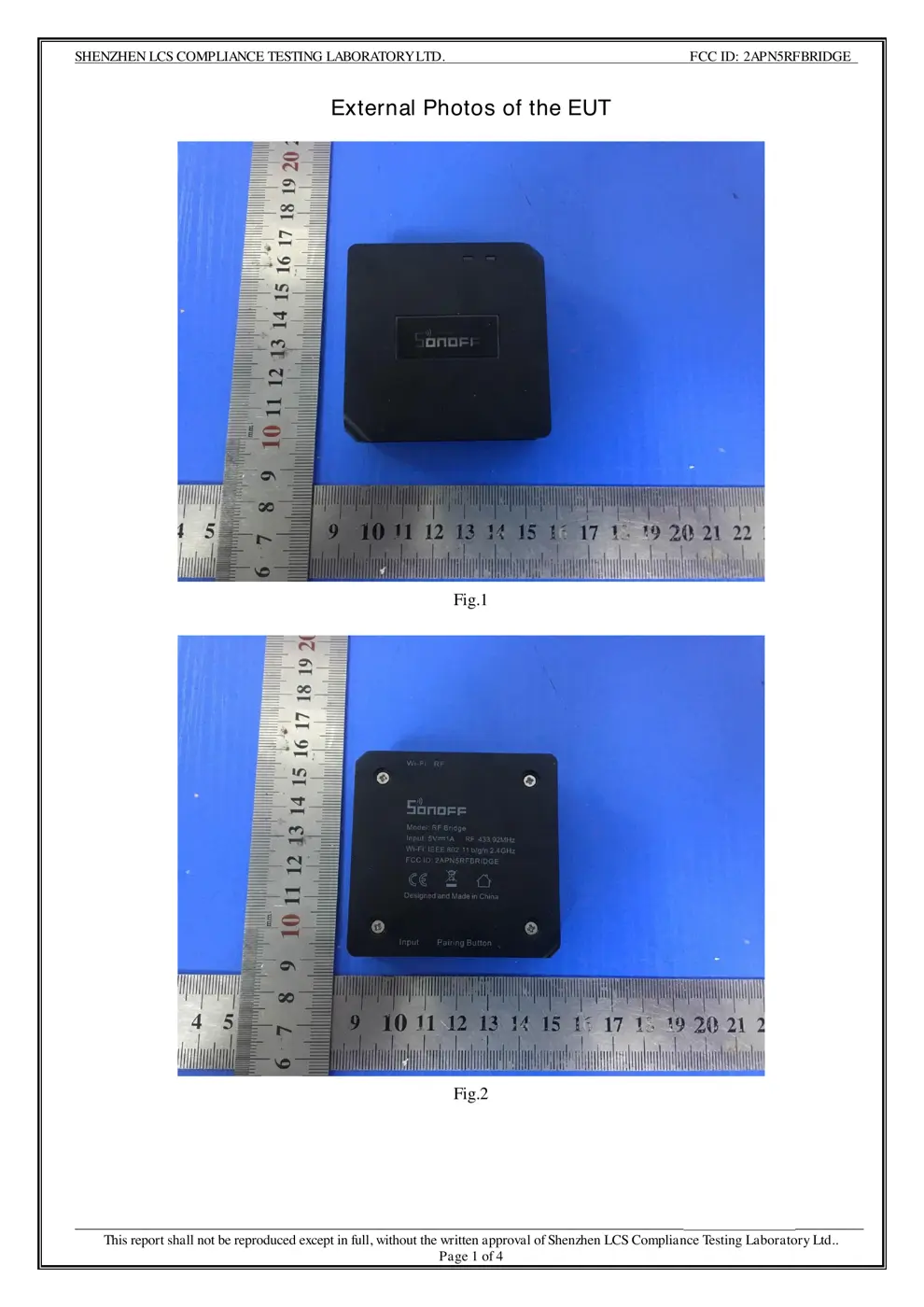
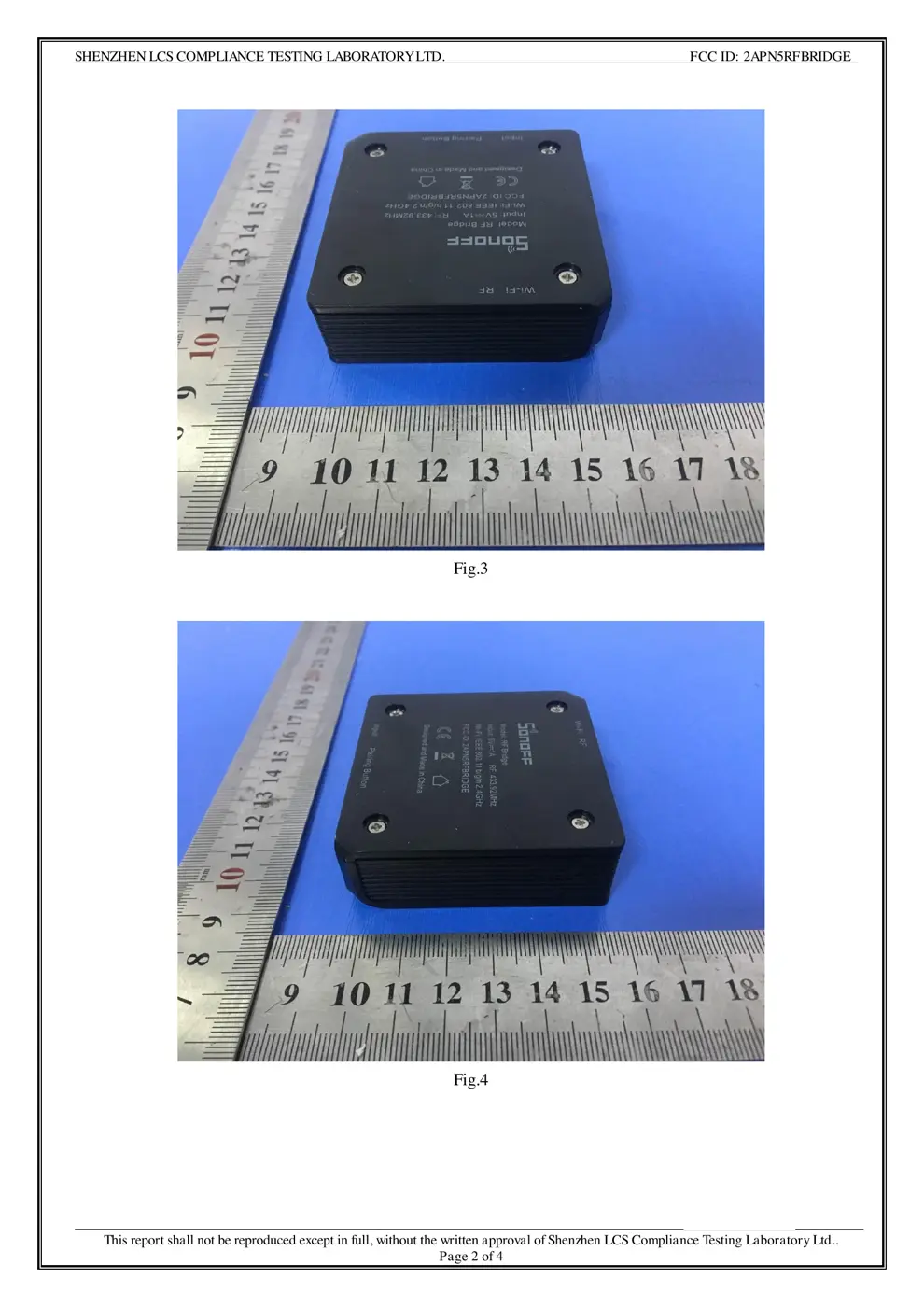
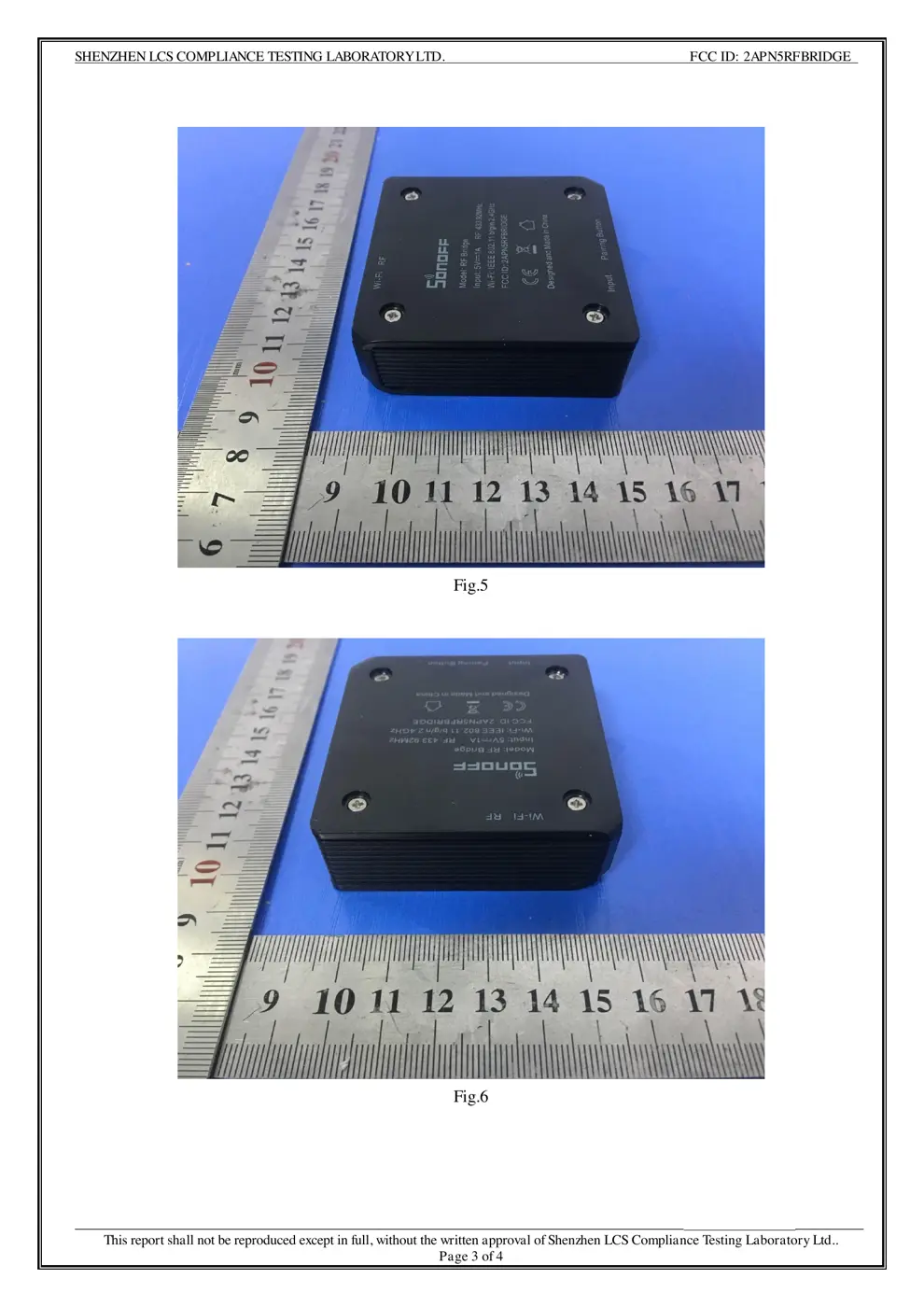
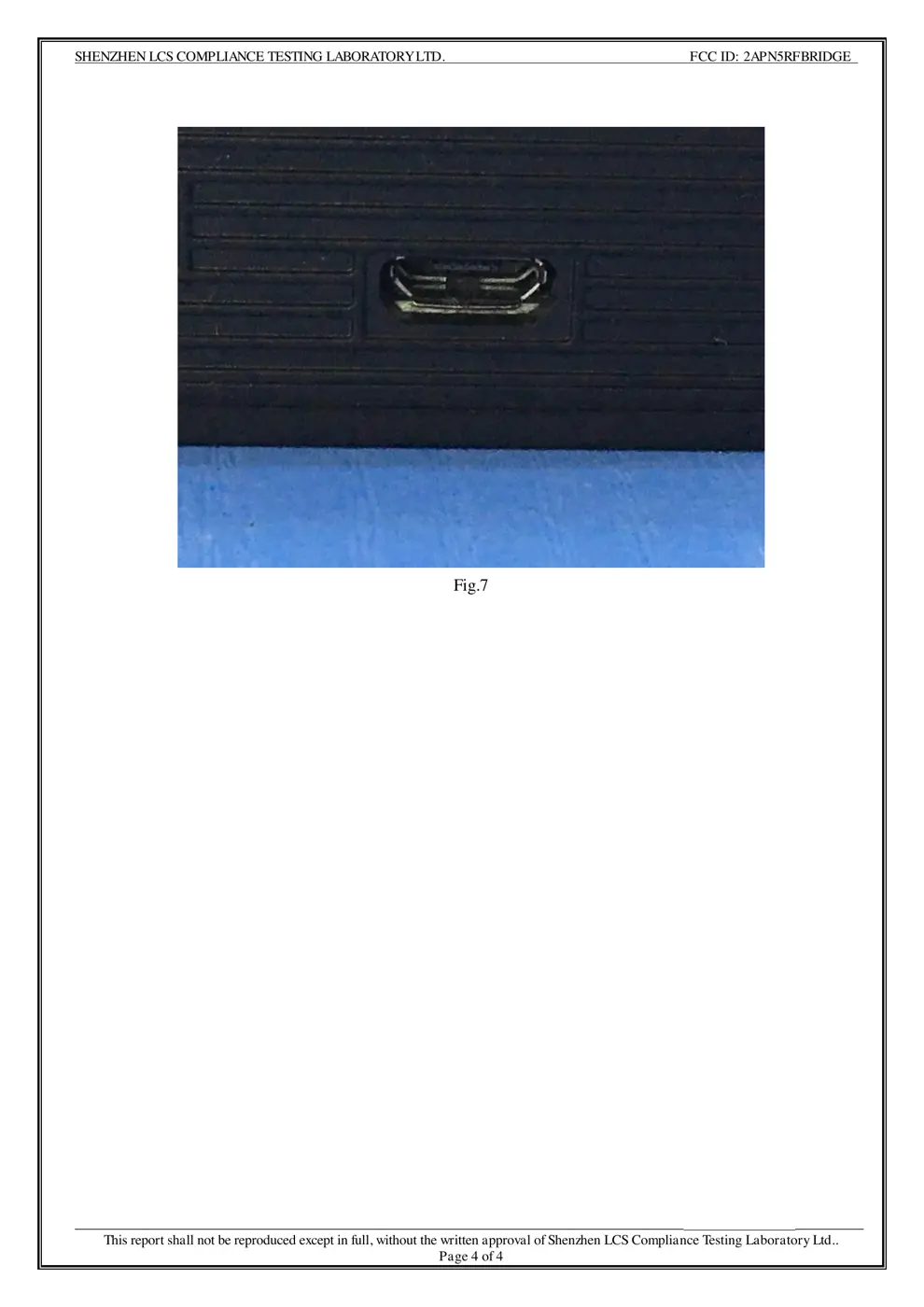
Internal Photos
Teardown photos showing the PCB and components:
Verdict
The RFBRIDGE is a WiFi device from the Sonoff ecosystem.
📄 Click to view full text manual (SEO)
RF Bridge
User Manual V1.0

433MHz RF Bridge

中 文 ---------1-6 English --------------- 7-12

433MHz RF Bridge

2

Operating Instruction
1. Download APP

2. Power on

After powering on, the device will enter the quick pairing
mode ( Touch) during the first use. The Wi- Fi LED
indicator changes in a cycle of two short and one long
flash.
eWeLink
eWeLink
3

The device will exit the quick pairing mode (Touch) if not
paired within 3mins. If you want to enter this mode, please
long press the pairing button for about 5s until the Wi-Fi
LED indicator changes in a cycle of two short and one
long flash and release.

3. Add Bridge

Tap “+” and select “Quick Pairing”, then operate
following the prompt on the APP.
Ad d Devic e

Quic k Pairin g
W IFI dev ic es ca n be adde d i n thi s mo
de(mak e s ure th e devi c e is in pairi n g
mode) .
Sca n QR cod e
GSM devices and
devices with QR
co de ca n be
add ed in this
mo de.
Soun d Pairin g
Add device in
this mode if
your devic e
support this
feature.
4

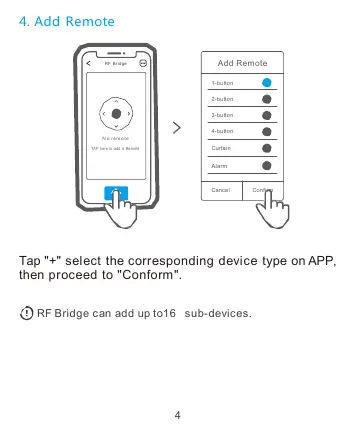
4. Add Remote

Tap "+" select the corresponding device type on APP,
then proceed to "Conform".

RF Bridge can add up to16 sub-devices.
Add Remot e

1-butto n
2-butto n
3-butto n
4-butto n
Curtai n

Alar m
Cancel Confir m
RF Bridg e
N o remo te

TAP here to add a Remot e
5

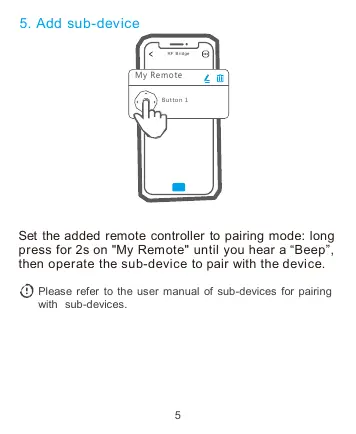
5. Add sub-device

Set the added remote controller to pairing mode: long
press for 2s on "My Remote" until you hear a “Beep”,
then operate the sub-device to pair with the device.

Please refer to the user manual of sub-devices for pairing
with sub-devices.

RF Bridg e

My Remo te

Butto n 1
6
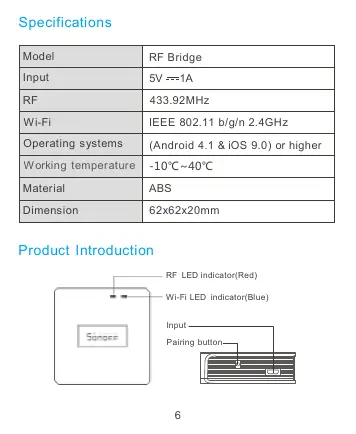
Specifications
Model RF Bridge
Input 5V 1A
RF 433.92MHz
Wi-Fi IEEE 802.11 b/g/n 2.4GHz
Operating systems (Android 4.1 & iOS 9.0) or higher
Working temperature -10℃~40℃
Material ABS
Dimension 62x62x20mm
Product Introduction
RF LED indicator(Red)
Wi-Fi LED indicator(Blue)
Input
Pairing button

7
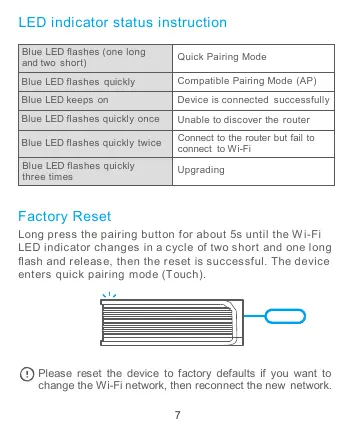
LED indicator status instruction
Blue LED flashes (one long
and two short) Quick Pairing Mode
Blue LED flashes quickly Compatible Pairing Mode (AP)
Blue LED keeps on Device is connected successfully
Blue LED flashes quickly once Unable to discover the router
Blue LED flashes quickly twice Connect to the router but fail to
connect to Wi-Fi
Blue LED flashes quickly
three times Upgrading
Factory Reset
Long press the pairing button for about 5s until the Wi -Fi
LED indicator changes in a cycle of two short and one long
flash and release, then the reset is successful. The device
enters quick pairing mode (Touch).
Please reset the device to factory defaults if you want to
change the Wi-Fi network, then reconnect the new network.
FCC Warning
This device complies with part 15 of the FCC rules.
Operation is subject to the following two conditions: (1) this
device may not cause harmful interference, and (2) this
device must accept any interference received, including
interference that may cause undesired operation.
Changes or modi...