
SNZB02P Reset & Teardown (FCC ID 2APN5SNZB02P)
Factory reset and internal photos for Sonoff (Itead) SNZB02P. Sonoff smart plug.
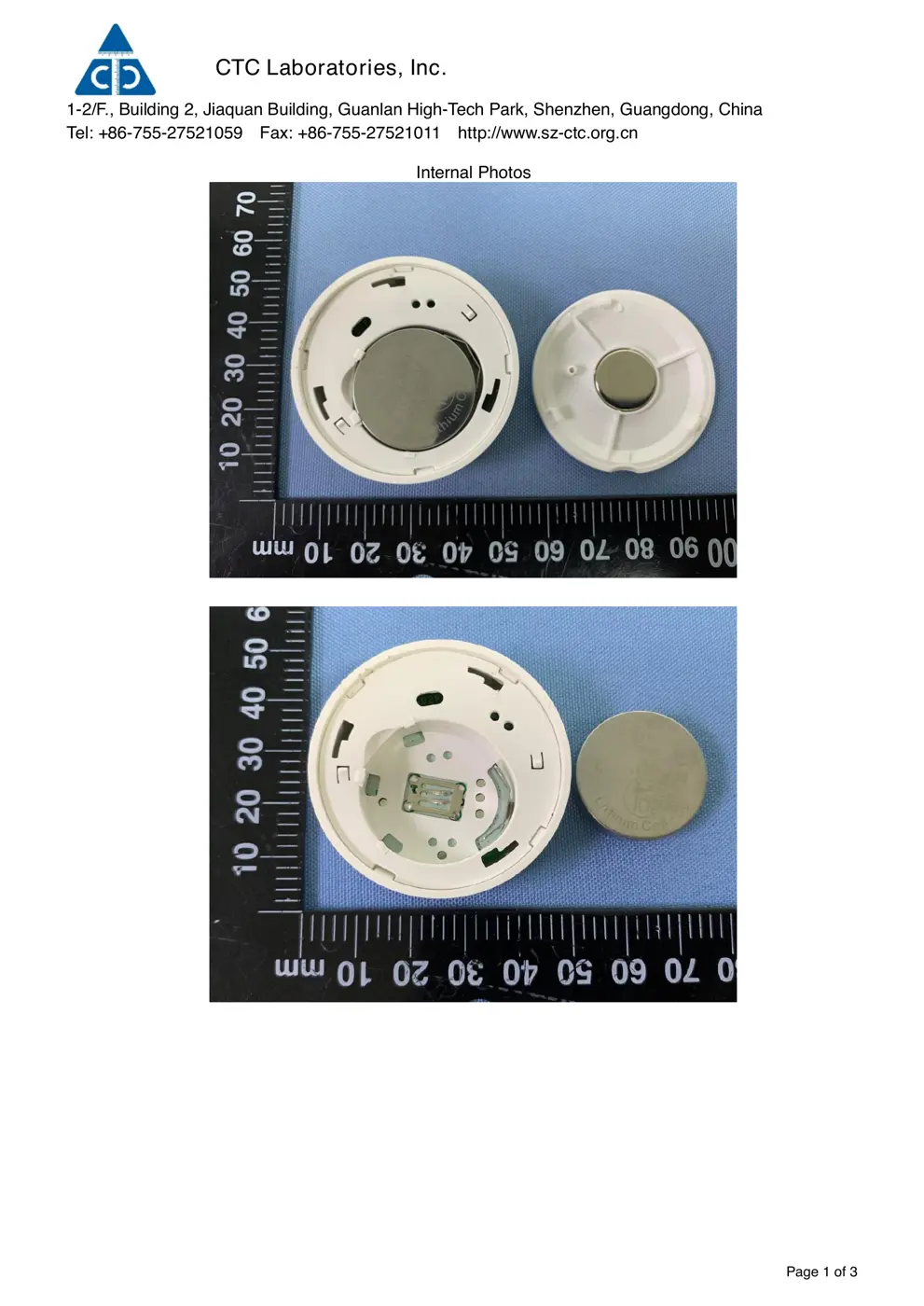
Before you buy the Sonoff (Itead) SNZB02P, check what's inside.
The SNZB-02P is a low-power Zigbee sensor designed for real-time environmental monitoring of temperature and humidity. It is ideal for integration into smart home ecosystems via a Zigbee gateway, enabling automated climate control and notifications.
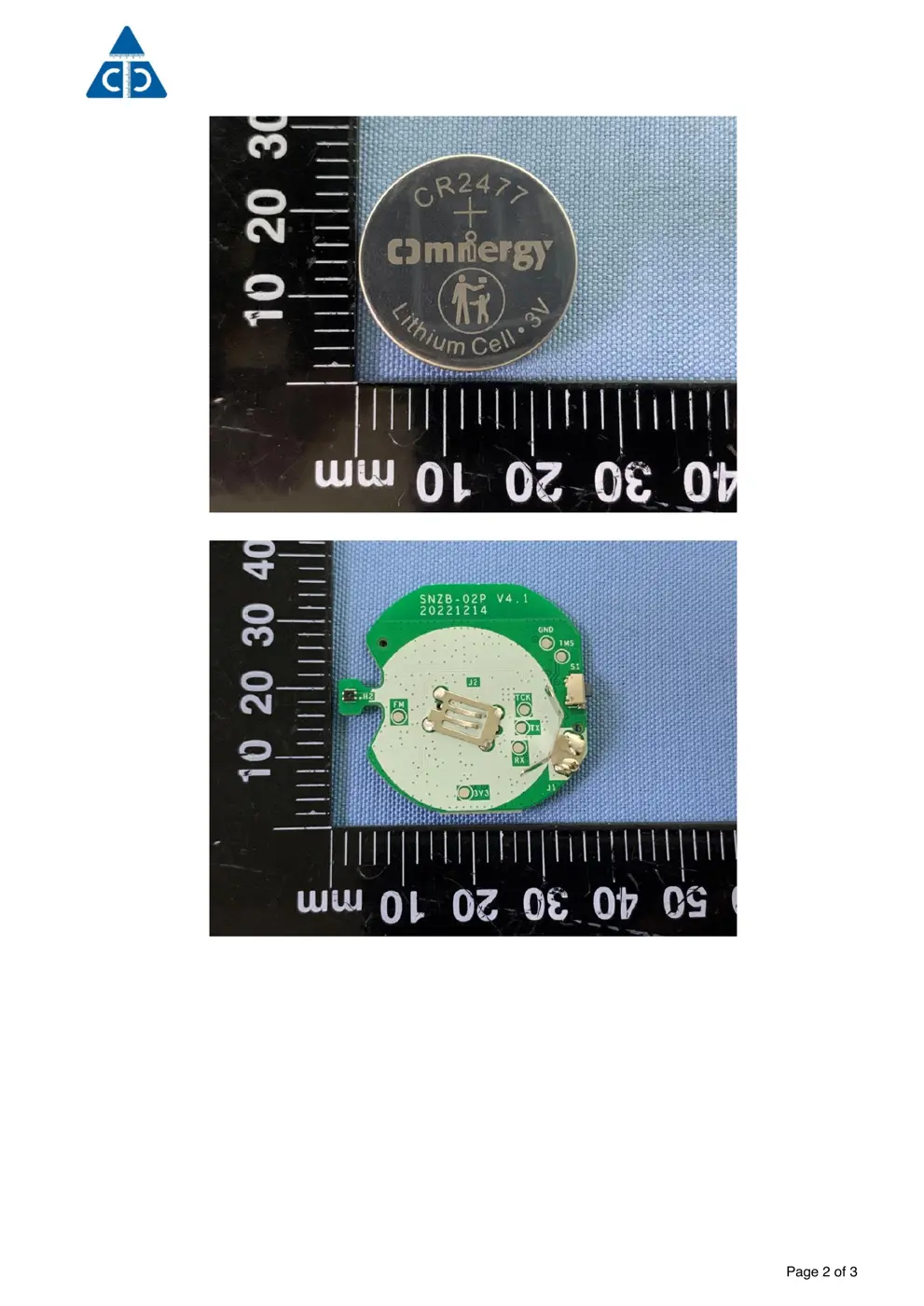
⚠️ NOTE: Ensure correct battery polarity when installing the CR2477 battery.
Quick Specs
- Manufacturer: Sonoff (Itead)
- Model: SNZB02P
- Protocol: WiFi
- Chipset: ESP/CK Chip
- Ecosystem: Sonoff
- App: eWeLink
🔧 Geek Corner (Flashing Info)
- Chipset: Unknown
- Flashable: ❌ No
- Info: Zigbee devices like this are typically not designed to be flashed with custom firmware.
Reset Guide
Reset the device to factory settings by "delete device" in the ewelink app.
User Manual
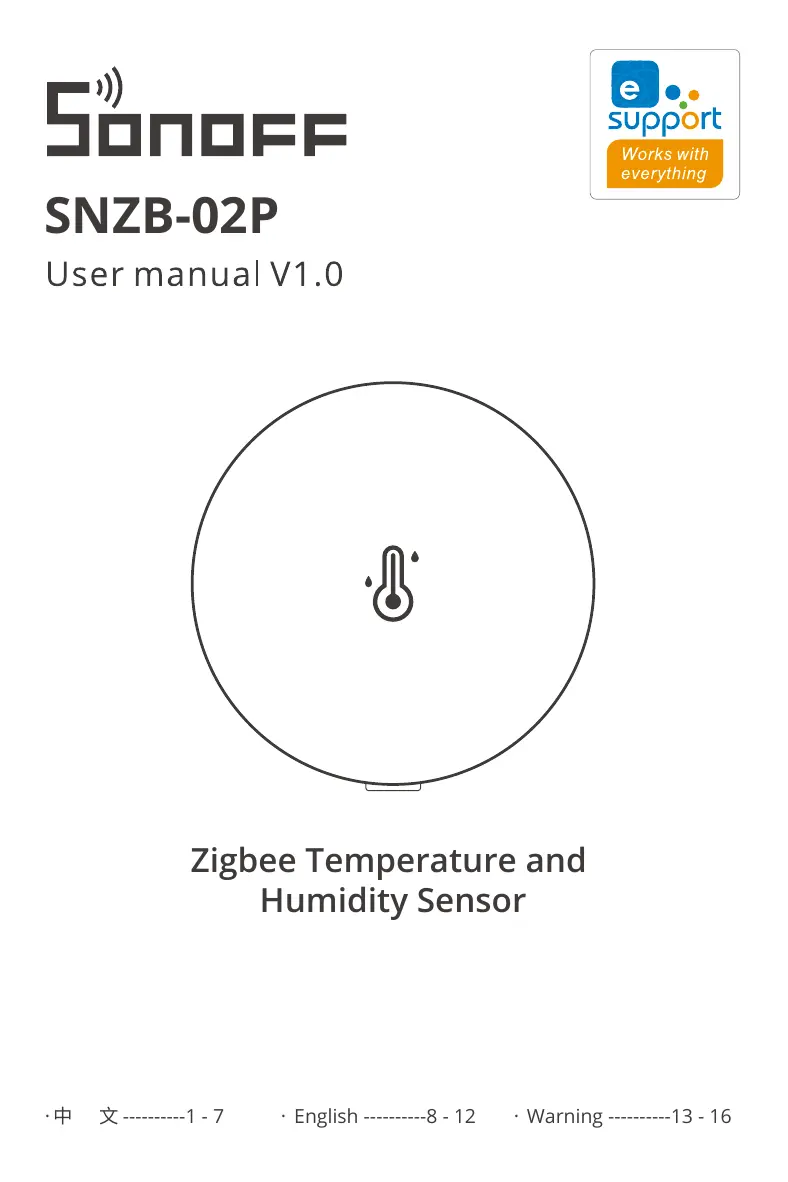
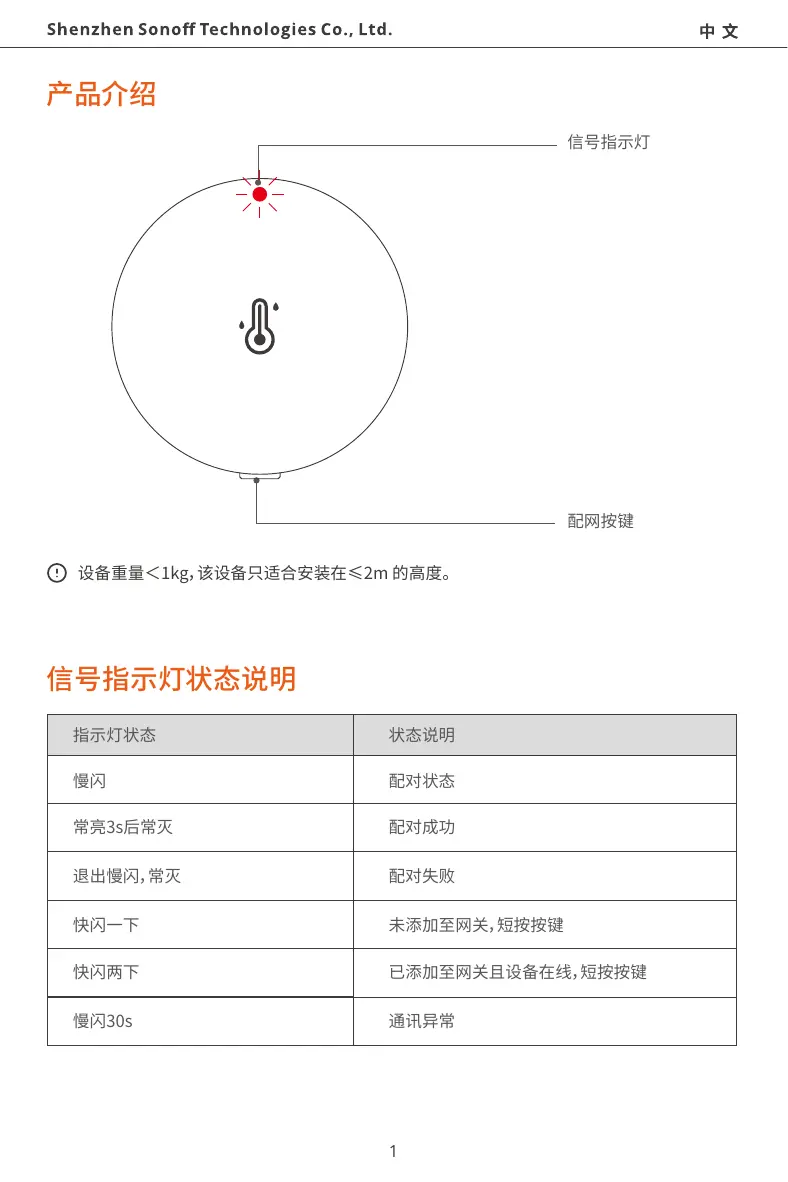
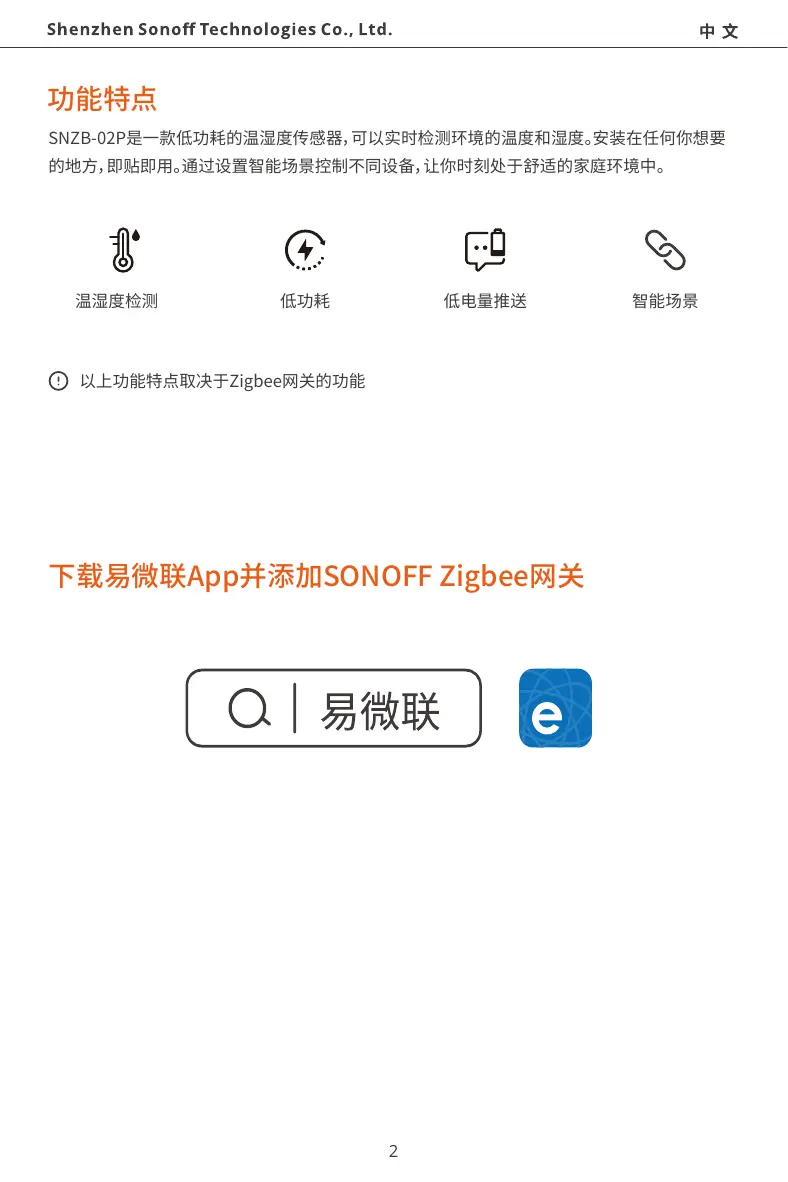
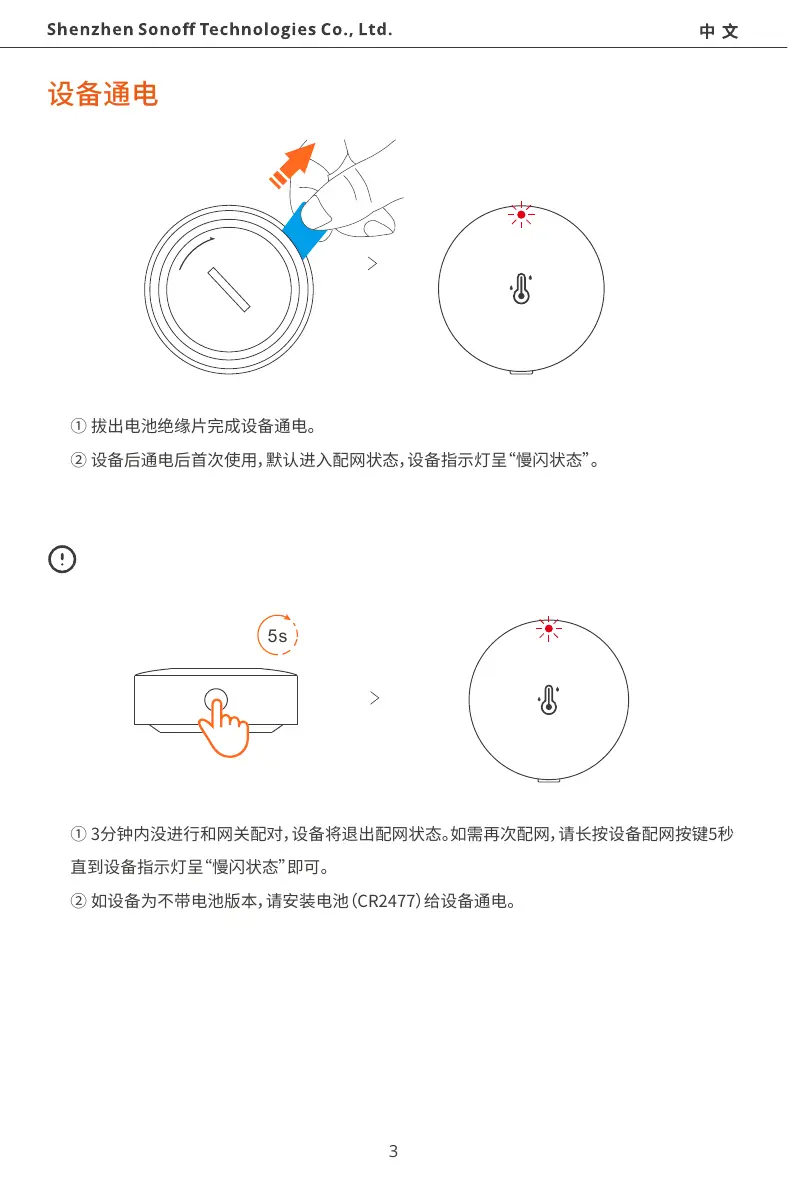
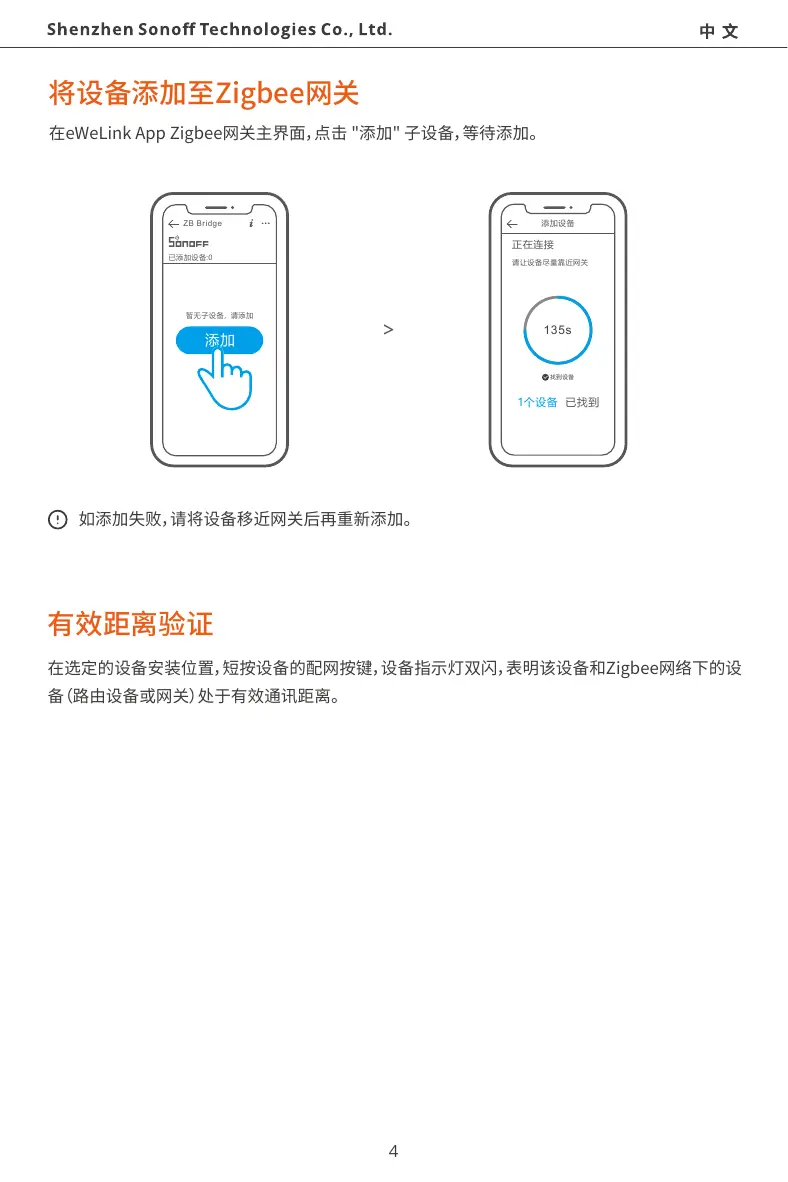
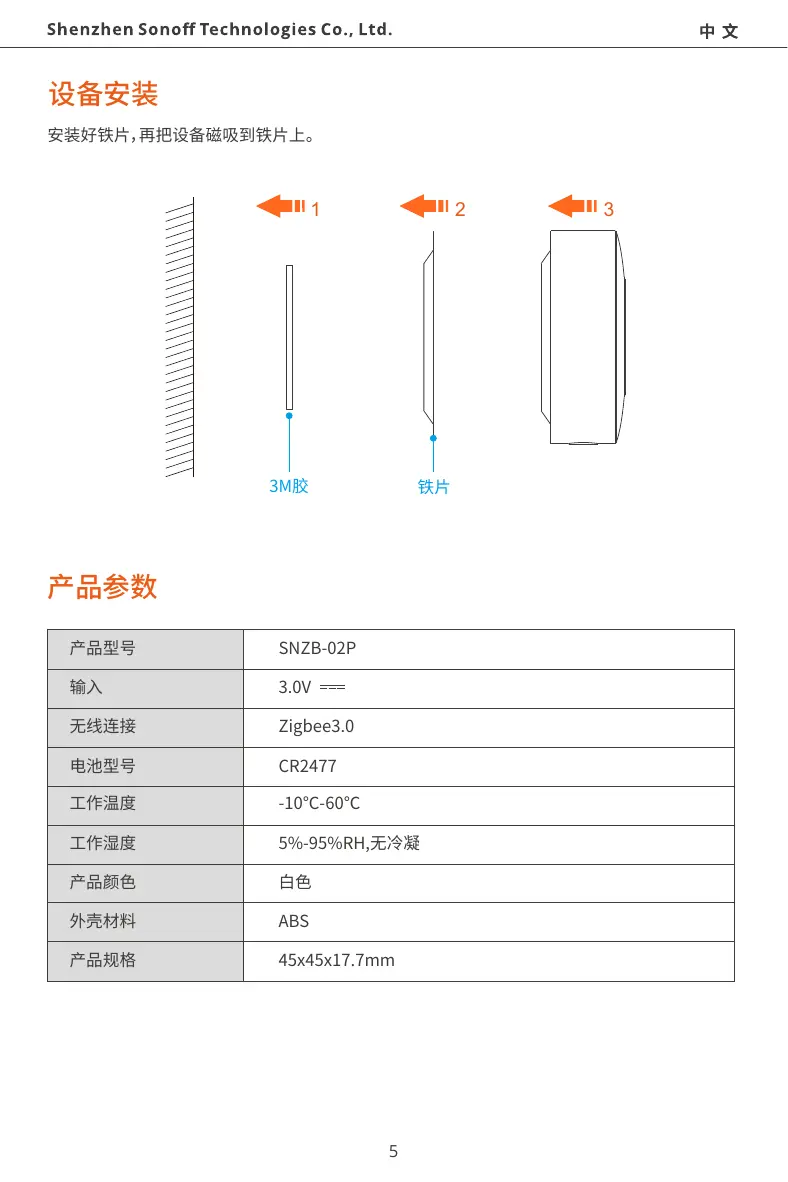
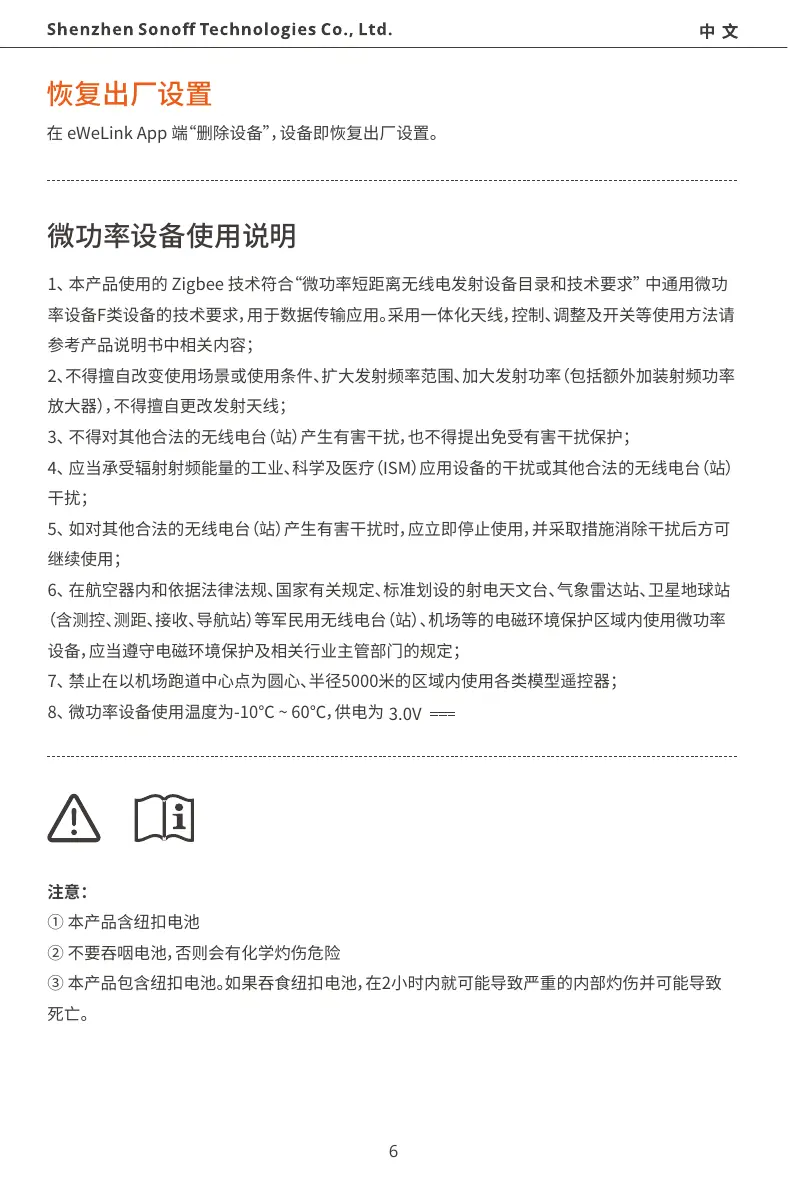
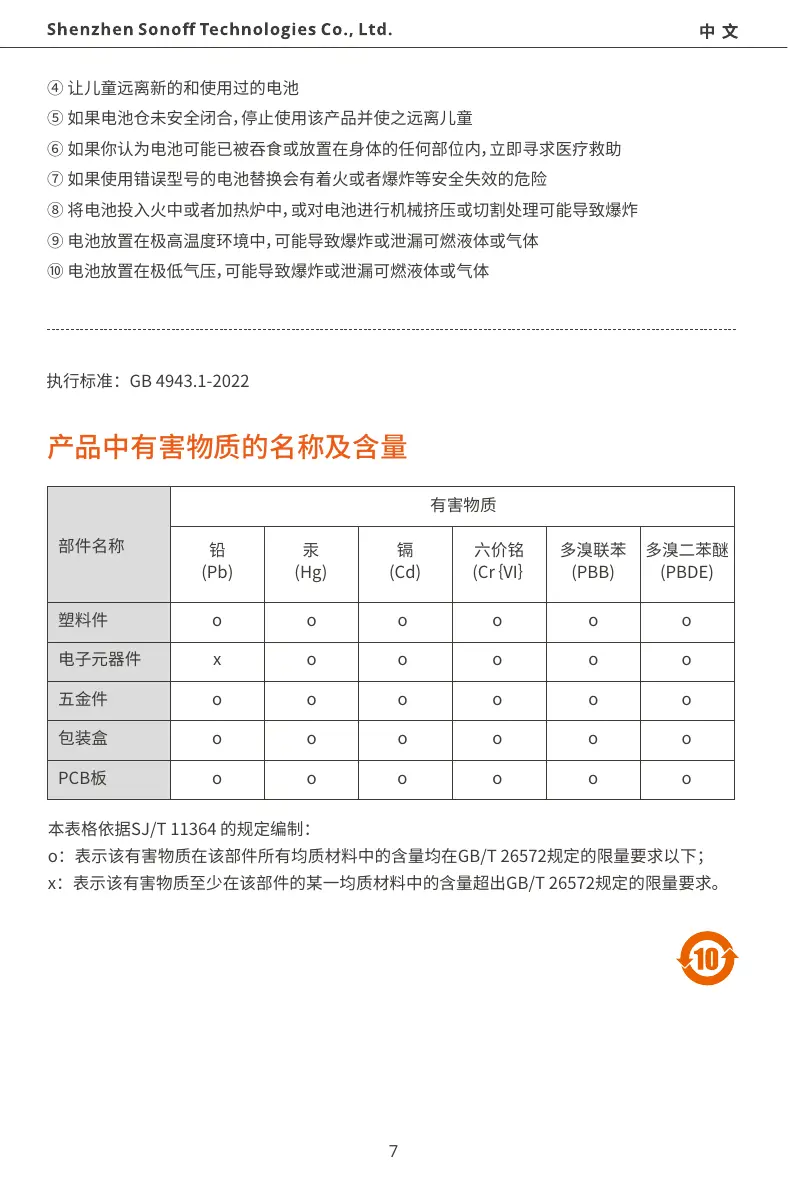
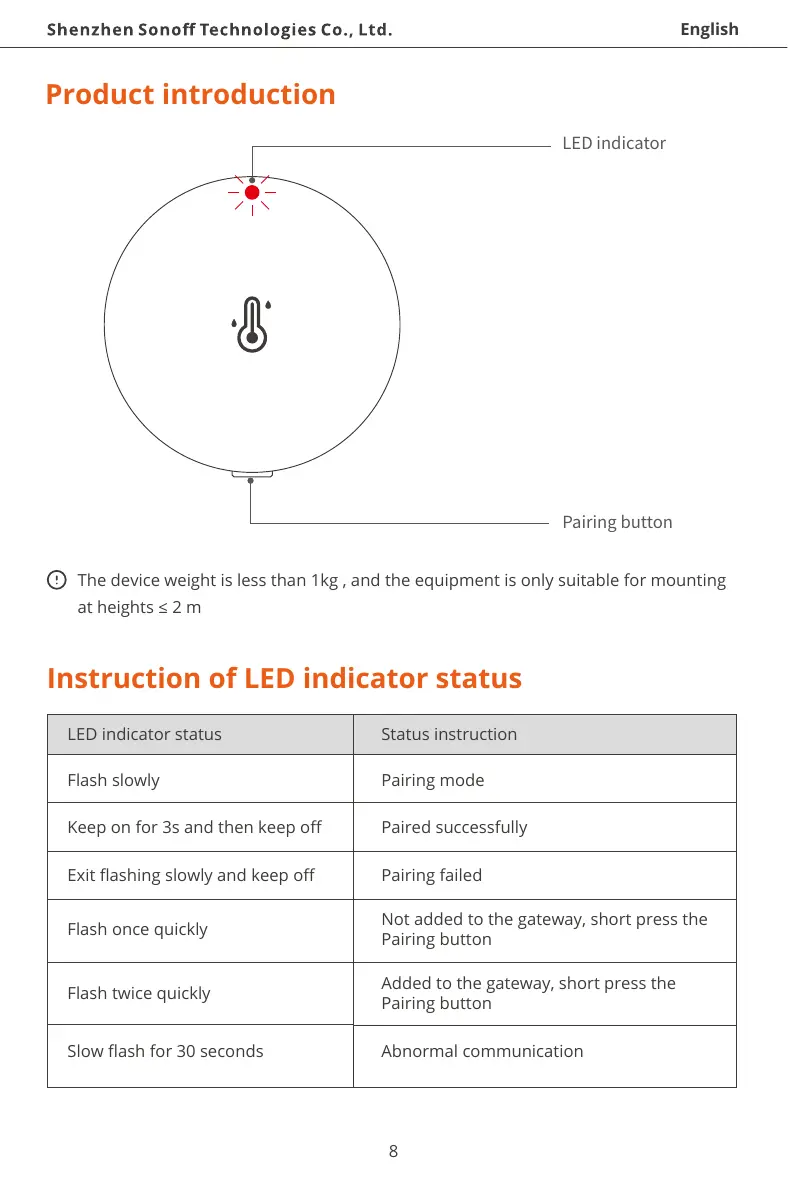
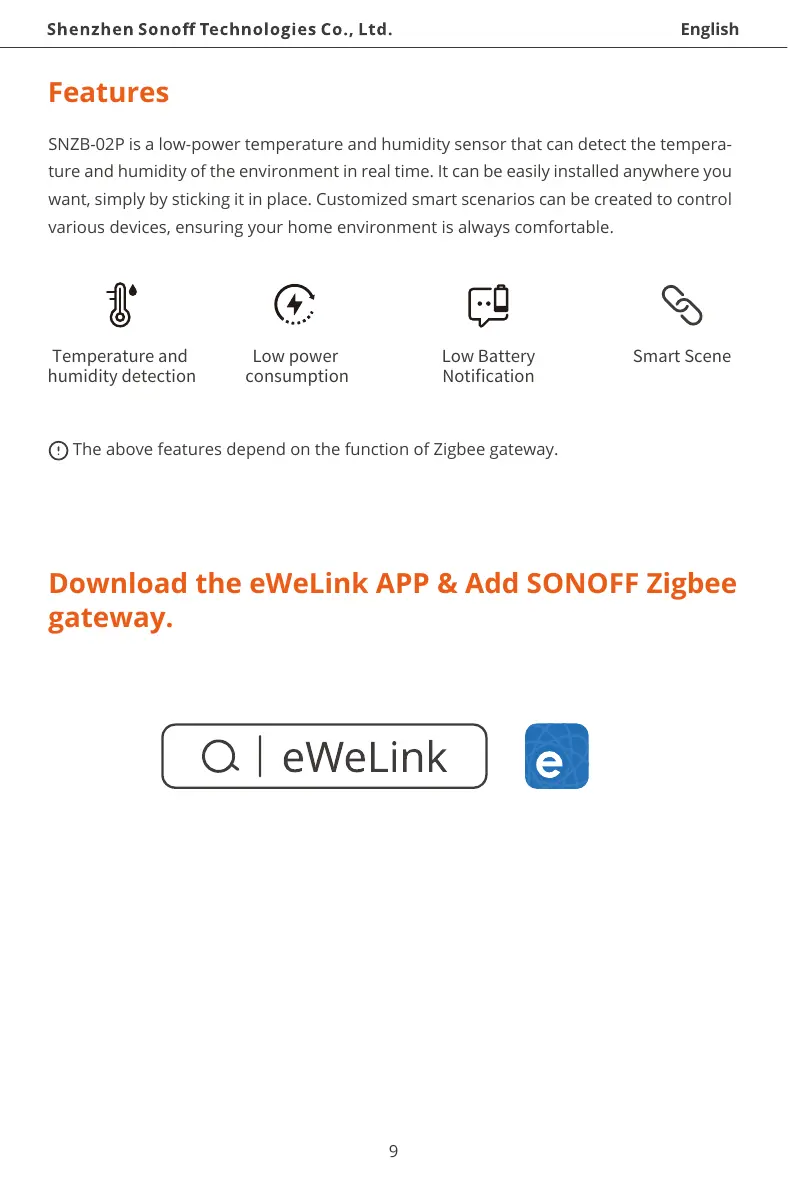
Scanned pages from the official user manual:
External Photos
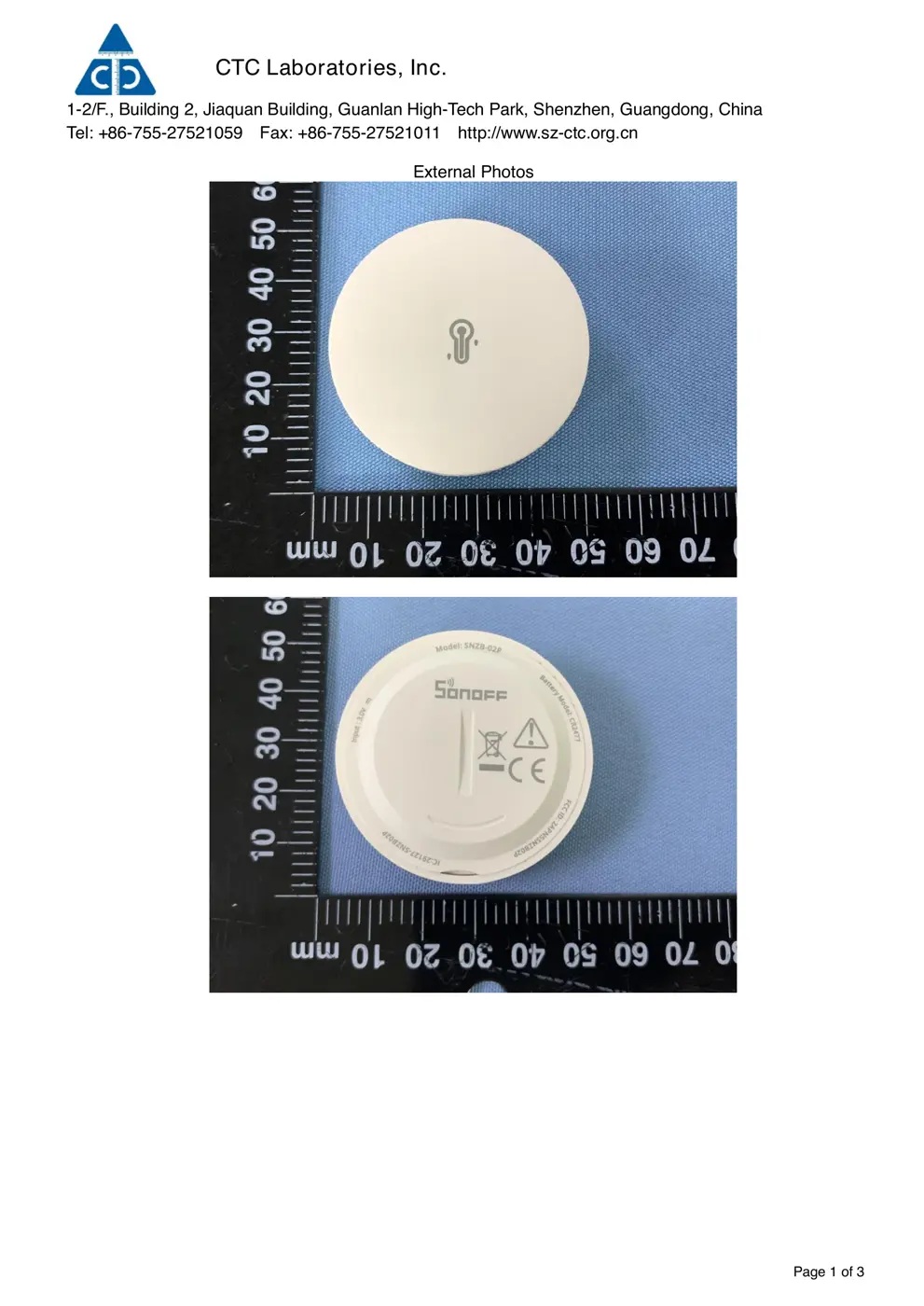
Photos of the device exterior:
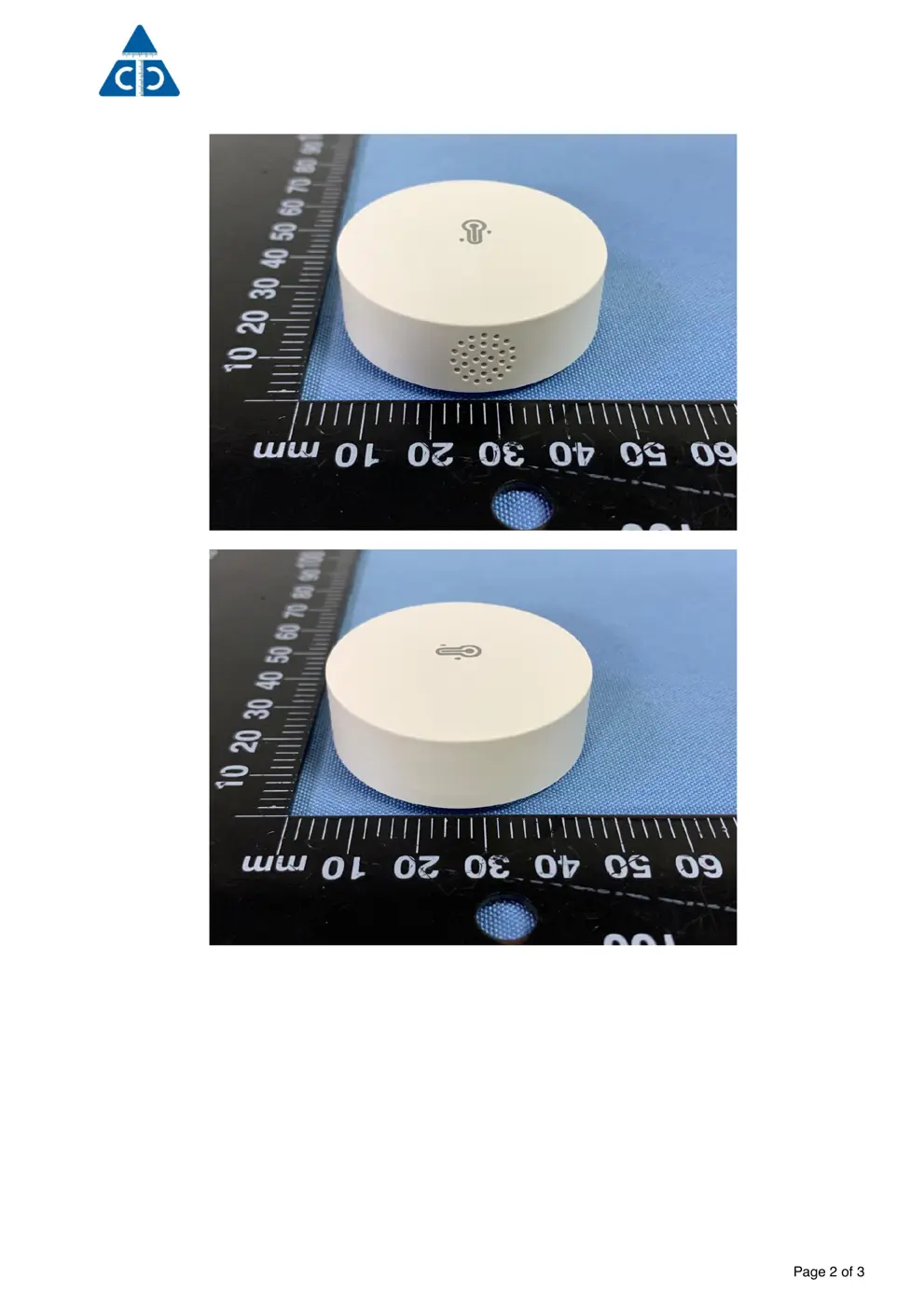
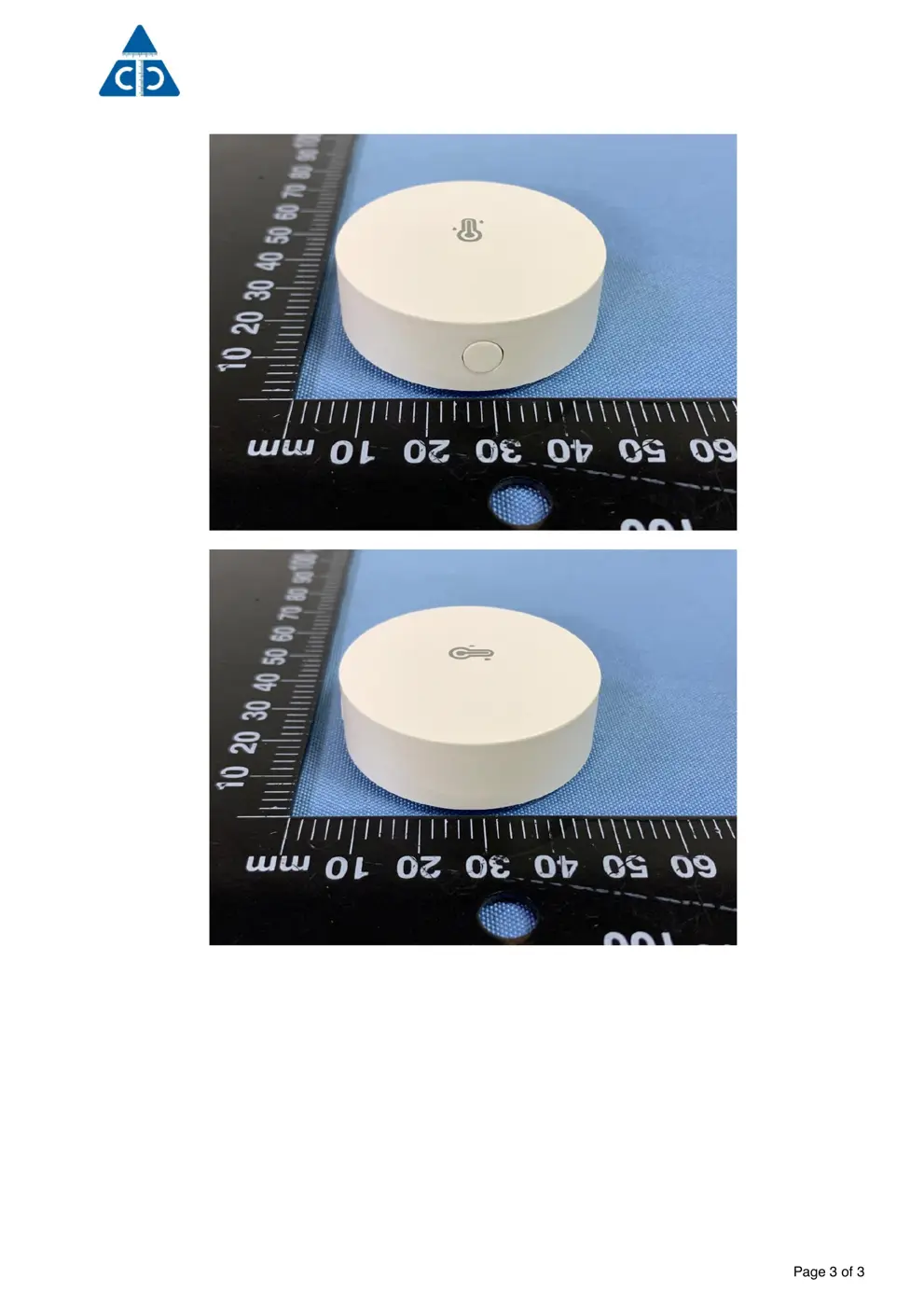
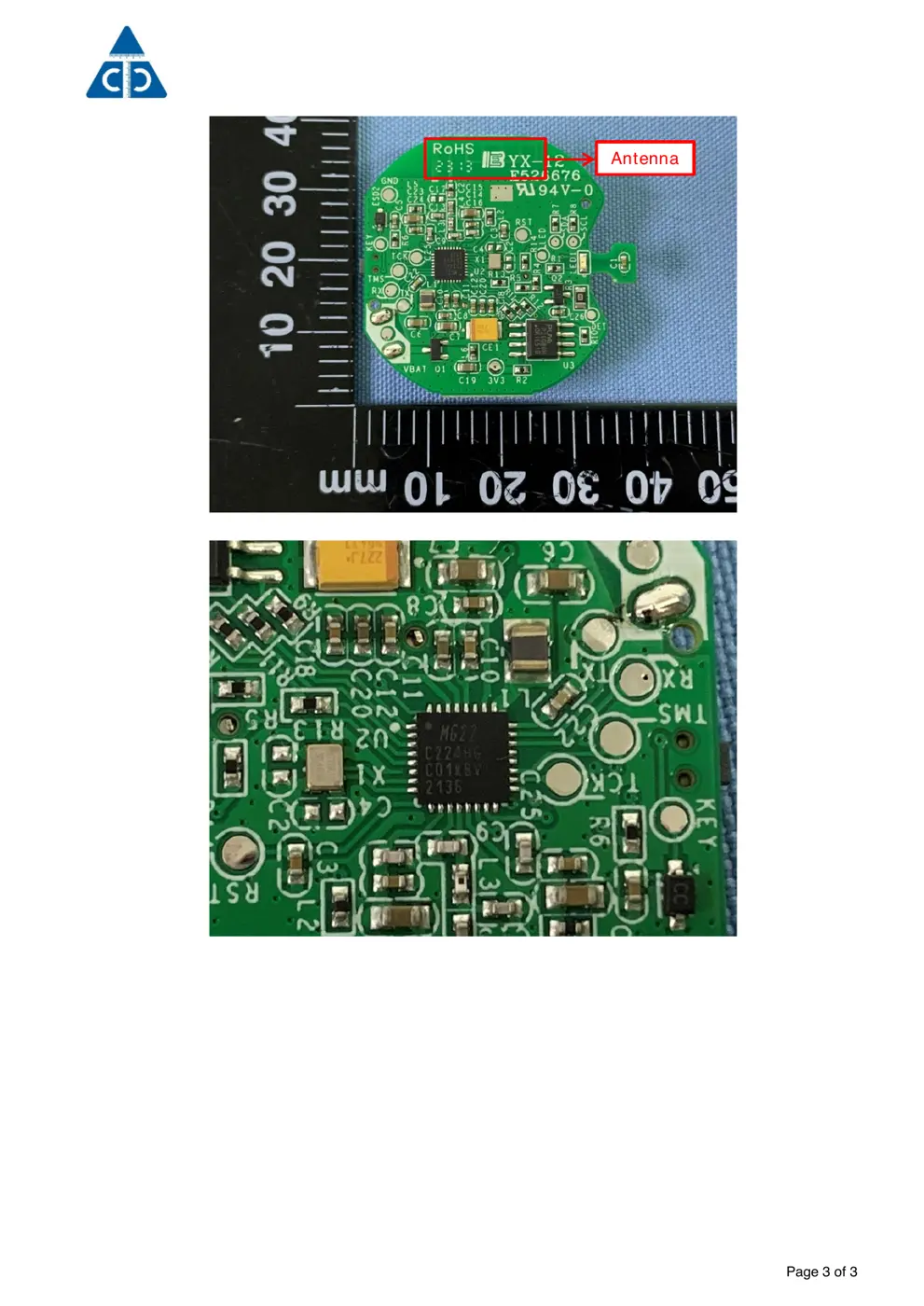
Internal Photos
Teardown photos showing the PCB and components:
Verdict
The SNZB02P is a WiFi device from the Sonoff ecosystem.
📄 Click to view full text manual (SEO)
·中 文 ----------1 - 7 · English ----------8 - 12 · Warning ----------13 - 16
SNZB-02P
Zigbee Temperature and
Humidity Sensor
1
下载易微联App并添加SONOFF Zigbee网关
2
3
5s
4
ZB Bridge
135s
>
SNZB-02P
Zigbee3.0
CR2477
-10℃-60℃
5%-95%RH,无冷凝
ABS
45x45x17.7mm
5
1 2 3
3.0V
6
3.0V
7
执行标准:GB 4943.1-2022
o o o o o o
x o o o o o
o o o o o o
o o o o o o
o o o o o o五金件
(Pb)
(Hg)
(Cd)
(Cr {VI}
(PBB)
(PBDE)
PCB板
English
Product introduction
8
Instruction of LED indicator status
The device weight is less than 1kg , and the equipment is only suitable for mounting
at heights ≤ 2 m
LED indicator
Pairing button
Flash slowly
Keep on for 3s and then keep off
Exit flashing slowly and keep off
Flash once quickly
Flash twice quickly
Pairing mode
Paired successfully
Pairing failed
Not added to the gateway, short press the
Pairing button
Added to the gateway, short press the
Pairing button
Slow flash for 30 seconds Abnormal communication
LED indicator status Status instruction
English
Features
9
SNZB-02P is a low-power temperature and humidity sensor that can detect the tempera-
ture and humidity of the environment in real time. It can be easily installed anywhere you
want, simply by sticking it in place. Customized smart scenarios can be created to control
various devices, ensuring your home environment is always comfortable.
The above features depend on the function of Zigbee gateway.
Smart SceneLow Battery
Notification
Download the eWeLink APP & Add SONOFF Zigbee
gateway.
Low power
consumption
Temperature and
humidity detection
English
10
Power on the device
æTake out the battery insulation sheet to power on the device.
çAfter powering on the device for the first time, it will enter the pairing mode by
 default and the LED indicator "flashes slowly".
æThe device will exit the pairing mode when it doesn't be paired to Zigbee gateway
 successfully within 3mins. If you want to access the pairing mode again, press and
 hold the device pairing button for 5s until the LED indicator "flashes slowly".
çIf the device is the No battery version, please install the battery (CR2450) to power
 on the device.
5s
English
11
Effective Communication Distance Verification
Add the device to Zigbee Bridge
Install the device in the desired place, then press the Pairing button on the device. The
LED indicator flashes twice mean the device and the device under the same Zigbee
network (the router device or hub) are in the effective communication distance.
On the Zigbee gateway main page of the eWeLink App, click "Add" sub-devices and wait
for the addition process to complete.
If the device is failed to be added, please move the device closer to the Bridge and
add it again.
>
ZB Bridge
Added:0
No child device,please add.
Add
Connecting
Keep the device close
enough to the hub.
Add Device
1 device Found
Looking for device
135s
English
12
Installation
Fix the metal plate in a desired location, and then magnetically attach the device to the plate.
Specifications
Model
Input
Wireless connection
Bat...