
TYGWB1 Reset & Teardown (FCC ID 2ANDL-TYGWB1)
Factory reset and internal photos for Tuya Global TYGWB1. Tuya / Smart Life smart plug.
January 15, 2026
•
9 read
Before you buy the Tuya Global TYGWB1, check what's inside.
This device is a BLE Mesh Hub that connects to your home WiFi network, enabling smart control of other BLE Mesh devices via the Tuya or Smart Life app. It functions as a bridge between your wireless network and low-power mesh devices.
⚠️ NOTE: Ensure the USB power source provides a stable 5V DC output. Do not expose to water or extreme temperatures.
Quick Specs
- Manufacturer: Tuya Global
- Model: TYGWB1
- Protocol: BLE Mesh and WiFi
- Chipset: Realtek/Beken
- Ecosystem: Tuya / Smart Life
- App: Smart Life
🔧 Geek Corner (Flashing Info)
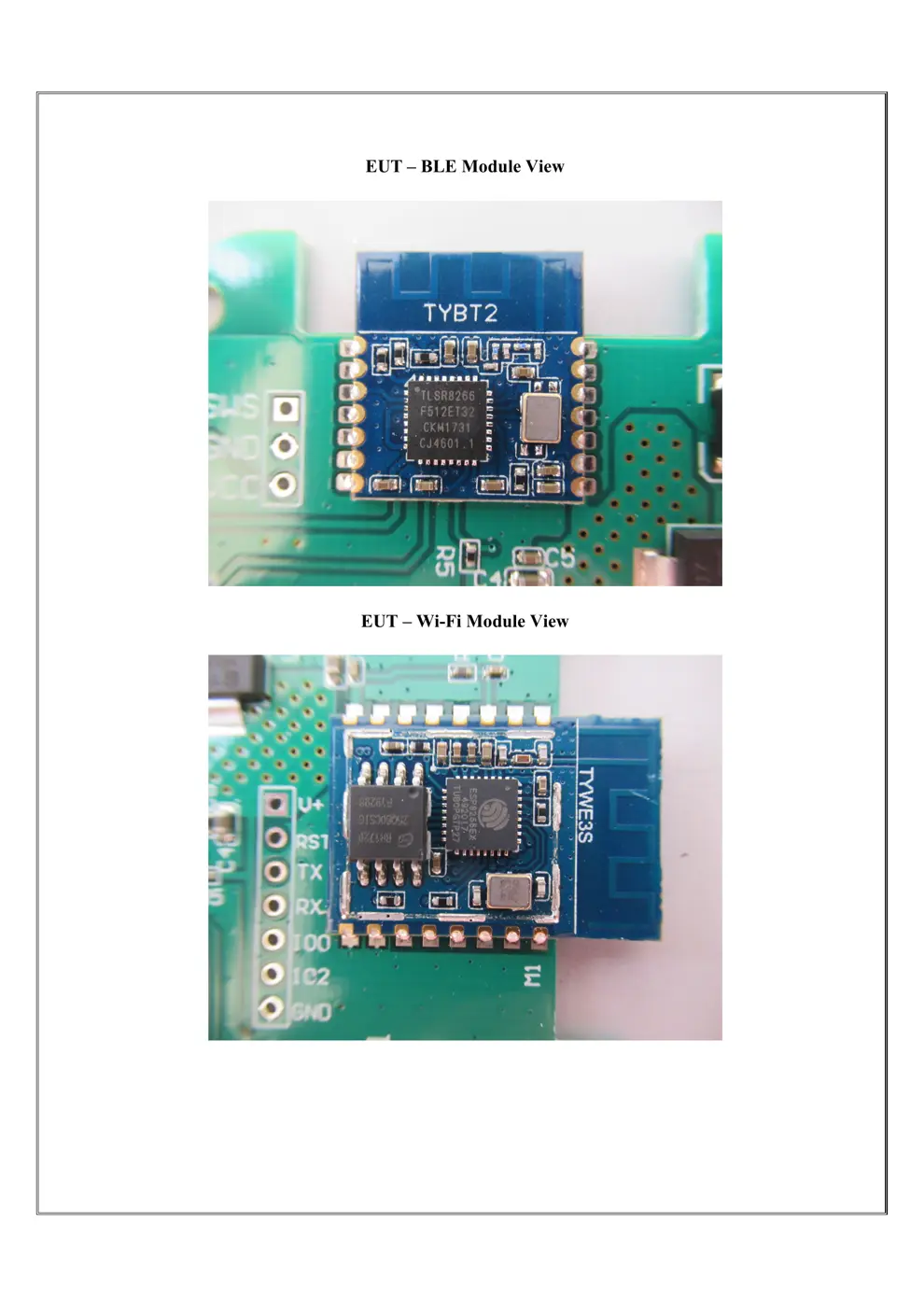
- Chipset: Realtek/Beken (likely BLE/WiFi combo)
- Flashable: ❌ No
- Info: Uses Realtek/Beken chipsets commonly found in Tuya devices, which are generally not flashable with custom firmware like Tasmota or ESPHome due to locked bootloaders or proprietary firmware.
User Manual
Scanned pages from the official user manual:
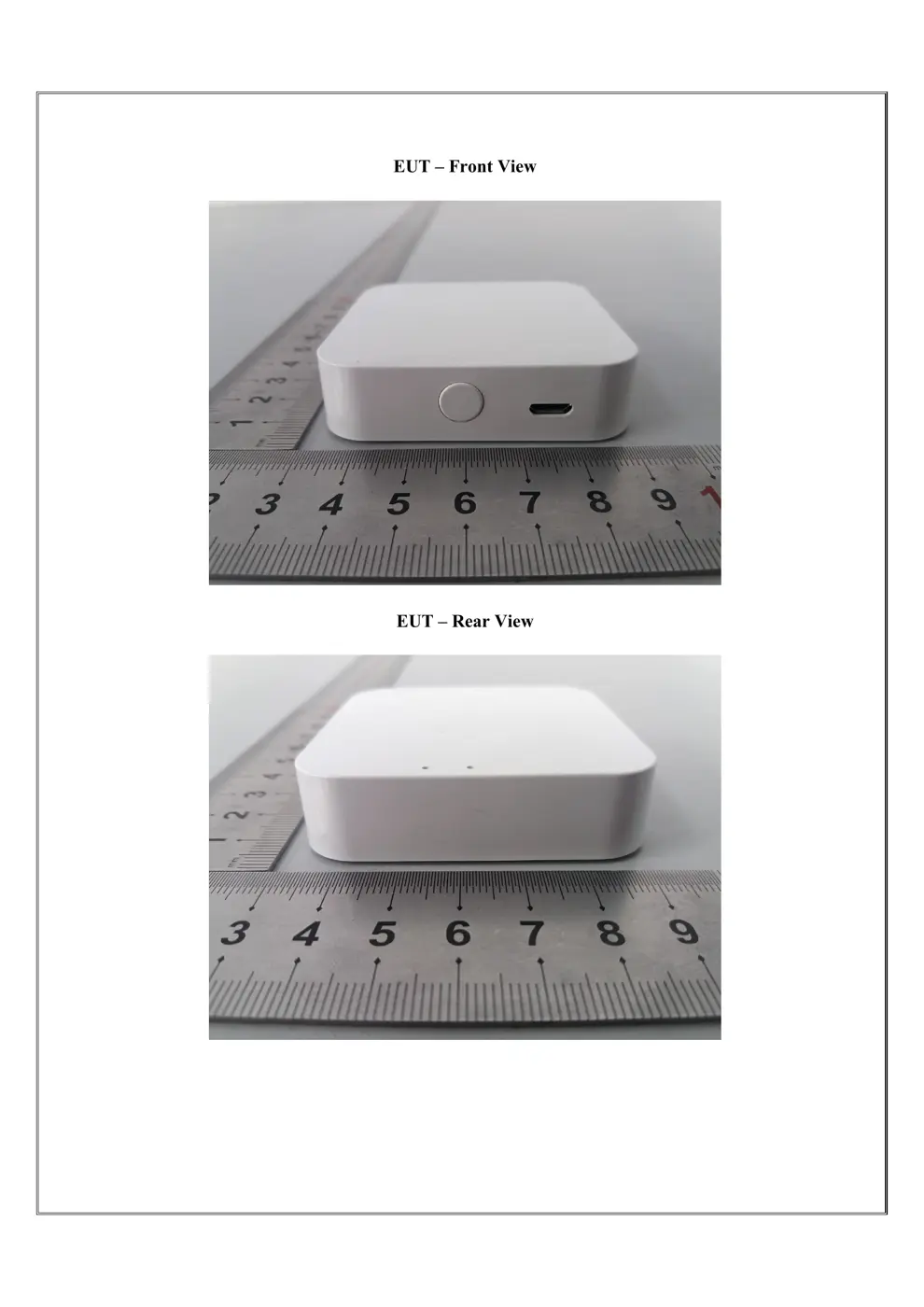
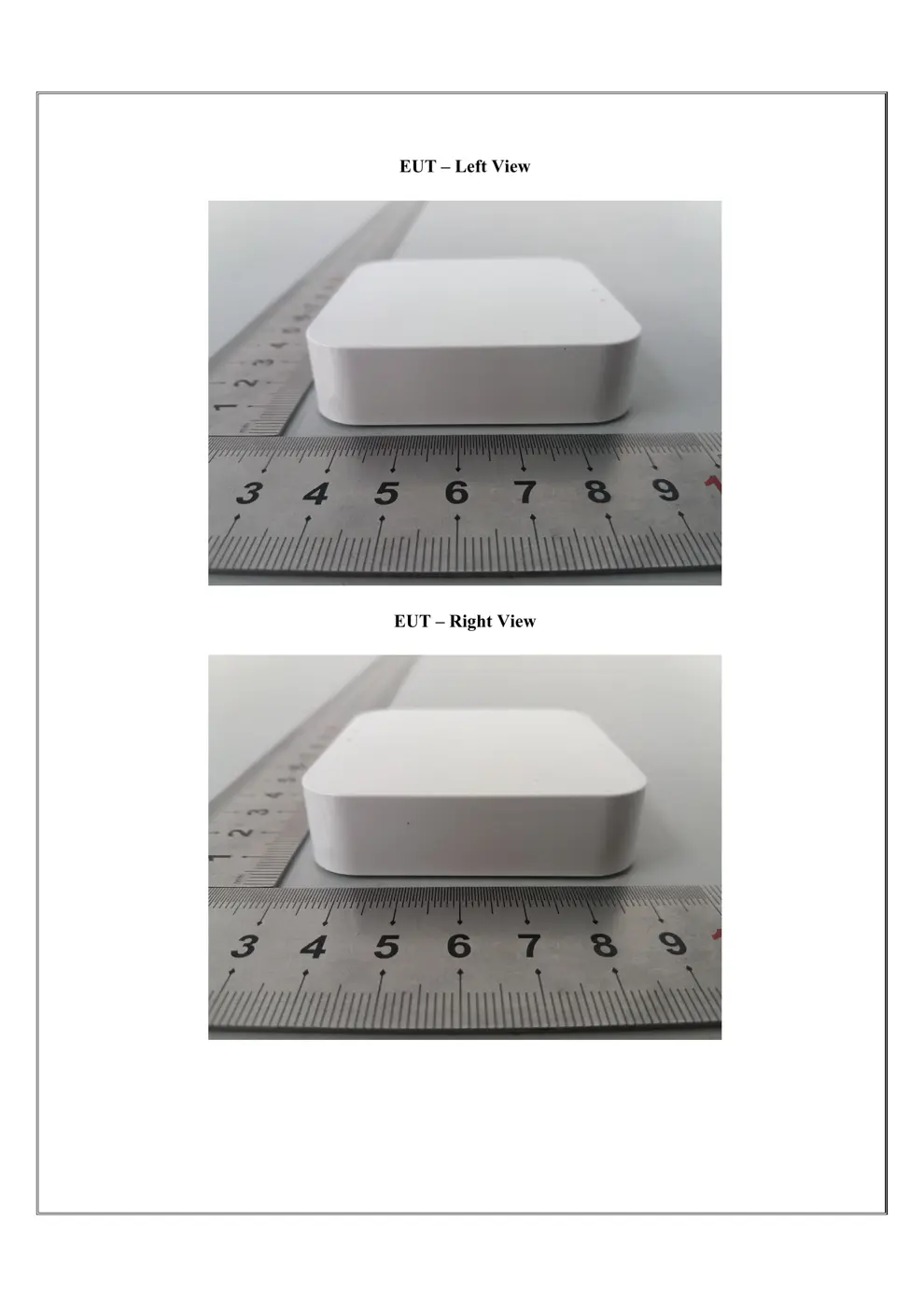
External Photos
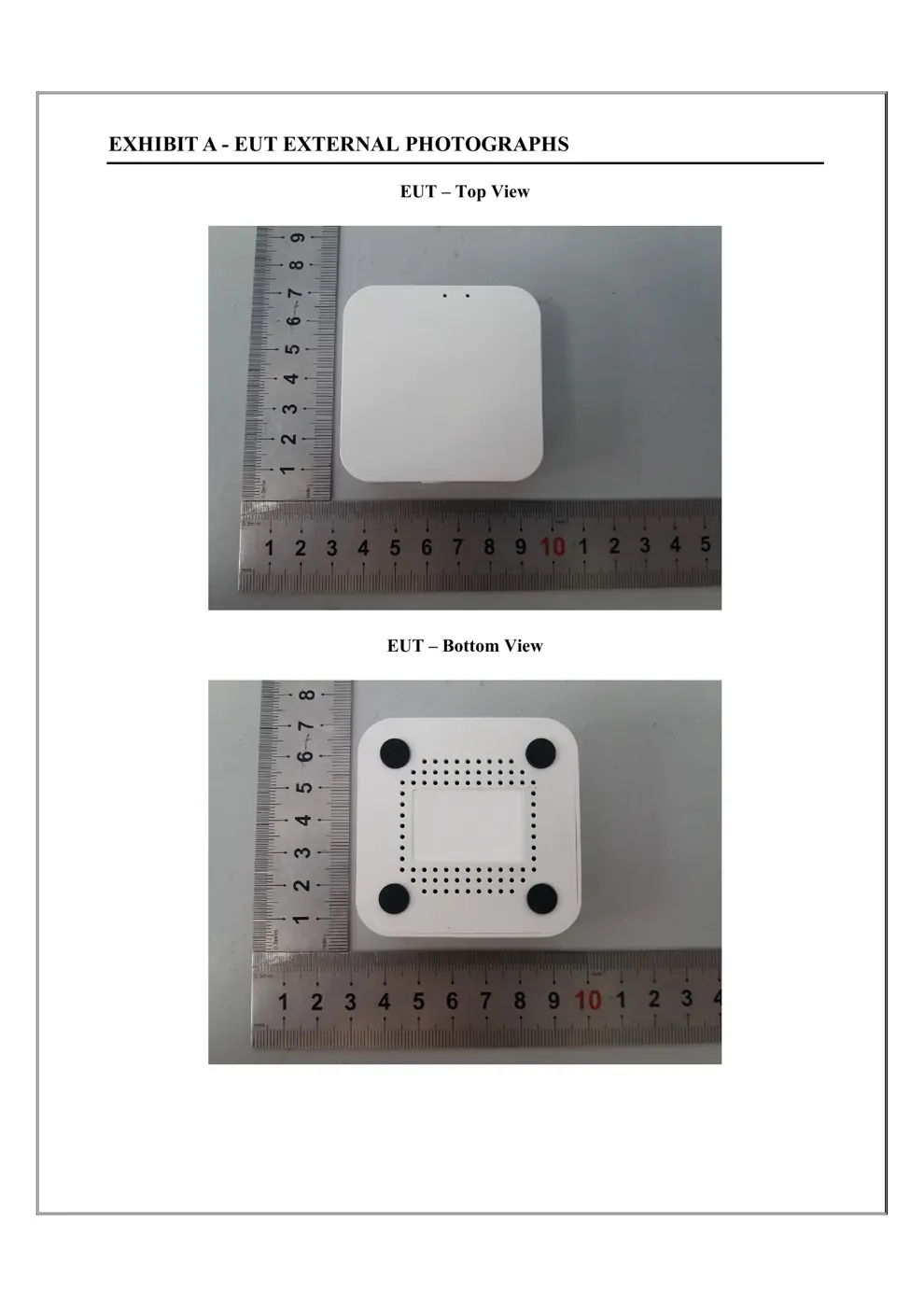
Photos of the device exterior:
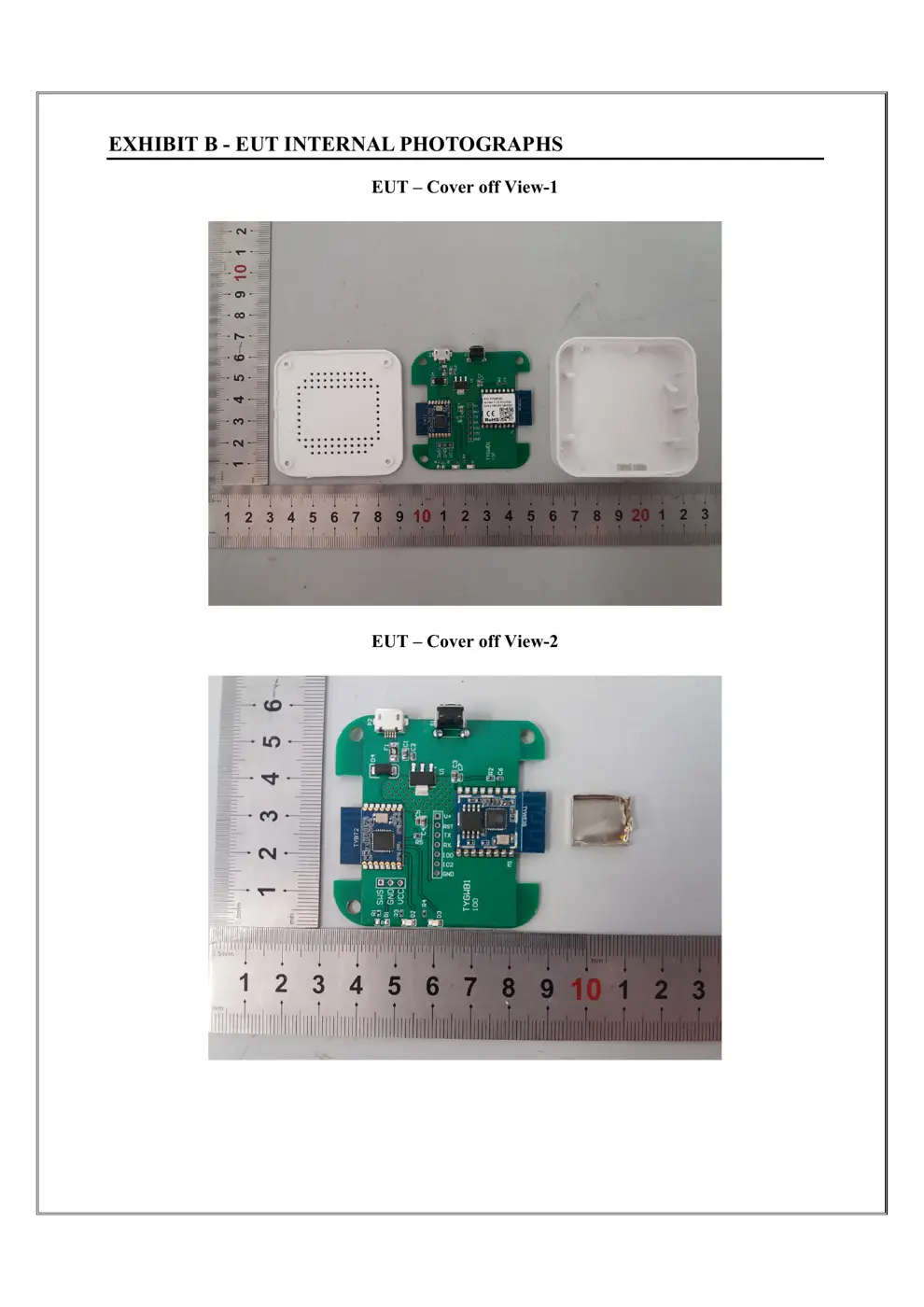
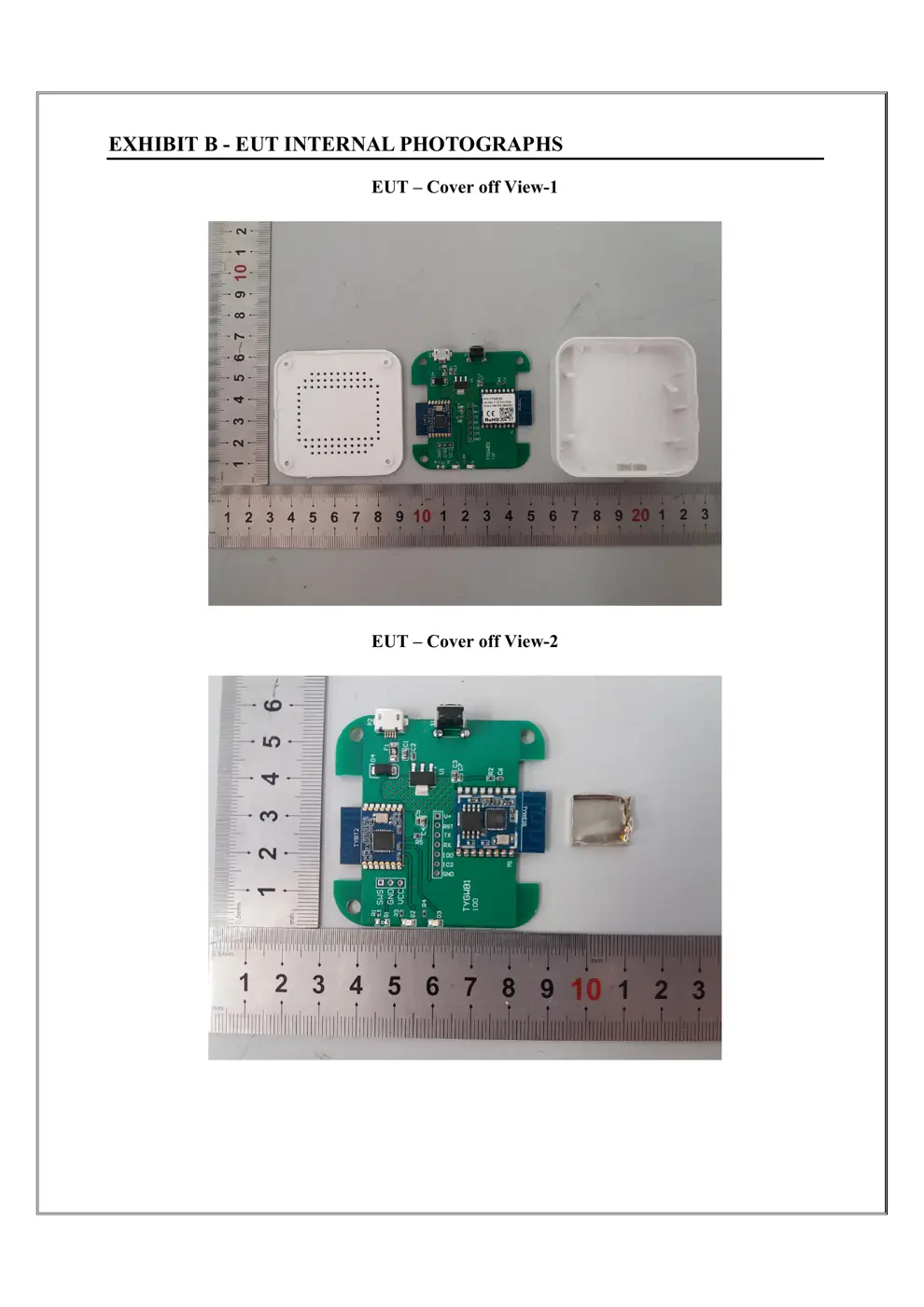
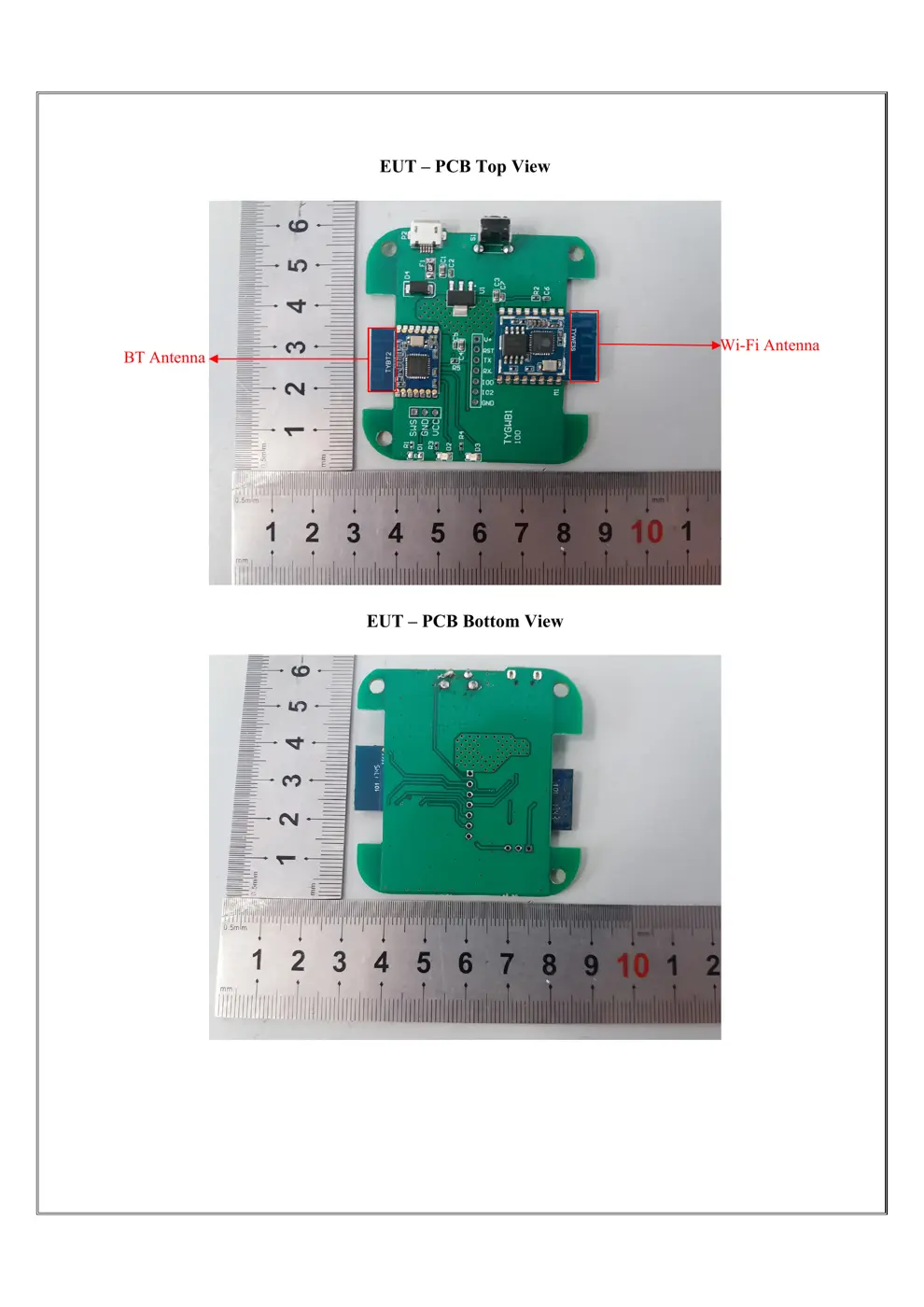
Internal Photos
Teardown photos showing the PCB and components:
Verdict
The TYGWB1 is a WiFi device from the Tuya / Smart Life ecosystem.
📄 Click to view full text manual (SEO)
TYGWB1 User Manual
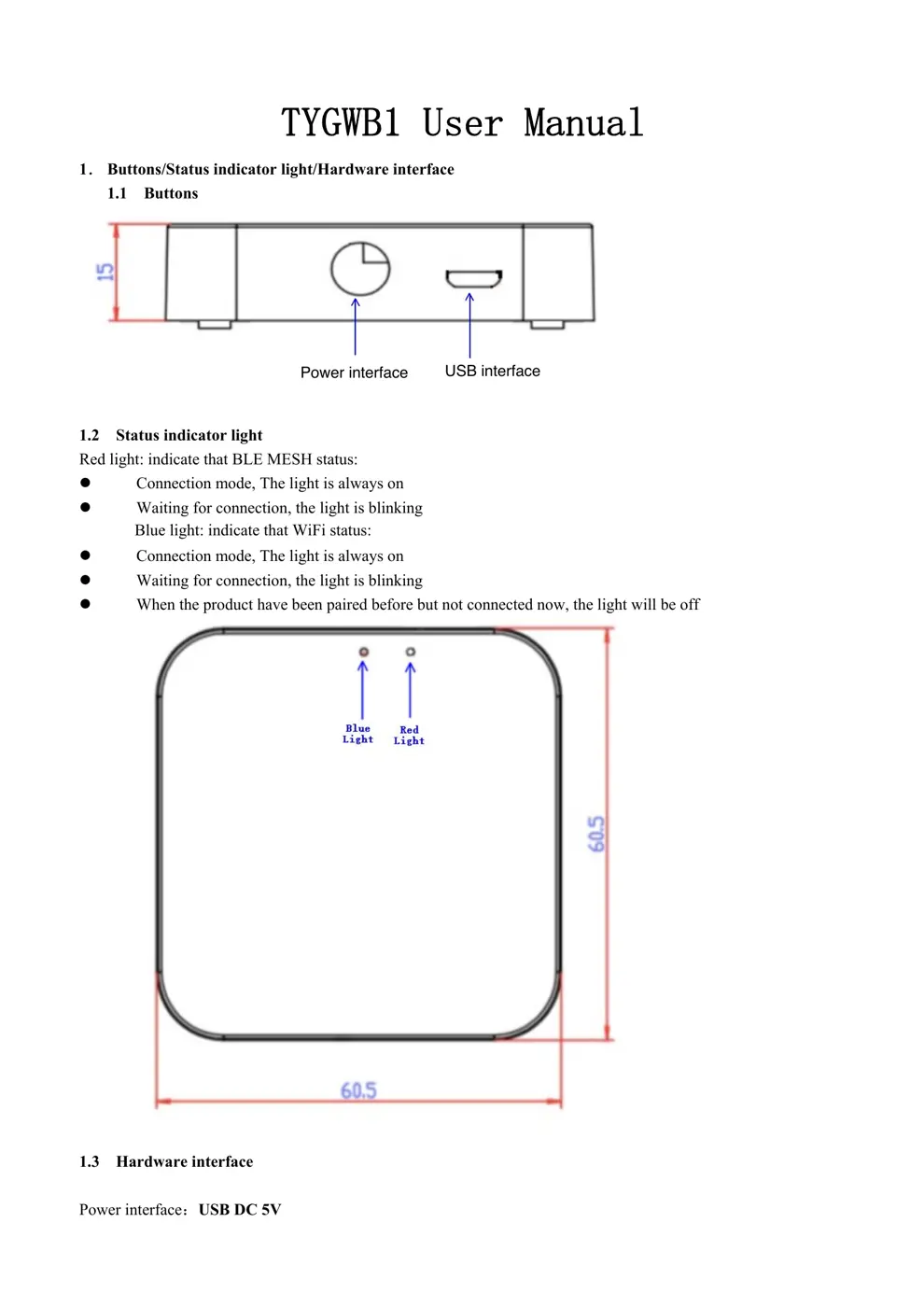
1. Buttons/Status indicator light/Hardware interface
1.1 Buttons
1.2 Status indicator light
Red light: indicate that BLE MESH status:
 Connection mode, The light is always on
 Waiting for connection, the light is blinking
Blue light: indicate that WiFi status:
 Connection mode, The light is always on
 Waiting for connection, the light is blinking
 When the product have been paired before but not connected now, the light will be off
1.3 Hardware interface
Power interface:USB DC 5V
Power interface USB interface
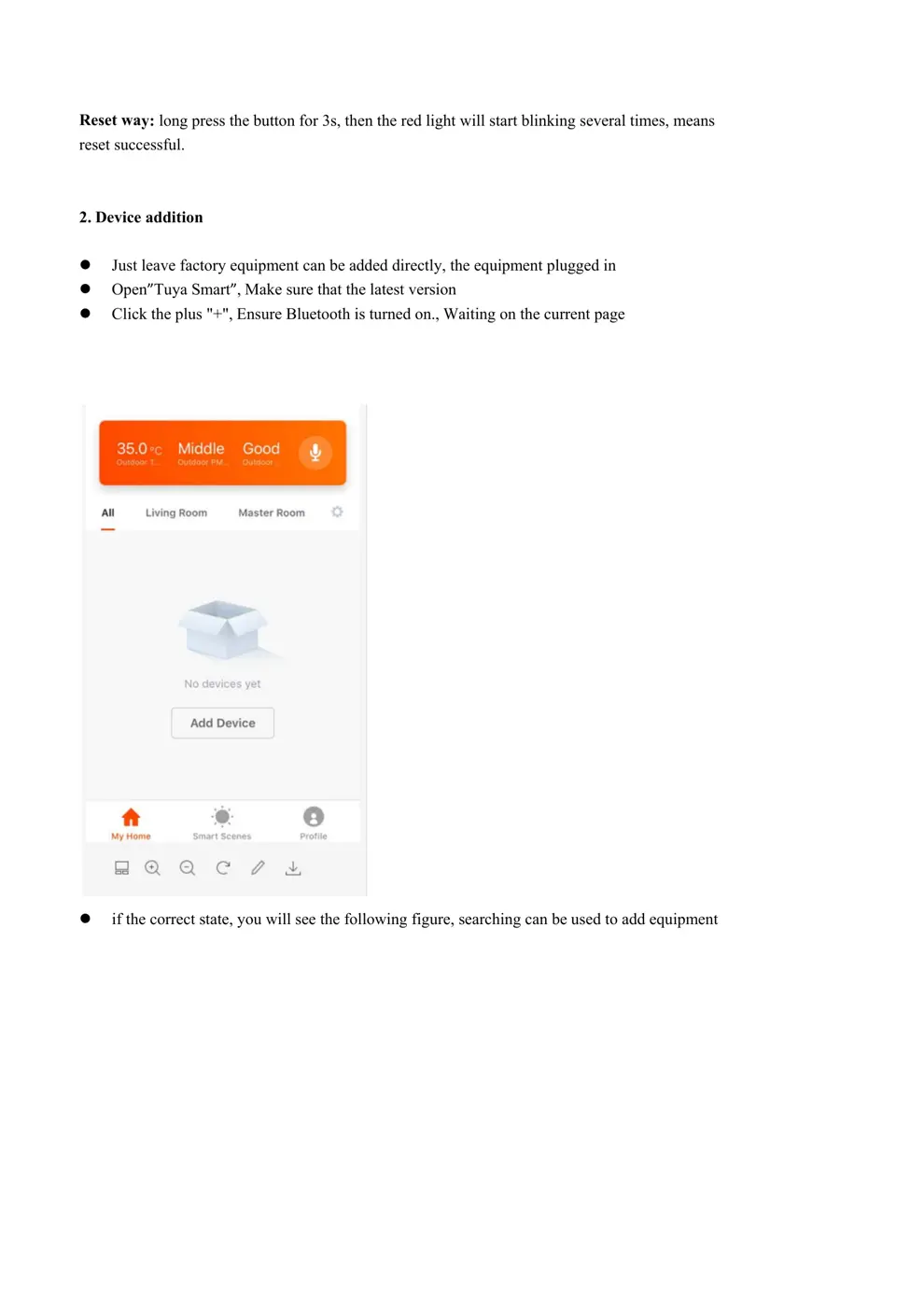
Reset wa
y: long press the button for 3s, then the red light will start blinking several times, means
reset successful.
2. Device addition
 Just leave factory equipment can be added directly, the equipment plugged in
 Open”Tuya Smart”,Make sure that the latest version
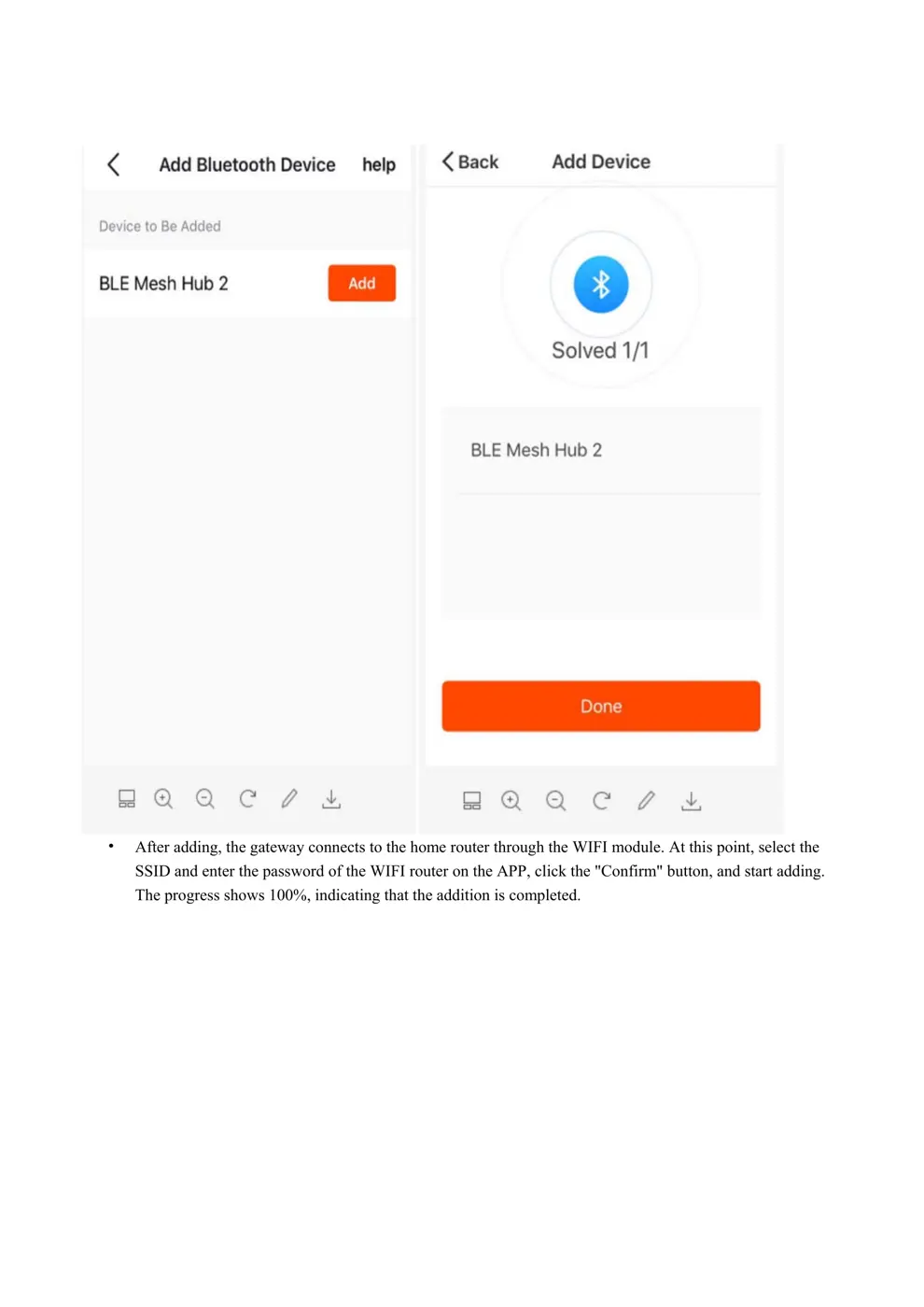
 Click the plus "+",Ensure Bluetooth is turned on.,Waiting on the current page
 if the correct state, you will see the following figure, searching can be used to add equipment

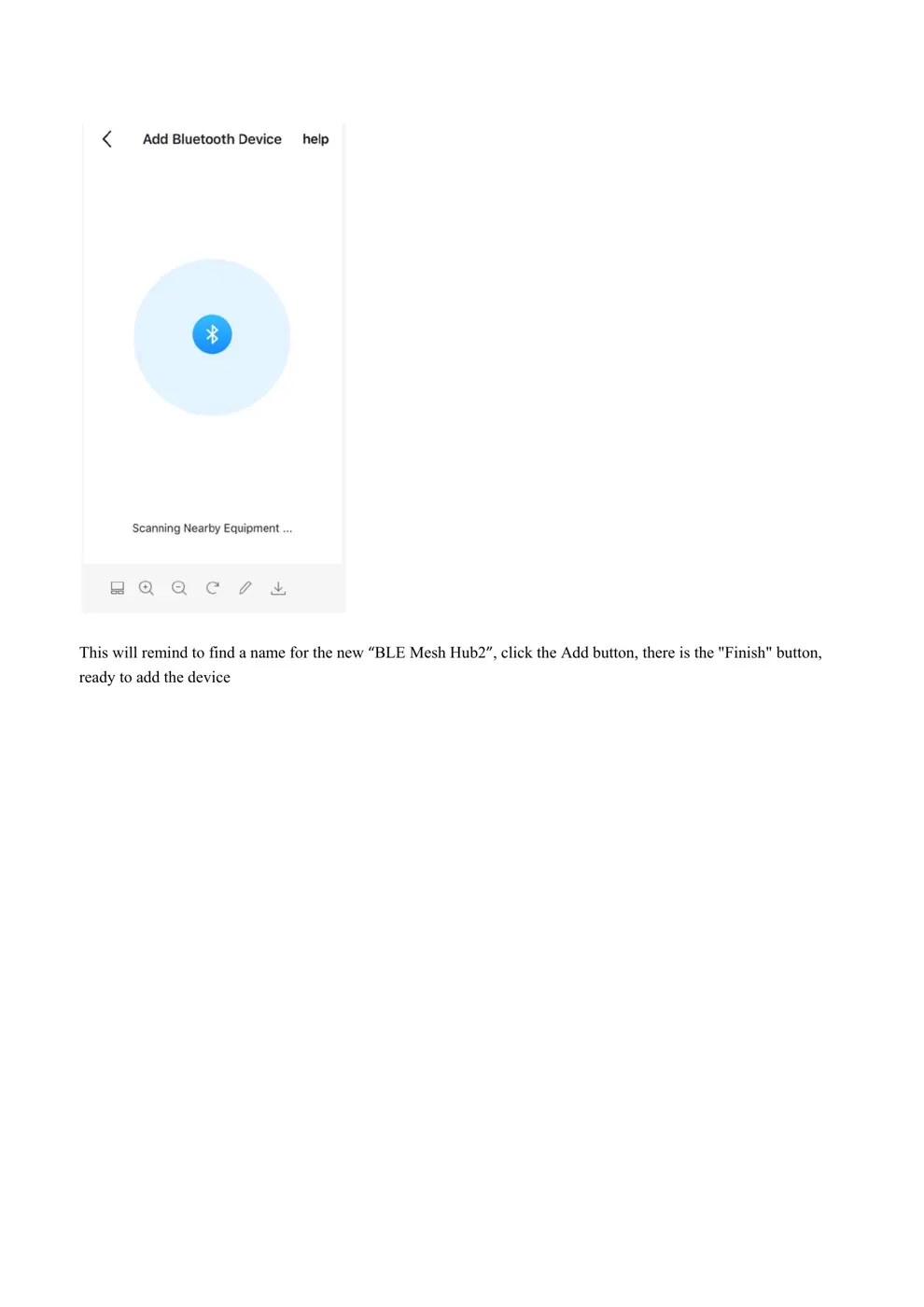
This wi
ll remind to find a name for the new “BLE Mesh Hub2”, click the Add button, there is the "Finish" button,
ready to add the device

• A
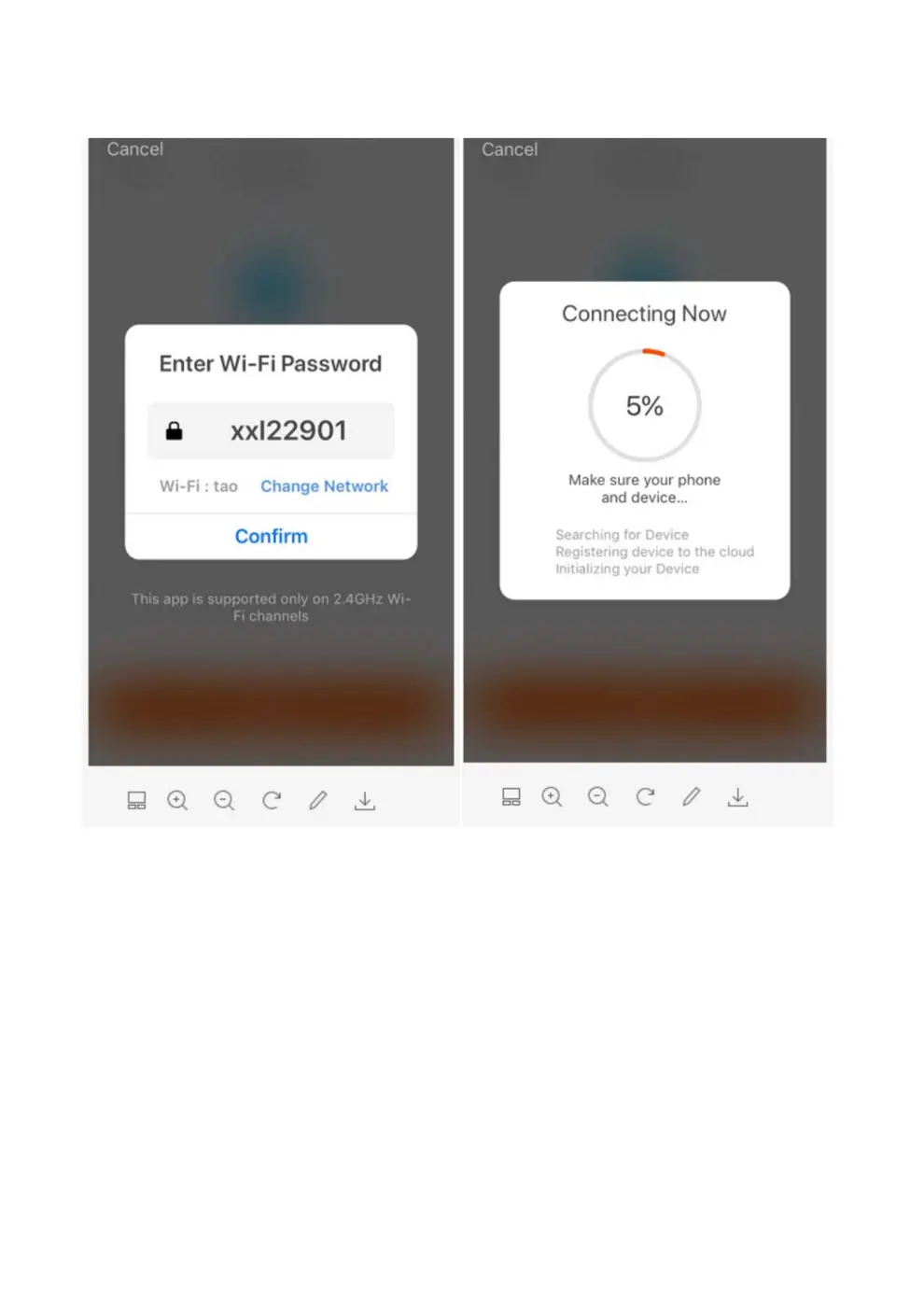
fter adding, the gateway connects to the home router through the WIFI module. At this point, select the
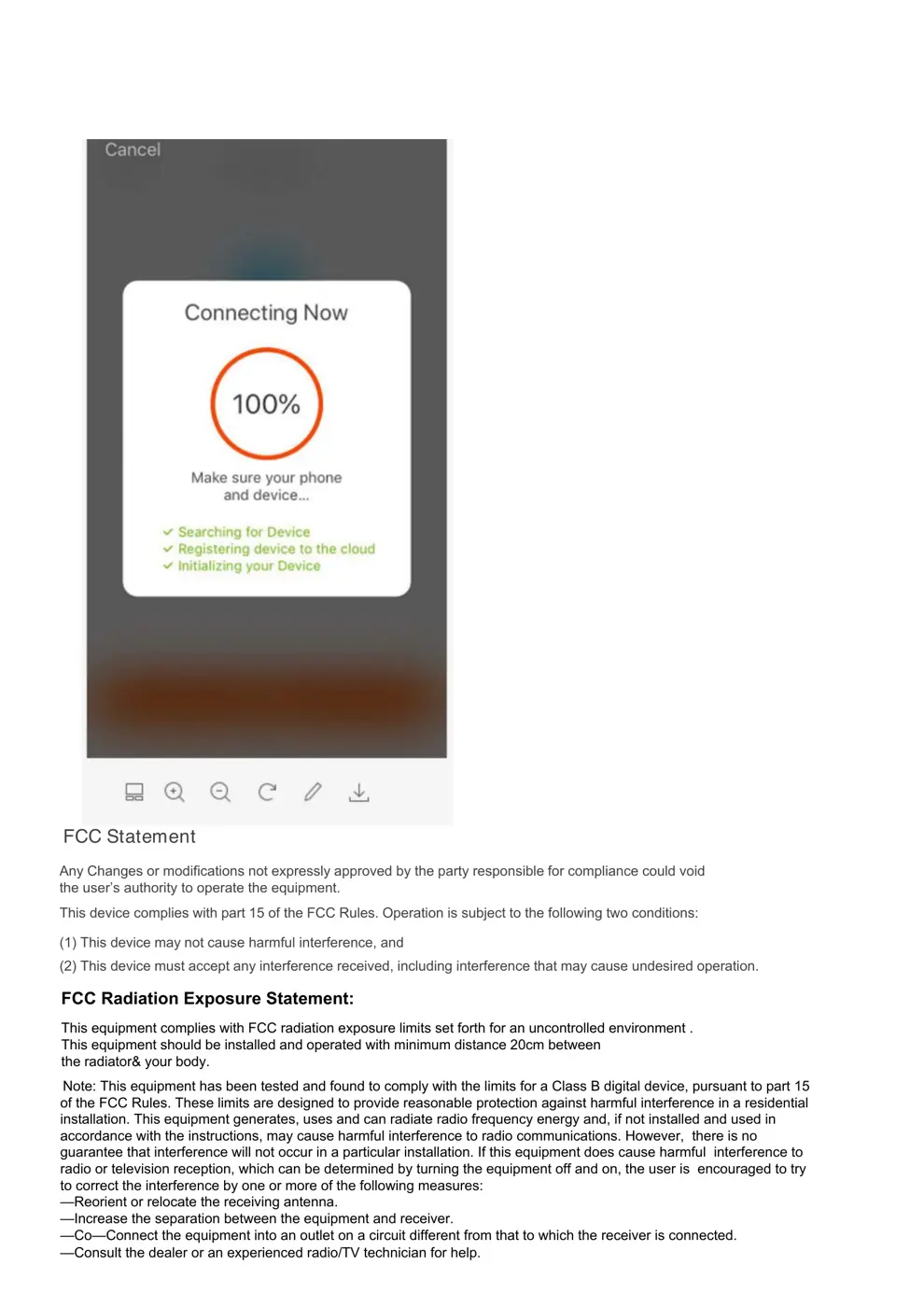
SSID and enter the password of the WIFI router on the APP, click the "Confirm" button, and start adding.
The progress shows 100%, indicating that the addition is completed.

FCC Statement
Any Changes or modifications not expressly approved by the party responsible for compliance could void
the user’s authority to operate the equipment.
This device complies with part 15 of the FCC Rules. Operation is subject to the following two conditions:
(1) This device may not cause harmful interference, and
(2) This device must accept any interference received, including interference that may cause undesired operation.
FCC Radiation Exposure Statement:
This equipment complies with FCC radiation exposure limits set forth for an uncontrolled environment .
This equipment should be installed and operated with minimum distance 20cm between
the radiator& your body.
Note: This equipment has been tested and found to comply with the limits for a Class B digital device, pursuant to part 15
of the FCC Rules. These limits are designed to provide reasonable protection against harmful interference in a residential
installation. This equipment generates, uses and can radiate radio frequency energy and, if not installed and used in
accordance with the instructions, may cause harmful interference to radio communications. However, there is no
guarantee that interference will not occur in a particular installation. If this equipment does cause harmful interference to
radio or television reception, which can be determined by turning the equipment off and on, the user is encouraged to try
to correct the interference by one or more of the following measures:
—Reorient or relocate the receiving antenna.
—Increase the separation between the equipment an...