
USBWG11LM Reset & Teardown (FCC ID 2AKIT-USBWG11LM)
Factory reset and internal photos for Aqara (Lumi United) USBWG11LM. Aqara Zigbee smart plug.
January 15, 2026
•
8 read
Before you buy the Aqara (Lumi United) USBWG11LM, check what's inside.
The Aqara USBWG11LM is a Zigbee gateway that bridges Zigbee devices to your Wi-Fi network via a USB connection, typically to a router or set-top box. It acts as a central hub for Aqara's ecosystem of sensors and controllers.
⚠️ NOTE: Ensure the USB port provides stable 5V power and is not overloaded.
Quick Specs
- Manufacturer: Aqara (Lumi United)
- Model: USBWG11LM
- Protocol: Zigbee
- Chipset: Zigbee SoC
- Ecosystem: Aqara Zigbee
- App: Aqara Home
🔧 Geek Corner (Flashing Info)
- Chipset: Unknown
- Flashable: ❌ No
- Info: Proprietary Aqara Zigbee SoC, not designed for flashing custom firmware.
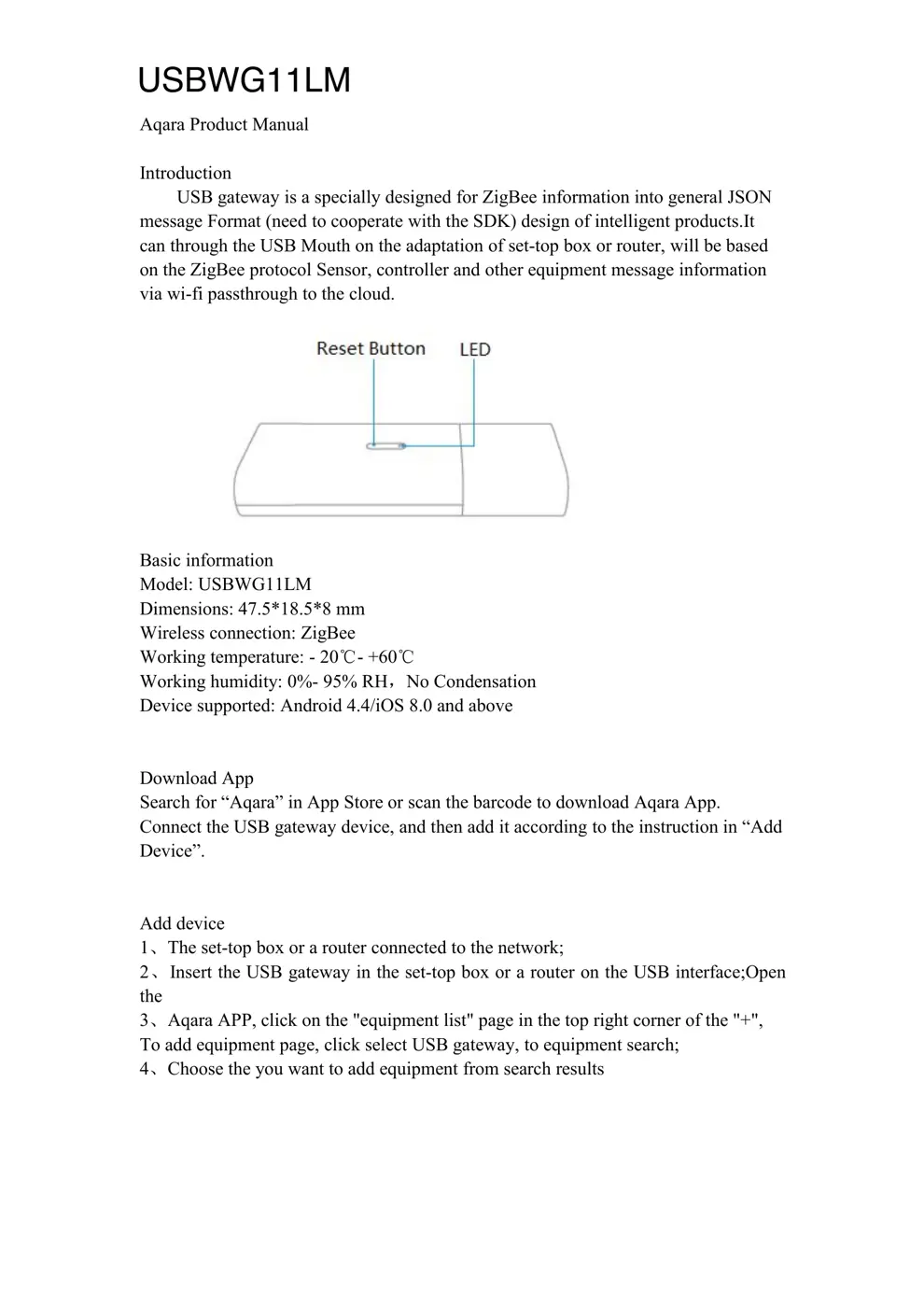
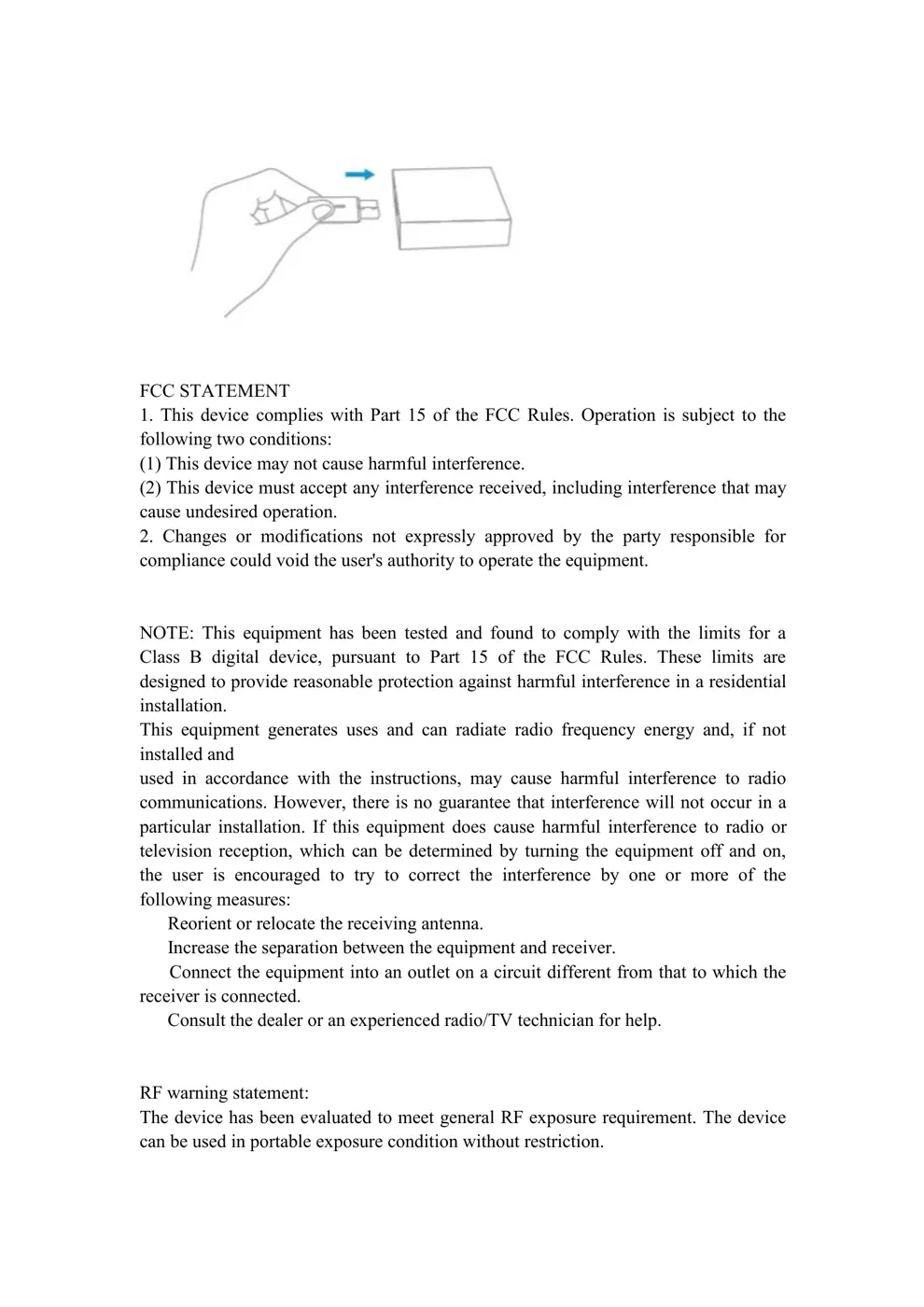
User Manual
Scanned pages from the official user manual:
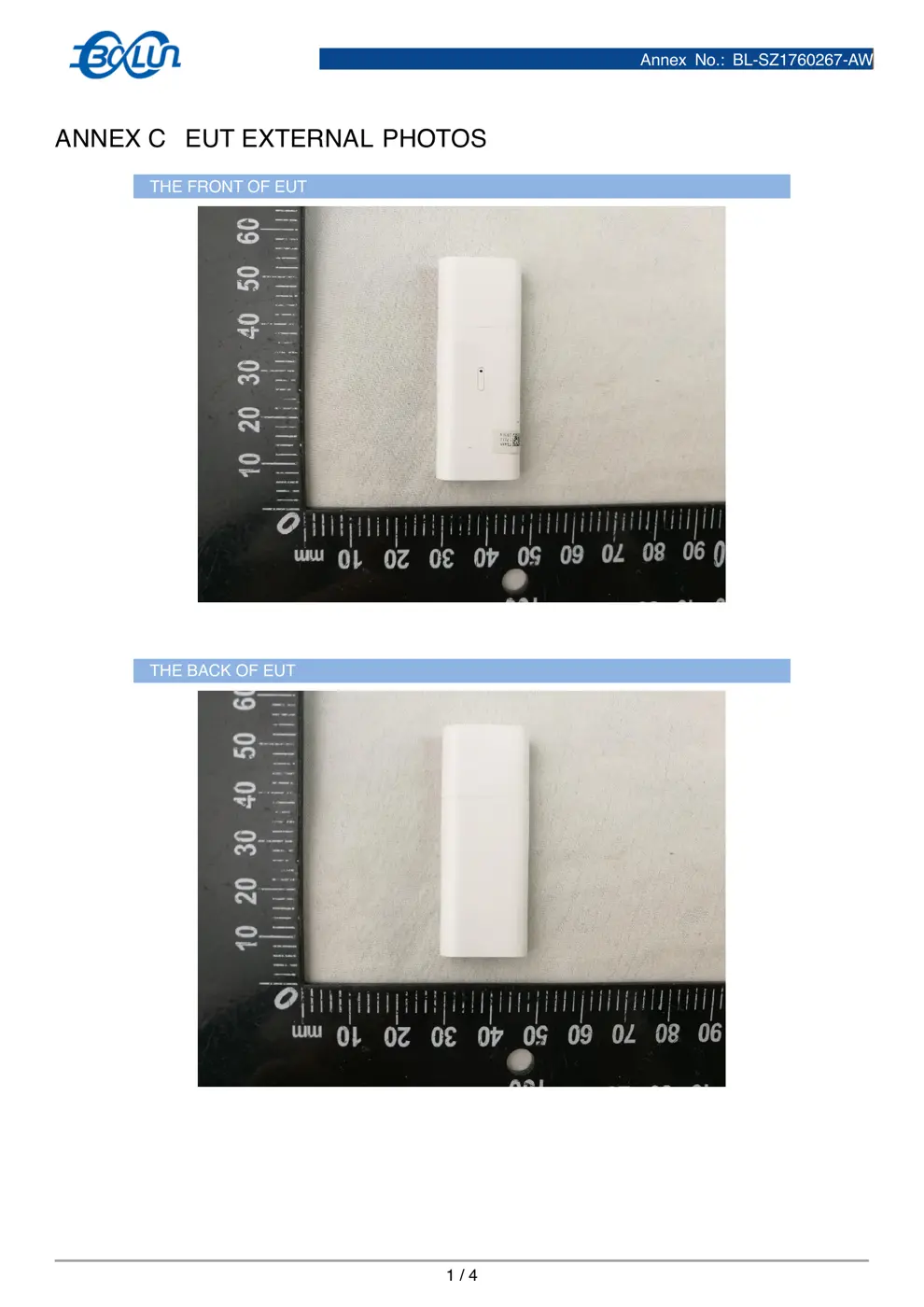
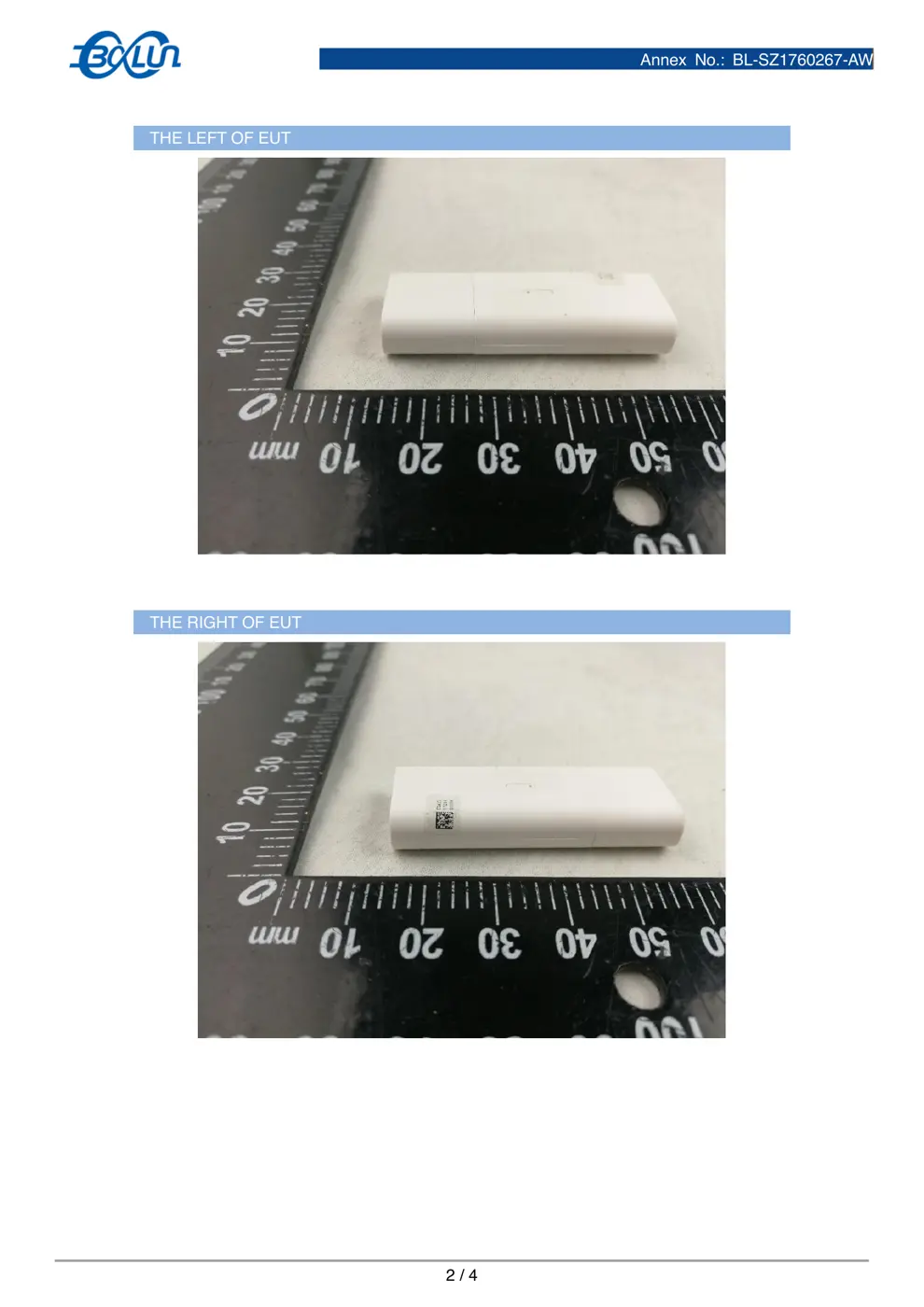
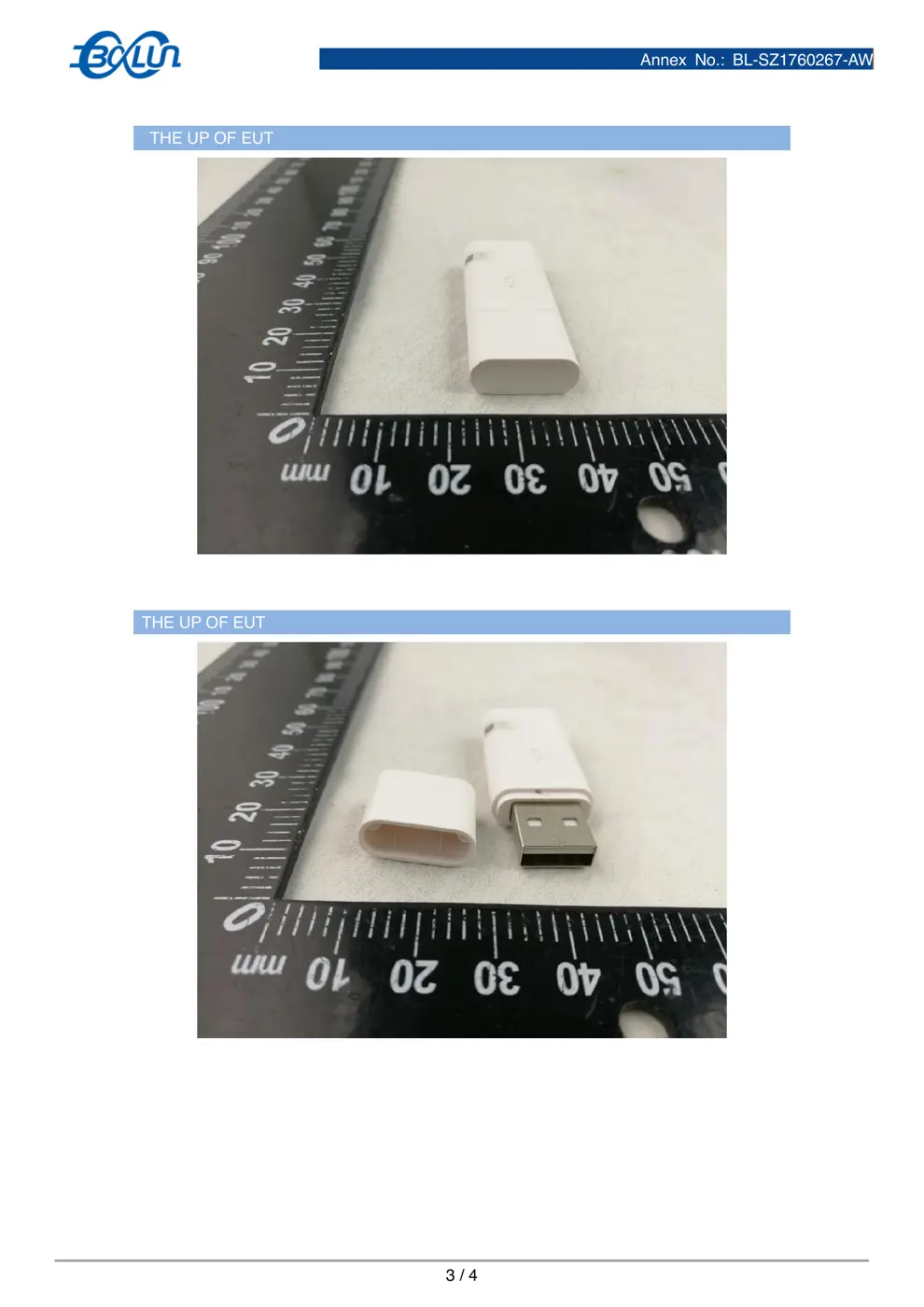
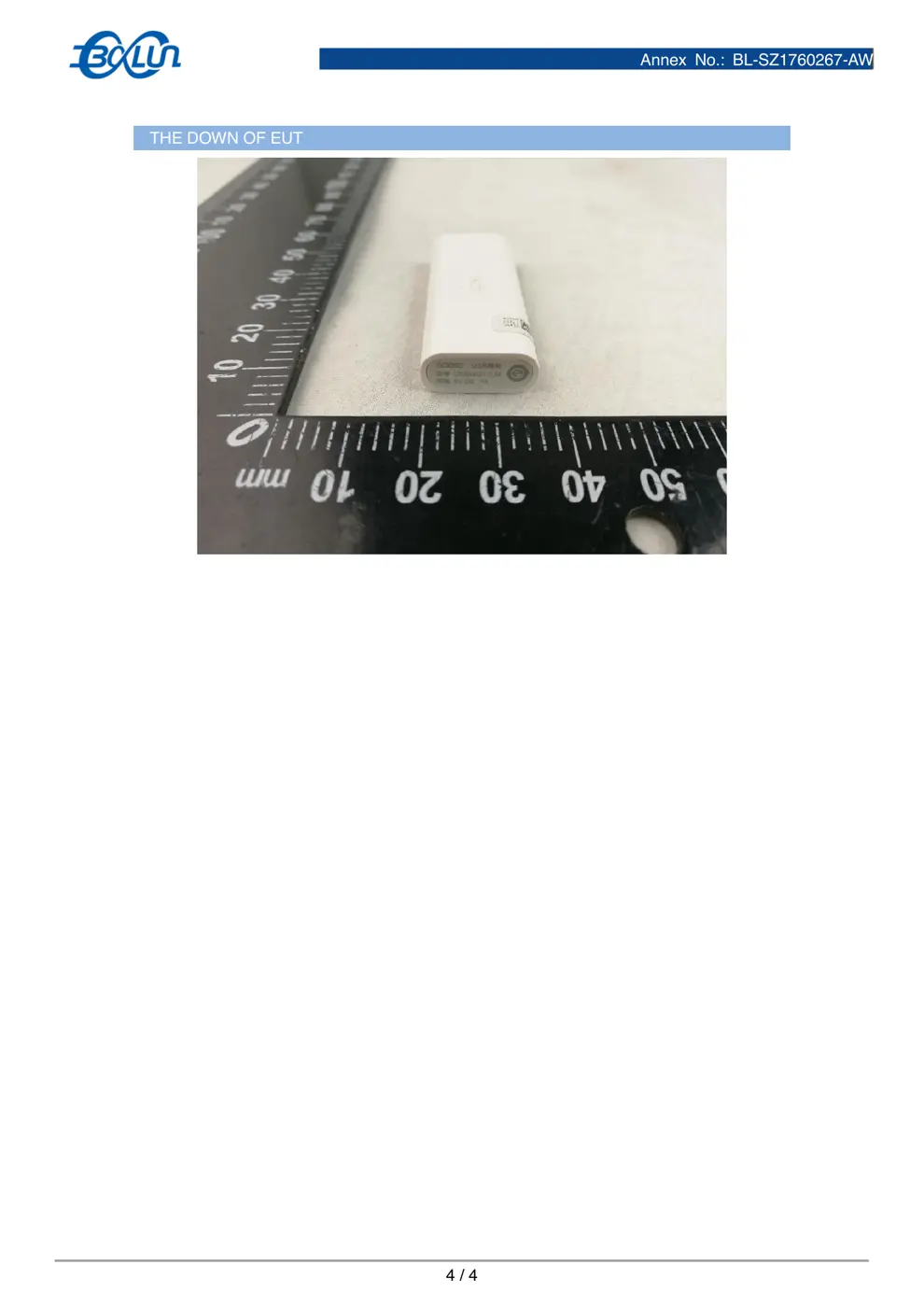
External Photos
Photos of the device exterior:
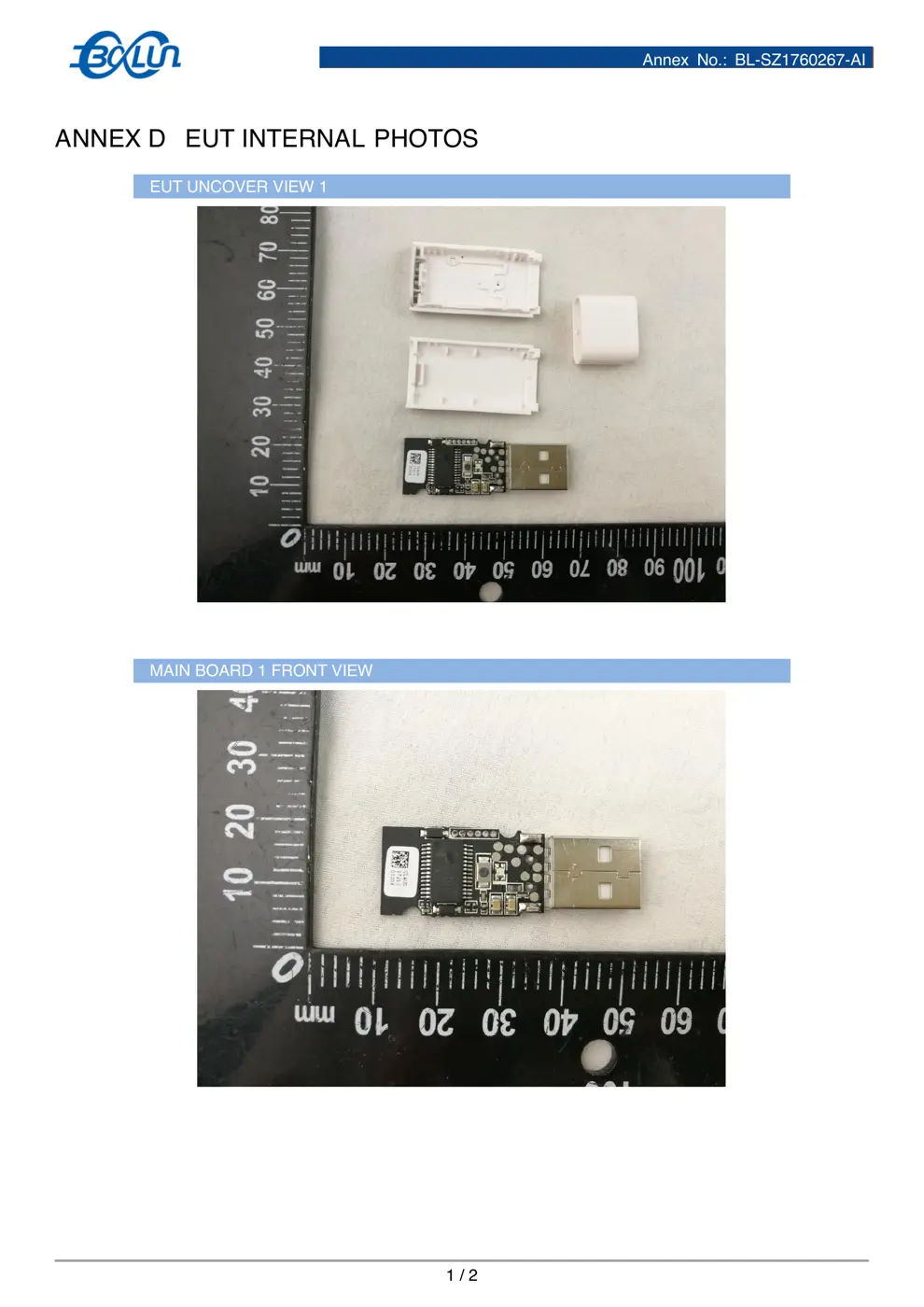
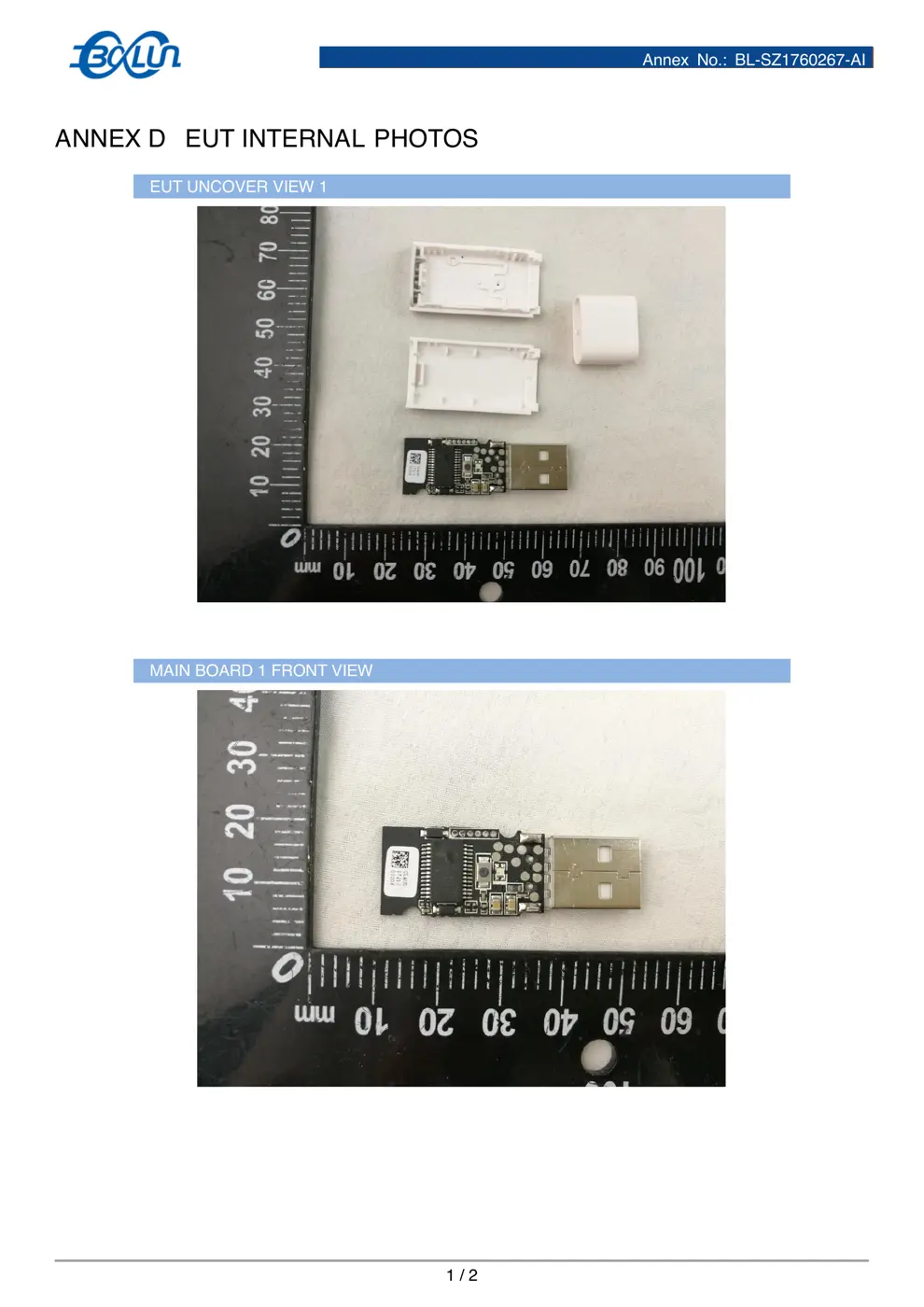
Internal Photos
Teardown photos showing the PCB and components:
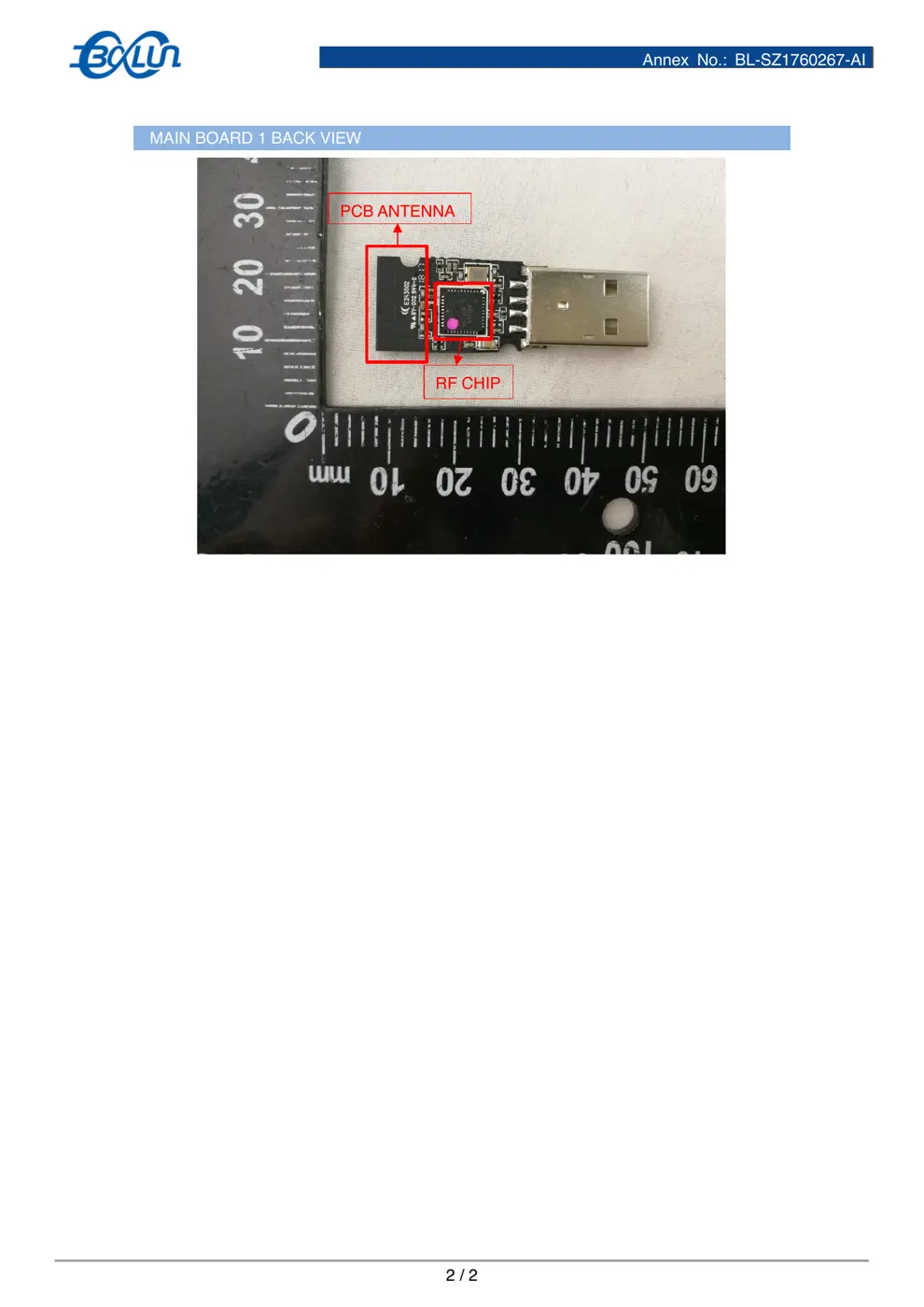
Verdict
The USBWG11LM is a Zigbee device from the Aqara Zigbee ecosystem.
📄 Click to view full text manual (SEO)
Aqara
Product
Manual
Introduction
USB
gateway
is
a
specially
designed
for
ZigBee
information
into
general
JSON
message
Format
(need
to
cooperate
with
the
SDK)
design
of
intelligent
products.It
can
through
the
USB
Mouth
on
the
adaptation
of
set-top
box
or
router,
will
be
based
on
the
ZigBee
protocol
Sensor,
controller
and
other
equipment
message
information
via
wi-fi
passthrough
to
the
cloud.
Basic
information
Model:
USBWG11LM
Dimensions:
47.5*18.5*8
mm
Wireless
connection:
ZigBee
Working
temperature:
-
20
℃
-
+60
℃
Working
humidity:
0%-
95%
RH
,
No
Condensation
Device
supported:
Android
4.4/iOS
8.0
and
above
Download
App
Search
for
“
Aqara
”
in
App
Store
or
scan
the
barcode
to
download
Aqara
App.
Connect
the
USB
gateway
device,
and
then
add
it
according
to
the
instruction
in
“
Add
Device
”
.
Add
device
1
、
The
set-top
box
or
a
router
connected
to
the
network;
2
、
Insert
the
USB
gateway
in
the
set-top
box
or
a
router
on
the
USB
interface;Open
the
3
、
Aqara
APP,
click
on
the
"equipment
list"
page
in
the
top
right
corner
of
the
"+",
To
add
equipment
page,
click
select
USB
gateway,
to
equipment
search;
4
、
Choose
the
you
want
to
add
equipment
from
search
results
FCC
STATEMENT
1.
This
device
complies
with
Part
15
of
the
FCC
Rules.
Operation
is
subject
to
the
following
two
conditions:
(1)
This
device
may
not
cause
harmful
interference.
(2)
This
device
must
accept
any
interference
received,
including
interference
that
may
cause
undesired
operation.
2.
Changes
or
modifications
not
expressly
approved
by
the
party
responsible
for
compliance
could
void
the
user's
authority
to
operate
the
equipment.
NOTE:
This
equipment
has
been
tested
and
found
to
comply
with
the
limits
for
a
Class
B
digital
device,
pursuant
to
Part
15
of
the
FCC
Rules.
These
limits
are
designed
to
provide
reasonable
protection
against
harmful
interference
in
a
residential
installation.
This
equipment
generates
uses
and
can
radiate
radio
frequency
energy
and,
if
not
installed
and
used
in
accordance
with
the
instructions,
may
cause
harmful
interference
to
radio
communications.
However,
there
is
no
guarantee
that
interference
will
not
occur
in
a
particular
installation.
If
this
equipment
does
cause
harmful
interference
to
radio
or
television
reception,
which
can
be
determined
by
turning
the
equipment
off
and
on,
the
user
is
encouraged
to
try
to
correct
the
interference
by
one
or
more
of
the
following
measures:
Reorient
or
relocate
the
receiving
antenna.
Increase
the
separation
between
the
equipment
and
receiver.
Connect
the
equipment
into
an
outlet
on
a
circuit
different
from
that
to
which
the
receiver
is
connected.
Consult
the
dealer
or
an
experienced
radio/TV
technician
for
help.
RF
warning
statement:
The
device
has
been
evaluated
to
meet
general
RF
exposure
requirement.
The
device
can
be
used
in
portable
exposure
condition
without
restriction....