
WSK02E Reset & Teardown (FCC ID 2AKIT-WSK02E)
Factory reset and internal photos for Aqara (Lumi United) WSK02E. Aqara Zigbee smart plug.
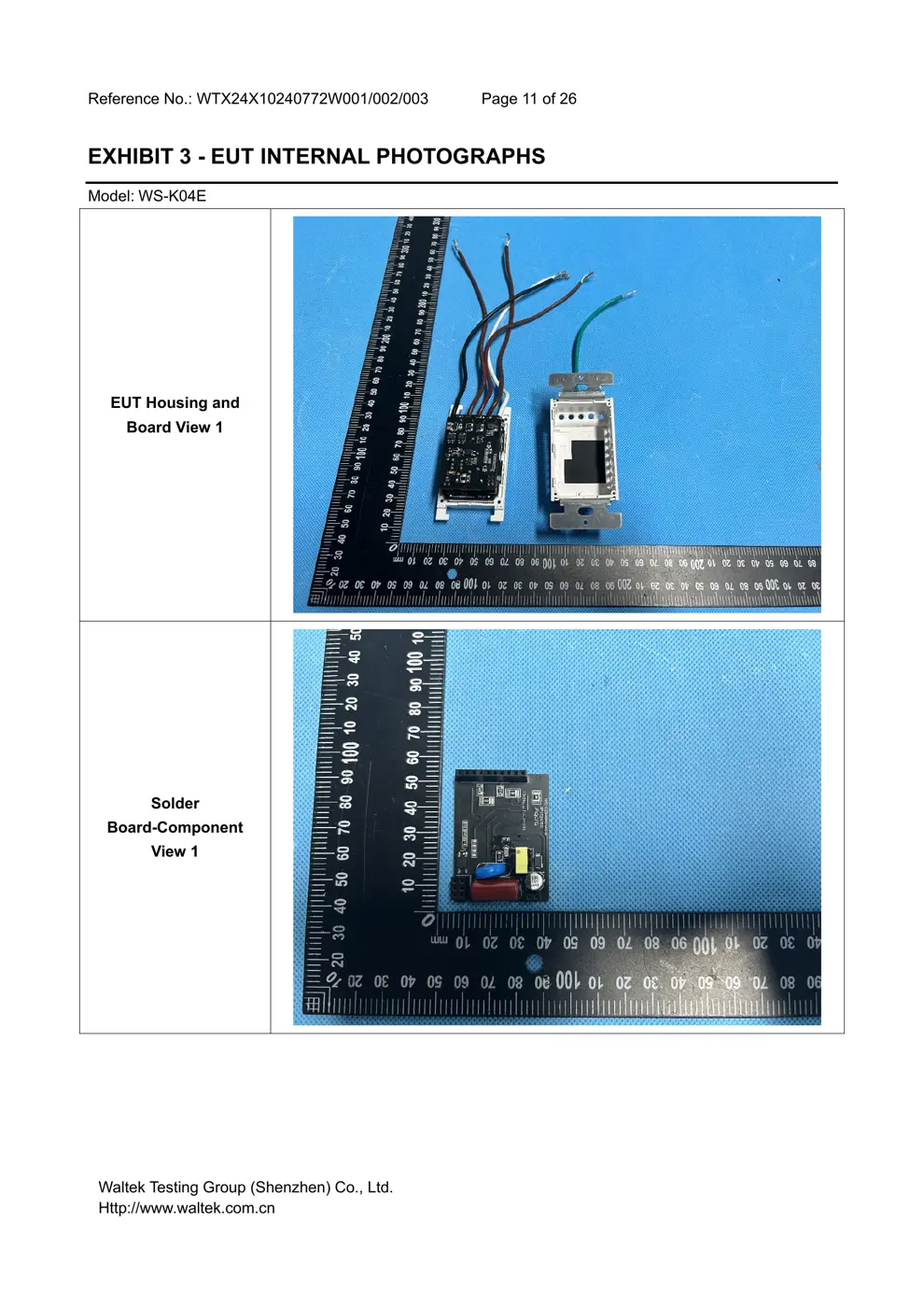
Before you buy the Aqara (Lumi United) WSK02E, check what's inside.
The Aqara Light Switch H2 US is a smart wall switch that utilizes Zigbee and Thread for communication, designed to replace traditional light switches. It offers advanced features like scheduling and power monitoring when paired with a compatible hub and supports Matter for broader smart home integration.
⚠️ NOTE: Disconnect Mains power at the circuit breaker before installation.
Quick Specs
- Manufacturer: Aqara (Lumi United)
- Model: WSK02E
- Protocol: Zigbee
- Chipset: Zigbee SoC
- Ecosystem: Aqara Zigbee
- App: Aqara Home
🔧 Geek Corner (Flashing Info)
- Chipset: Unknown (likely an NXP or Silicon Labs Zigbee SoC)
- Flashable: ❌ No
- Info: Proprietary Aqara/Lumi firmware and likely a locked bootloader.
Reset Guide
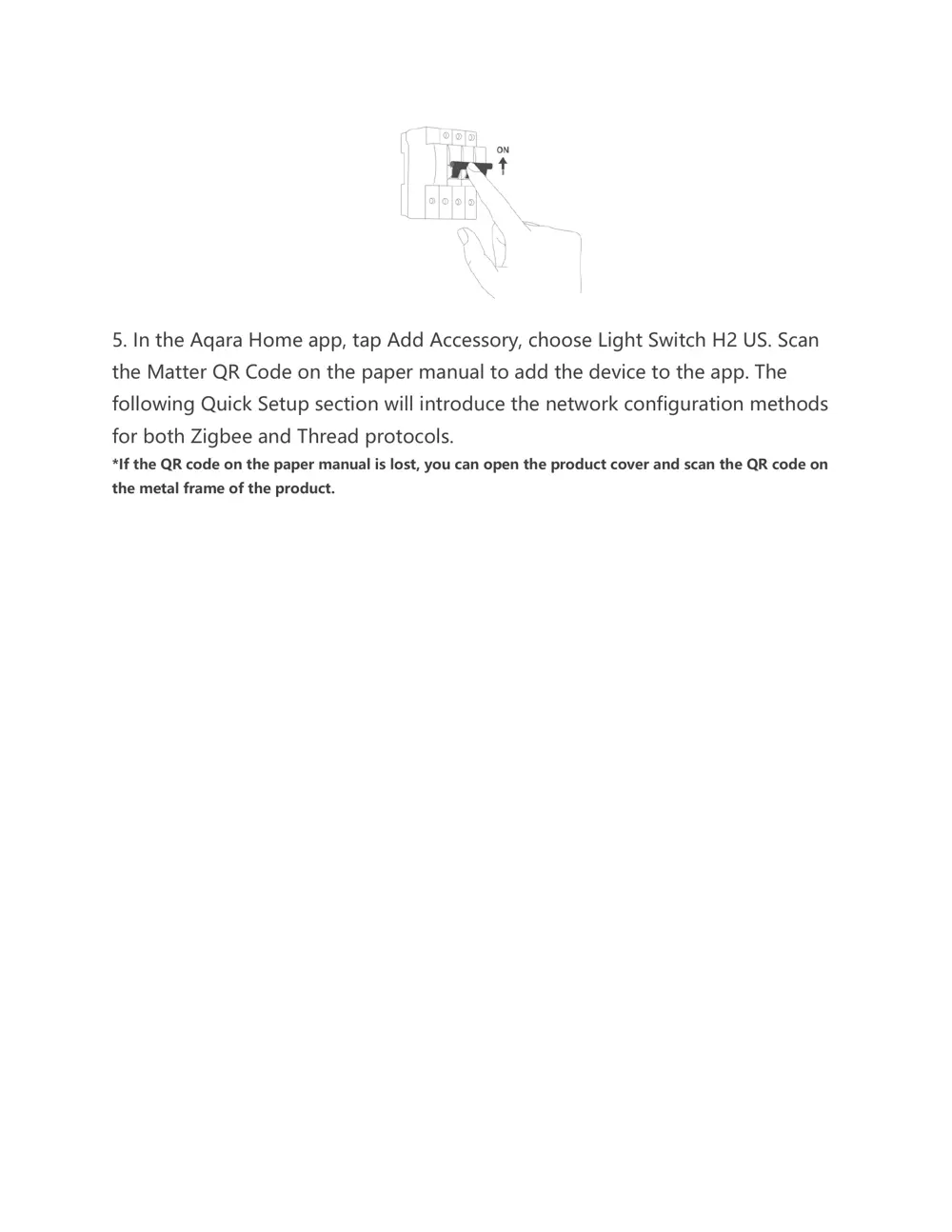
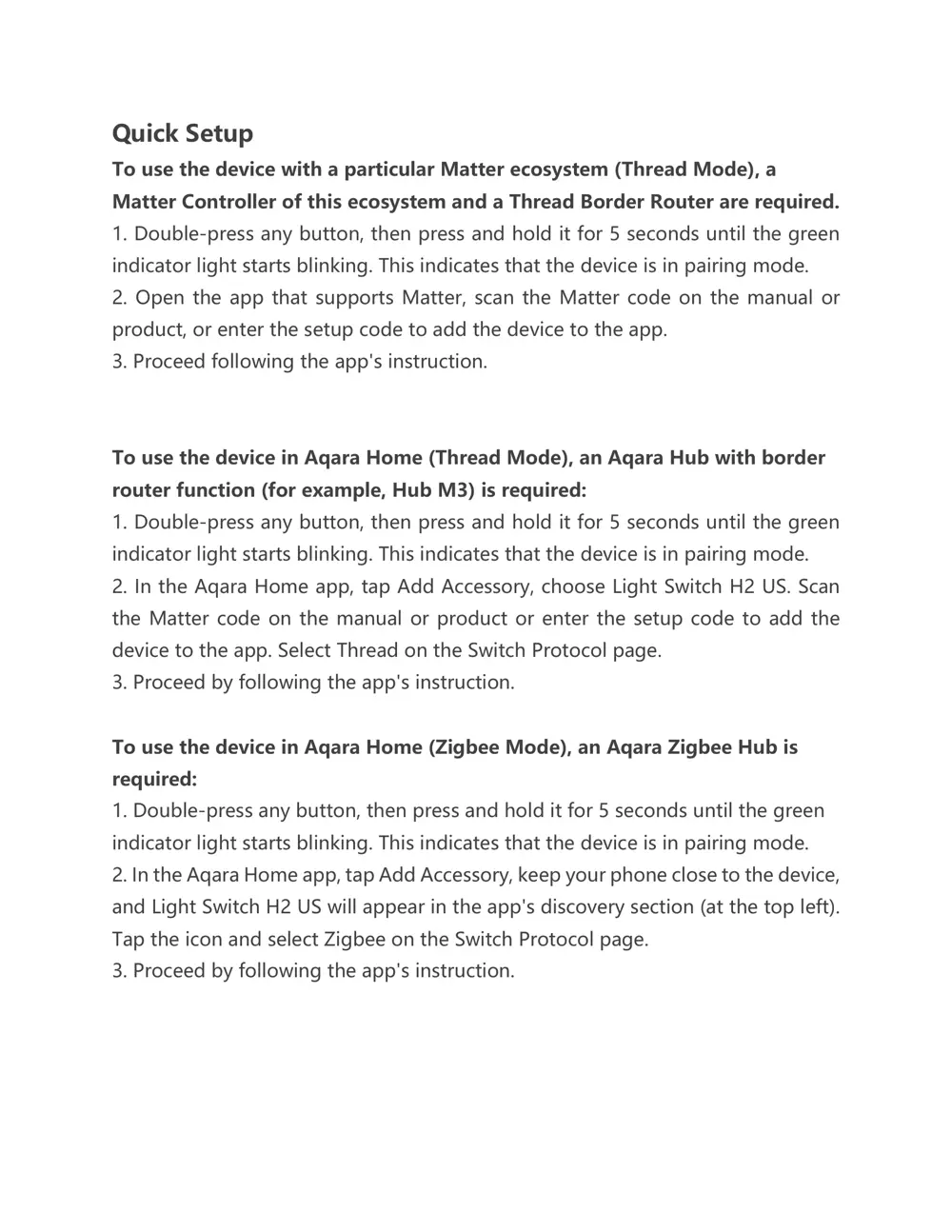
Press and hold it for 5 seconds until the green indicator light starts blinking.
User Manual
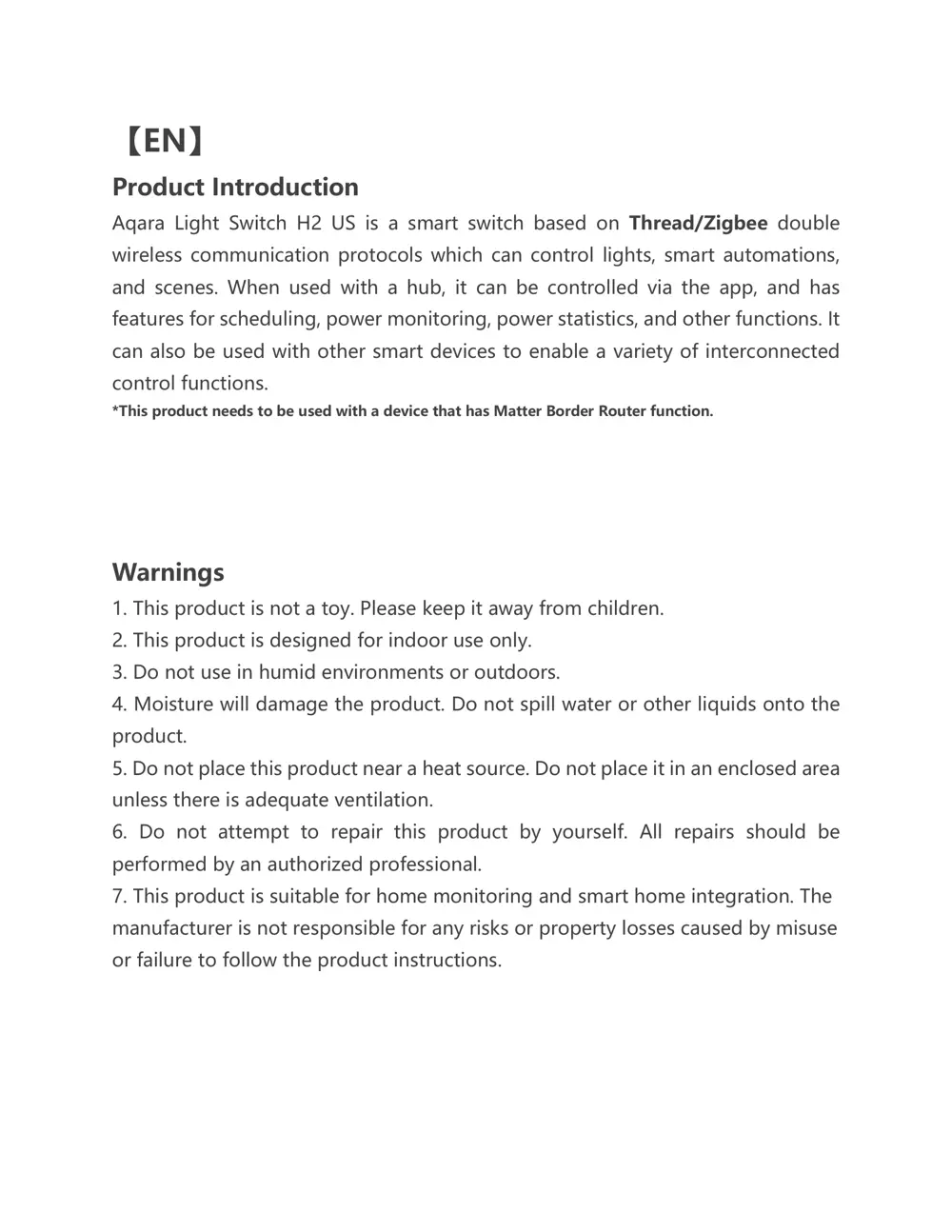
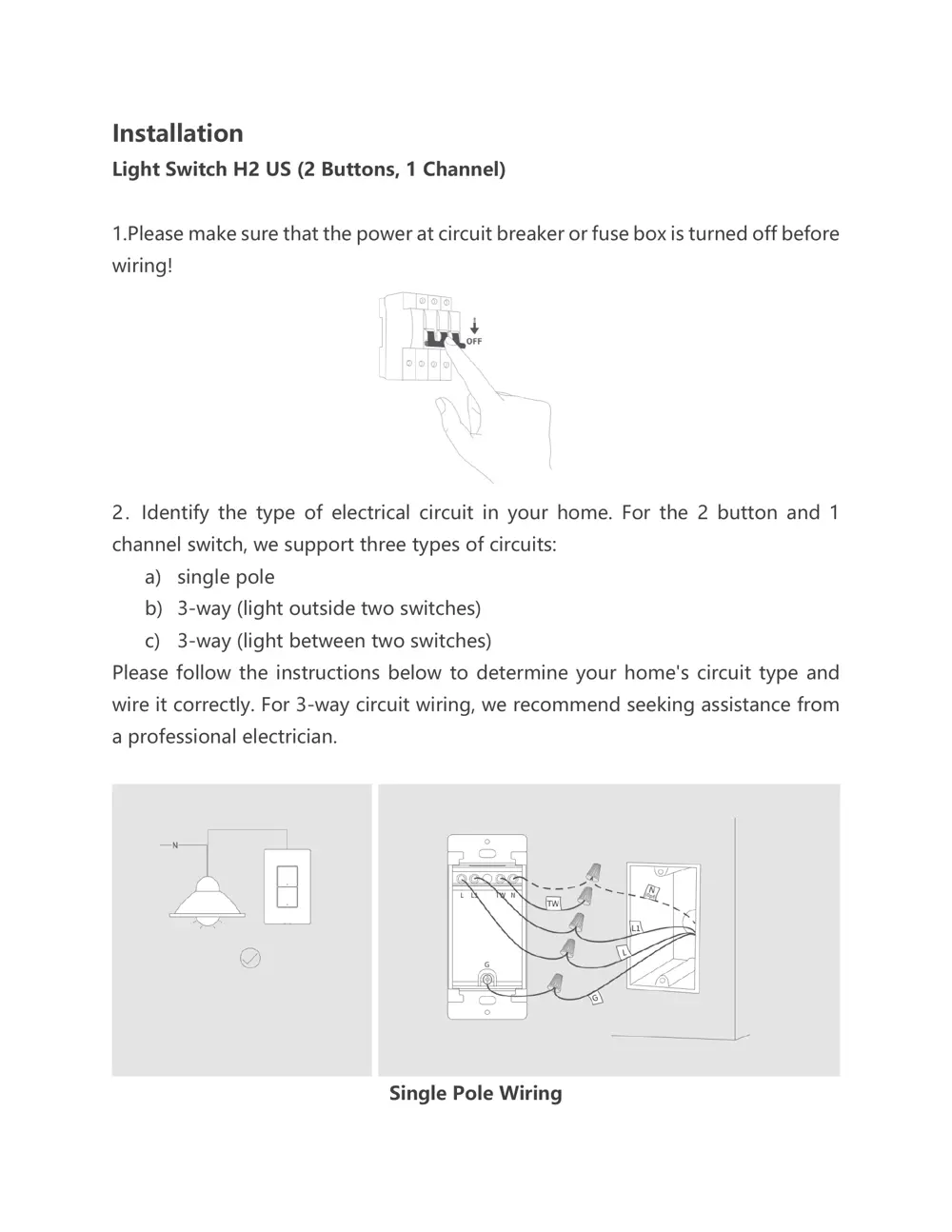
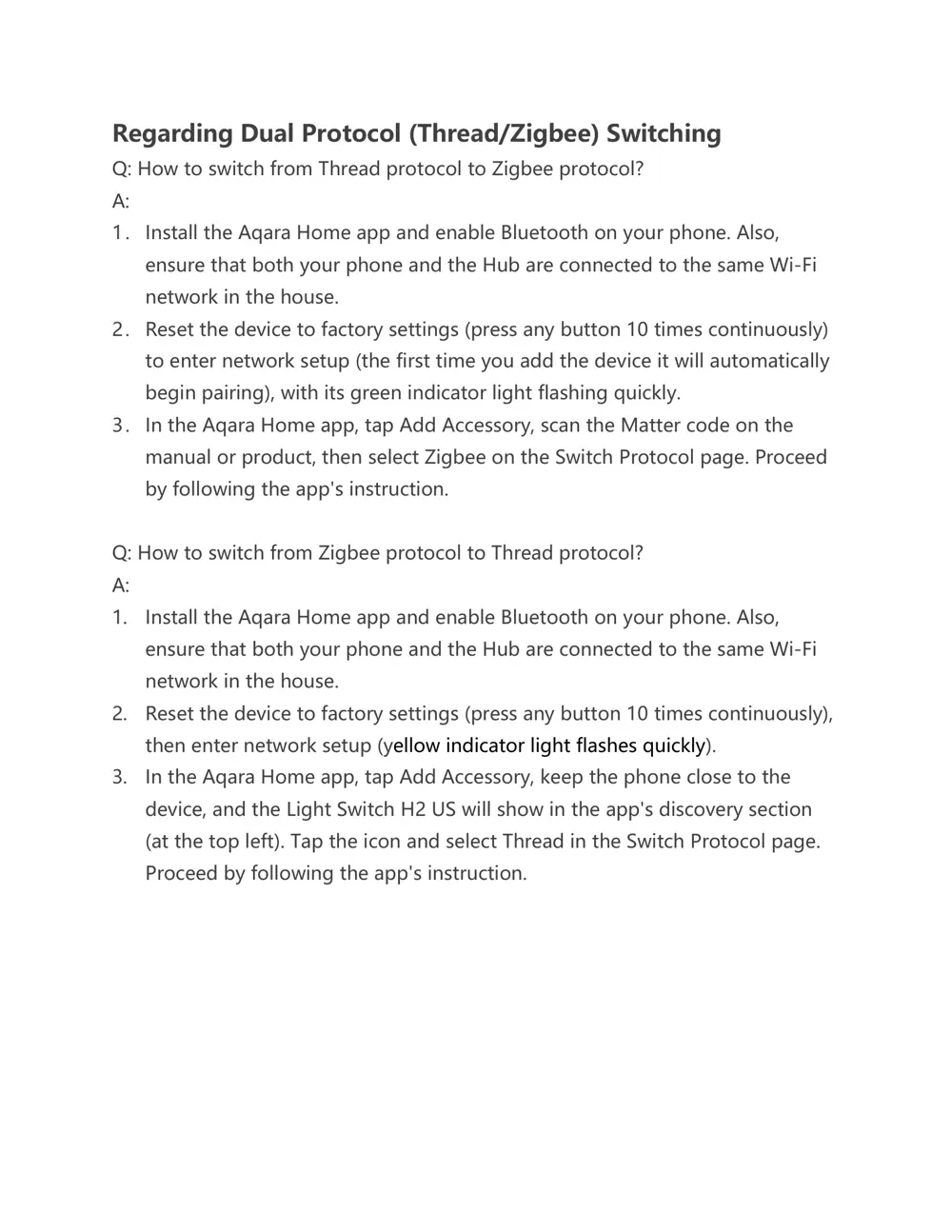
Scanned pages from the official user manual:
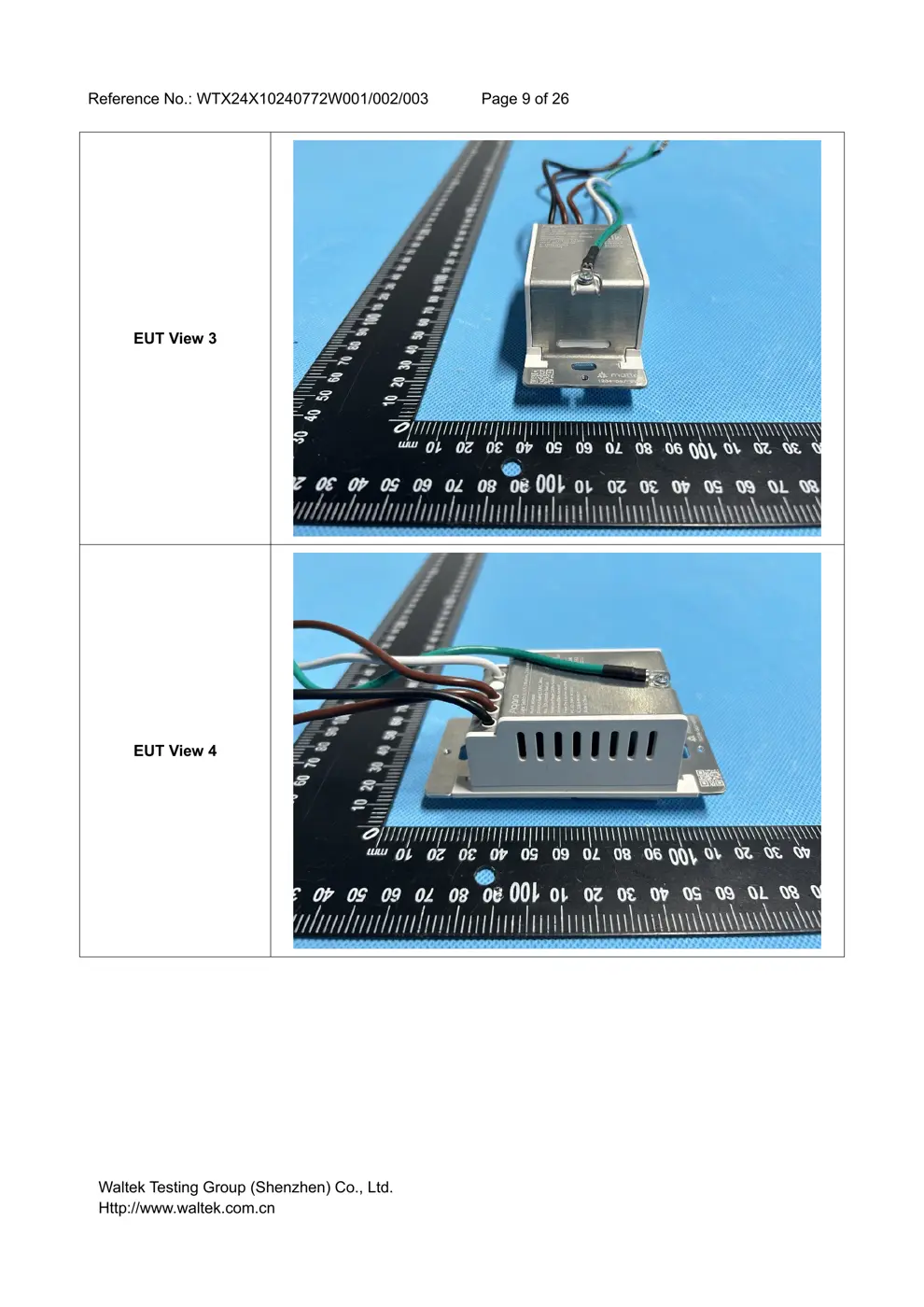
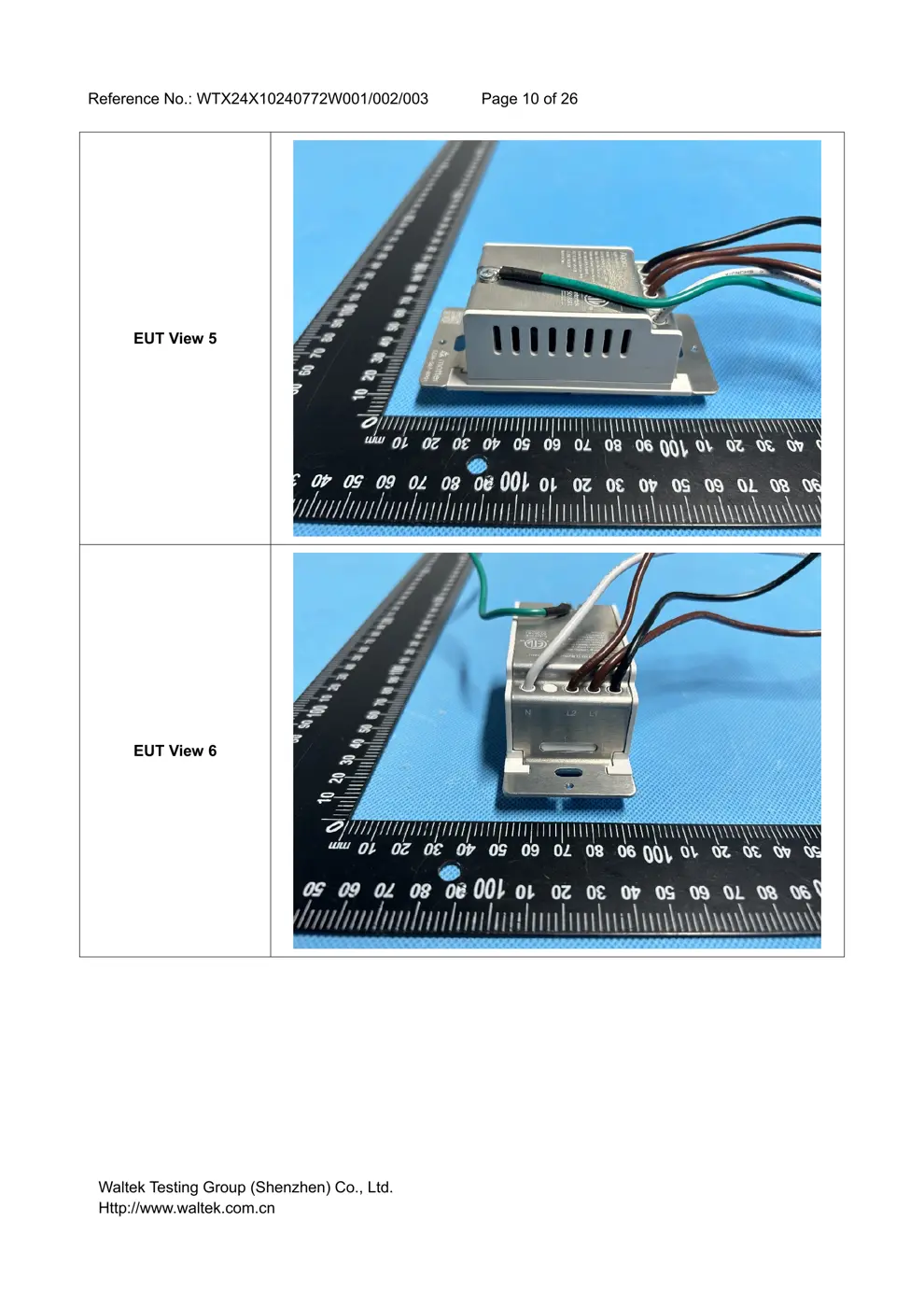
External Photos
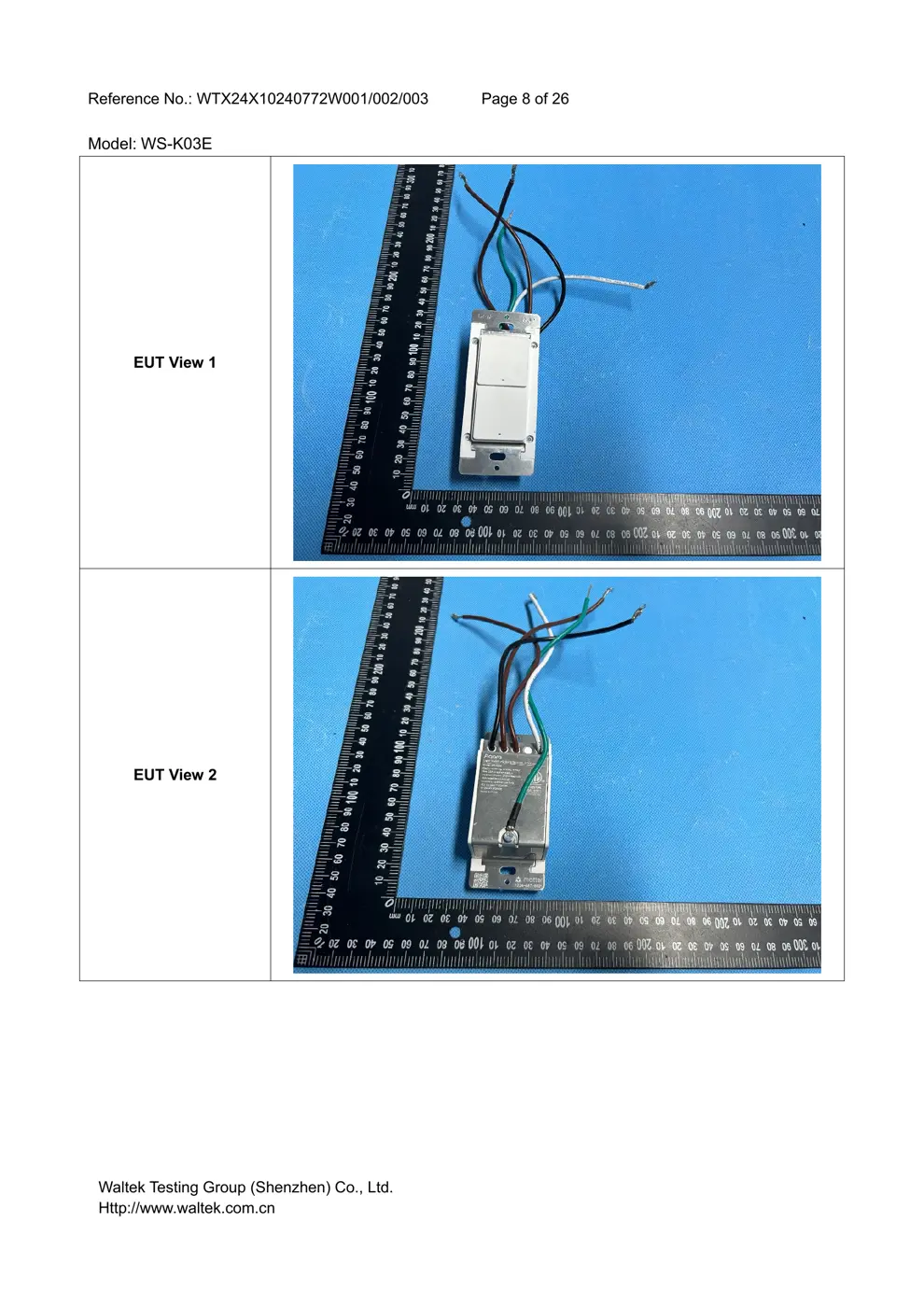
Photos of the device exterior:
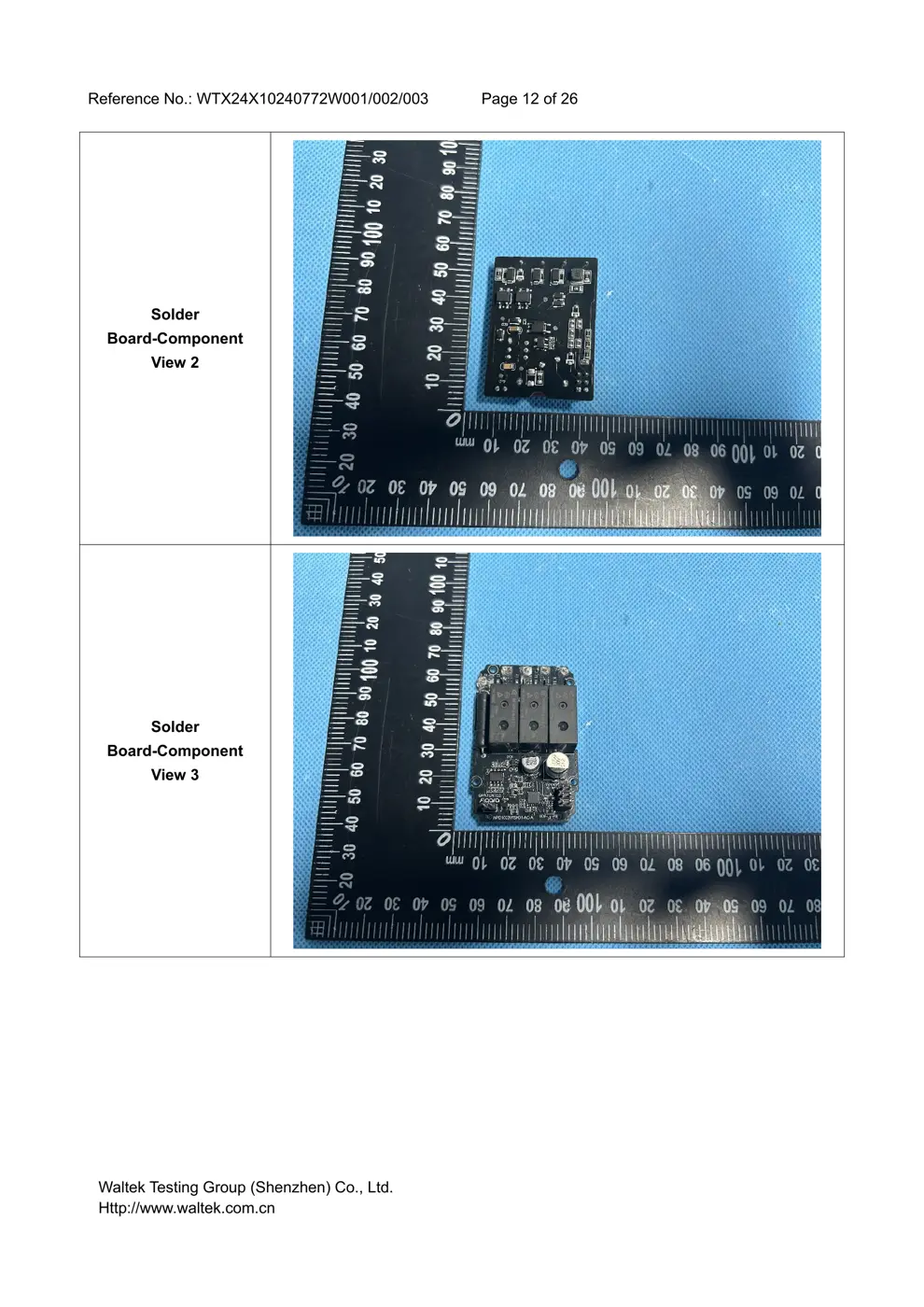
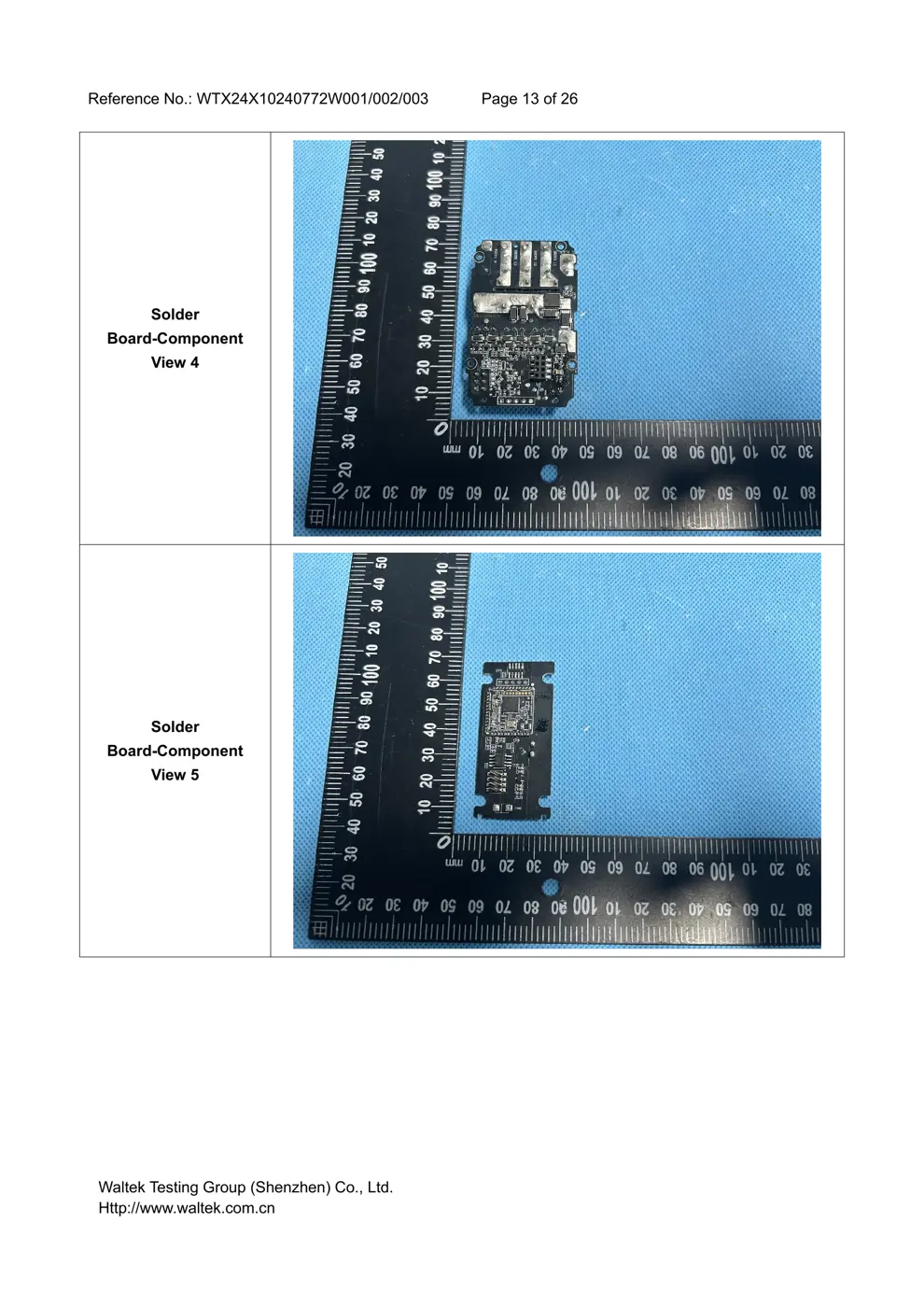
Internal Photos
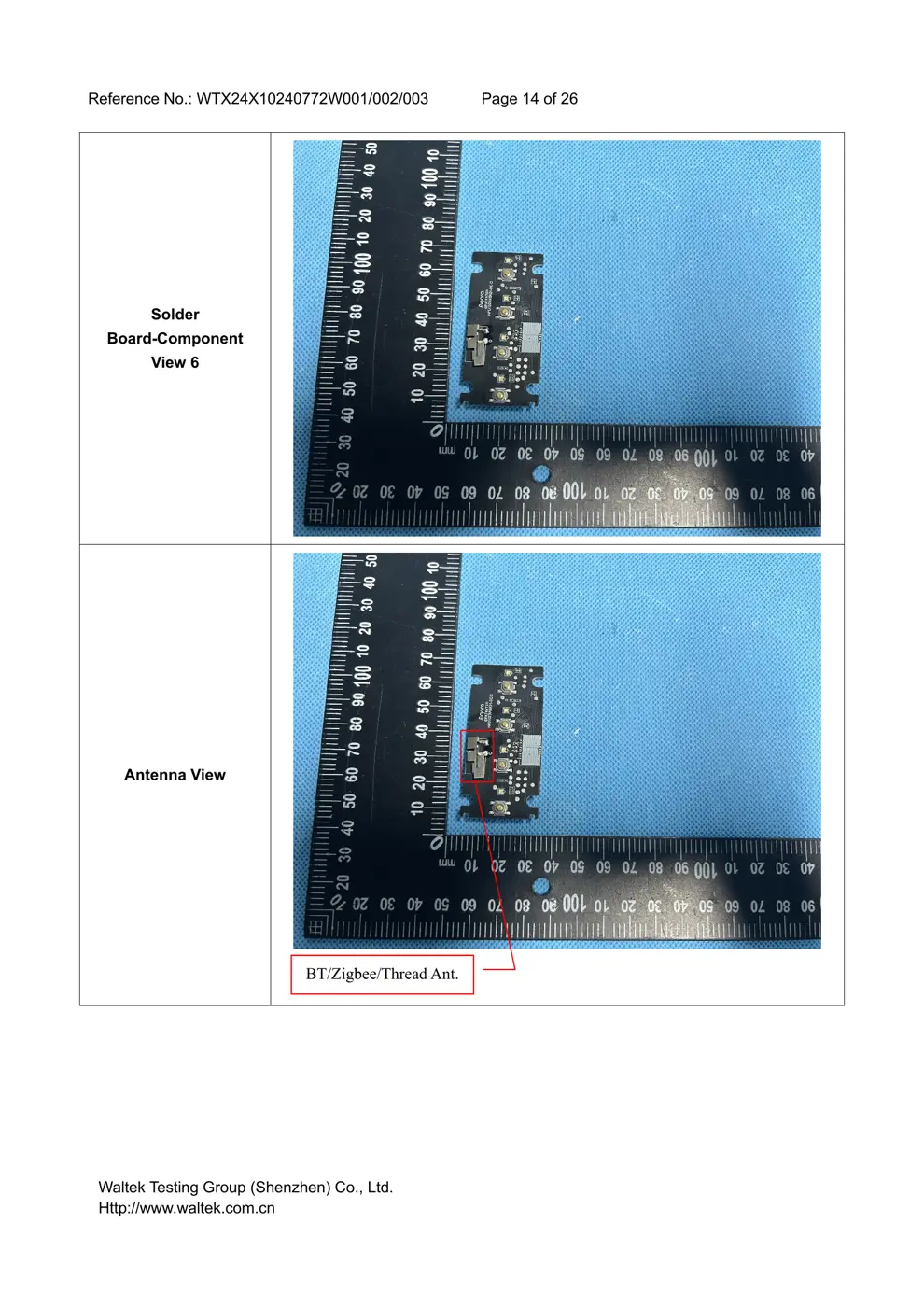
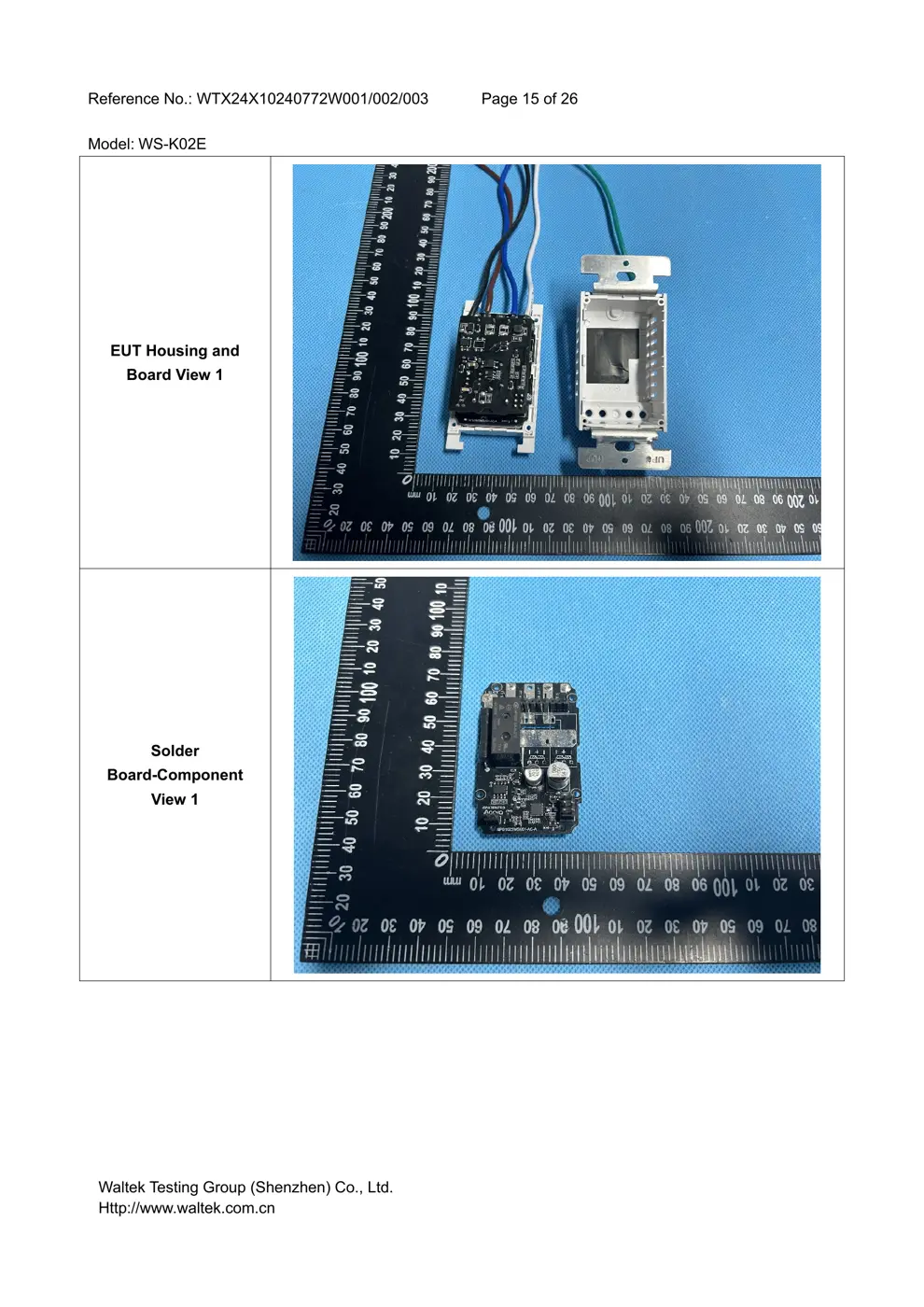
Teardown photos showing the PCB and components:
Verdict
The WSK02E is a Zigbee device from the Aqara Zigbee ecosystem.
📄 Click to view full text manual (SEO)
Light Switch H2 US – User Manual For Light Switch H2 US (2 Buttons, 1 Channel) Light Switch H2 US (2 Buttons, 2 Channels) Light Switch H2 US (4 Buttons, 3 Channels) 【EN】Light Switch H2 US User Manual Online Support: https://store-support.aqara.com/products/light-switch-h2-us/
【EN】 Product Introduction Aqara Light Switch H2 US is a smart switch based on Thread/Zigbee double wireless communication protocols which can control lights, smart automations, and scenes. When used with a hub, it can be controlled via the app, and has features for scheduling, power monitoring, power statistics, and other functions. It can also be used with other smart devices to enable a variety of interconnected control functions. *This product needs to be used with a device that has Matter Border Router function. Warnings 1. This product is not a toy. Please keep it away from children. 2. This product is designed for indoor use only. 3. Do not use in humid environments or outdoors. 4. Moisture will damage the product. Do not spill water or other liquids onto the product. 5. Do not place this product near a heat source. Do not place it in an enclosed area unless there is adequate ventilation. 6. Do not attempt to repair this product by yourself. All repairs should be performed by an authorized professional. 7. This product is suitable for home monitoring and smart home integration. The manufacturer is not responsible for any risks or property losses caused by misuse or failure to follow the product instructions.
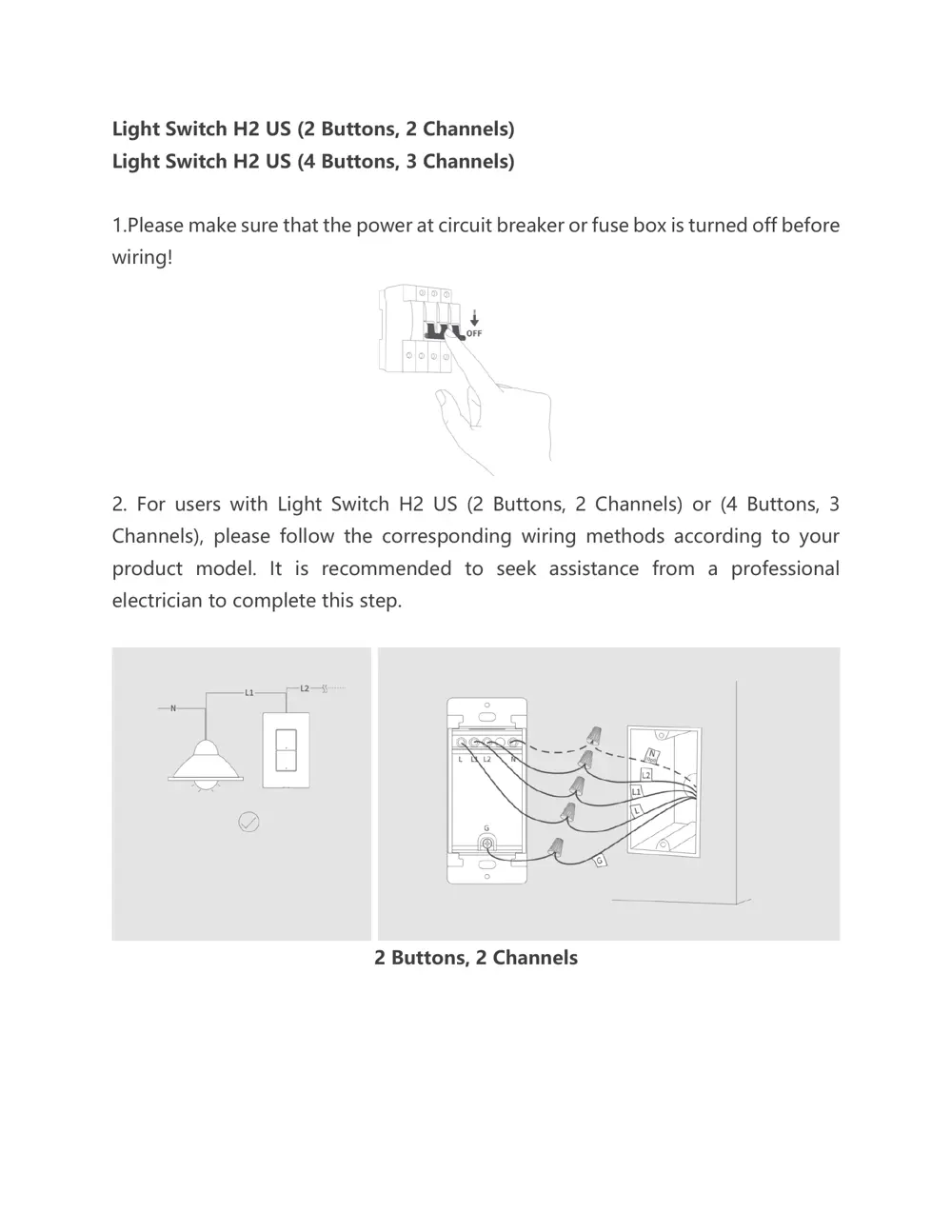
Installation Light Switch H2 US (2 Buttons, 1 Channel) 1.Please make sure that the power at circuit breaker or fuse box is turned off before wiring!
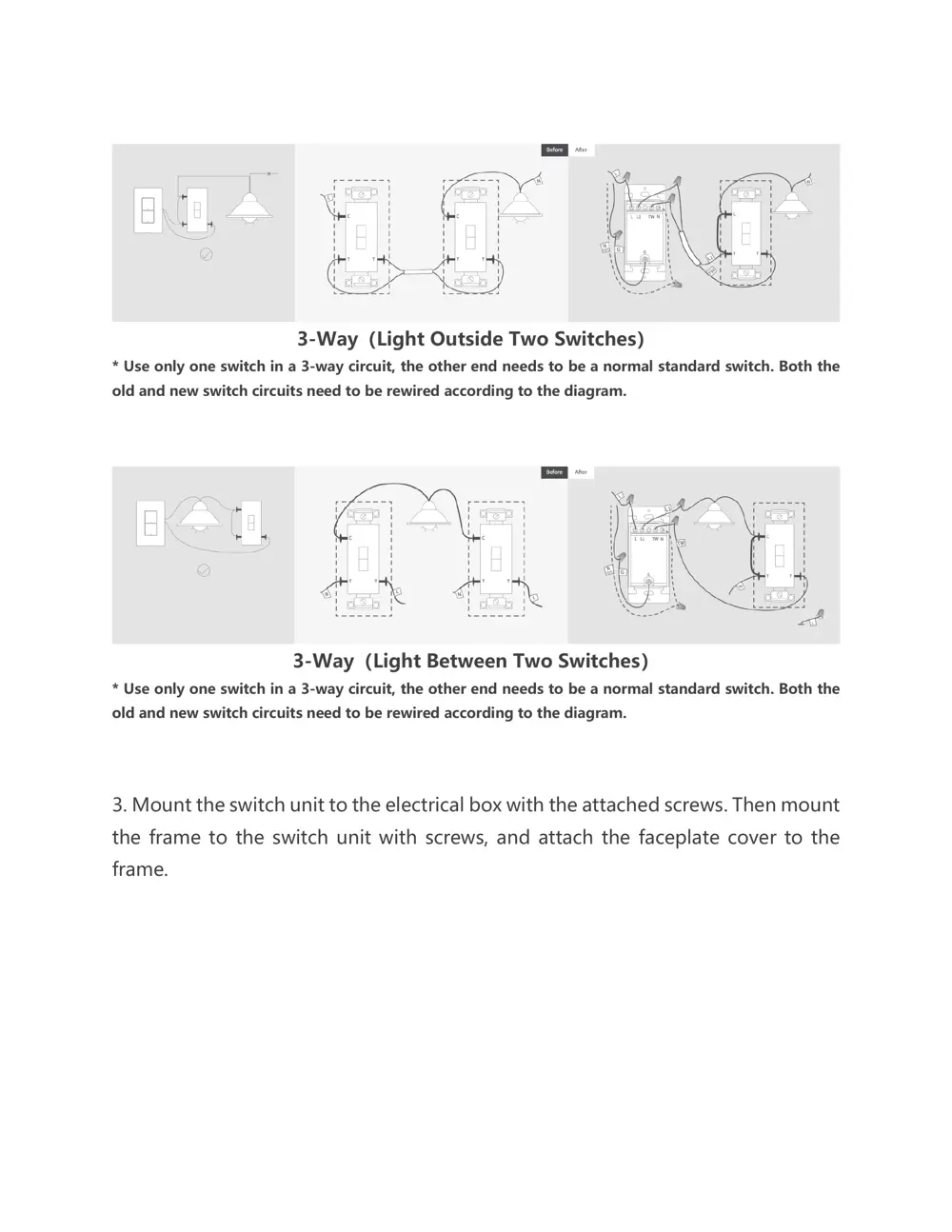
 2.Identify the type of electrical circuit in your home. For the 2 button and 1 channel switch, we support three types of circuits: a) single pole b) 3-way (light outside two switches) c) 3-way (light between two switches) Please follow the instructions below to determine your home's circuit type and wire it correctly. For 3-way circuit wiring, we recommend seeking assistance from a professional electrician.
 Single Pole Wiring

 3-Way(Light Outside Two Switches) * Use only one switch in a 3-way circuit, the other end needs to be a normal standard switch. Both the old and new switch circuits need to be rewired according to the diagram.
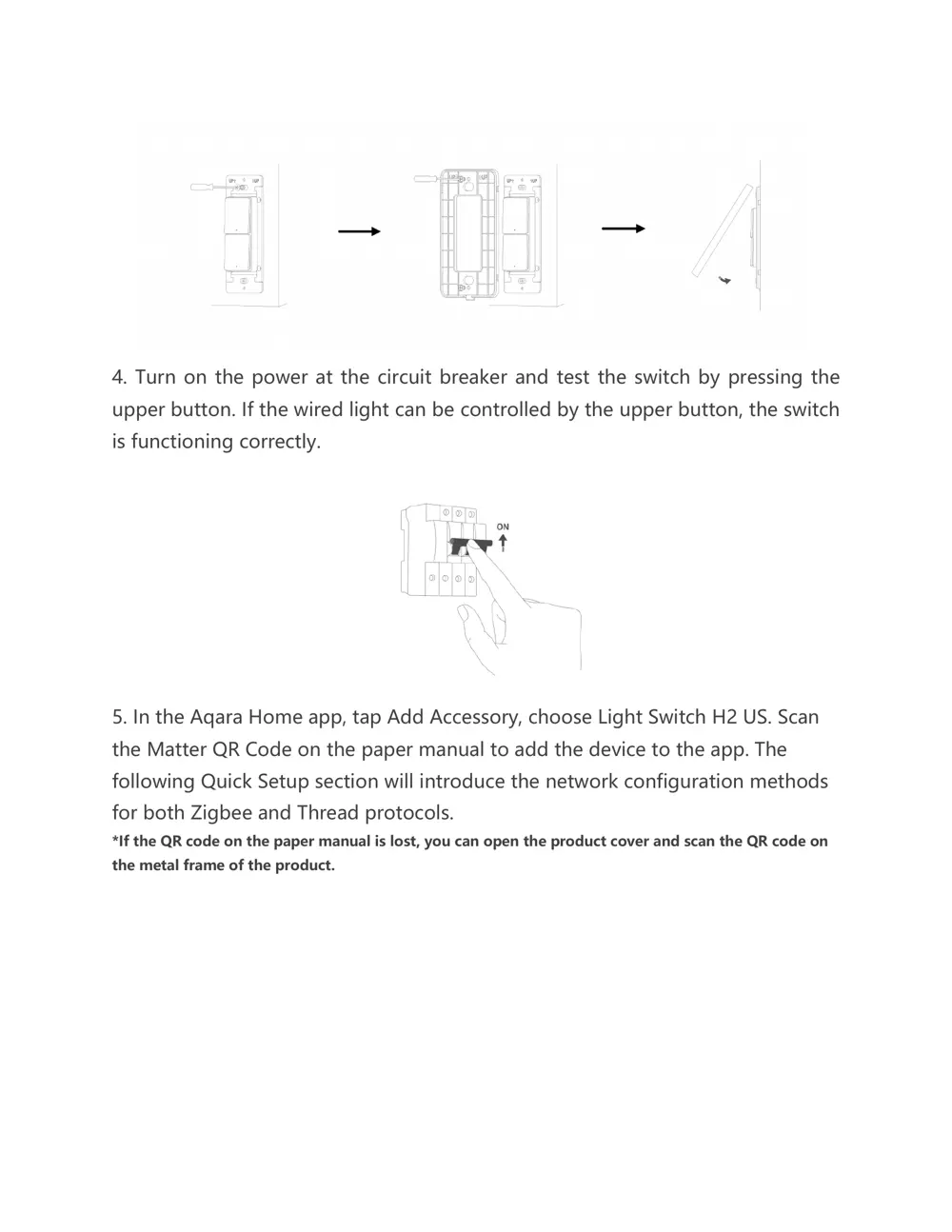
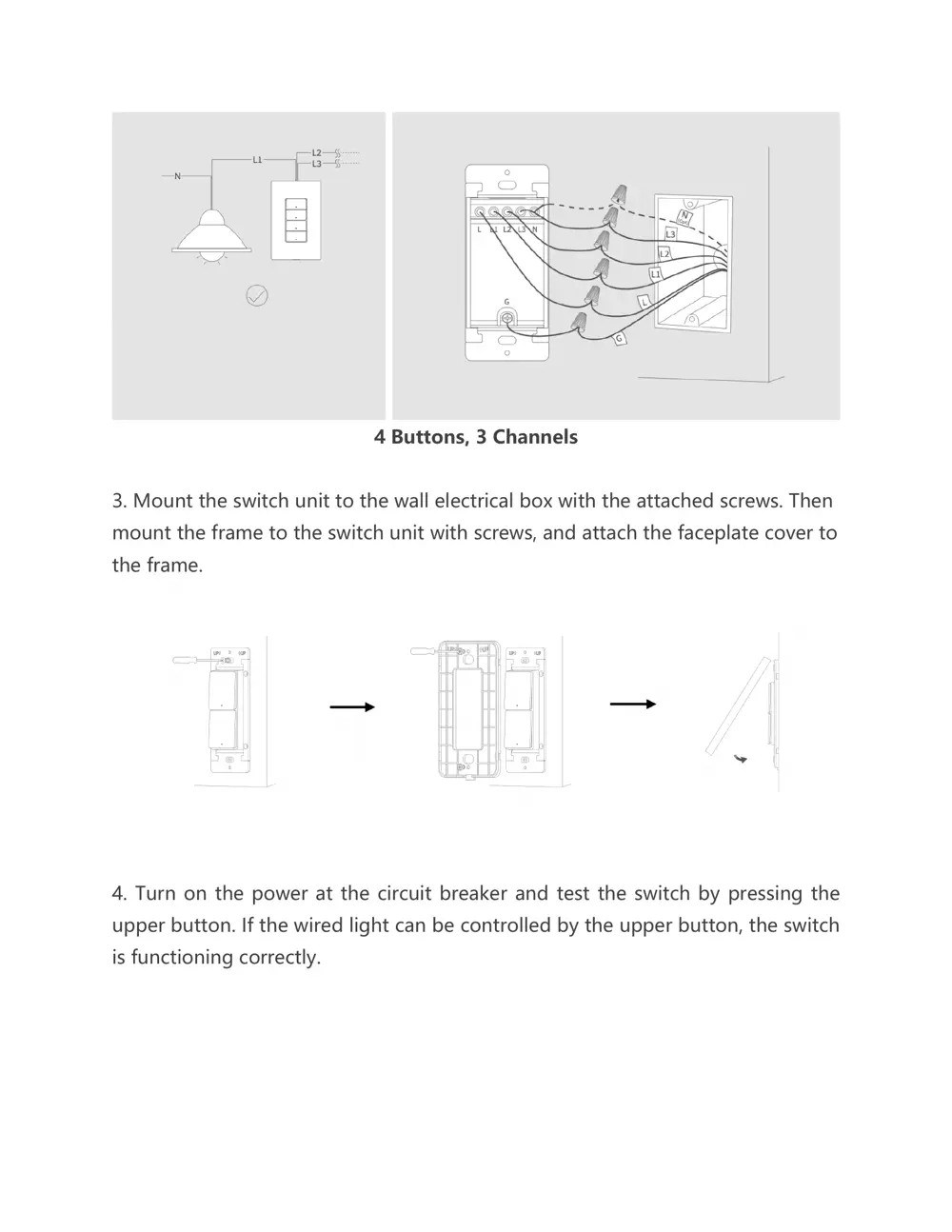
 3-Way(Light Between Two Switches) * Use only one switch in a 3-way circuit, the other end needs to be a normal standard switch. Both the old and new switch circuits need to be rewired according to the diagram. 3. Mount the switch unit to the electrical box with the attached screws. Then mount the frame to the switch unit with screws, and attach the faceplate cover to the frame.

 4. Turn on the power at the circuit breaker and test the switch by pressing the upper button. If the wired light can be controlled by the upper button, the switch is functioning correctly.
 5. In the Aqara Home app, tap Add Accessory, choose Light Switch H2 US. Scan the Matter QR Code on the paper manua...