
R65 Reset & Teardown (FCC ID 2AJ5F-SM-R65)
Factory reset and internal photos for Tuya OEM R65. Tuya / Smart Life smart plug.
Before you buy the Tuya OEM R65, check what's inside.
This Tuya OEM R65 is a Wi-Fi enabled smart plug that integrates with the Smart Life app and supports voice control via Google Assistant and Alexa. It operates on a standard 110-240V mains power supply.
⚠️ NOTE: Ensure the device is connected to a stable 110-240V mains power supply and follow app instructions for setup.
Quick Specs
- Manufacturer: Tuya OEM
- Model: R65
- Protocol: WiFi
- Chipset: Realtek/Beken
- Ecosystem: Tuya / Smart Life
- App: Smart Life
🔧 Geek Corner (Flashing Info)
- Chipset: Beken
- Flashable: ❌ No
- Info: The device uses a Beken chipset which is generally not easily flashable with custom firmware like Tasmota without significant effort or specialized hardware.
Reset Guide
Reset the device, the blue indicator light flash is 2 times per second, then it enter quick connection mode.
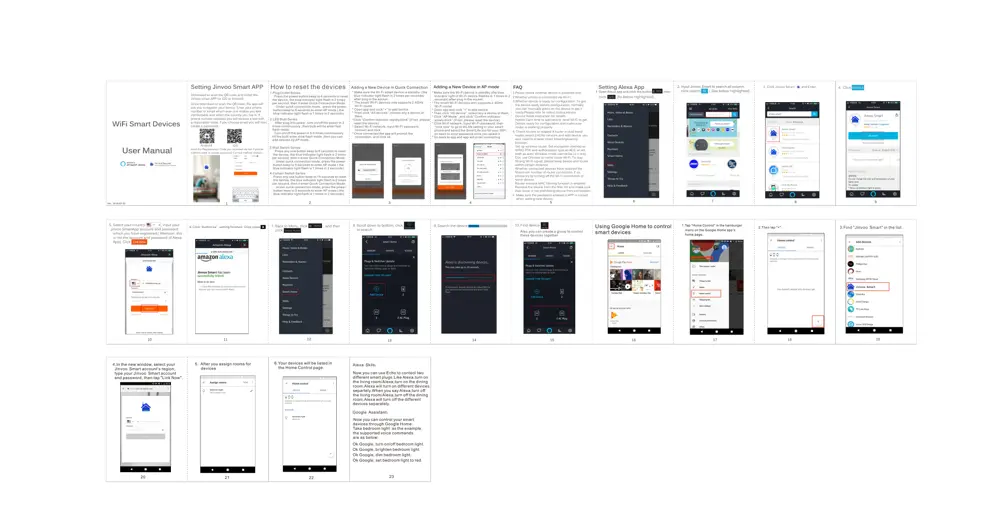
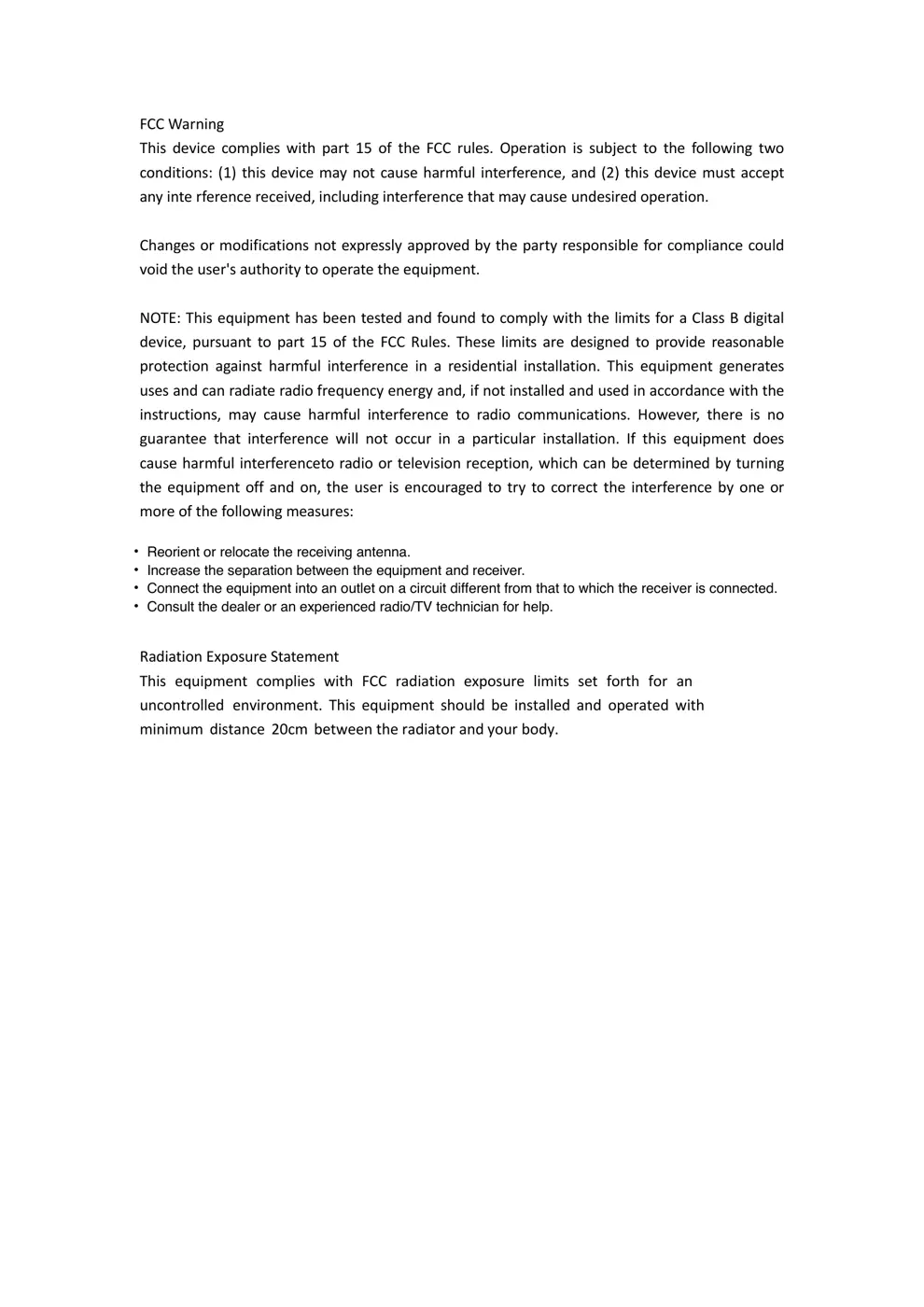
User Manual
Scanned pages from the official user manual:
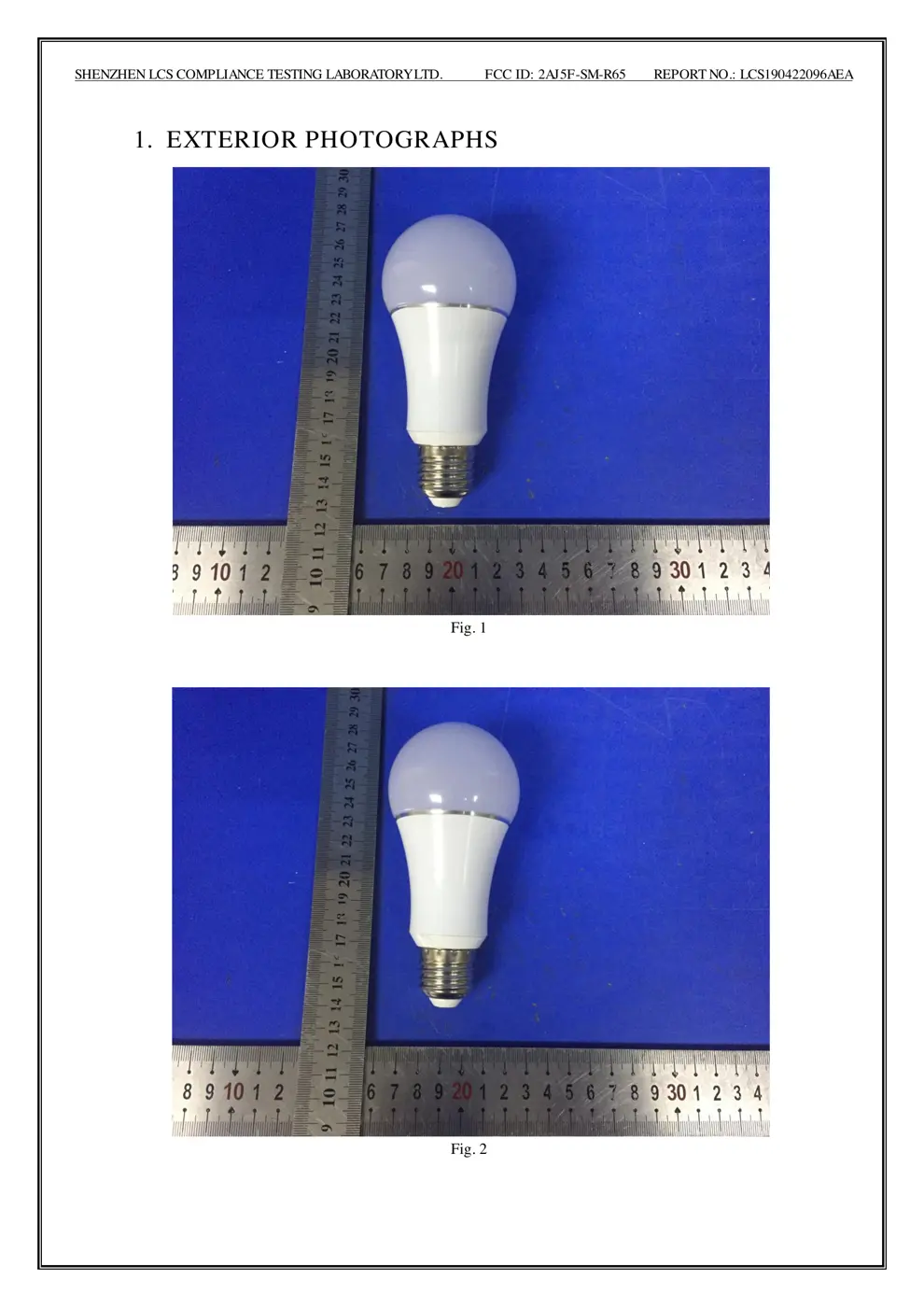
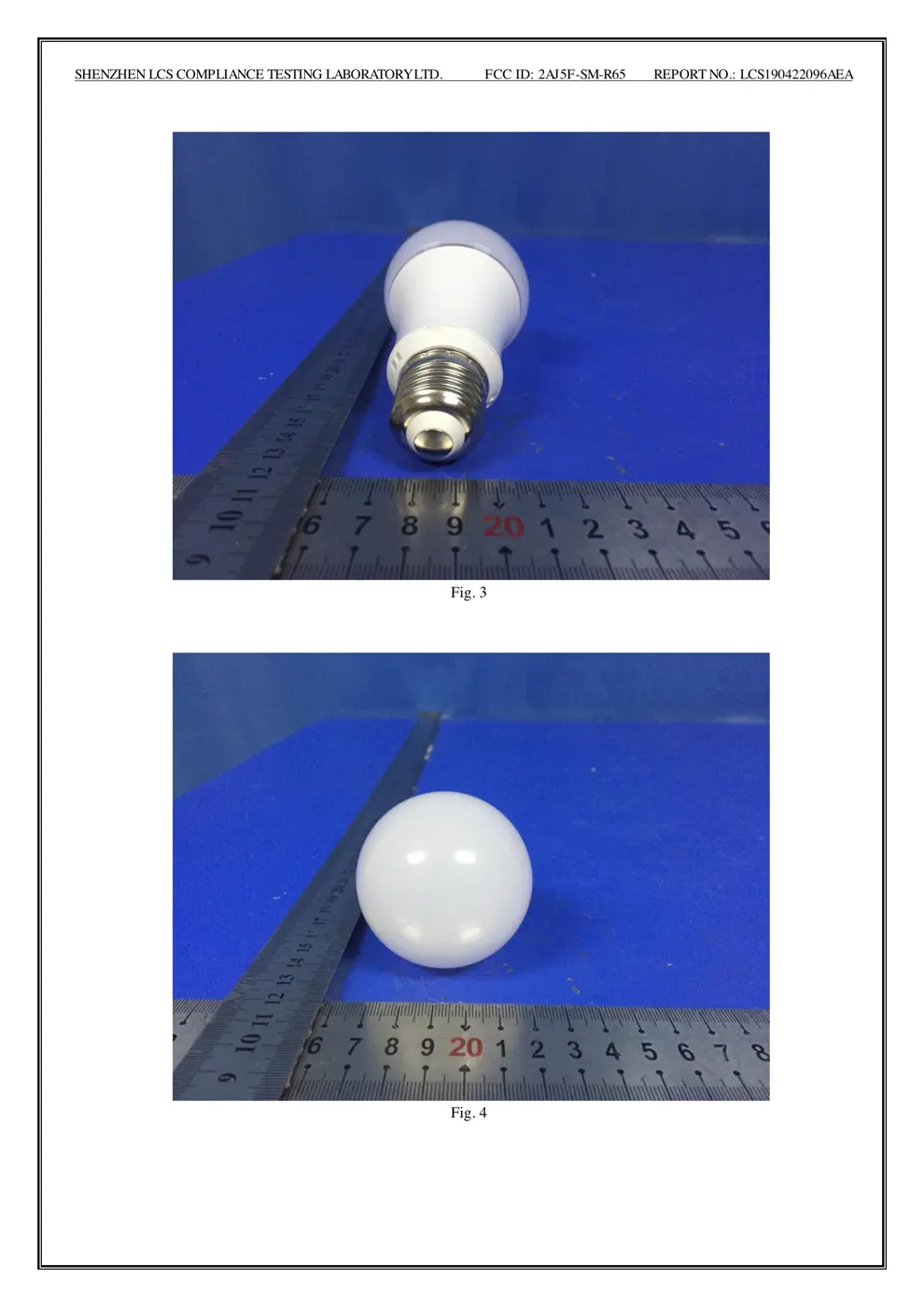
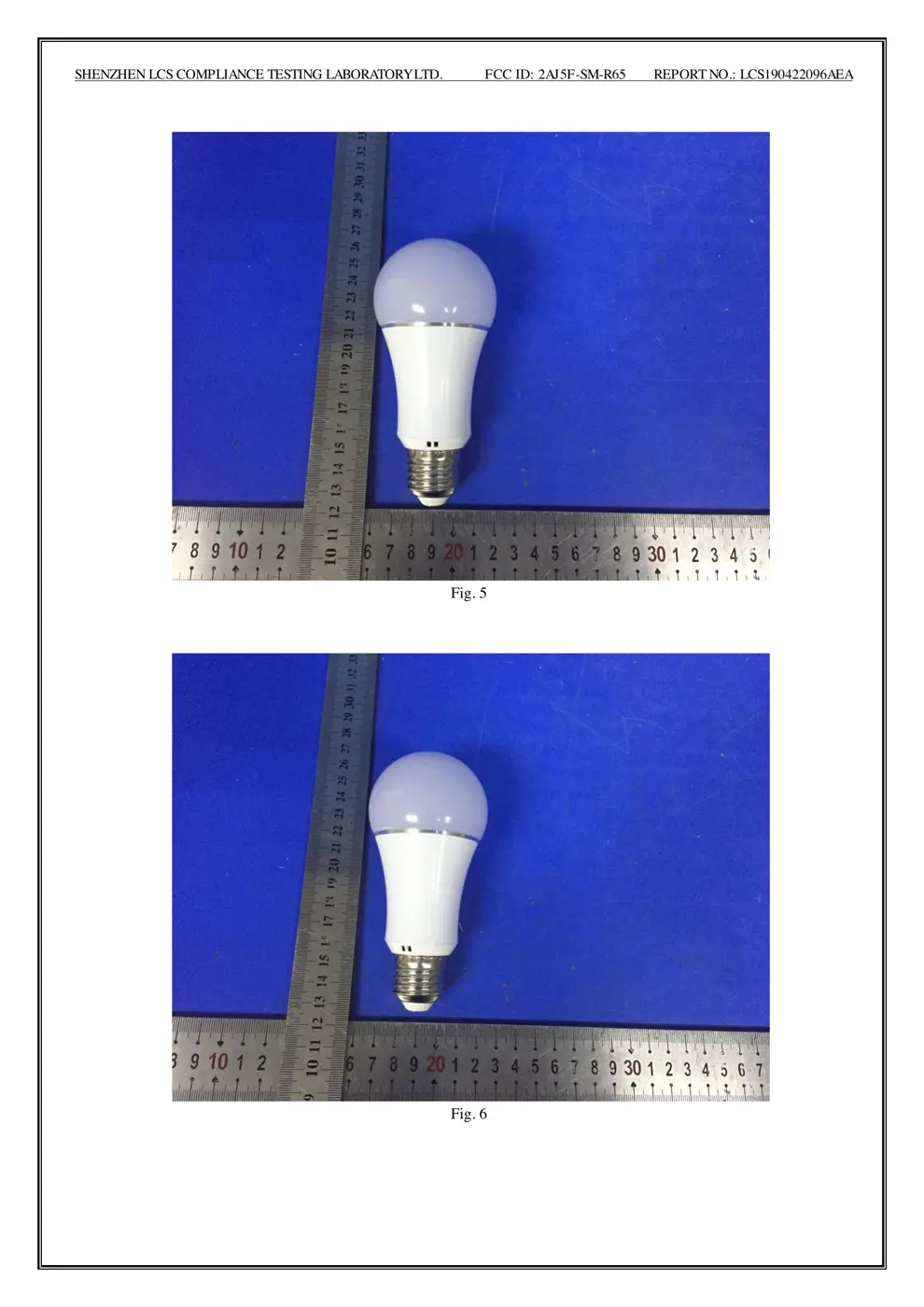
External Photos
Photos of the device exterior:
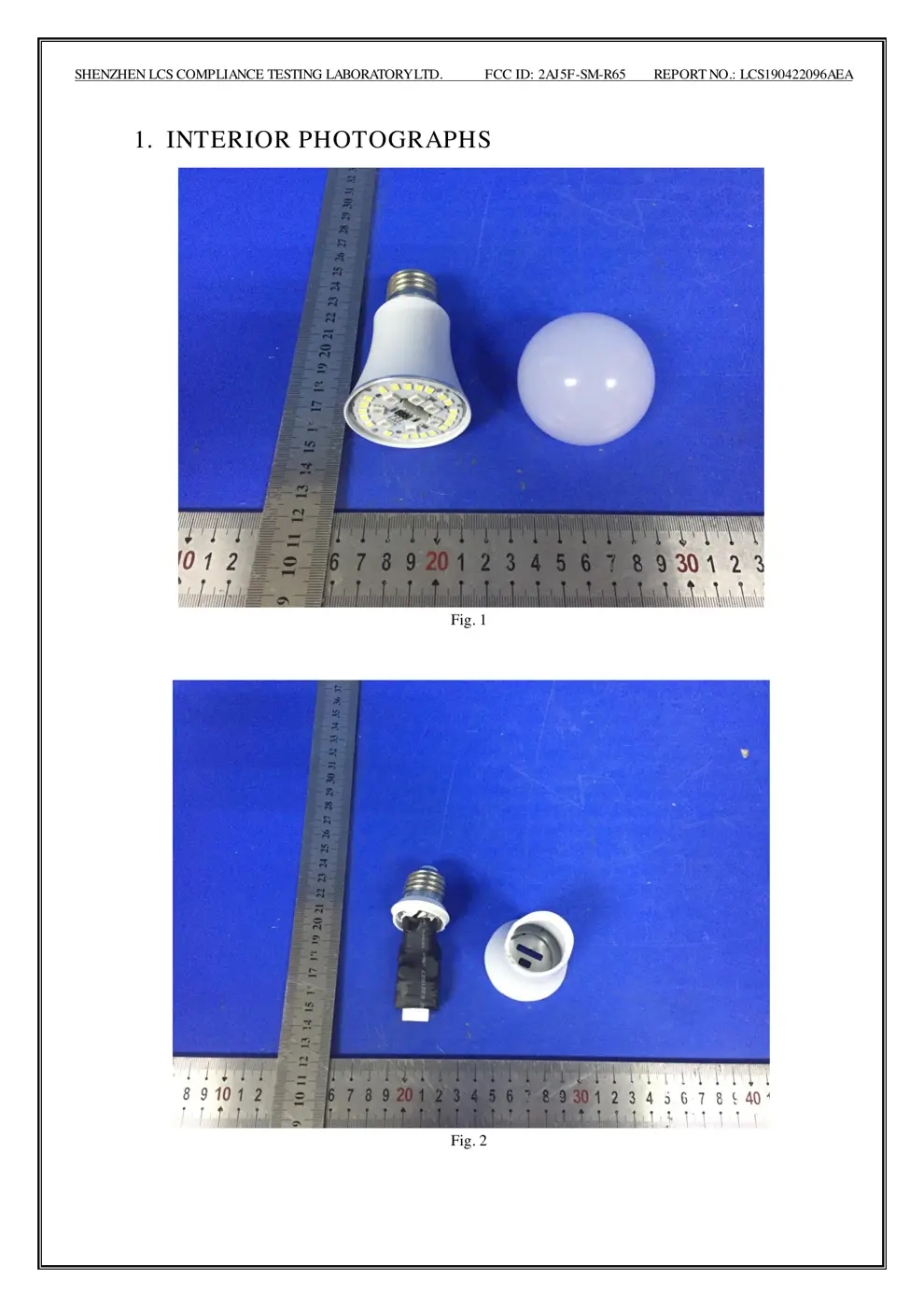
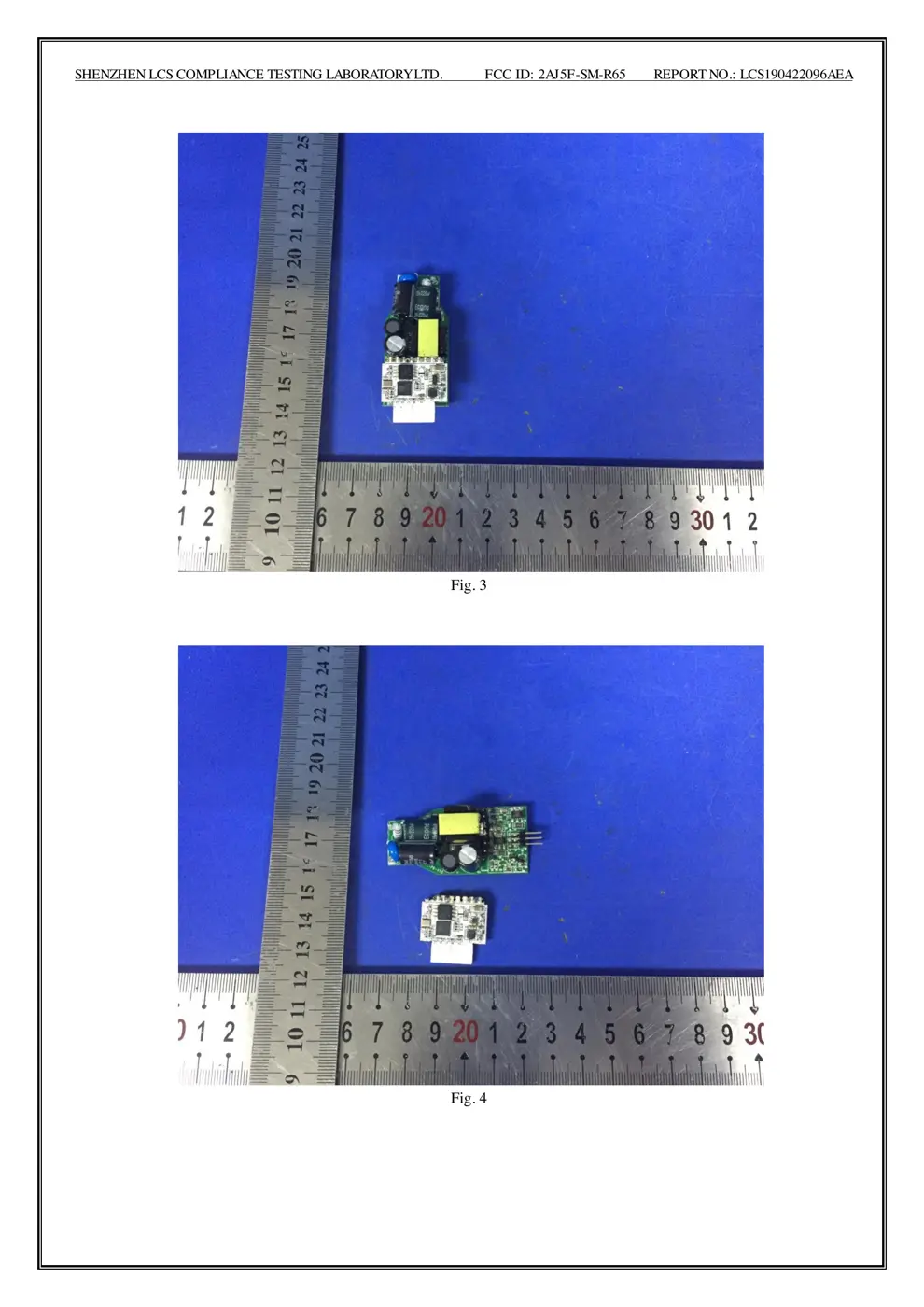
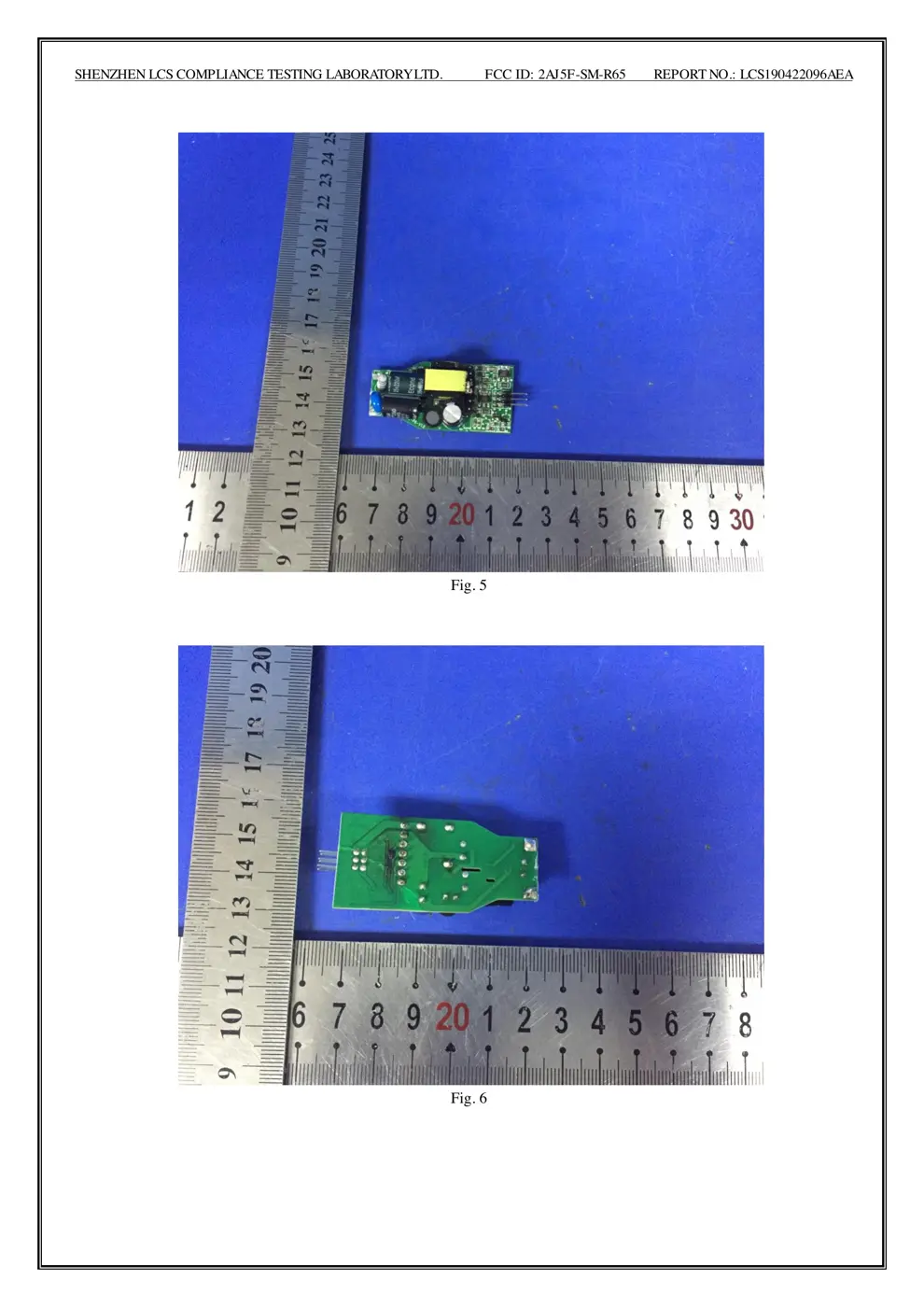
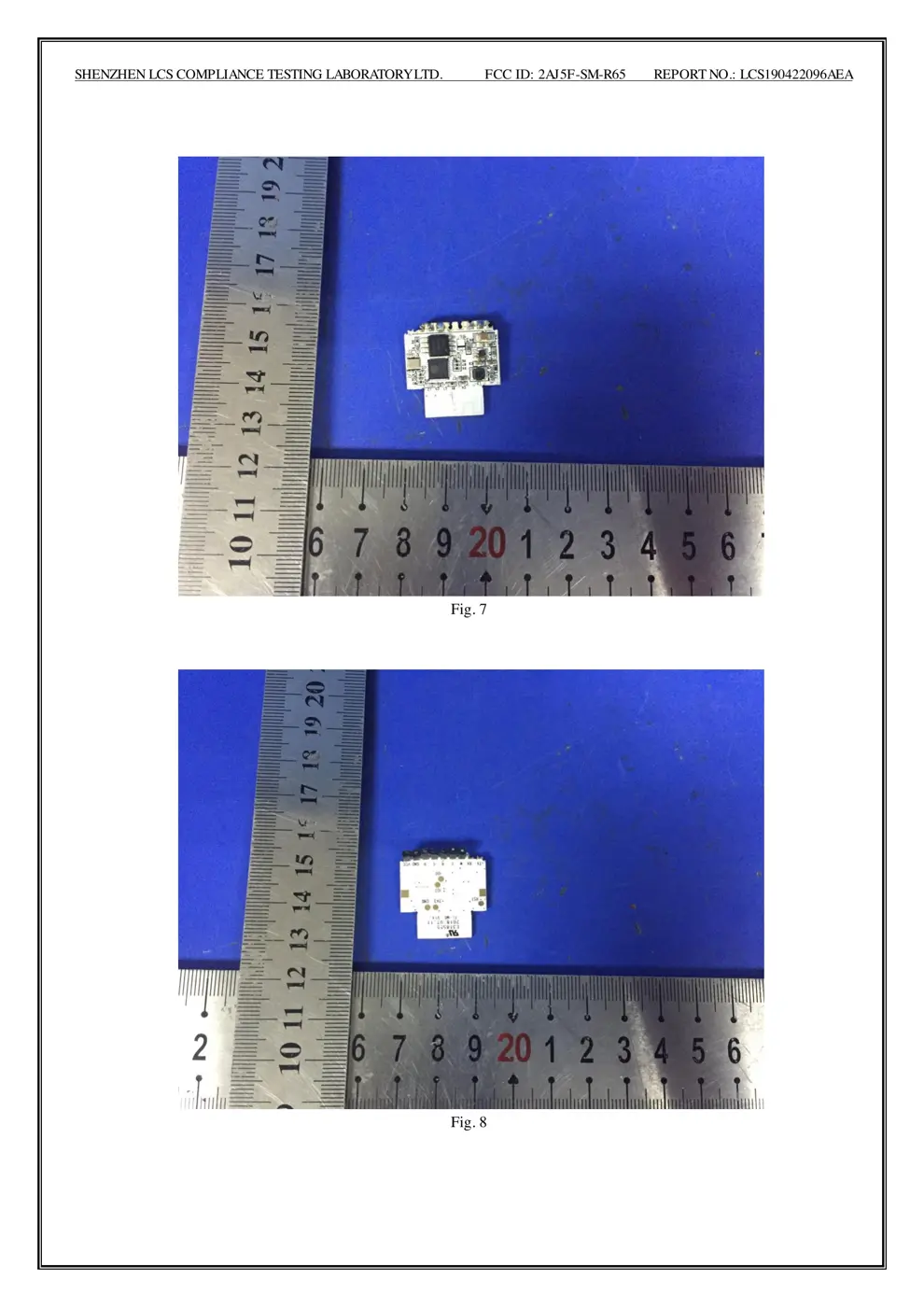
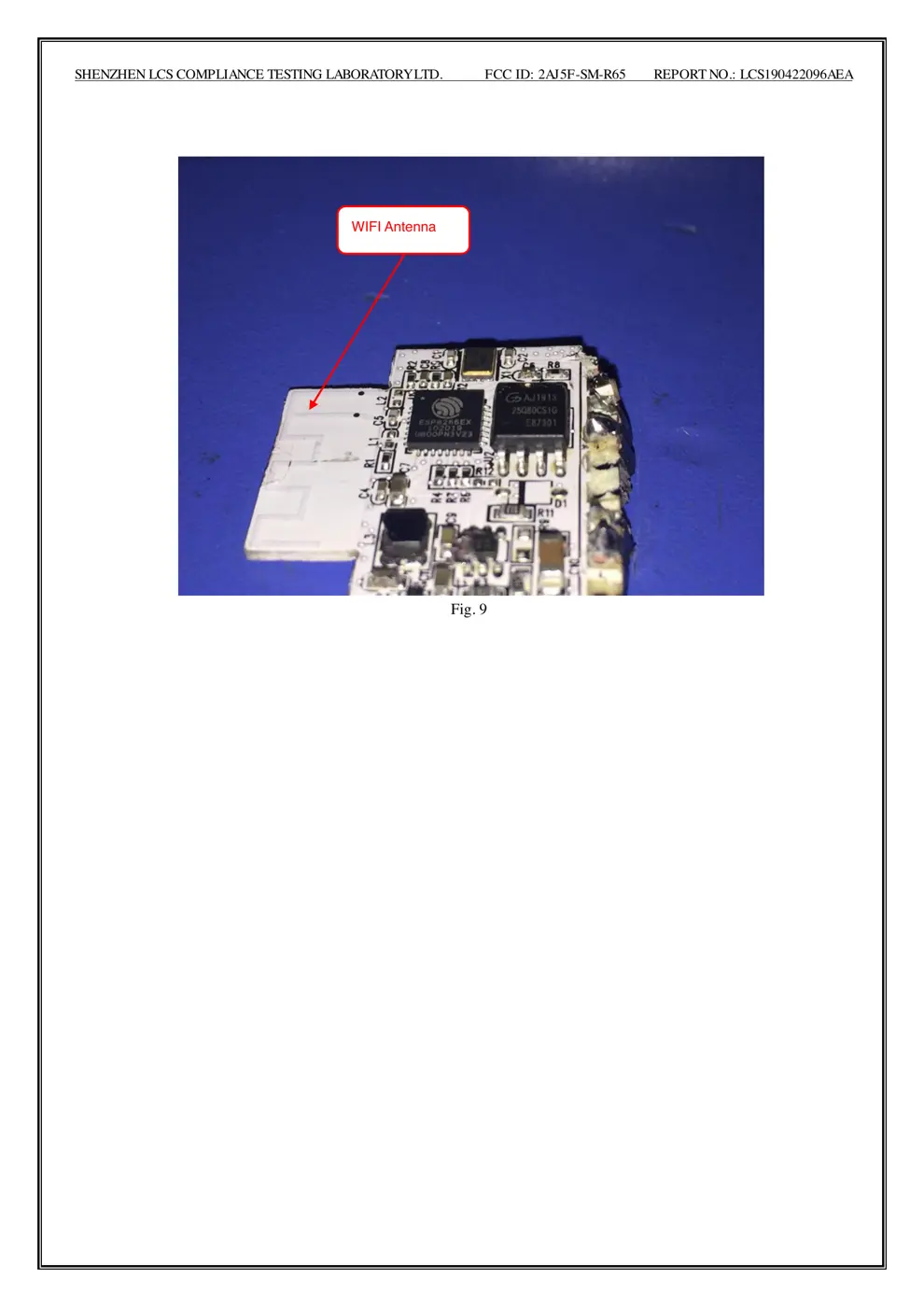
Internal Photos
Teardown photos showing the PCB and components:
Verdict
The R65 is a WiFi device from the Tuya / Smart Life ecosystem.
📄 Click to view full text manual (SEO)
2.Then tap "+".
 3.Find "Jinvoo Smart" in the list.
4.In the new window, select your
 Jinvoo Smart account’s region,
 type your Jinvoo Smart account
 and password, then tap "Link Now".
5. After you assign rooms for
 devices .
6.Your devices will be listed in
 the Home Control page.
 Ok Google, turn on/off bedroom light.
Ok Google, brighten bedroom light.
Ok Google, dim bedroom light.
Ok Google, set bedroom light to red.
20 21 23
 Now you can control your smart
 devices through Google Home.
 Take bedroom light as the example,
 the supported voice commands
 are as below:
Now,you can use Echo to conteol two
different smart plugs.Like Alexa,turn on
the living room/Alexa,turn on the dining
room.Alexa will turn on different devices
separtely.When you say Alexa,turn off
the living room/Alexa,turn off the dining
room.Alexa will turn off the different
devices separately.
Alexa Skils:
Google Assistant:
Also,you can create a group to control
these devices together.
1.Open Alexa app and click the button ,then
2. Input Jinvoo Smart to search all column, 3. Click Jinvoo Smart and Enter.
J
Ver:2018-07-25
How to reset the devices1.Plug/Outlet Series:
 Press the power button keep to 6 seconds to reset
 the device, the blue indicator light flash is 2 times
 per second, then it enter Quick Connection Mode.
 Under quick connection mode, press the power
 button keep to 5 seconds to enter AP mode ( the
 blue indicator light flash is 1 times in 2 seconds).
2.LED Bulb Series:
 After plug into power ,turn on/off the power in 3
 times continuously ,then bulb will be enter fast
 flash mode.
 Turn on/off the power in 5-6 times continuously
 till the bulb enter slow flash mode ,then you can
 add devices by AP mode.

3.Wall Switch Series:
 Press any one button keep to 6 seconds to reset
 the device, the blue indicator light flash is 2 times
 per second, then it enter Quick Connection Mode.
 Under quick connection mode, press the power
 button keep to 5 seconds to enter AP mode ( the
 blue indicator light flash is 1 times in 2 seconds).
Adding a New Device in Quick Connection
* Make sure the Wi-Fi smart device is standby. (the
 blue indicator light flash is 2 times per seconds)
 after plug in the socket.
* The smart Wi-Fi devices only supports 2.4GHz
 Wi-Fi router.
* Open app and click “+” to add device.
* Then click “All devices”,choose any a device of
 them.
*Click “Confirm indicator rapidly blink” (if not ,please
 reset the device).
* Select Wi-Fi network, input Wi-Fi password,
 connect and click.
* Once connected the app will prompt the
 connection, and click ok.
* Make sure the Wi-Fi device is standby (the blue
 indicator light of Wi-Fi device flashes in 1 times in 2
 seconds) after plug in the socket.
* The smart Wi-Fi devices only supports 2.4GHz
 Wi-Fi router.
* Open app and click “+” to add device.
* Then click “All device”, select any a device of them.
* Click “AP Mode” ,and click “Confirm indicator
 slowly blink” (If not ,please r...