
ZBBRIDGE Reset & Teardown (FCC ID 2APN5ZBBRIDGE)
Factory reset and internal photos for Sonoff (Itead) ZBBRIDGE. Sonoff smart plug.
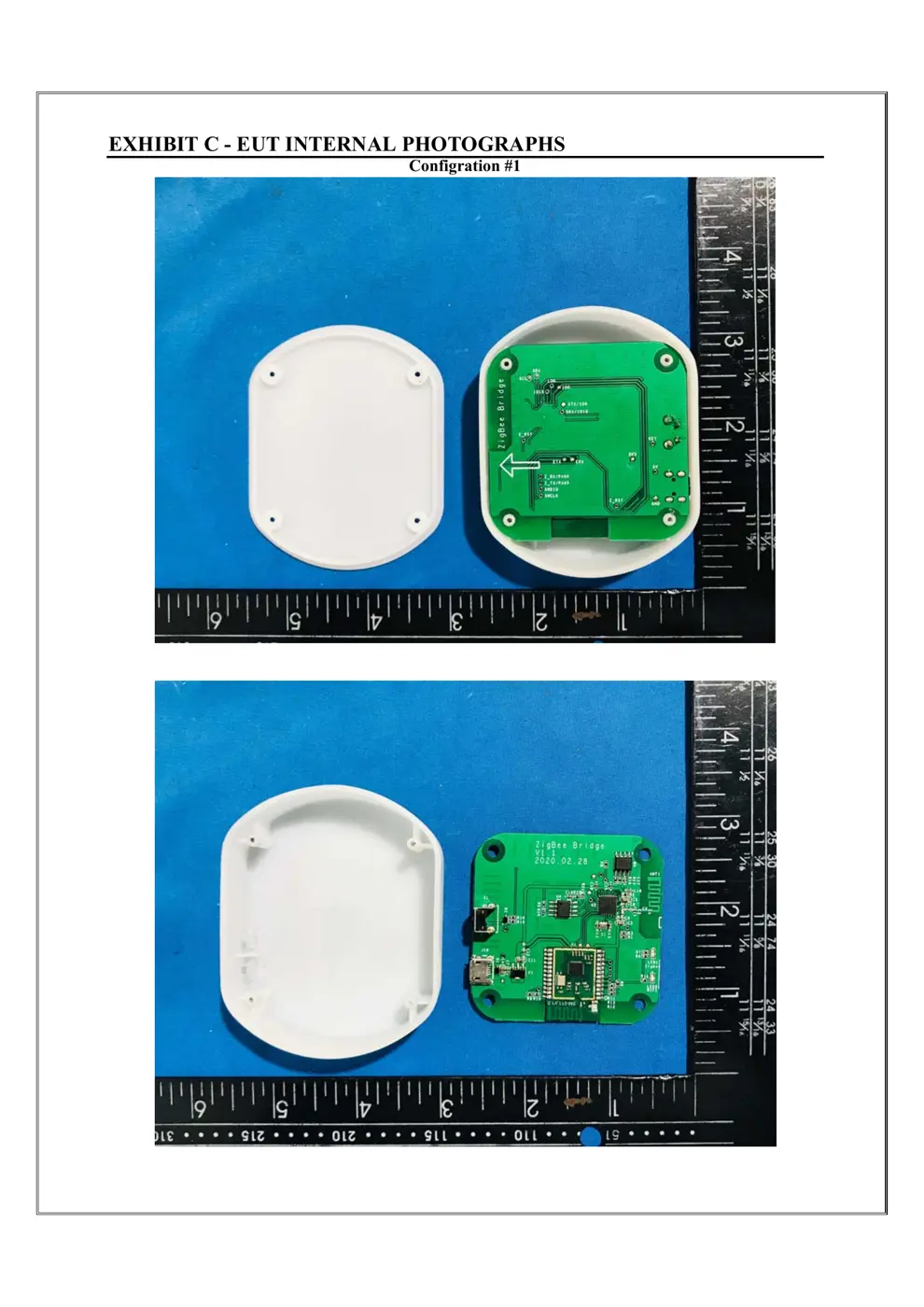
Before you buy the Sonoff (Itead) ZBBRIDGE, check what's inside.
This device is a Sonoff ZBBridge, acting as a bridge between Wi-Fi and Zigbee devices. It allows users to control various Zigbee-compatible devices, such as sensors and switches, through the eWeLink app and integrate them into a smart home ecosystem.
⚠️ NOTE: Ensure the USB power supply meets the 5V/1A specification and is connected to a stable power source. Do not expose to moisture.
Quick Specs
- Manufacturer: Sonoff (Itead)
- Model: ZBBRIDGE
- Protocol: WiFi
- Chipset: ESP/CK Chip
- Ecosystem: Sonoff
- App: eWeLink
🔧 Geek Corner (Flashing Info)
- Chipset: ESP32 (likely)
- Flashable: ❌ No
- Info: The ZBBridge is designed to bridge Zigbee to Wi-Fi and does not have readily available firmware for flashing alternative custom firmware like Tasmota directly. While some advanced users have found workarounds, it's not officially supported or straightforward.
Reset Guide
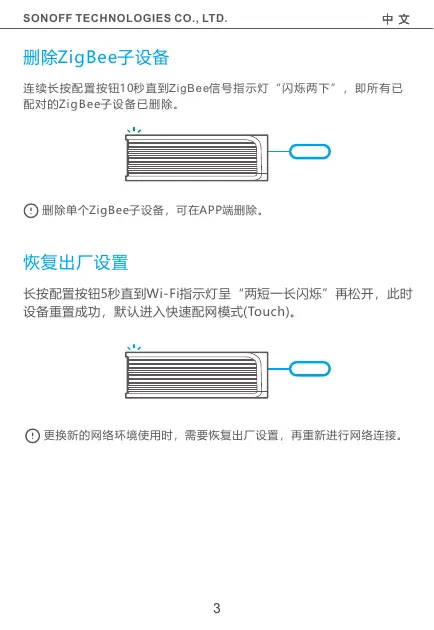
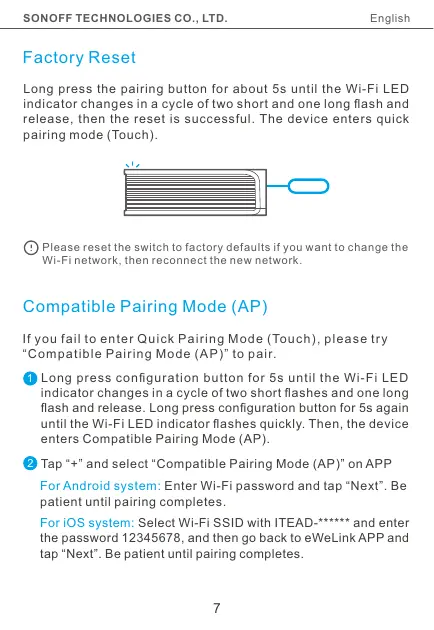
Factory reset please reset the switch to factory defaults if you want to change the wi-fi network, then reconnect the new network.
User Manual
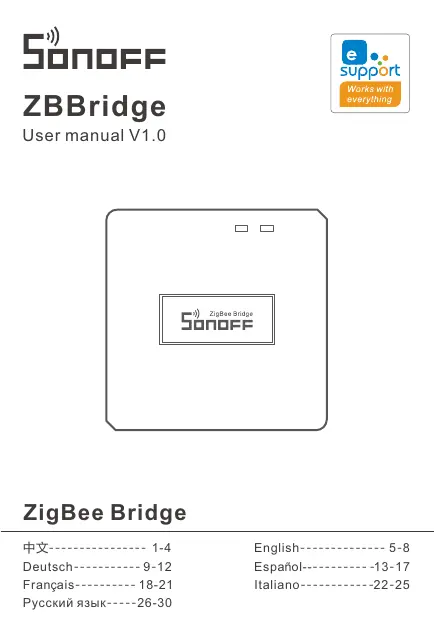
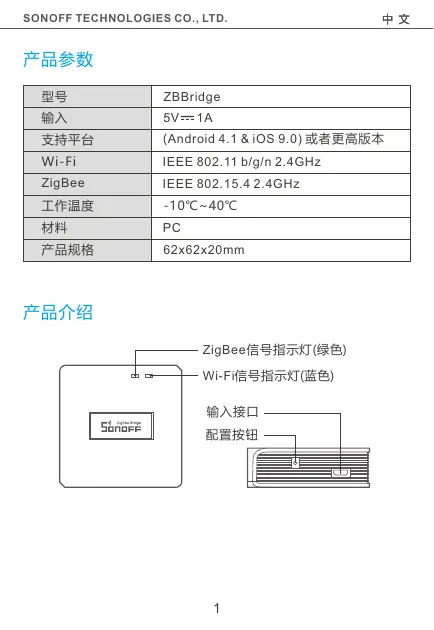
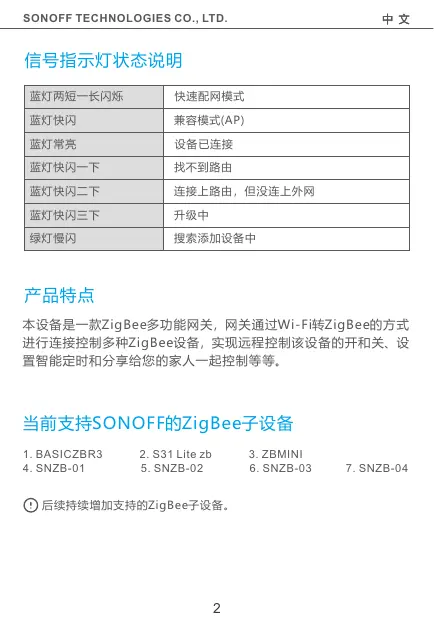
Scanned pages from the official user manual:
External Photos
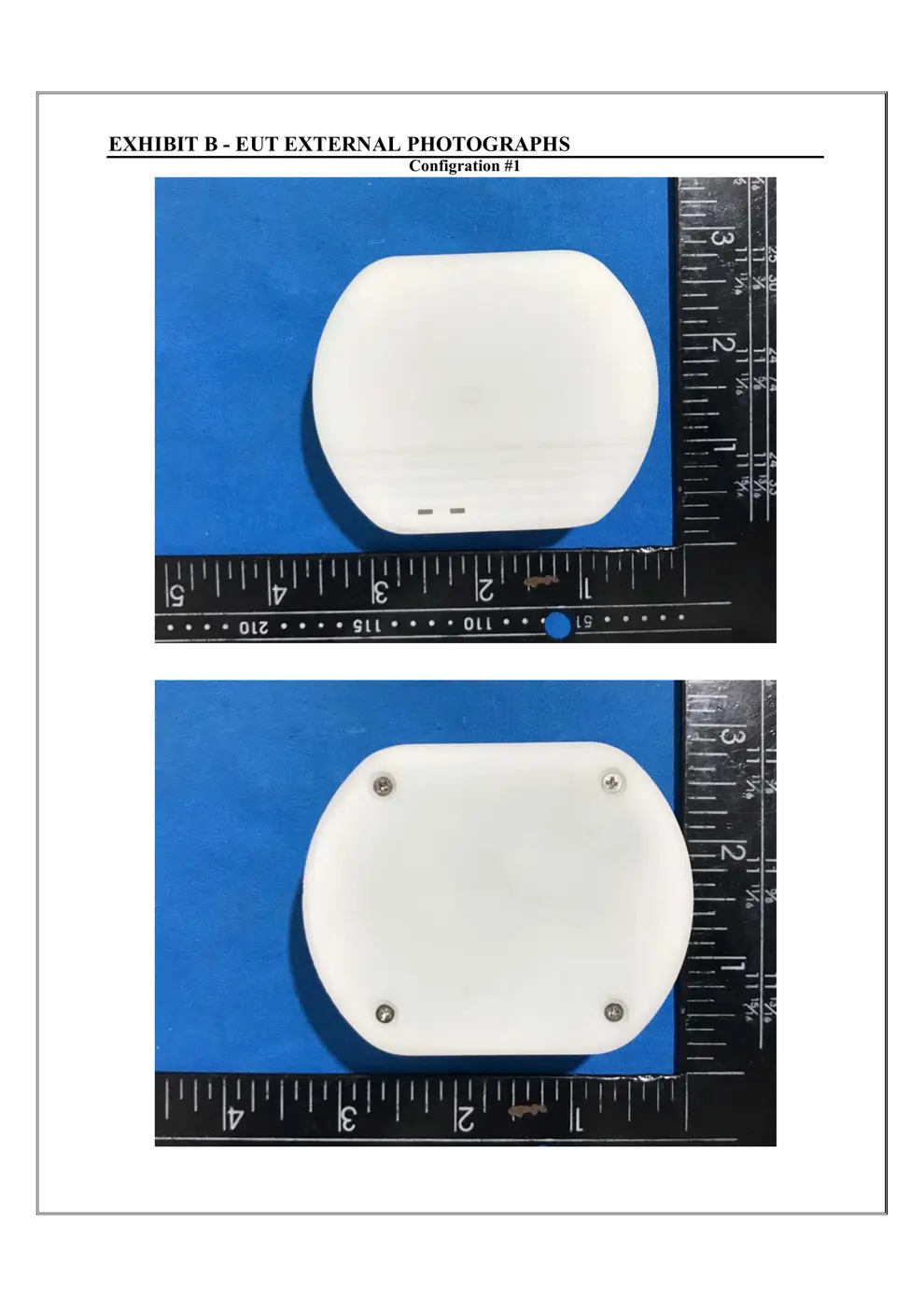
Photos of the device exterior:
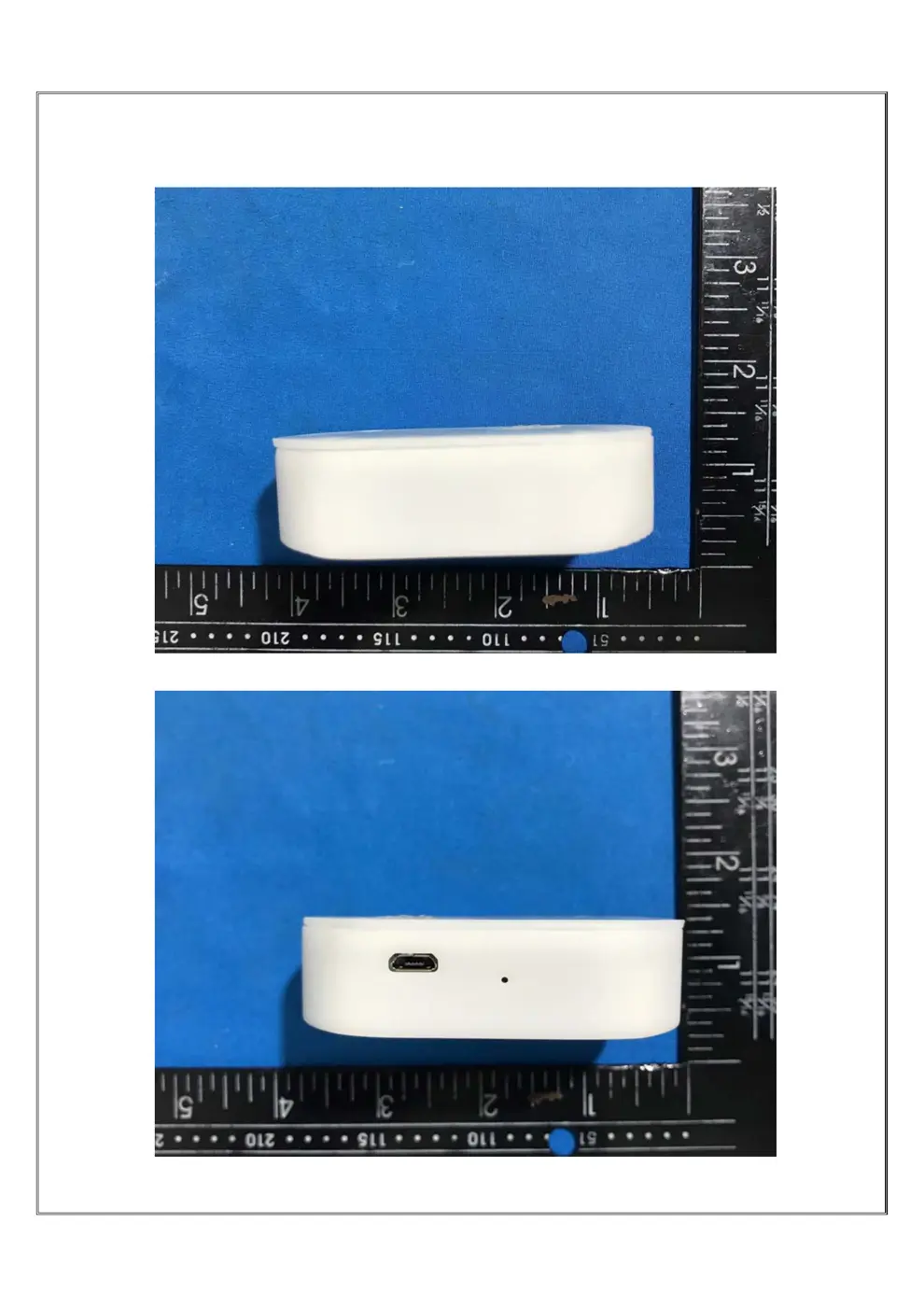
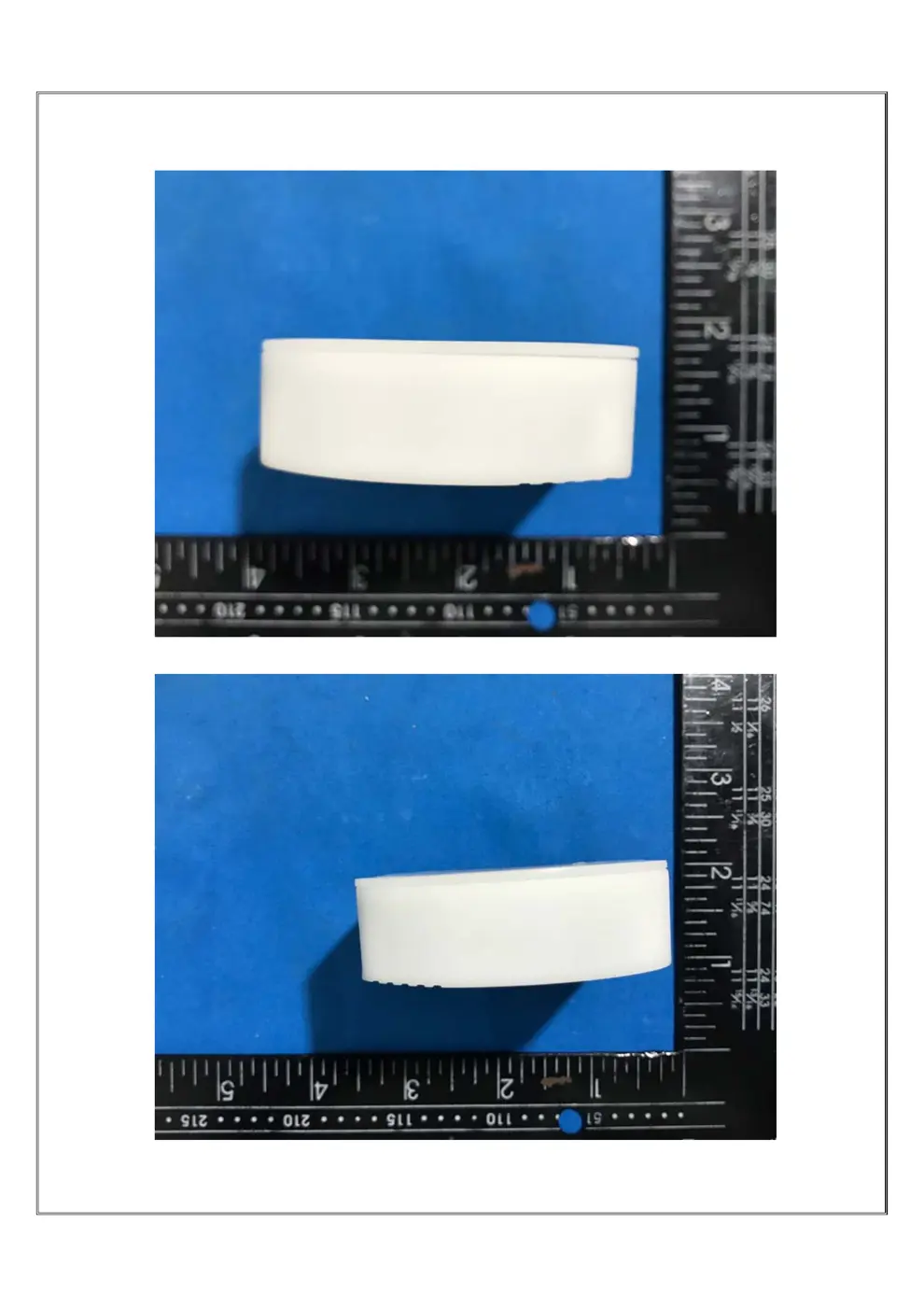
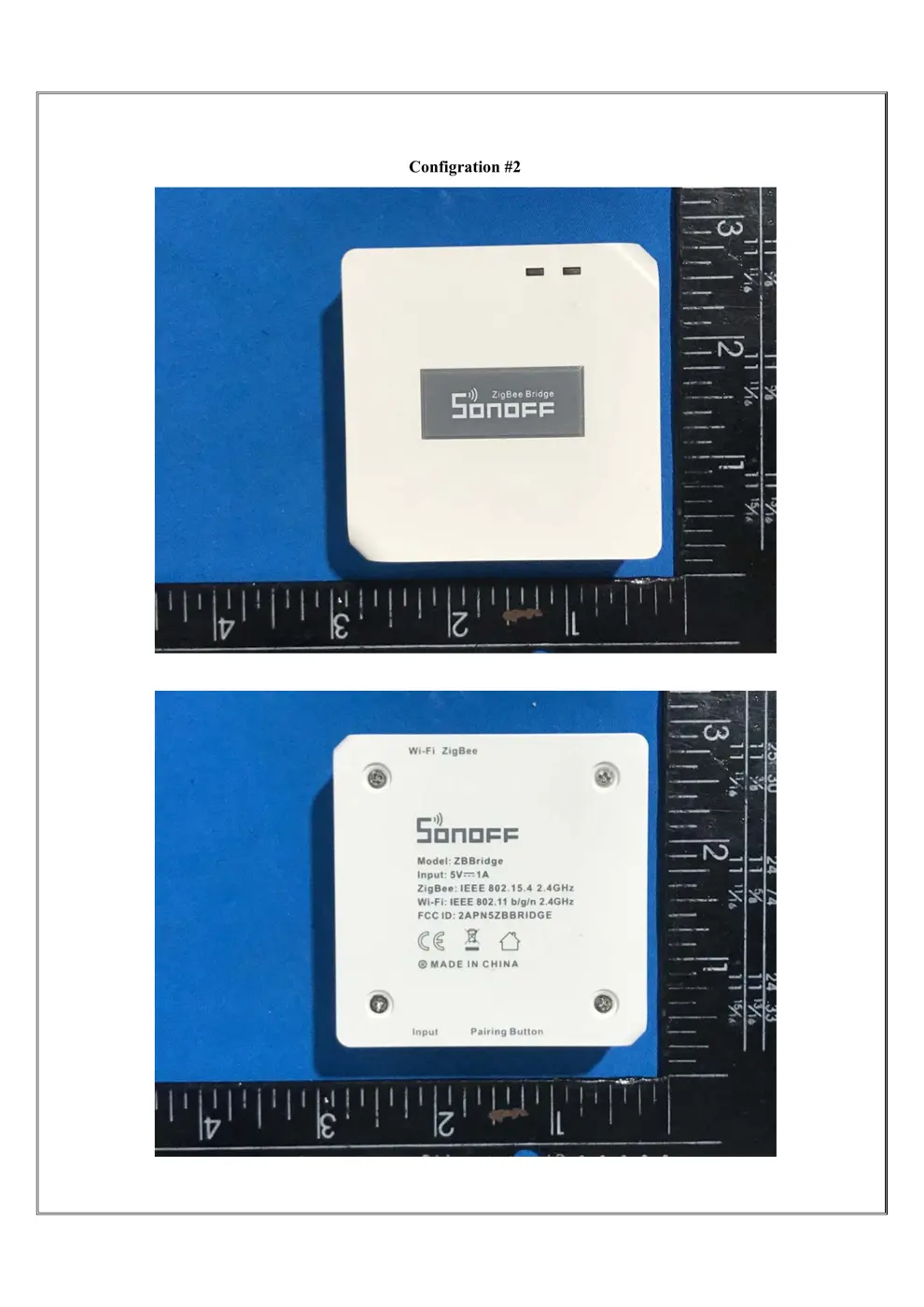
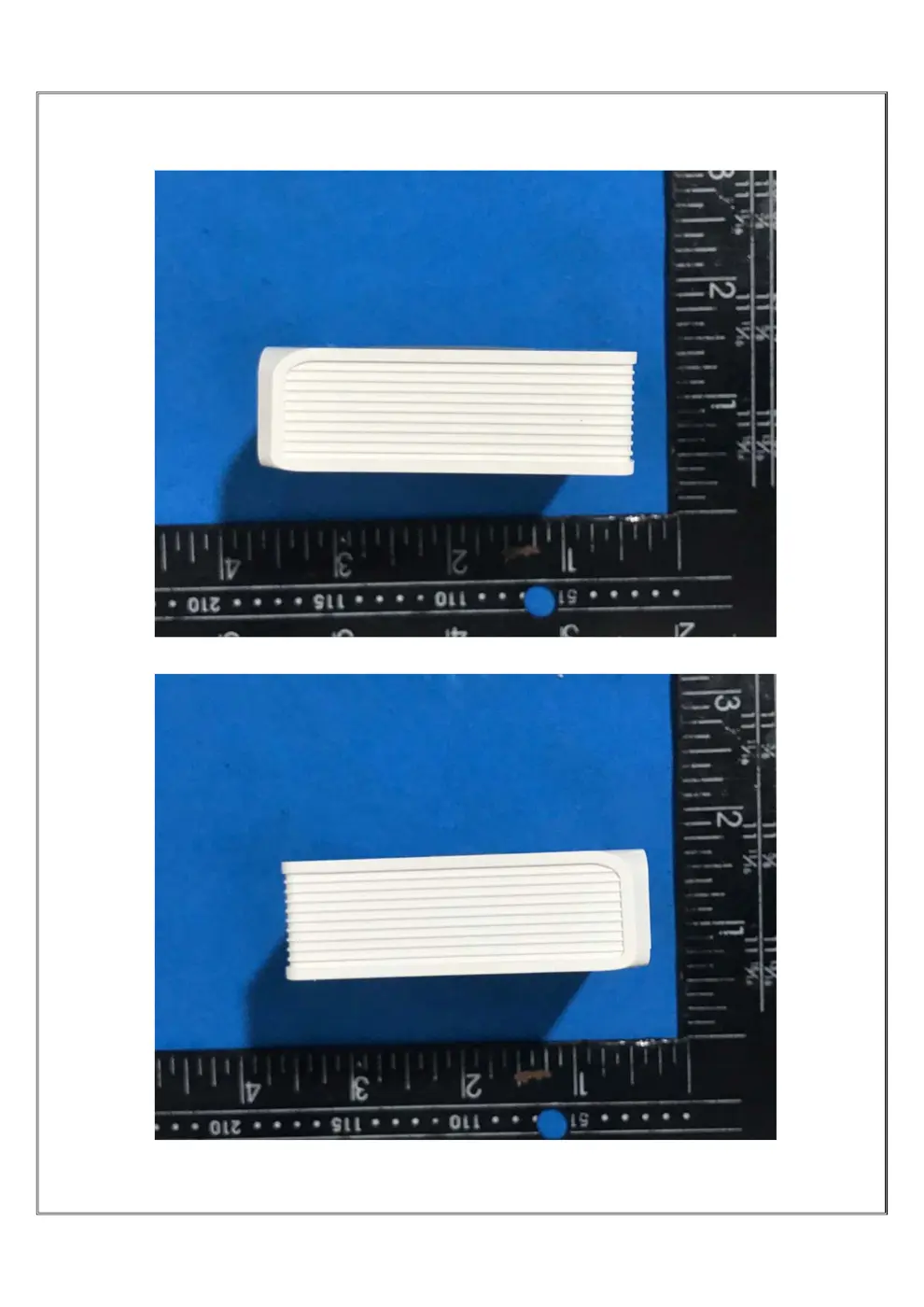
Internal Photos
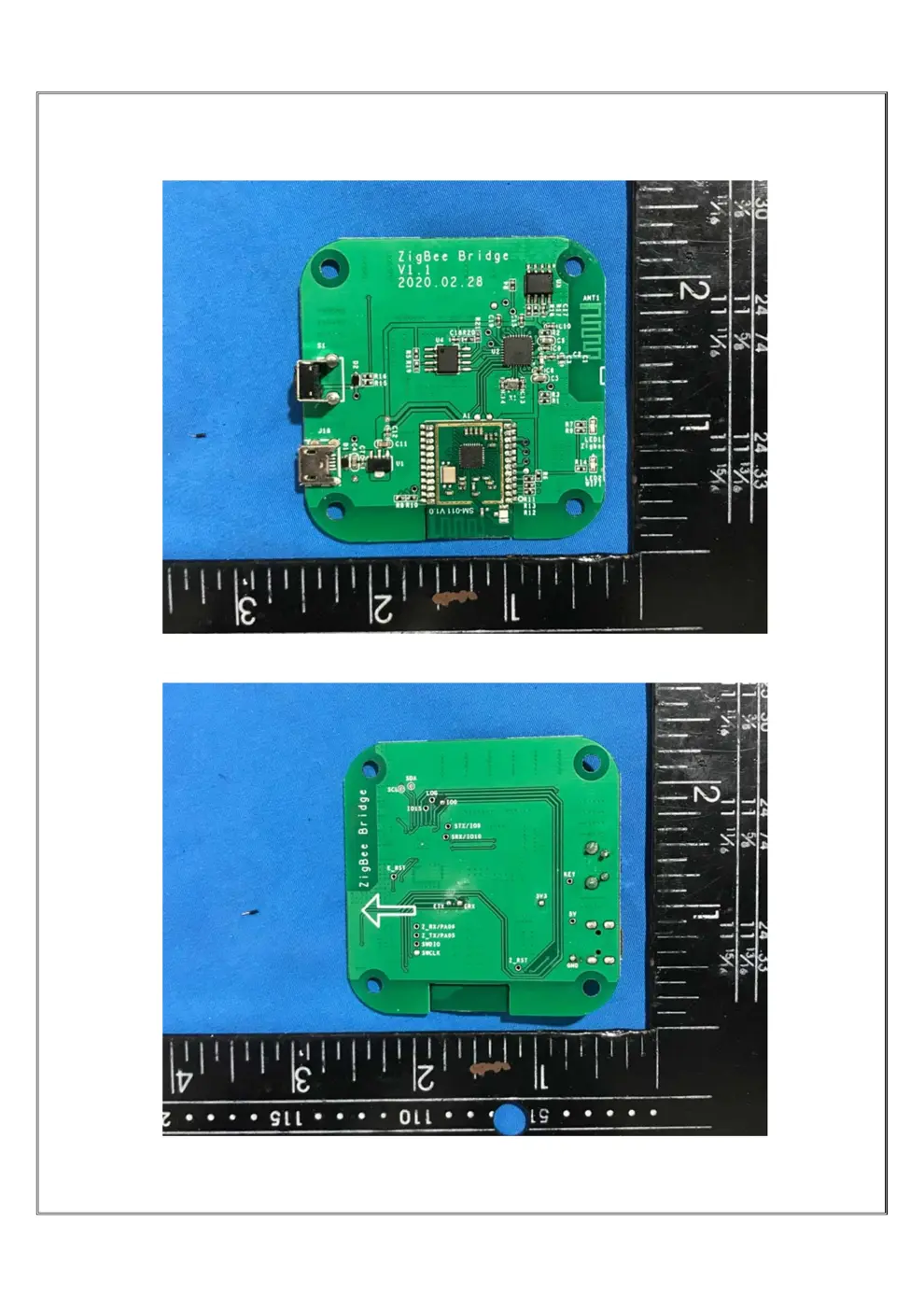
Teardown photos showing the PCB and components:
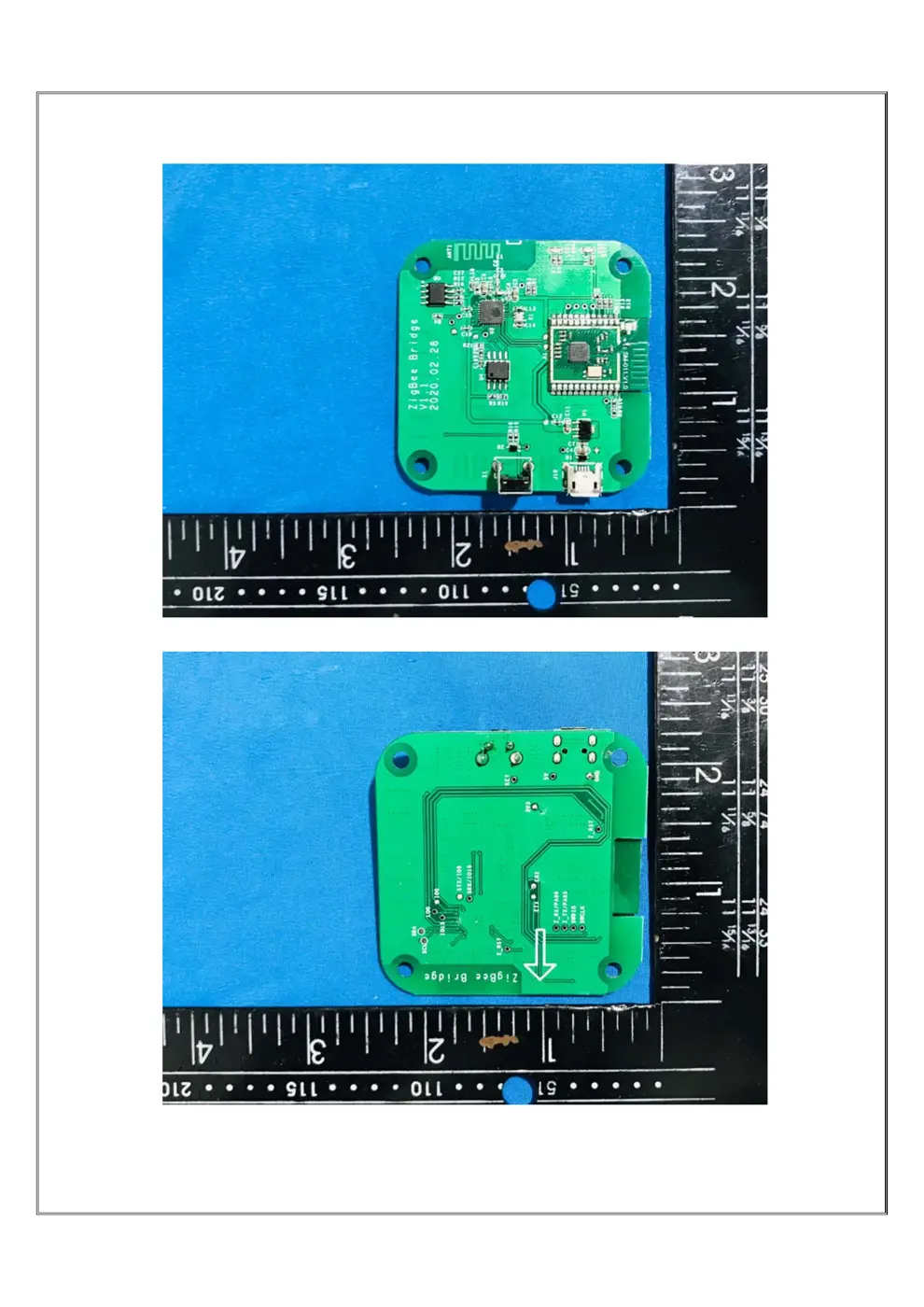
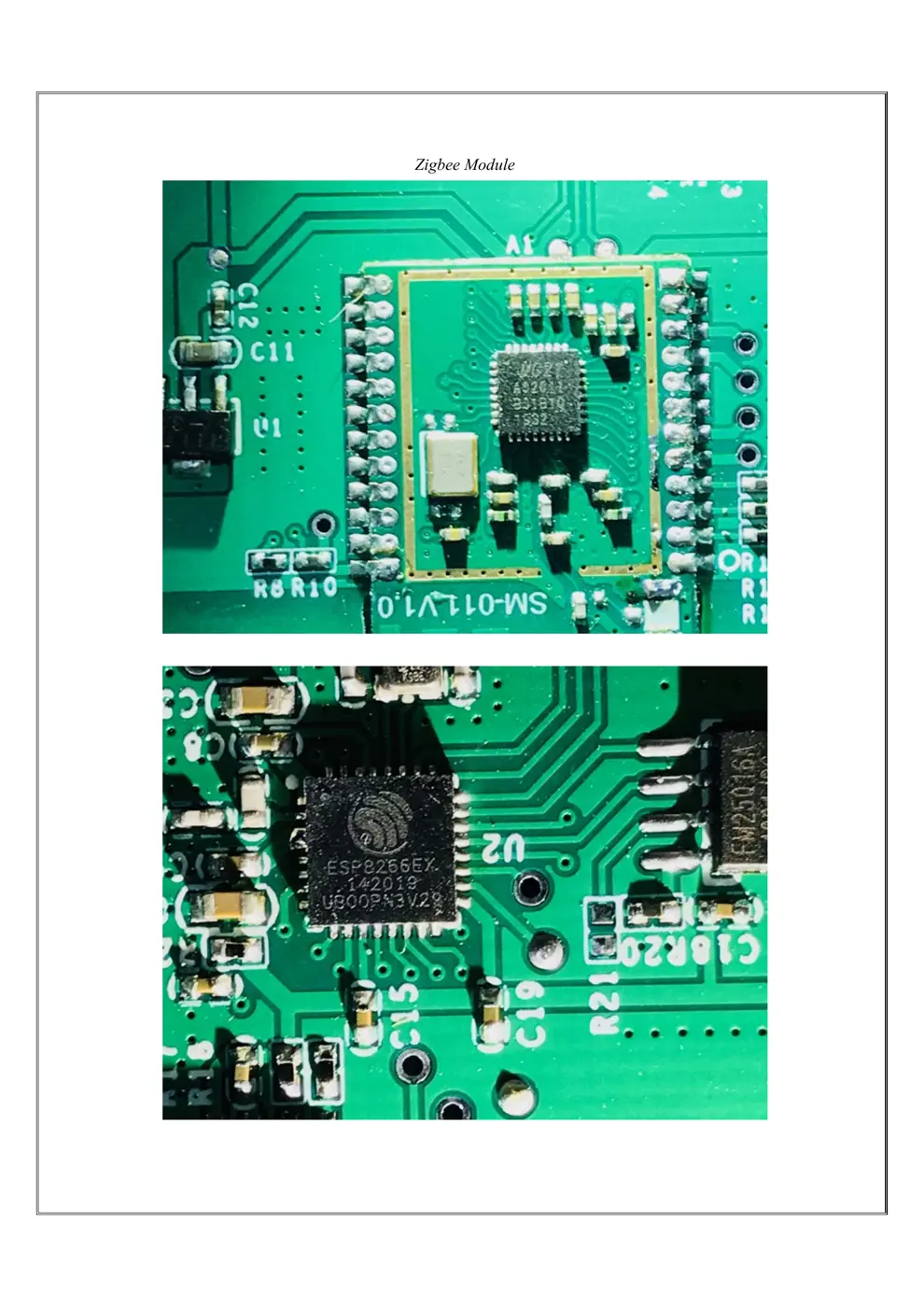
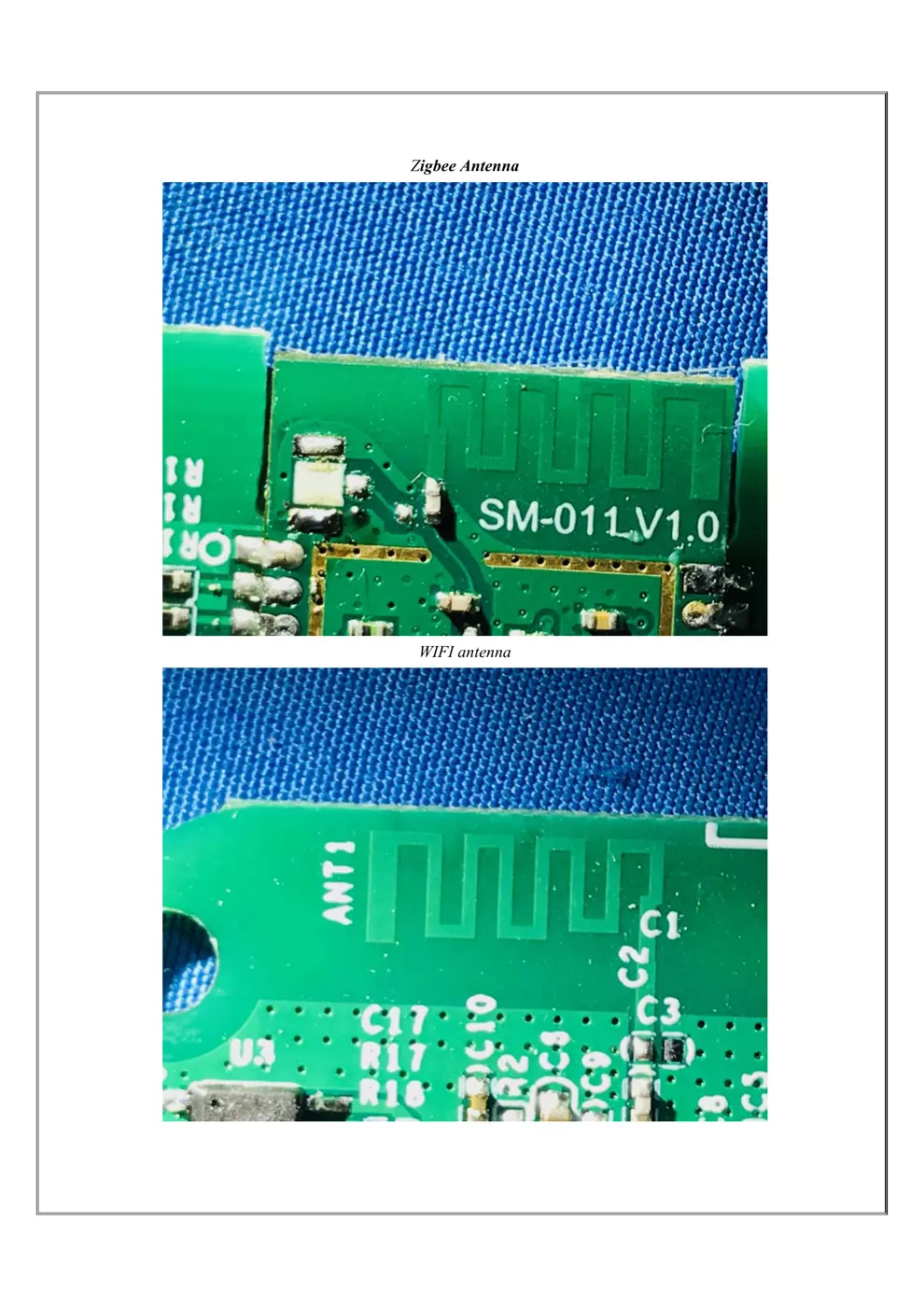
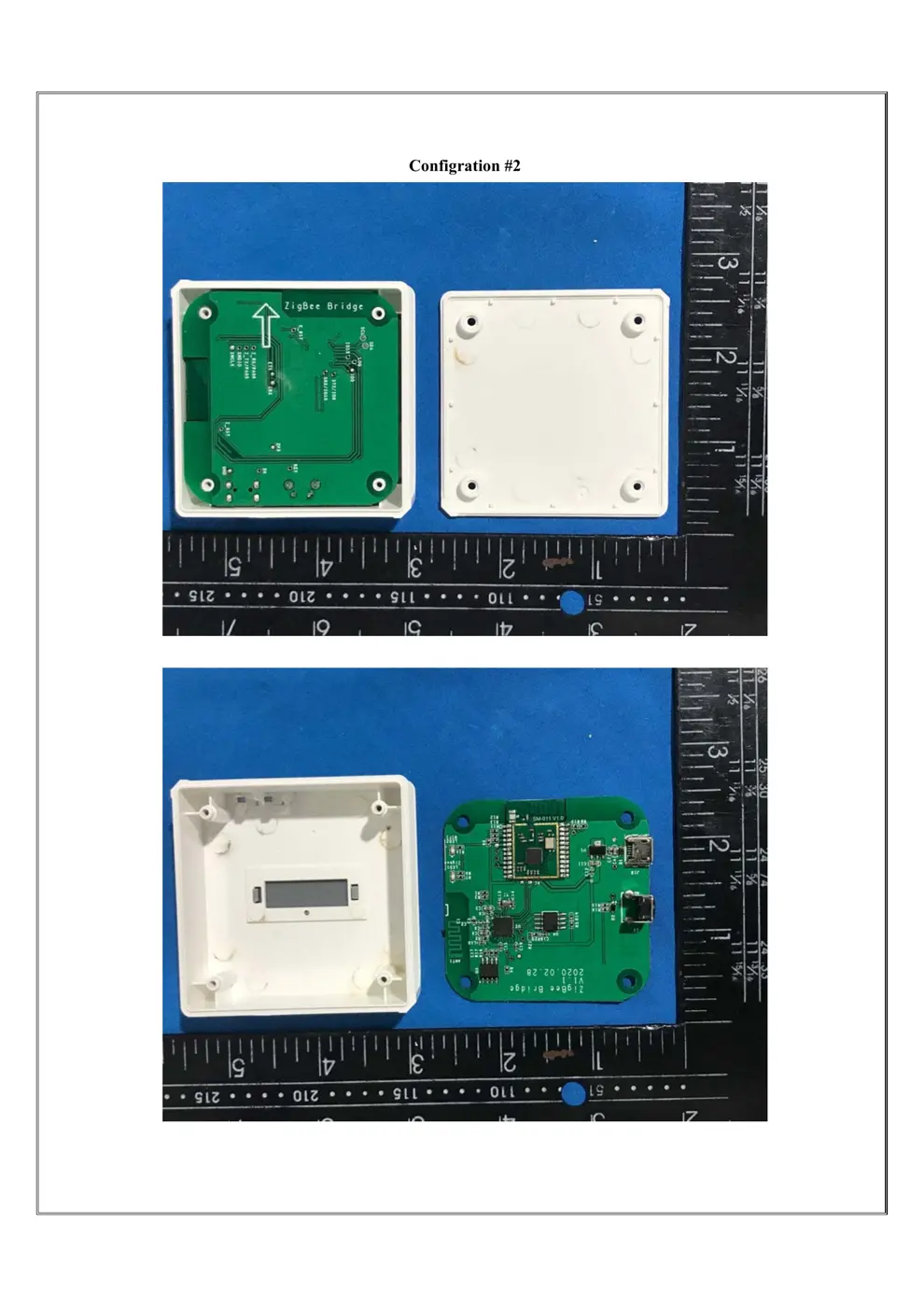
Verdict
The ZBBRIDGE is a WiFi device from the Sonoff ecosystem.
📄 Click to view full text manual (SEO)
ZBBridge
ZigBee Bridge
中文---------------- 1-4 English-------------- 5-8
Deutsch----------- 9-12 Español----------- -13-17
Français---------- 18-21 Italiano------------22-25
User manual V1.0
中 文中 文中 文SONOFF TECHNOLOGIES CO., LTD.
PC
62x62x20mm
(Android 4.1 & iOS 9.0) 或者更高版本
ZBBridge
Wi-Fi
IEEE 802.11 b/g/n 2.4GHz
5V 1A
IEEE 802.15.4 2.4GHzZigBee
1
中 文中 文中 文SONOFF TECHNOLOGIES CO., LTD.
2
1. BASICZBR3 2. S31 Lite zb 3. ZBMINI
4. SNZB-01 5. SNZB-02 6. SNZB-03 7. SNZB-04
当前支持SONOFF的ZigBee子设备
中 文中 文中 文SONOFF TECHNOLOGIES CO., LTD.
3
 判断:
中 文中 文中 文SONOFF TECHNOLOGIES CO., LTD.
4
SONOFF TECHNOLOGIES CO., LTD.
PC
62x62x20mm
ZBBridge
Wi-Fi IEEE 802.11 b/g/n 2.4GHz
5V 1A
IEEE 802.15.4 2.4GHzZigBee
 -10℃~40℃
English
(Android 4.1 & iOS 9.0) or higher
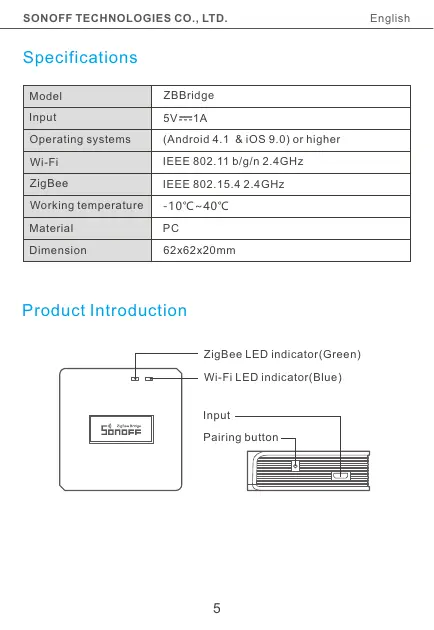
Specifications
Model
Input
Operating systems
Material
Dimension
Working temperature
Product Introduction
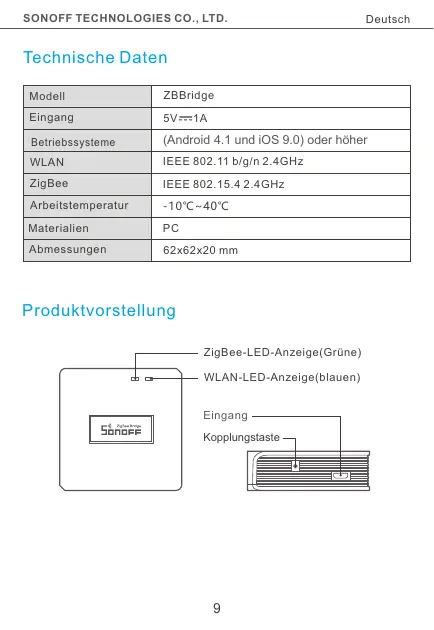
Wi-Fi LED indicator(Blue)
ZigBee LED indicator(Green)
Pairing button
Input
5
SONOFF TECHNOLOGIES CO., LTD. English
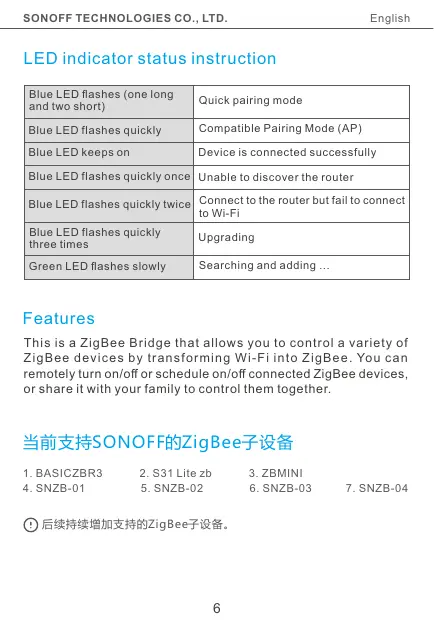
LED indicator status instruction
Blue LED keeps on Device is connected successfully
Blue LED flashes quickly once
Blue LED flashes quickly twice
Unable to discover the router
Blue LED flashes quickly
three times Upgrading
Quick pairing modeBlue LED flashes (one long
and two short)
Connect to the router but fail to connect
to Wi-Fi
Green LED flashes slowly Searching and adding ...
Blue LED flashes quickly Compatible Pairing Mode (AP)
Features
This is a ZigBee Bridge that allows you to control a variety of
ZigBee devices by transforming Wi-Fi into ZigBee. You can
remotely turn on/off or schedule on/off connected ZigBee devices,
or share it with your family to control them together.
6
1. BASICZBR3 2. S31 Lite zb 3. ZBMINI
4. SNZB-01 5. SNZB-02 6. SNZB-03 7. SNZB-04
当前支持SONOFF的ZigBee子设备
1
SONOFF TECHNOLOGIES CO., LTD. English
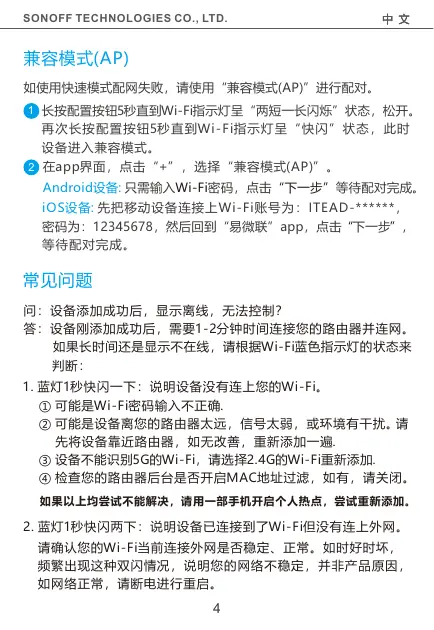
Compatible Pairing Mode (AP)
If you fail to enter Quick Pairing Mode (Touch), please try
“Compatible Pairing Mode (AP)” to pair.
Long press configuration button for 5s until the Wi-Fi LED
indicator changes in a cycle of two short flashes and one long
flash and release. Long press configuration button for 5s again
until the Wi-Fi LED indicator flashes quickly. Then, the device
enters Compatible Pairing Mode (AP).
2 Tap “+” and select “Compatible Pairing Mode (AP)” on APP
For Android system: Enter Wi-Fi password and tap “Next”. Be
patient until pairing completes.
For iOS system: Select Wi-Fi SSID with ITEAD-****** and enter
the password 12345678, and then go back to eWeLink APP and
tap “Next”. Be patient until pairing completes.
Long press the pairing button for about 5s until the Wi-Fi LED
indicator changes in a cycle of two short and one long flash and
release, then the reset is successful. The device enters quick
pairing mode (Touch).
Factory Reset
Please reset the switch to factory defaults if you want to change the
Wi-Fi network, then reconnect the new network.
7
SONOFF TECHNOLOGIES CO., LTD. English
Common Problems
8
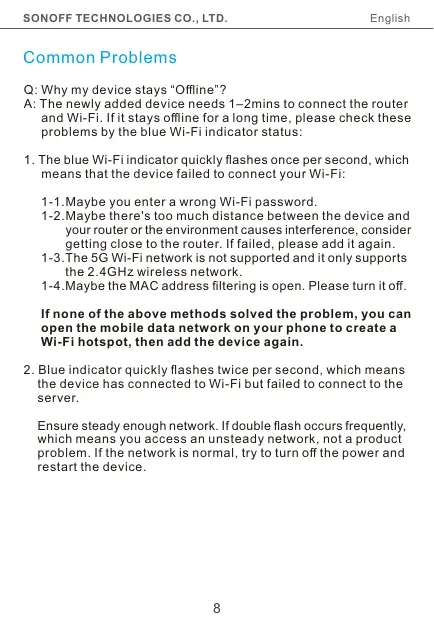
Q: Why my device stays “Offline”?
A: The newly...